


The term EFTPS stands for Electronic Federal Tax Payment System, run by the US Department of Treasury to allow businesses, individuals, federal agencies, tax professionals, payroll services, etc., to pay their federal taxes on the web or phone. QuickBooks gives its users the convenient facility to pay their federal dues like 940, 941, or 944, etc., within the software through their EFTPS password and 4-digit PIN. However, after an official notification from IRS, it is made mandatory to update your old password to pay the taxes. To avoid any contradictions while paying your taxes with QuickBooks, it is advisable to change EFTPS password in QuickBooks as well. To know the process involved in updating the password, follow the blog till the end.
“On a different note, if you require any external assistance on the process to change EFTPS password in QuickBooks, contact ProAdvisor Solutions Payroll Support at 1.855.888.3080 anytime”
You may also see: How to Fix QuickBooks error 103
Table of Contents
Why Should you Update QuickBooks EFTPS Password?
As per the IRS instructions that became effective on 24 October 2019, the EFTPS internet password has a 13-month expiration policy, thus requiring the users to change the credentials once after every 13 months. Along with that, the password strength for the users of QuickBooks Desktop Payroll Enhanced is also changed from 8-12 characters to 12-30 characters. However, if the user has updated the password as recently as within 13 months, there is no immediate need to change it. For users who have not changed the password, follow the steps mentioned further in the blog.
Steps to Perform before you update EFTPS Internet Password in QuickBooks
In order to reset EFTPS Internet Password in QuickBooks, you need to fulfill the two requirements given below.
Manually Update the QuickBooks Desktop to its Latest Release
To avoid any issues while trying to reset EFTPS password for QuickBooks, download any pending updates of the QuickBooks Desktop.
- At first, check if there are any updates ready to download.
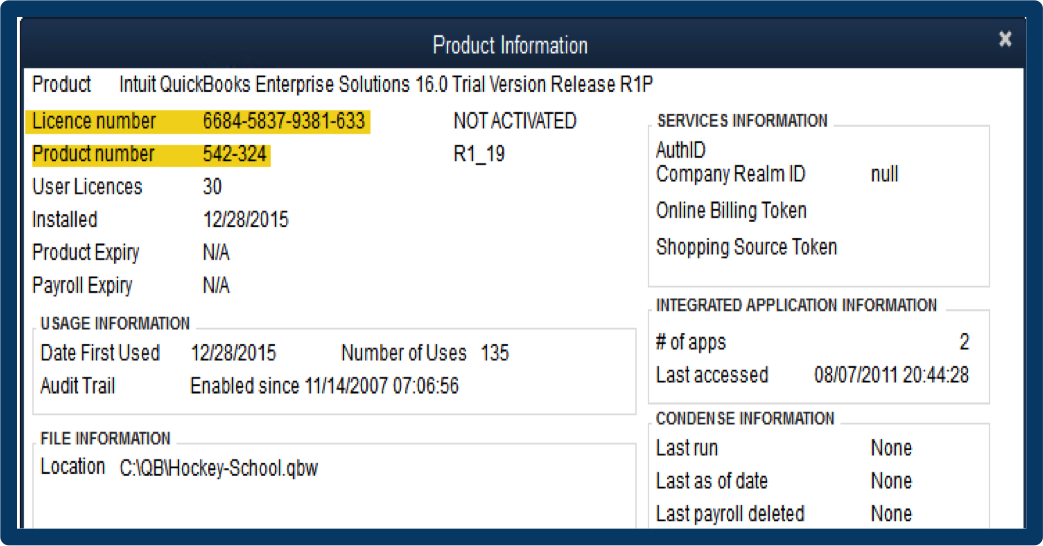
- Open the QuickBooks Product Information window by pressing F2 or Ctrl+1.

- Check the current version and release and compare it with the info available on Intuit’s website.
- If your QuickBooks is up to date, then jump to the next requirement.
- If you need to update the QuickBooks manually, close the company files and QuickBooks.
- Ensure that no QB component is running behind in the system by checking the Task Manager.
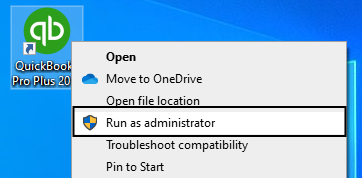
- Press the Windows key to open the Start menu and type QuickBooks.
- Right-click on the QB icon and click on Run as administrator.

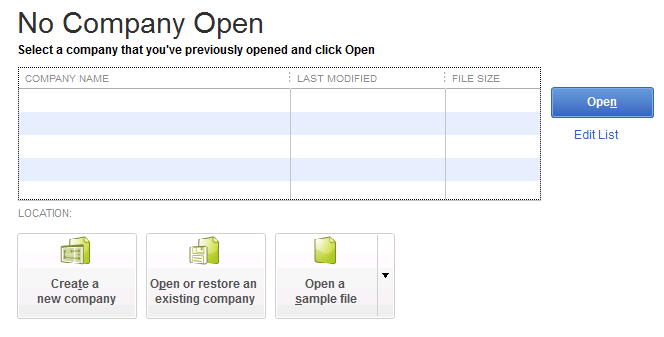
- When the No Company Open screen appears on the desktop, select the Help menu and click on Update QuickBooks Desktop.

- Under the Options tab, click on Mark All and select Save.
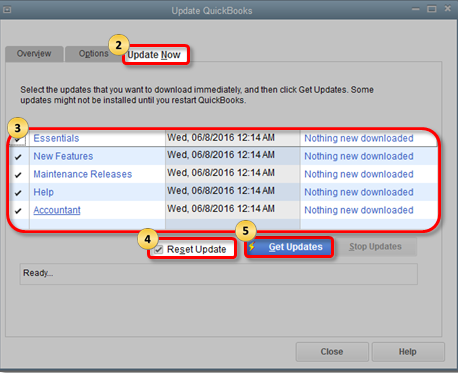
- Now, head over to the Update Now tab and click on the Reset Update checkbox.

- Click on Get Updates and once the updates are downloaded, exit and restart the QuickBooks Desktop.
- Install the updates by clicking on Yes and restart the system after the installation is done.
Update to the Latest Tax Table for QuickBooks Desktop
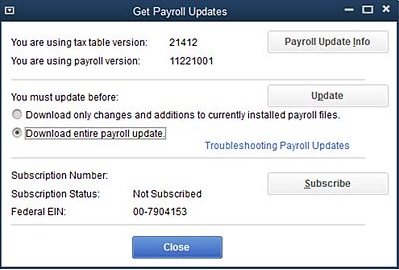
While trying to e-pay the federal taxes within the QuickBooks Desktop, the software calculates the taxes by referencing the latest tax table. So, it is important to update the tax table before accessing the EFTPS to pay your taxes.
- Open QuickBooks and click on Employees.
- Choose Get Payroll Updates and click on the Download Entire Update checkbox.

- Click on Download Latest Update and wait for the download to complete.
What are the steps to change EFTPS Internet Password?
Before changing the password on QuickBooks, you need to change it on the EFTPS website by following the steps mentioned below.
- On the
homepage of the website, select the Login option. - Enter
the following credentials to log in-- Taxpayer
Identification Number (TIN) - Personal
Identification Number (PIN) - Your
current EFTPS Internet Password
- Taxpayer
- Make
sure to follow all the latest requirements while updating the password.
What are the Steps to Change EFTPS Password in QuickBooks?
After changing your Electronic Federal Tax Payment System account’s credentials, you have to change your Login Password for EFTPS in QuickBooks as well before making an e-payment. Follow the steps below to do that in no time.
Steps to Change EFTPS Pin in QuickBooks Desktop
- Open QuickBooks and go to Payroll Center.
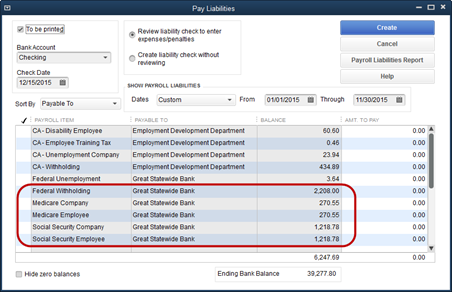
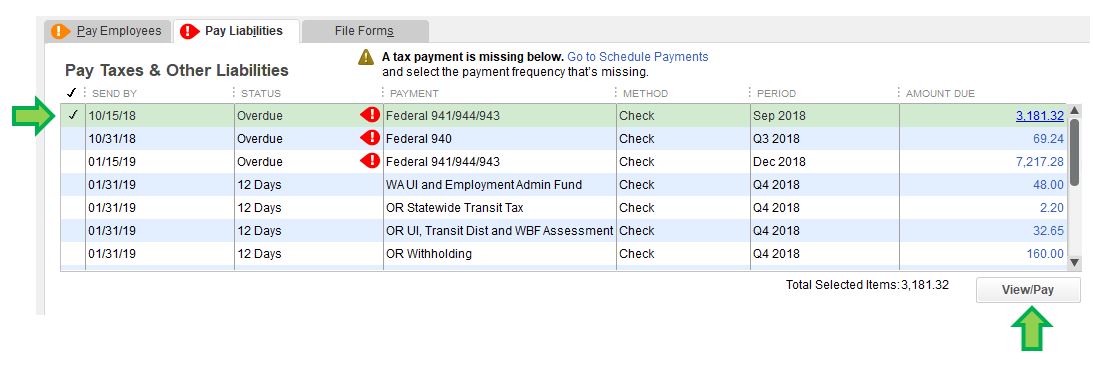
- Click on the Pay Liabilities tab and go to the Pay Taxes & Other Liabilities section.

- Click on the Federal Liability to e-pay and choose View/Pay.

- Make sure that E-payment is selected and click on E-pay.
- Click on the Remember My Information for Next Time checkbox to clear it.
- Type-in the 4-Digit PIN and the new EFTPS Internet Password.
- If there is any other information missing on the page, fill it and click on Submit.
Note: When the next time you make an e-payment, enter the 4-Digit PIN and the new EFTPS Internet Password and make sure to put a tick on the Remember My Information for Next Time checkbox.
Steps to Change EFTPS Pin in QuickBooks Online
After changing the password on the EFTPS website, the change can be administered from the same portal for QuickBooks Online as well. However, you may have to give the authorization to file the tax forms and pay taxes to QuickBooks by following the given steps.
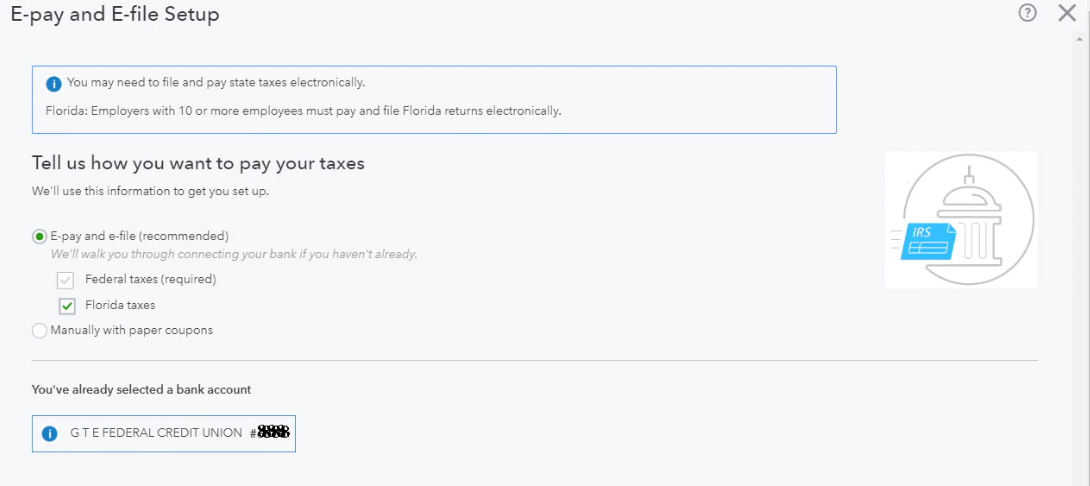
- Go to QuickBooks Online and select Taxes.
- Click on Payroll Tax and select Edit your e-file and e-pay setup option.
- Choose the E-file and e-pay option and select the states to enroll for filing the taxes.

- If the automatic bank connection window pops up on the screen, follow its instructions to connect to your bank automatically.
You may also read: QuickBooks Point of Sale network configuration
Now we would like to conclude the blog on the general user query on ‘How to change EFTPS password in QuickBooks’. We hope that you will find the content in the post easy to understand and relevant to the searched problem. However, if the mentioned steps do not update the EFTPS credentials or an error occurs in between, dial Proadvisor Solutions Payroll Helpline Number 1.855.888.3080 and get immediate help from an expert.

Erica Watson is writing about accounting and bookkeeping for over 7+ years, making even the difficult technical topics easy to understand. She is skilled at creating content about popular accounting and tax softwares such as QuickBooks, Sage, Xero, Quicken, etc. Erica’s knowledge of such softwares allows her to create articles and guides that are both informative and easy to follow. Her writing builds trust with readers, thanks to her ability to explain things clearly while showing a real understanding of the industry.