


Accuracy matters the most when you are building a good accounting system, but it makes the whole system reliable. Even with automated software, many users face duplicate entries. Many of them find it difficult to delete duplicate transactions in QuickBooks once they appear, leading to incorrect balances and confusion.
Most of the time, these double entries aren’t just a glitch in the software. Sometimes, when you manually record an expense, and your bank feed records it, the software gives you two choices: “Match” or “Add”. Instead of clicking “Match” when you click “Add,” it treats that as a new expense.
It’s really important to find them and delete them as soon as possible. Removing them is like decluttering your account balance and making it organized. Now let’s move ahead and learn some useful information, such as the causes, the importance of removal, and safe methods you can try.
Table of Contents
Reasons to Delete Duplicate Transactions in QuickBooks Online
Before we dive into any solutions, let’s discuss why you may need to delete all the duplicate transactions. There are some common reasons to do so, like:
- Incorrect Account Balance: After writing all entries, you must check for duplicate transactions, as they will create a significant difference between your actual balance and the balance recorded in QB software.
- Errors in Syncing from Third-Party Apps: Using it can lead to inaccurate results. For example, if you record the same $500 payment twice, QB software automatically counts it as two separate payments. And QB will add that to the total count. The application may face some sync errors, such as repeated or incorrect entries from:
- E-commerce
- POS System
- Expense Apps, etc.
But the good thing is that QuickBooks offers many reliable solutions to help you.
- Categorization Errors: There are many times when duplicate transactions make it look like you are spending more in certain areas, like rent. Suppose you write your electricity bill twice, so the total will be more than the bill you actually spent
There are many reasons for duplicate transactions. These are just some common issues you may encounter while using the application.
Methods to Remove Duplicate Bank Transactions in QuickBooks Online Easily
First thing you have to keep your books accurate by removing duplicate bank transactions. If you spot the same entry in your bank feed that is already categorized, then it’s better to remove that immediately.
Method 1: Exclude Duplicate Transactions From the For Review Tab
If you see any duplicate transactions sitting in your For Review tab, then you can follow these steps to remove them from your active list.
- Go to the All Apps option, then select Accounting, then click on Bank Transactions.
- For the next step, select the affected bank account.
- Then, in the For Review tab, select the checkbox for each duplicate transaction.
- Select Exclude from the black banner that shows at the top of the list.
In this way, your selected transactions will move from For Review to the Excluded tab.
If you want to remove those transactions from the exclude tab permanently, follow these simple steps:
- Navigate to the Excluded tab.
- Select the tick box to the left side of the Date column header to select all transactions in this view.
- Then press Delete, and you are good to go!
This is how you can delete duplicate transactions in QuickBooks bank feeds.
Method 2: Remove all Matched and Categorized Transactions
You can erase all matched and categorized transactions to delete duplicate transactions in QB. Here are the steps to do this safely:
- Go to the All Apps option, select Accounting, then click on Bank Transactions.
- The next step is to navigate to the Categorized tab and select the checkboxes for each duplicate transaction.
- And from the black banner at the top, click on Undo. This step removes the transactions from the For Review Tab.
- Then, navigate to the For Review tab to select duplicate transactions.
- Select the Exclude option.
- To remove them permanently without any hassle, navigate to the Excluded tab.
- The last step is to select the tickbox to the left of the Date Column header to select all transactions in this view, then click on Delete.
So, now you know how to resolve the issue of removing duplicate bank transactions in QuickBooks Online without any hassle.
How Can You Easily Delete Duplicate Transactions in QuickBooks Desktop?
If you want to delete duplicate transactions from your bank feeds, you can do that, depending on the mode you are using. There are two ways:
Method 1: Remove Duplicate Transactions in the Register Mode
When you open QuickBooks in register mode, you can see your register at the top part of your screen. And at the bottom, you can find all your downloaded transactions.
If you want to delete those transactions that don’t match, then just match the appropriate transactions anyway. Then just delete the entire statement. Let’s see what the steps are:
- First, you have to go to the Banking menu.

- Then select Bank Feeds and Bank Feeds Center.
- Find and pick the statement from the items received from the Financial Institution section. Then select View.
- For the next step, match the appropriate transactions. You have to select Done to match them.
- Select Yes in the Not Finished Matching screen. You’ll be able to return to the Online Banking Center.
- The last step is to find and select the same statement from the Items Received from Financial Institution section, then click on Delete.
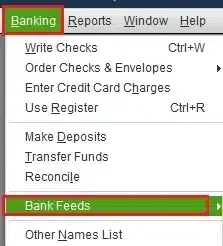
It’s also necessary to delete the statement and prevent unwanted transactions from appearing on screen from the next time you download a statement. And if you don’t remove the matched statement, the unmatched transactions keep appearing on screen.
Method 2: Remove Duplicate Transactions in Side-by-Side Mode
In QuickBooks, if you are using side-by-side mode, then you can see your downloaded transactions on the left side of the screen. Here are the steps that you can follow for this mode:
- Firstly, go to the Banking menu.
- Select Bank feeds, then select the Bank Feeds Center.
- In the items removed section, select the account with the transactions you want to delete.
- Select Items to Delete.
- Then you have to select the transactions you want to delete.
- Select Delete Selected. Then click Yes to confirm it.
A small tip for you: if you have already successfully matched your statement. You can select all downloaded transactions older than and set the date to the last statement end date. Then select Delete Selected. There’s a chance you may need to switch to register mode to delete everything.
How Can You Delete Duplicate Transactions in QuickBooks Chart of Accounts?
Below are some easy-to-follow steps that you should follow for deleting duplicate transactions in the QB Chart of Accounts:
- In QuickBooks, go to All Apps, select Accounting, then click Chart of Accounts.
- Then, in the action column, select Account History for the account with the duplicate transaction/s
- Navigate to the transaction you want to delete, then select it to show more details
- Select Delete.
- Repeat the following steps for any other transactions you want to remove.
Whenever you face this issue & want to Delete Duplicate Transactions in the QuickBooks Chart of Accounts, just follow these simple steps to resolve it.
A Quick View Table – Delete Duplicate Transactions in QuickBooks
Let’s quickly see the crucial points we discussed in the blog:
| Why Do Duplicates Occur? | Duplicates usually occur when you manually record a transaction and then click Add instead of Match in your bank feeds. |
| Impact of Duplicates | It sometimes messes up your financial reports, which leads to inaccurate bank balances. |
| How to Remove Them? | Use the Exclude option in your bank feeds for all new entries. If they are already there, go to the Chart of Accounts and delete them directly from your register. |
Conclusion
In this blog, we discussed the reasons to delete duplicate transactions in QuickBooks Online. We also covered solutions for removing duplicate transactions in QBO and QBDT. Here, we have also included instructions for removing duplicate transactions in the QB Chart of Accounts. If you are encountering the issue of deleting duplicate transactions in QuickBooks Online, don’t hesitate to contact the ProAdvisor Solutions team at 1-855-888-3080.
Frequently Asked Questions
How to Delete Duplicate Transactions in QuickBooks Online?
To Delete Duplicate Transactions in QuickBooks Online, navigate to the Banking or Bank Transactions tab, select the duplicate in the categorized or reviewed section, and click on Undo. The next step is to go to the For Review tab. Select the transaction and choose Exclude. Finally, go to the excluded tab to delete it permanently.
How do you Delete Duplicate Transactions in QuickBooks Bank Feeds?
To Delete Duplicate Transactions in QuickBooks Bank Feeds, go to Banking or Bank Transactions, select the affected account, and check the duplicates in the For Review tab, then Exclude.
How to Delete Duplicate Transactions in the QuickBooks Chart of Accounts?
To Delete Duplicate Transactions in the QuickBooks Chart of Accounts, navigate to Accounting and select Chart of Accounts. Open the Account History for the affected account, select the duplicate transaction, and click on Delete.
How can you Delete Duplicate Transactions in QuickBooks Desktop?
To Delete Duplicate Transactions in QuickBooks Desktop, access the bank feeds center, select the account, and choose items to delete or switch to the register to remove individual duplicates.
Also Read Related Articles :
How to Fix QuickBooks Error Code 9999
How to Reconcile in QuickBooks Desktop
Fix QuickBooks Printer Not Activated Error 20
Something you’re trying to use has been made inactive in QBO
Fix Sorry we need to verify your subscription before installing QuickBooks Issue

Peter is a Certified Public Accountant (CPA) with a strong background in public accounting and accounting technology. After starting his career as an audit senior, he worked with organizations across various industries and gained hands-on experience with complex accounting standards. At ProAdvisor Solutions, Peter helps clients navigate new accounting requirements. His goal is to simplify processes, improve accuracy, and boost confidence in finance reporting.