


Manually troubleshooting the installation issues in QuickBooks would be a hectic task in all respects. Fortunately, the QuickBooks Install Diagnostic Tool helps you skip that.
You might find yourself unable to open, run, or install QuickBooks, or you may end up seeing error codes on the computer screen when carrying out general tasks. A lot of these problems find their root in damaged or missing installation files or Microsoft components, or a corrupt program, which QB Install Diagnostic Tool can successfully troubleshoot.
In this blog, we will tell you how to download, install, and run this tool on your computer. Moreover, we will take you through a list of various errors the QuickBooks Install Diagnostic Tool can tackle.
Table of Contents
What is QuickBooks Install Diagnostic Tool?
QuickBooks Desktop is software that frequently runs into errors and miscellaneous issues. A lot of these problems originate from a damaged or incomplete installation, modified installation files, or missing crucial components. These can prevent you from installing the software or its update, or carrying out various tasks in it.
Intuit developed a tool that automatically scans for and repairs such damages. Thus, it saves you from manually fixing various components, which usually take technical expertise and cannot be performed by an end user.
How to Download the QuickBooks Install Diagnostic Tool to Your Computer
QuickBooks Install Diagnostic Tool used to be available as a standalone tool that users would need to download and install on their computer. However, Intuit decided to bring it and various other tools, such as QuickBooks Print & PDF Repair Tool, in one place called QuickBooks Tool Hub.
Thus, all you need to do is download and install QuickBooks Tool Hub on your computer. Then, you can easily go to the program issues or installation issues tab to run various tools like:
- Quick Fix my Program
- QuickBooks Program Diagnostic Tool
- QuickBooks Install Diagnostic Tool
- QuickBooks Print & PDF Repair Tool
When you click on the QuickBooks Install Diagnostic Tool option from the Tool Hub, the tool automatically downloads in the background and starts running. In short, you do not have to separately install the QuickBooks Install Diagnostic Tool for Windows 11, 10, or older versions.
We will see how to run the QB Install Diagnostic Tool in detail in the upcoming section. To know when you should run the Install Diagnostic Tool, scroll to the section that discusses various problems you can fix using it.
How to Run QuickBooks Install Diagnostic Tool to Troubleshoot Issues
It is quite straightforward to run the QuickBooks Install Diagnostic Tool; all you need to do is:
- First, close the company and exit QuickBooks Desktop
- Download and install QuickBooks Tool Hub on your computer if you haven’t already (Do not install Tool Hub again if you already have an instance of it installed on your computer.
- Go to the Search box next to the Start menu and search for QuickBooks Tool Hub. Select it to open it.
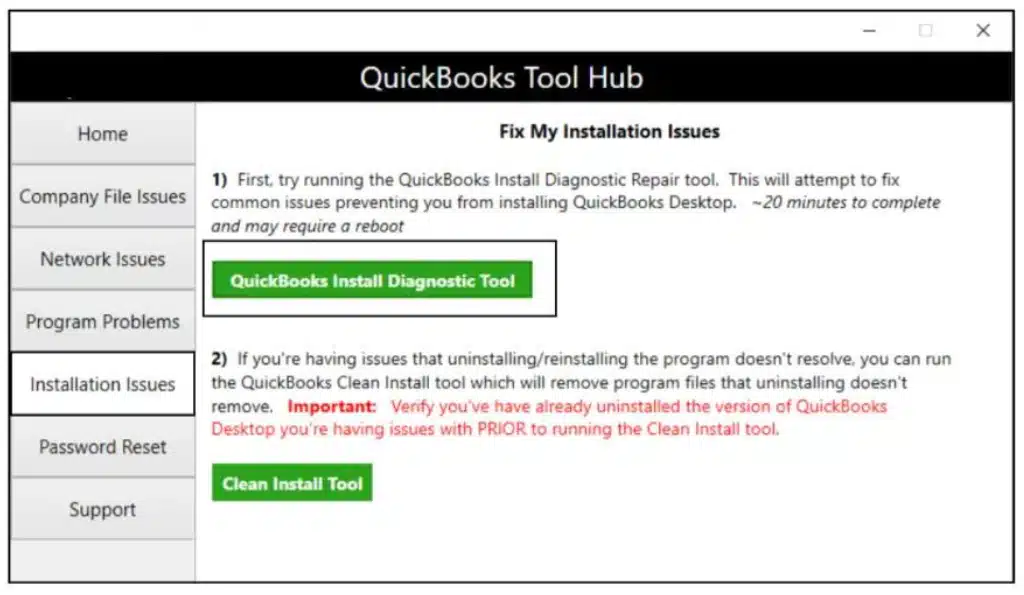
- Now, click on Installation Issues from the left pane to go to that section.
- You will see a green button for QuickBooks Install Diagnostic Tool; click on it.

- Wait for a few minutes. The tool will download in the background and appear on your screen. If it doesn’t appear even after five minutes, ensure you have a good internet connection.
- The QuickBooks Install Diagnostic Tool will appear on your screen and start running. It can take 10 minutes or even longer to repair the installation issues.
- Once done, restart your computer and restart the QuickBooks Desktop application.
You should now be able to get back on track with your accounting operations.
Manually Open the Install Diagnostic Tool If It Doesn’t Open
Although not common, sometimes, the QB Install Diagnostic Tool might not show up when you select and open it from the Tool Hub.
- First, check your internet connection and make sure you have a strong network connection.
- Now, search for QuickBooks Install Diagnostic Tool in the search box to manually open it.
- If you can’t find it still, make sure you are using the most recent version of QuickBooks Tool Hub. If you haven’t updated the Tool Hub for a long time, uninstall the Tool Hub and install the latest version from the internet. Reinstalling will also help address it if the issue stems from a corrupt or problematic Tool Hub.
If nothing works, you can repair the program from the Control Panel for the time being.
Issues You Can Troubleshoot With QuickBooks Install Diagnostic Tool
Tool Hub equips you with tools to address various issues you may encounter when using QuickBooks.
Here are various error codes and problems you can fix using the QuickBooks Install Diagnostic Tool:
- Installation error codes such as 1603, 1722, 1904, etc.
- Damaged or missing Windows components such as the MSXML, .NET Framework, C++ Component, etc.
- Damaged, modified, or missing Windows registry keys for QuickBooks
- Unrecoverable errors in QuickBooks Desktop
- QuickBooks stops working, won’t open, or crashes unexpectedly
- Problems when updating the QuickBooks application and associated 15XXX or 12XXX error codes
- ABS PDF driver errors that occur when installing the application, saving, or emailing the PDF documents
Let us take a look at specific error codes.
Specific Error Codes That One Can Fix Using the Install Diagnostic Tool for QuickBooks
Here is a non-exhaustive list of common error codes that you can address using the tool in question.
| Error Code | Description |
| 1603 | Fatal error during QuickBooks installation |
| 1935 | .NET Framework assembly installation error |
| 1904 | Module failed to register during install |
| 1903 | Permission/.NET related installation issue |
| 1402 | Registry key access problem |
| 1722 | Windows Installer package error |
| 1712 | Installation environment corrupted |
| 1334 | Missing or corrupted installation file |
| 15106 | Update program cannot open the file |
| 15223 | Update download failure |
| 12007 / 12031 | Internet connection update issue |
| 1328 | Patch update installation error |
| 3371 | QuickBooks cannot load license data |
For specifically fixing printing and PDF issues in QuickBooks, you should check out our dedicated guide.
Wrapping It Up
This was all on how to access and run the QuickBooks Install Diagnostic Tool. This should help you address various issues and resume your day-to-day accounting operations. If nothing works, you should consider starting fresh with a clean installation of QuickBooks Desktop.
Frequently Asked Questions
How to install the QuickBooks Install Diagnostic Tool?
You do not need to install the QuickBooks Install Diagnostic Tool separately. You just need QuickBooks Tool Hub. If you do not have it installed on your computer, install the Tool Hub. You will find the Install Diagnostic Tool in the tab for installation issues in the Tool Hub.
What issues can I address using the QB Install Diagnostic Tool?
The Install Diagnostic Tool in the Tool Hub allows you to address a plethora of problems. This includes issues when installing or updating the application or when the application crashes frequently, becomes unresponsive, or stops working. For various error codes related to a corrupt program, installation files, or Windows components, you can run the Install Diagnostic Tool on Windows 11, 10, or older editions.
Why is my QuickBooks Desktop not working properly?
If your QuickBooks has stopped working, crashes often, or simply won’t open, there could be damage to the program. Moreover, the installation files or crucial Windows components might be faulty or missing. You can run the QuickBooks Install Diagnostic Tool to repair such problems.

Erica Watson is writing about accounting and bookkeeping for over 7+ years, making even the difficult technical topics easy to understand. She is skilled at creating content about popular accounting and tax softwares such as QuickBooks, Sage, Xero, Quicken, etc. Erica’s knowledge of such softwares allows her to create articles and guides that are both informative and easy to follow. Her writing builds trust with readers, thanks to her ability to explain things clearly while showing a real understanding of the industry.