


The multi-user mode in QuickBooks enables multiple users to access the same company file hosted on a single computer, improving speed, efficiency, and team collaboration. When you try to access the file over a network, you may encounter the QuickBooks error 6087, 0 in your system. When you interfere with the issue, the following message can be seen on the screen:
“QuickBooks error 6087: File is open locally.”
“QuickBooks is trying to access the company file, but the database server is not responding.”
The reason behind the issue can be that the file is damaged or corrupted, or if the software is outdated. This blog will cover all the reasons and the methods to overcome the error in your system.
If you need any help to update the QuickBooks application, feel free to get in touch with our experts.
Table of Contents
Troubleshooting Methods to Help You with QuickBooks Error 6087
The QuickBooks error 6087, 0 can usually be seen due to issues with the company files. In this section, we will go through the methods that will help you to overcome the issue.
Solution 1: Update the QuickBooks Desktop
Ensure that you have always updated your application to avail the latest features and tools. Here’s how to do it effectively.
- Close all the running processes in your application.
- Tap on the Start menu.
- Locate the QBDT from the list.
- Right-click on the application.
- Choose the Run as administrator option.
- When the No Company window appears, head to the Help menu.

- Tap on the Update QuickBooks Desktop option.
- Head to the Options tab.
- Choose the Mark All and hit Save.
- Head to the Update Now option.
- Tap on the Reset Update checkbox.

- Click on the Get Updates option.
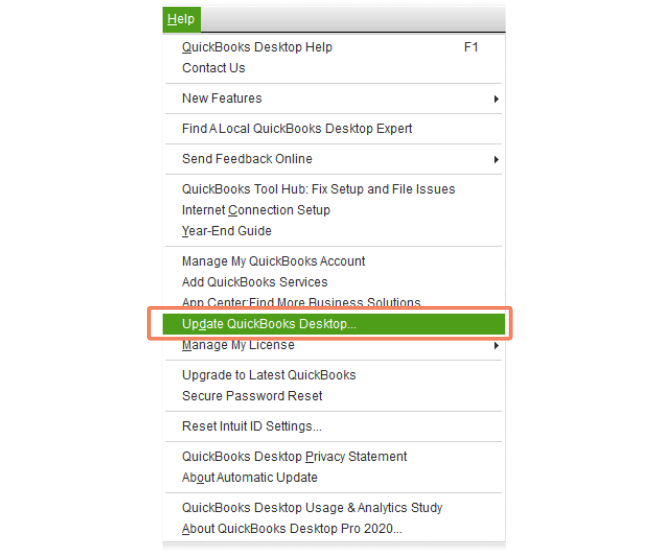

Staying on the latest version helps you avoid errors in your system and avail new patches and bug fixes.
Solution 2: Configure the Windows Firewall
The Windows firewall may sometimes block the operations that can cause you to receive QuickBooks error 6087. Here’s what you can do to fix it.
- Tap on the Start menu.
- Look for and access the Windows Firewall from the search bar.
- Go to the Advanced Settings.
- Now, right-click on the Inbound Rules.
- Tap on the New Rule option.
- Click on the Port and choose the Next button.
- Ensure that the TCP box is selected.
- QuickBooks Desktop 2020 and later: 8019, XXXXX.
- QuickBooks Desktop 2019: 8019, XXXXX.
- QuickBooks Desktop 2018: 8019, 56728, 55378-55382.
- QuickBooks Desktop 2017: 8019, 56727, 55373-55377.
- After entering the port number, click on Next.
- Now, tap on the Allow the Connection option.
- Click on Next.
- When prompted, choose all profiles and tap on Next.
- Create a new rule and name it as QBPorts (year).
- Tap on the Finish to save the changes.
Following the steps above will help you create an exception for your processes in QB and start working effortlessly.
Solution 3: Use the Verify and Rebuild Tool
It is recommended to use the built-in tool to fix the company file issue in your system. Here’s how you can do it without facing any issues.
Verify the Company Data
- Head to the Window menu.
- Choose the Close All option.
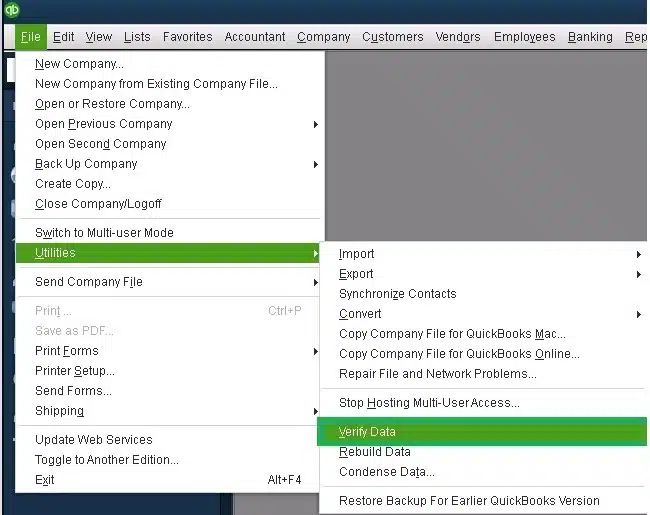
- Then, head to the File menu.
- Tap on the Utilities.

- Now, click on the Verify Data option. The following results may pop up:
- “QuickBooks detected no problems with your data.”: Your data is clean, and you do not need to do anything else.
- An error message: Search for the specific error message on our QuickBooks Desktop support site for instructions on how to fix it.
- “Your data has lost integrity.”: Data damage was found in the file. Proceed to rebuild your company file to resolve the issue.
Rebuild the Company Data
- Head to the File menu.
- Tap on the Utilities option.
- Then choose the Rebuild Data option.

- If the QB asks to create a backup for the company file, then press OK.
- Choose where you wish to save the backup.
- Then, press OK.
- Input the new name in the file name field.
- Hit Save.
- Now, tap on OK when the Rebuild has completed message appears.
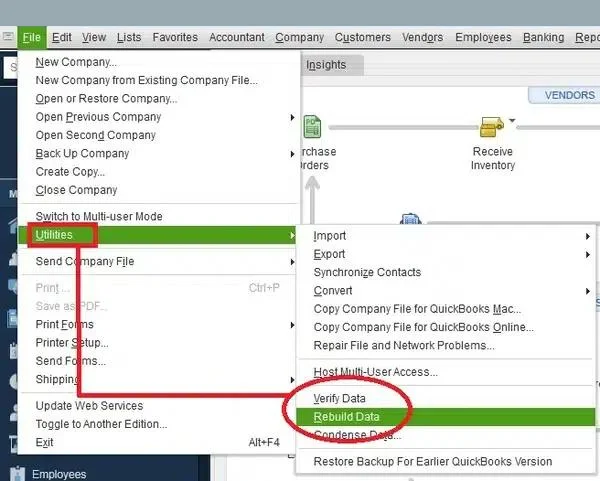
This built-in tool will help you overcome the issue in your system, create a backup, and restore the older version of the company file to avoid the QuickBooks error 6087.
Solution 4: Clean Install QuickBooks Desktop
When a company file issue is detected in your system, and you are unable to perform any operations in the application, you can clean install the QuickBooks Desktop application to resolve error 6087, 0, and get back to work hassle-free.
Solution 5: Use the QuickBooks Tool Hub
To begin using the tool, you are required to download and install the QuickBooks Tool Hub first.
- Launch the Tool Hub in your system.
- Go to the Company File Issues tab.

- Then, tap on the QuickBooks File Doctor tool option.
- Let the tool run and scan the system to fix the issue.
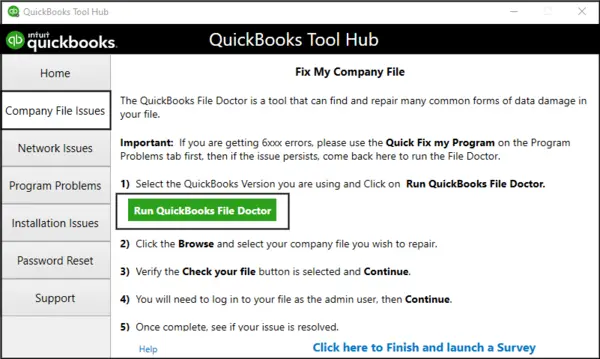
Now, check and verify if the issue is resolved; if not, move on to the next method.
Solution 6: Modify the .TLG and .ND Files
The .ND and .TLG files in QuickBooks support multi-user access and help to track the transactions. In this step, we will help you to overcome the issue by fixing the file extension.
- Access the folder that contains the company files.
- Scroll and look for the .nd and .tlg files, such as company_file.qbw.nd company_file.qbw.tlg.
- Now, right-click files and choose the Rename option.
- Include the .old extension at the end of the file.
- Save the file once the update is done.
Renaming the files will help you quickly fix the QuickBooks error 6087 and get back to work.
Solution 7: Run the QuickBooks Database Server Manager
Launching the database server manager helps to configure the server for multi-user access and ensure that company files are working properly on the network. Here’s how you can do it.
- Tap on the Windows Start menu.
- Locate and access the QuickBooks Database Server Manager.
- Now, tap on the Scan Folders option.
- Choose the Browse option and select the file that has your company files.
- Tap on OK.
- Once ready, choose the Start Scan option.
Once the scan is finished, the folders will appear in the QuickBooks company files found section. You can now access the company files from the folders.
Solution 8: Change the File Location to Local Disk
You are required to copy the file and bring it to the local disk folder on your computer to overcome the QuickBooks error 6087. Follow the steps below for a smooth transition.
- Eliminate all background processes running on your computer.
- Now, access the company file folder on the main server system.
- Locate the company file with the .qbw extension.
- Now, right-click on the file and copy it or press Ctrl+C keys.
- Create a new folder on the desktop or the Local Disk folder.
- In the folder that you created, press Ctrl+V or right-click and choose the Paste option.
- Now, hold the Ctrl key on the keyboard and access the QuickBooks Desktop application.
- Once the No Company Open windows appears, choose the Open or restore an existing company option.
- Browse and choose the file from the new location.
If the company file opens without showing the error, you can start working again on your financial operations.
Culprits Behind the QuickBooks Error 6087 for Company Files
The QuickBooks error 6087 occurs in your system when there are issues with the company files or the network connection. In this section, we will cover the reasons that could be causing the issue in your system.
- When the company file is corrupted or damaged.
- If you are using an outdated version of QuickBooks Desktop, you might encounter the problem.
- If another user is accessing the company file in single-user mode.
- There can be issues with the internet connection.
- The firewall or antivirus application might block the process that you are trying to access.
- If the QuickBooks installation is damaged or incomplete, the QuickBooks error 6087 can be seen.
- When the folder path has issues, it can cause you with the error and halt your operations.
Identifying the root cause is the main aspect before you begin to troubleshoot the issue and start accessing the company file.
Quick View Table for QuickBooks Error 6087
Let’s take a quick glance at what we have so far talked about the error in this blog.
| Description | The QuickBooks error 6087 occurs when you try to access the company file in multi-user mode. This issue commonly occurs due to issues with the company file or the network. |
| Causes | The error can be triggered if the company file is damaged or corrupted, if the QuickBooks application is outdated, if the firewall or antivirus application is blocking the operations, or if another user is accessing the company file in single-user mode. |
| Ways to Fix | To resolve the error in your system, it is requested to update the QBDT to the latest version, configure the firewall settings to allow the ports, use the QuickBooks Tool Hub, launch the verify and rebuild tool, and add .old to the .nd and .tlg file extensions. |
Conclusion
In this blog, we have talked about why you may face the QuickBooks error 6087 in your system. Moreover, we have listed the detailed steps through which you can overcome the issue. If you need any help in switching to multi-user mode, feel free to contact our experts.
Frequently Asked Questions (FAQs)
Why does QuickBooks error 6087 occur when you switch to multi-user mode?
The QuickBooks error 6087 appears when the software cannot establish a connection with the database server manager, making it unable for the user to access the company file. The issue occurs when one user accesses the file in single-user mode.
How to fix the QuickBooks error 6087 in multi-user mode?
The issue can be easily resolved by updating the QBDT application, configuring the firewall setting, using the QuickBooks tool hub, adding .old to the .nd and .tlg files, or using the QuickBooks database server manager.
What does the message “File is open locally” mean with error 6087?
If the error message “File is open locally” is seen on your computer screen, it clearly means that another user is accessing the company file in single-user mode, which prevents multi-user access over the network.
Can a damaged or corrupted company file cause the error 6087, 0?
Yes, a corrupted or damaged company file can lead to error 6087 in your system. Launching the verify and rebuild tool can help you to detect the problems in the file and repair them, ensuring smooth access to the file in multi-user mode.
Can changing the location of the company file fix the error 6087?
Yes, there can be times when the issue arises in your system if the folder path is damaged. It is recommended to change the location and store it locally or in a new folder to troubleshoot the issue and start working again.
How to fix QuickBooks Error 6094 0
How to Deal with QuickBooks Error 1310 Efficiently?
Why QuickBooks Error 9999 Occurs and How to Fix it
Fix QuickBooks Error 185 Bank MFA Error

Peter is a Certified Public Accountant (CPA) with a strong background in public accounting and accounting technology. After starting his career as an audit senior, he worked with organizations across various industries and gained hands-on experience with complex accounting standards. At ProAdvisor Solutions, Peter helps clients navigate new accounting requirements. His goal is to simplify processes, improve accuracy, and boost confidence in finance reporting.