


It is crucial to install the latest updates for programs like QuickBooks because they keep them up to date with emerging technologies. However, there is a chance that issues will occur in the system after each update. You may notice an error message appearing on your screen multiple times after upgrading QB, or even while updating it. This message indicates that QuickBooks error PS101 has occurred. This issue happens in QuickBooks Payroll when you try to install the latest Payroll table. This error message disrupts work with QB Payroll and affects your productivity. You resolve this issue by launching the “Quick Fix my Program” feature from the QuickBooks Tool Hub. Make sure to verify that your payroll subscription is active and that your PC date and time are correct.
If you are facing the QuickBooks error PS101 on your PC, contact ProAdvisor Solutions at 1-855-888-3080 to resolve it quickly.
Table of Contents
What Does QuickBooks Payroll Error PS101 Mean?
QuickBooks error code PS101 is a payroll error that shows when the user installs the latest update. Error message: “Error code PS101 Payroll didn’t complete successfully, try again” occurs due to the incorrect initialization of your internet connection settings. This can also happen due to incorrect firewall settings that restrict your access to the internet.
Also Visit : How to Resolve Payroll Mistakes in QuickBooks
Why Are You Experiencing QuickBooks Desktop Error PS101?
Here, we have discussed the common reasons why you cannot update payroll due to error code PS101 in QuickBooks Desktop:
- The damaged or corrupted CPS folder can interrupt the payroll update.
- Inaccurate web browser settings can cause problems with the application’s smooth operation.
- The issue can also occur due to multiple installations of the same QBD version.
- The Windows Firewall is blocking QuickBooks from freely accessing the internet.
- The application isn’t able to connect to the server, or the server is under maintenance.
- The QB might be outdated, damaged, or incorrectly installed.
- Misconfiguration in the third-party anti-virus settings.
- Poor or broken internet connectivity.
Simple Methods to Fix QuickBooks Payroll Error PS101
It is important that we learn the tricks to eliminate PS101 from the computer to protect the company’s files from further damage. Read carefully –
Method 1 – Install and Run the QuickBooks Tool Hub on Your System
The QuickBooks Tool Hub is executed on the system to fix the standard and minor errors. Follow the instructions below to resolve the PS101 error while running payroll –
- Terminate all QuickBooks windows and files.
- Visit the official website of Intuit and download the latest available version of the QuickBooks Tool Hub.
- Save the downloaded file at an easily accessible location, like the desktop.
- Double-click on the downloaded file (QuickBooksToolHub.exe) to start the installation process.
- Allow the program to complete the installation.
- Next, click the Tool Hub icon twice on the desktop.

- In the following window, tap on the Program Problems tab.
- Choose the Quick Fix My Program option.

- This will trigger a diagnosis and scan session on your computer.
- Allow this to complete.
- Finally, open QuickBooks and download the latest payroll updates to see if the issue is resolved.

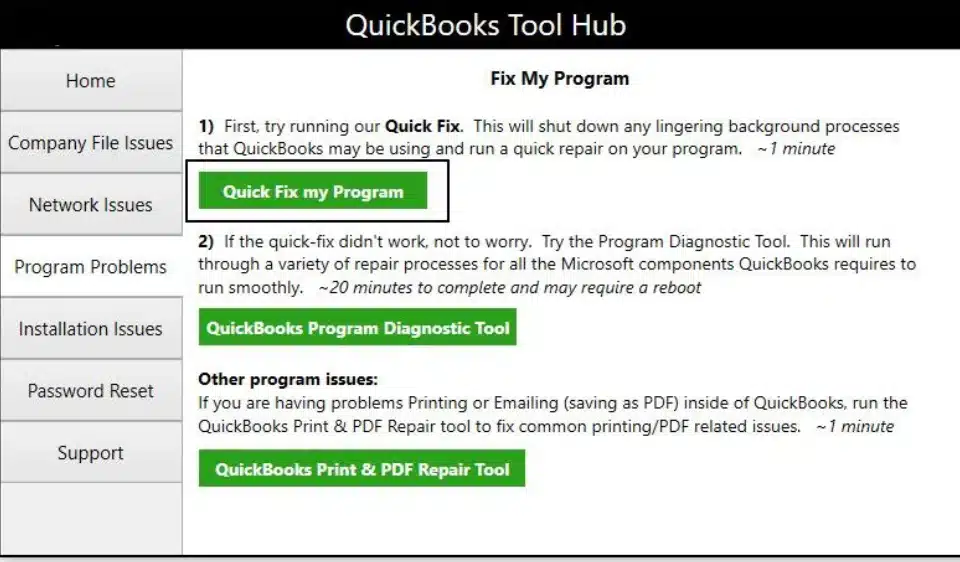
This solution will resolve the error code PS101 payroll. If you’re still facing issues, proceed to the next method.
Method 2 – Make an Exception for QuickBooks in the System’s Firewall
The Windows Firewall’s job is to verify the web pages the device accesses to protect it from threats. The steps below will help you remove QuickBooks from its list of blocked websites –
- Click on the Start button.
- In the search bar, type Windows Firewall.
- Double-tap on the Windows Firewall icon in the list of programs.
- Next, press the Advanced Settings button.
- Hover over the Inbound Rules option and right-click on it.
- Select the Create a New Rule option.
- Click on the Port tab.
- Hit the Next button.
- You need to confirm if the TCP option is marked.
- Next, navigate to theSpecific Local Ports fields and type the parts relevant to your QB version. The ports for different versions are mentioned below:
- QuickBooks Desktop 2020: 8019, XXXXX
- QuickBooks Desktop 2019: 8019, XXXXX
- QuickBooks Desktop 2018: 8019, 56728, 55378-55382
- QuickBooks Desktop 2017: 8019, 56727, 55373-55377
- After this, you must tap on the “This Program Path” option.
- Press the Browse button.
- Select any of the executable files from the menu that you see on your screen.
- Click on the Next button again.
- Choose the “Allow the Connection” option.
- Press Next one more time.
- Check that all the profiles have been marked here. Press Next.
- Name this rule something like QBFirewallException(name.exe).
- Follow the same steps to create an Outbound Rule.
Method 3 – Create Antivirus Exceptions for QB Programs
You can run into a payroll error if the antivirus or security software interrupts QB processes. Now, there are two ways the antivirus can restrict QuickBooks processes.
One, QuickBooks needs certain ports to connect to the Intuit server and download payroll updates or carry out payroll operations. In case the antivirus firewall blocks QuickBooks’ connection to the server, you can run into QuickBooks error PS101. You can create required exceptions for QB programs to give QuickBooks the access it needs.
Secondly, it can freeze or quarantine QB programs. Thus, you need to create antivirus exemptions for QB programs.
Method 4 – Run Reboot.bat File as an Administrator
You can resolve QuickBooks error PS101 and other payroll update issues by re-registering the .DLL file. To perform this method, launch the reboot.bat file.
- First, close all QBD windows and any programs you don’t need.
- Then, right-click QBD and select Open File Location.
- Next, find the reboot.bat file and right-click on it.
- Finally, choose the Run as Administrator option.
The utility will now repair and re-register the given components. Once it is done, continue the operation.
Method 5 – Use QuickBooks Install Diagnostic Tool
If the software lacks crucial installation files, Windows is missing Microsoft components, or components are corrupted or damaged, you will face issues during installation or while using the software. QuickBooks Install Diagnostic Tool repairs the Windows registry or damaged installation files.
- Begin by opening QuickBooks Tool Hub
- Then, choose Installation Issues.

- Finally, select the QuickBooks Install Diagnostic Tool option.
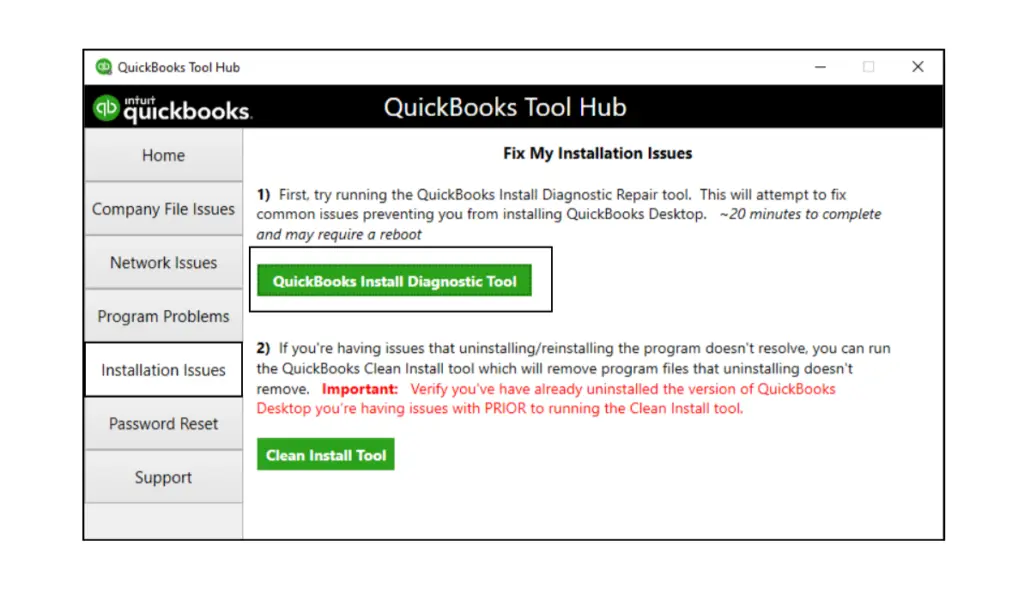
You have to wait a while before the tool appears and fixes the installation problem. This will take approximately 10-15 minutes. Now restart the PC and try installing the payroll update.
Method 6 – Use Fix My Program and Program Diagnostic Tool
The payroll error doesn’t directly relate to a corrupted or damaged program; often, a program issue causes QB errors. You can resolve it by using the QB Tool Hub. Follow the steps mentioned below to fix the error PS101:
- Start the procedure by opening the QuickBooks Tool Hub, then select the Program Problems tab.
- Then, tap on the Quick Fix my Program button.
- Lastly, select the QuickBooks Program Diagnostic Tool from the Program Problems tab.
Give some time to repair the QB program. Once the procedure is completed, update the QBD tax table.
Method 7 – Perform a QuickBooks Reinstallation
Often, the program gets corrupted, and there is no way to fix it. You would find that whatever you do to repair it fails. What you can try is a fresh start by reinstalling the software.
However, corrupt files do remain in a traditional reinstallation. Therefore, you need to perform a clean installation of the QuickBooks application.
Expert Tips to Prevent QuickBooks Error Code PS101 in the Future
It is important to prevent QB error PS101 to avoid interrupted payroll processing and potential compliance issues. Follow the healthy practices mentioned below to prevent this error:
- Ensure you regularly install the latest updates for your QuickBooks Desktop.
- You need to ensure a stable internet connection.
- It is important to monitor the payroll updates daily.
- You should use the latest tax table updates provided by Intuit.
- It is recommended to schedule and regulate payroll maintenance and tax updates.
- Proactively use QuickBooks File Doctor to verify file integrity.
- You must keep your payroll subscription active and verify your service key periodically.
Also check our In-depth guide on QuickBooks Payroll Update Error PS038
Quick View Table for QuickBooks Error PS101
Let’s quickly review the crucial points we discussed in the blog above.
| Description | The QB error PS101 is a payroll-related issue in QBD that occurs when the software fails to install or update payroll service tax tables. |
| Causes | QuickBooks error PS101 is usually caused by a failure in the payroll update procedure. It is also triggered by network connectivity issues, antivirus settings/restrictive firewall blocking the connection to Intuit servers, or old security certificates. |
| Ways to fix it | You can fix the PS101 error by running the “Quick Fix my Program” feature in the QB Tool Hub to resolve component issues. It is important to ensure that you are logged in as an administrator. If you are still facing the error, check that your payroll subscription is active, verify your internet security settings, and update your payroll tax table to the latest version. |
Conclusion
In this blog, we have discussed the reasons behind QuickBooks error PS101. We have also mentioned comprehensive solutions to resolve this issue. Follow the steps correctly to remove this error. If you are experiencing the QuickBooks error code PS101 or have any questions about QB, don’t hesitate to contact ProAdvisor Solutions certified experts.
Frequently Asked Questions
What triggers the QuickBooks error PS101?
The QB error PS101 can occur due to outdated QB software, antivirus interference, unstable internet connections, or misconfigured payroll settings. It is crucial to find the root cause of the error to avoid recurring payroll interruptions.
Why can’t I update my QuickBooks?
If your QuickBooks cannot update payroll or software, check your internet security settings and network connection. It is crucial to ensure that the firewall isn’t blocking QuickBooks, and that the security software or antivirus doesn’t prevent the QB program from performing.
How can I manually update QuickBooks Payroll?
To manually update the QB, you have to run the application and sign into the company file. Then open the Employees menu and select the Get Payroll Updates option. Finally, click the Payroll Update Info.
Does QuickBooks error PS101 also occur due to a corrupted or damaged company file?
Yes, a corrupted or damaged company file may interrupt the payroll function from completing. You can fix the PS101 error by running the QuickBooks File Doctor or restoring a backup.
Does QB error PS101 mean my payroll is down?
PS101 does mean you cannot install the latest tax table updates, which may prevent you from processing payroll with current tax rates. However, you might still be able to run payroll, but you shouldn’t because QB can calculate the taxes incorrectly if you haven’t updated the tax table.
Also, follow our more helpful articles:
How to adjust payroll liabilities in QuickBooks
How to install the latest QuickBooks tax table update
How to Fix QuickBooks Payroll Update Failure
How to fix QuickBooks Payroll Not Working Error

Erica Watson is writing about accounting and bookkeeping for over 7+ years, making even the difficult technical topics easy to understand. She is skilled at creating content about popular accounting and tax softwares such as QuickBooks, Sage, Xero, Quicken, etc. Erica’s knowledge of such softwares allows her to create articles and guides that are both informative and easy to follow. Her writing builds trust with readers, thanks to her ability to explain things clearly while showing a real understanding of the industry.