


Like other Windows software, QuickBooks uses the Windows file system and resources to function properly. Whenever an application conflicts with the memory resources, the QuickBooks BEX error is triggered. BEX stands for “Buffer Overflow Exception,” and in general, BEX errors arise when an application interferes with Windows data execution by storing data more than the capacity of a memory region.
QBDT BEX error is an unusual error that can easily be resolved if the exact cause of the error is identified. In this article, we will explore how to identify errors and their causes, and provide quick, easy ways to troubleshoot them as quickly as possible. Keep reading the article until the end for detailed info on the BEX error in QuickBooks.
Table of Contents
QuickBooks Desktop BEX Error – An Overview
As you are already aware, the BEX error not only affects QuickBooks but can also appear in other Windows applications if there is a conflict between the application and how it feeds data into the memory sectors on your system’s hard drive. In QuickBooks, when you encounter a BEX error, it displays an error message.
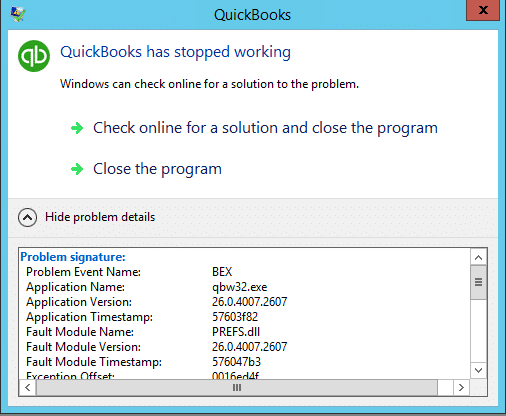
“QuickBooks has stopped working. Windows can check online for a solution to the problem. em”
Problem Signature:
Problem Event Name: BEX
Application Name: qbw32.exe
Application Version: 26.0.4007.2607
Application Timestamp: 57603f82
Fault Module Name: PREFS.dll
Fault Module Version: 26.0.4007.2607
Fault Module Timestamp: 576047b3
Exception Offset: 6610ed4f
Exception Code: 6610ed4f
Exception Data: 6610ed4f
OS Version: 2.8.1200.2.0.0.25.485
Locale ID: 1045
Additional Information 1: d67f
Additional Information 2: d67f4a3ad9181ba5a035a02ee112e7d9
Additional Information 3: 3e40
Additional Information 4: 3e40149fe4b934318cef8b845577792c
Now, let’s jump to the next section of this blog in which we will discuss the most common factors that can lead to the Bex QuickBooks has stopped working error.
What Can Cause “QuickBooks has Stopped Working” Error?
Most of the reasons for this error are similar to those that occur when accessing the QuickBooks company file. To be more specific, the QuickBooks BEX error arises for the same reasons that cause 6000-series errors in the application, and since the reasons are common, so is the troubleshooting. Let’s have a look at the reasons that might trigger the BEX error while opening QuickBooks or a company file in it.
- In case you have set the company file name more than the suggested limit.
- The QBWUSER.ini file that is used to store the user info is either missing or damaged.
- There are bad memory sectors present on your hard drive, or the hard drive is damaged.
- Due to a virus or malware infection, the QuickBooks installation files have been corrupted, or because of a partially installed QuickBooks.
- BEX error can also appear if the QuickBooks Desktop installation is damaged, which happens when you install QuickBooks using a corrupted installer file.
- If there is damage in the Windows operating system, then you might also face the BEX error while running QuickBooks Desktop.
If you have gone through all the reasons, then you might now have an idea of how to fix the BEX error in QuickBooks. Still, if you need exact instructions on resolving the QuickBooks BEX error, then keep reading the blog.
Some Important Considerations before Troubleshooting the BEX Error in QuickBooks
There are some important things you should consider before you troubleshoot the BEX error in QBDT.
- If you get the error when opening the company file, try updating QuickBooks without opening the company file.

- Run a thorough scan of your computer to remove any infections.

- Make sure that the company file name is not too long. It must be under 256 characters.

- Run an update of your Windows operating system if automatic updates are turned off.

- Try scanning your hard drive for damage or bad sectors using the Windows Chkdsk utility.

Expert Recommended Resolutions to Resolve QuickBooks Problem Event Name BEX
As of now, you have already performed the basic troubleshooting that, in most cases, resolves the error. If the error is not resolved even after verifying the points listed above, follow the advanced troubleshooting below for quick relief from the QuickBooks problem event name BEX.
Download QuickBooks Tool Hub and run Quick Fix my Program
Follow the steps below to download QB Tool Hub, install it, and run QuickBooks Install Diagnostic Tool on your computer.
- Begin by downloading the latest version of QuickBooks Tool Hub to your computer.
- Go to the downloads of your computer by pressing Ctrl + J while being in the browser window.
- Double-click the QuickBooksToolHub.exe file and agree to the terms and conditions.
- Follow the on-screen instructions to complete the installation, and after the installation completes, go to the Desktop of your computer.
- Close any program that is running in the background of your Windows PC.
- Run QuickBooks Tool Hub from the Desktop icon that is created after the installation.

- If the desktop icon is not found, then you can search QuickBooks Tool Hub using the Windows search feature.

- Once QuickBooks Tool Hub is up and running on your system, go to the Program Problems tab.
- Choose Quick Fix my Program.

Now, check if the QuickBooks BEX error is resolved.
Run the QuickBooks Install Diagnostic Tool
Another thing you can do is run the QuickBooks Install Diagnostic Tool.
- In the Tool Hub, click the Installation Issues tab.
- Now, choose the QuickBooks Install Diagnostic Tool option.

- Follow the instructions on the screen after the tool appears, which might take some minutes. Give the tool its time and let it repair all damaged installation components.
- Once done, restart your Windows PC and try performing the same action that previously triggered the BEX error in the application.
If this doesn’t help, you might need to rename the QBWUSER.ini file.
Attach .old at the End of the Name of the qbwuser.ini File
A damaged QBWUSER.ini file can often lead to a problem in QuickBooks and result in it not working.
You can rename it to force the system to recreate a fresh copy of this file. However, remember that you will need to browse and open the company file manually once after that.
Close QuickBooks before carrying out these steps:
- Press Windows and E keys together to open the File Explorer or search for it in the Start menu.
- Navigate to: \ Users\ [user name]\ AppData\ Local\ Intuit\ QuickBooks
- Look for a right-click on the qbwuser.ini file
- Choose the Rename option
- Add .old at the end of the file name, well after the .uni extension
- Save the changes.
Now, try opening the company file once again. If you face the QuickBooks BEX error, do the same for the EntitlementDataStore.ecml file in a similar location.
Utilize the System File Checker
System file checker will scan for and repair the critical files or components that are missing and lead to program errors. However, before you run System File Checker, run Deployment Image Servicing and Management (DISM).
Launch Deployment Image Servicing and Management (DISM)
- In the search box beside the Start menu, type cmd.
- Spot Command Prompt, right-click on it and choose the Run as administrator option.
- If asked for confirmation, choose Allow and type in the password if asked for it.
- When the command prompt window opens, enter the following command: DISM.exe /Online /Cleanup-image /Restorehealth.
- Hit the Enter key.
Launch System File Checker
- Now, in the command prompt window, enter the following command: sfc /scannow
- Hit Enter

- This will initiate a repair, and once it is done, you will receive a message.
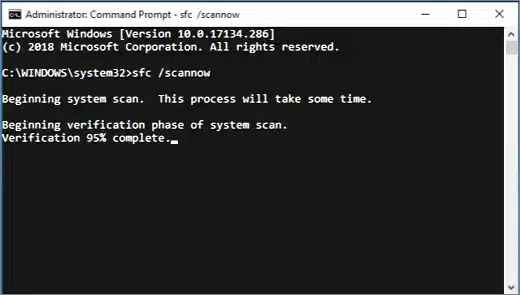
Sometimes, you may need to run a follow-up repair, depending on the message you see.
Repair Microsoft .NET Framework and MSXML DLL Files
QuickBooks requires crucial Microsoft components to work, and a problem with these can lead to the QuickBooks BEX error.
Microsoft offers a dedicated tool to help you repair the .NET Framework. Run the tool to easily address the problem.
Follow the steps below to repair MSXML DLL files:
- Launch the Start menu and type cmd
- Right-tap on Command Prompt
- From the list menu that appears, select the Run as administrator option
- Type the following command at the C prompt: cd\windows\syswow64
- Now, enter regsvr32 MSXML6.dll
- Hit the Enter key.
This should address the issue with Microsoft components.
QuickBooks BEX Error – A Quick View
In this section, we provide a condensed view of what we discussed in this blog.
| Description | QuickBooks BEX error (Buffer Overflow Exception error) can show up during general operations. |
| Reasons | Damaged or missing qbwuser.ini file, third-party restrictions like a security software blocking or interference, damaged Windows components or system files, damaged hard drive, outdated QB Desktop, improper or incomplete QuickBooks installation |
| Solutions | Update the QuickBooks product and the operating system, ensure the company file name does not exceed 34 characters, run Quick Fix my Program and QuickBooks Install Diagnostic Tool, rename the QBWUSER.INI file to attach .old at the end, run System File Checker, and repair the Microsoft NET Framework and MSXML DLL files. |
Final Words
Since the QuickBooks BEX error is closely related to Windows, you may find it hard to resolve. It can often be difficult to pinpoint the exact problem in the system because of numerous components, files, and potential points of failure.
However, we hope this guide helped you troubleshoot the error and get back on track with your accounting operations.
Frequently Asked Questions
How to fix the BEX error?
To resolve the BEX error in QuickBooks, you will need to conduct comprehensive troubleshooting. However, often, quick fixes can address the problem. Begin by updating your QuickBooks application and Windows operating system, and restarting the computer. Moreover, repair the .NET Framework and MSXML DLL files and utilize System File Checker.
What is the BEX64 error in QuickBooks?
The BEX64 error in QuickBooks is a “Buffer Overflow Exception” that you may encounter on Windows operating systems. It results in common problems like frozen or crashing software and indicates an underlying conflict.
Why has my QuickBooks stopped working and shows the BEX error?
QuickBooks might fail to work and show the BEX error message window if the required system files or Windows components are corrupt or if there is a conflict. It also indicates an improper or incomplete installation of QuickBooks Desktop.
Also check out these articles:-
How to remove QuickBooks Crash Catcher Error
What are the best fixes for QuickBooks Error 15276?
What causes QuickBooks Error 12031 during updates?
How do I clear cache in QuickBooks Desktop?
How can I fix slow performance in QuickBooks?

Peter is a Certified Public Accountant (CPA) with a strong background in public accounting and accounting technology. After starting his career as an audit senior, he worked with organizations across various industries and gained hands-on experience with complex accounting standards. At ProAdvisor Solutions, Peter helps clients navigate new accounting requirements. His goal is to simplify processes, improve accuracy, and boost confidence in finance reporting.