


Pay stubs are documents employers provide to show an employee’s earnings and deductions for a specific pay period. The pay stub details the gross pay, which is the total amount earned before any deductions, and lists all withholdings such as taxes, insurance premiums, and retirement contributions. You can print paystubs in QuickBooks, which many small businesses use for their accounting and bookkeeping processes. QB streamlines the process, making it much easier and less time-consuming. We’ll cover the steps you need to know to print pay stubs in QuickBooks Desktop and Online in this blog.
Are you facing any PDF or printing problems with your QB Desktop application? Contact our experts today to resolve your problem in no time!
Table of Contents
What is a Pay Stub in QuickBooks? A Concise Explanation
Pay stubs are written pay statements that show each employee’s paycheck details for each pay period. It shows how much the employees have earned, the deducted amounts, and their net pay (the amount they took home after taxes and deductions). In QuickBooks, employers can generate pay stubs through the payroll service and distribute them electronically or in paper form. So let us now see how you can print paystubs in QuickBooks Desktop & Online.
Print an Employee Pay Stub in QuickBooks Desktop | Guided Method
The steps you can use to print a pay stub for your employee in QuickBooks Desktop are given below:
Step 1: Set Up the Printing Preferences
- Open the QB Desktop application
- Navigate to the File menu
- Select Printer Setup

- Then, click on the Form Name dropdown menu
- Press the Pay stub option
- Choose your Printer Name
- Select your Printer Type
- Hit OK
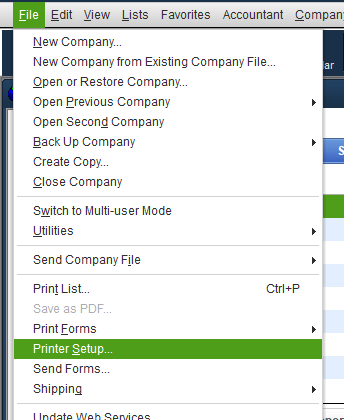
Step 2: Print the Pay Stubs in QBDT
- Navigate to the File menu in the QB Desktop app
- Click on Print Forms
- Select Pay Stubs
- Choose the payroll Bank Account from the dropdown menu
- Enter the date range that includes the pay date of the pay stubs
- Then, select the pay stubs you wish to print
- Click on the Employee dropdown menu if you want to filter for specific employees
- Hit Preferences to choose the company and employee info that prints on the pay stubs
- In the Company message to be printed on all pay stubs box, enter a text if you wish to include a message on each pay stub
- Click on Preview to view the pay stubs before printing them
- Hit Print when you’re ready
This would print employee pay stub in QuickBooks Desktop. If you want to reprint a pay stub in QB, follow the steps in the next section.
Reprint a Pay Stub in QuickBooks Desktop
- Open the QB Desktop application
- Navigate to the Lists menu
- Click on Chart of Accounts
- Double-click the bank account you use for your payroll
- Double-click on the paycheck you want to reprint the pay stub for
- Select Print
- Click on Print Later and then Save & Close if you want to print more than one
- Select File
- Press Print Forms
- Choose Paychecks
- Select the paychecks you wish to print
- Hit OK
- Review your printer settings
- Check the style
- Hit Print
- Select Save and Close
This was all you needed to know about how to print a pay stub in QuickBooks Desktop. Now, let us see how to do the same in QB Online.
Print Pay Stubs in QuickBooks Online | Guided Procedure
The steps you can use to print a pay stub for your employee in QuickBooks Online are given below:
Step 1: Set Up the Printing Preferences
- Open the QBO website
- Navigate to Settings
- Click on Payroll Settings
- Go to the Printing section
- Hit Edit
- Choose how you would like to print your paychecks or pay stubs:
- Pay stubs on plain paper
- Paycheck on QuickBooks-compatible check paper
- Hit Save
Step 2: Print the Pay Stubs in QB Online
- Click on Paycheck list below Run payroll
- Choose the paycheck you wish to print
- You can change the Date range or Employee from the Filter dropdown menu
- Go to the Action column
- Click on Print pay stub
- A preview of the paycheck or pay stub would open
- Click on the printer icon to print the pay stub
This would print paystubs in QuickBooks Online. If you want to reprint pay stubs in QBO, follow the steps in the next section.
Reprint a Pay Stub in QB Online
- Click on Paycheck list below Run payroll
- Choose the paycheck you wish to print
- Click the Filter dropdown menu to alter the Date range or Employee
- Go to the Action column
- Select Print pay stub
- A preview of the paycheck would open
- Click on the printer icon to print
Now, you know all about printing pay stubs in QuickBooks Online.
How to Fix General Issues While Printing Pay Stubs in QuickBooks?
You can use the QuickBooks PDF & Print Repair Tool from the QB Tool Hub to resolve general issues while printing pay stubs with the steps given below:
- Download and install the QuickBooks Tool Hub
- Open the QB Tool Hub app
- Navigate to the Program Problems tab
- Click on QuickBooks PDF & Print Repair Tool

- It will take about a minute to run
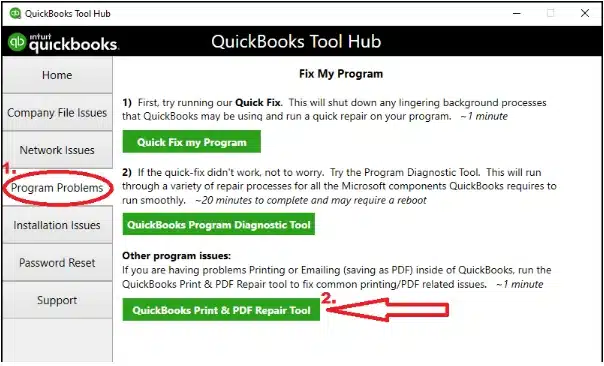
The tool would resolve any printing issues with the QB Desktop application.
Print Paystubs in QuickBooks – A Quick View Table
Given in the table below is a concise summary of this blog on the topic of how to print pay stubs in QuickBooks:
| Description | You can print pay stubs for your employees that include gross pay, deductions and taxes, and net pay in both QuickBooks Online and Desktop. This can save you time, which you can allocate towards more productive tasks. |
| Steps to do so in QB Desktop | Set up the printing preferences and print the pay stubs. |
| Steps to do so in QB Online | Set up the printing preferences and print the pay stubs. |
Conclusion
Pay stubs are documents employers provide to show an employee’s earnings and deductions for a specific pay period and can be printed in both QB Online and Desktop. This can save you time, which you can allocate towards more productive tasks. We have covered the guided steps you need to know to print paystubs in QuickBooks Online and Desktop in this blog. If you are having issues with printing your pay stubs in QuickBooks, feel free to contact our experts to resolve your problem.
FAQs
How to print previous pay stubs in QuickBooks Online?
To print previous pay stubs in QuickBooks Online, follow the steps given below:
– Click on Paycheck list below Run payroll
– Choose the paycheck you wish to print
– Click the Filter dropdown menu to alter the Date range or Employee
– Go to the Action column
– Select Print pay stub
– A preview of the paycheck would open
– Click on the printer icon to print
This is how you can do so.
How to save pay stubs as PDF in QuickBooks Desktop?
To save pay stubs as PDF in QB Desktop, follow these steps:
– Open QBDT
– Navigate to the employees menu
– Click on Paycheck List
– Choose the desired paycheck
– Select Print or Save as PDF
– Click on Save as PDF
How do I print pay stubs in QuickBooks?
To print pay stubs in QuickBooks, follow these steps:
– Go to the File menu in the QB Desktop software
– Click on Print Forms
– Select Pay Stubs
– Choose the payroll Bank Account from the dropdown menu
– Enter the date range that includes the pay date of the pay stubs
– Then, select the pay stubs you wish to print
– Click on the Employee dropdown menu if you want to filter for specific employees
– Hit Preferences to choose the company and employee info that prints on the pay stubs
– In the Company message to be printed on all pay stubs box, enter a text if you wish to – – include a message on each pay stub
– Click on Preview to view the pay stubs before printing them
– Hit Print when you’re ready
Most Viewed Articles:-
How to Fix Payroll Mistakes in QuickBooks? (Answered)
What is QuickBooks Assisted Payroll?
How to Fix QuickBooks Payroll Not Updating In QB Desktop
How to Adjust Payroll Liabilities in QuickBooks
How to Solve QuickBooks Payroll Error Code PS038

Erica Watson is writing about accounting and bookkeeping for over 7+ years, making even the difficult technical topics easy to understand. She is skilled at creating content about popular accounting and tax softwares such as QuickBooks, Sage, Xero, Quicken, etc. Erica’s knowledge of such softwares allows her to create articles and guides that are both informative and easy to follow. Her writing builds trust with readers, thanks to her ability to explain things clearly while showing a real understanding of the industry.