


QuickBooks has an add-on feature called payroll, which has multiple core elements to make your accounting and bookkeeping processes much easier. One of the elements is direct deposit, which can enable you to deposit paychecks directly into your employees’ bank accounts. This eliminates the need for manually printing paychecks and sending them to your employees, which saves money and time. However, you can encounter the problem of QuickBooks Direct Deposit not working while doing the same. This can be caused by outdated banking information or incorrect employee information. It can hamper your workflow and important business processes.
You can fix it by changing your payroll banking info in QB Desktop. In this blog, we’ll cover the steps you need to know to resolve this problem. First, let’s look at the reasons why your direct deposit is not working.
Are you having trouble using direct deposit in QuickBooks Desktop? Contact our experts at 1-855-888-3080 today to resolve your problem in no time!
Table of Contents
Potential Causes for QuickBooks Direct Deposit Not Working
Given below are the potential factors that can trigger the problem of QuickBooks direct deposit not responding:
- An outdated QB Desktop application
- Problems with your QB company file
- Incorrect direct deposit banking information
- An expired payroll subscription
- Incorrect employee information in QB Payroll
- You haven’t verified your direct deposit lead time
- An outdated payroll and tax table might cause the issue of QuickBooks Payroll Direct Deposit not working
These were the causes of the QB Direct Deposit not working problem.
Methods to Resolve the Issue of Direct Deposit Not Working in QuickBooks Desktop
Listed below are the troubleshooting methods needed to resolve the problem of QuickBooks Direct Deposit not working in QBDT:
Update the QB Desktop App
An outdated QB Desktop app can be the reason for your direct deposit not working. Update the QBDT app with the steps given below:
- Open the QB Desktop app
- Navigate to the Help menu
- Click on Update QuickBooks Desktop

- Press Update Now
- Select Get Updates

- Close and reopen QBDT to install the updates
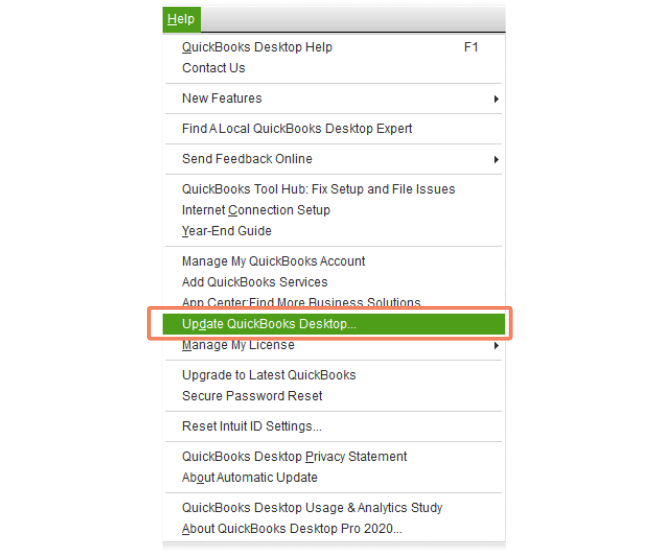
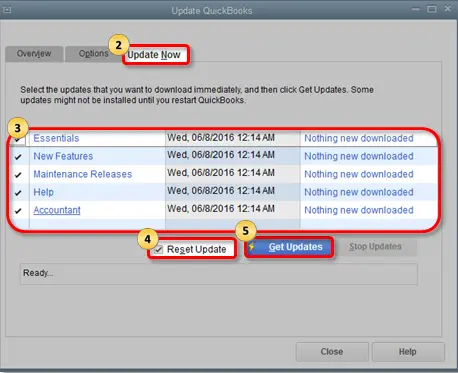
This would fix the issue you were facing.
Update Payroll and Tax Tables
You can update the payroll and tax table to fix the problem of direct deposit not working in QB Desktop with the steps given below:
- Open QuickBooks Desktop
- Navigate to the Employees menu
- Click on Get Payroll Updates
- Select Download Entire Update

- Press Update
- An informational window would appear after the download is complete
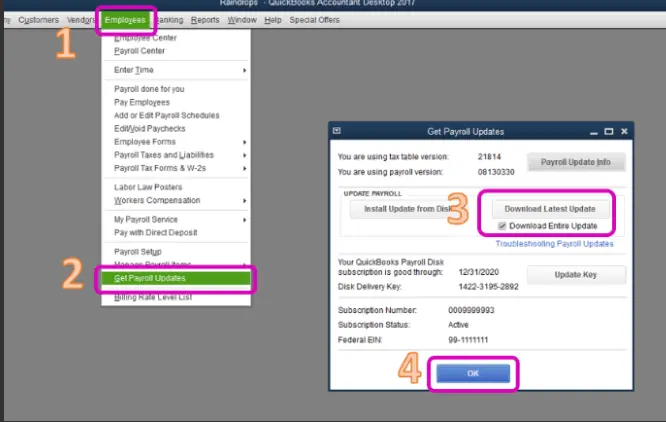
This would resolve the problem of QB Direct Deposit not working.
Check Your Direct Deposit Lead Time & Funding Time
Different versions of QB Desktop payroll have different lead times. For QB Desktop Payroll Assisted, you have a next-day lead time (1 day). For QB Desktop Payroll Basic, Standard, and Enhanced, you have a 2-day lead time. The funding time for the same is given below:
| Direct Deposit Funding Time | If the payday is on… | Submit Payroll by |
| Same-day lead time | Wednesday Friday | Wednesday before 7:00 AM PT Friday before 7:00 AM PT |
| Next-day or 1-day lead time | Wednesday Friday | Tuesday before 5:00 PM PT Thursday before 5:00 PM PT |
| 2-day lead time | Wednesday Friday | Monday before 5:00 PM PT Wednesday before 5:00 PM PT |
| 5-day lead time | Wednesday Friday | Wednesday (a week prior) before 5:00 PM PT Friday (a week prior) before 5:00 PM PT |
Ensure you comply with the lead time and funding time to avoid any problems with your direct deposit paycheck in QB Desktop.
Activate Direct Deposit
If you haven’t activated your direct deposit, you won’t be able to send paychecks via payroll. Activate the QBDT Direct Deposit with the steps given below:
- Open the QB Desktop application
- Navigate to the Employees menu
- Click on My Payroll Service
- Select Activate Direct Deposit

- Click on Get Started
- If you don’t see the Get Started option:
- Click on I’m the admin, and I’m the primary person who can… and enter the admin email ID and password
- Press Continue
- Enter the Intuit user ID and password
- Select Sign In
- Click on Get Started
- If you don’t see the Get Started option:
- Go to the Business tab
- Select Start
- Fill in the info and hit Next
- Feed in the Principal officer info
- Select Next
- Then, click on the Add new bank account option
- Enter the name of your bank and your online bank credentials
- Or your bank account and routing numbers
- Create a PIN for sending payroll
- Confirm the PIN twice
- Select Submit
- Press Next
- Click on Accept and Submit
- Confirm the Principal officer’s full Social Security number if prompted
- Select Submit
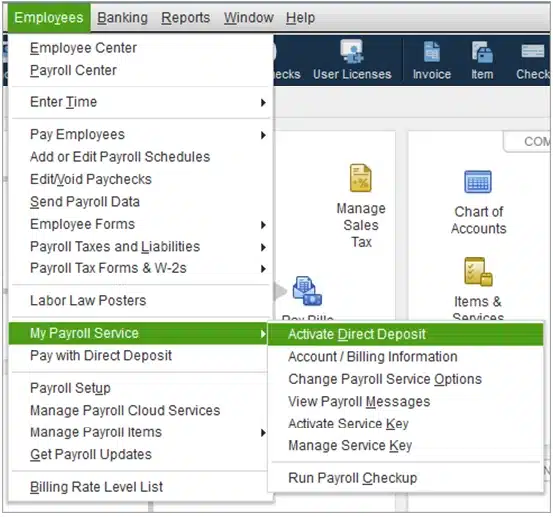
Performing these steps would resolve the issue of direct deposit not working.
Change the Employee’s Banking Information
If your employee’s banking information is incorrect in the QB Desktop application, you can change it to resolve the QuickBooks Direct Deposit not working problem with the steps given below:
- Open the QB Desktop app
- Navigate to the Employees menu

- Click on Employee Center to open the list of employees
- Choose the employee’s name
- Go to the Payroll Info tab
- Click on the Direct Deposit button
- The Direct Deposit window would open
- Select Use Direct Deposit for [employee’s name]
- Choose to deposit the paycheck into one or two accounts
- Enter the employee’s banking information
- Bank name, routing number, account number, and account type
- Press OK to save the information
- Enter your direct deposit PIN when you are prompted
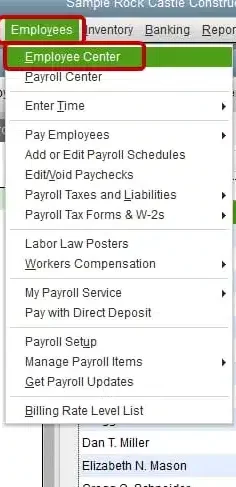
Now, the direct deposit not working problem should be fixed.
Check Your Payroll Subscription
You can check your payroll service key and subscription to resolve the QuickBooks Direct Deposit not working problem with the steps given below:
- Open the QB Desktop app
- Navigate to the Employees menu
- Click on My Payroll Service
- Then, select Manage Service Key

- The following fields should be displayed as Active:
- Service Name
- Status
- Select Edit
- Verify the service key number
- If it is incorrect, enter the correct service key
- Click on Next
- Unmark the Open Payroll Setup checkbox
- Select Finish
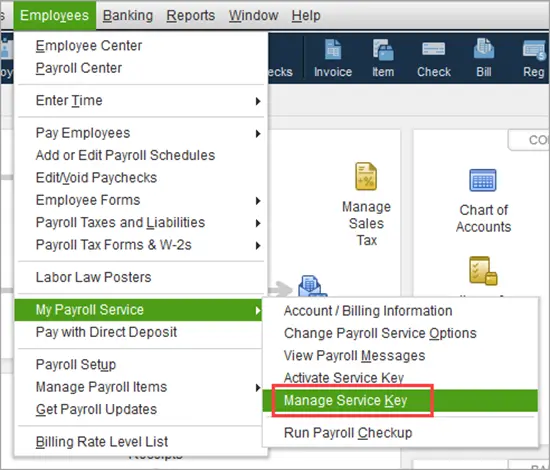
Now, you should be able to send direct deposit again.
Use Quick Fix My Program
You can use the Quick Fix My Program tool from the QB Tool Hub to resolve the QuickBooks direct deposit issues with the steps given below:
- Download and install the QuickBooks Tool Hub
- Open the QB Tool Hub app

- Navigate to the Program Problems tab
- Click on Quick Fix My Program

- Let the tool run

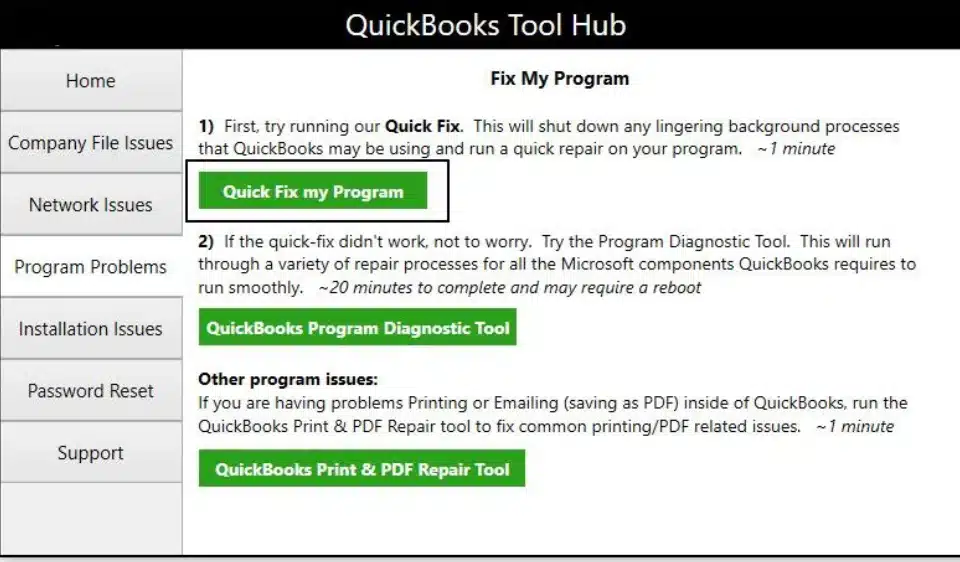
The tool would fix the direct deposit issues you were dealing with.
Methods to Resolve the Direct Deposit Not Working Problem in QB Online
If you are dealing with the QuickBooks Online Direct Deposit not working issue, you can implement the troubleshooting methods given below:
Change the Payroll Bank Account
If your banking information in QB Online is outdated, your direct deposit won’t work. You should change the payroll bank account to resolve this issue. First, ensure that you have this info in hand:
- Bank Information:
- Bank name
- Routing number
- Account number
- Principal Officer Address:
- Physical address of your principal officer (not a P.O. box)
Now, follow these steps to change your bank account:
- Open the QBO website
- Click on the Gear icon
- Select Chart of Accounts

- Press New to create a new account
- Go to the Account Type dropdown menu
- Select Bank
- Then, click on the Detail Type dropdown menu
- Choose the type of bank account
- Give the account a new name
- Go to the When you want to start tracking your finances from this account in QuickBooks dropdown menu:
- Select Today if the account you’re tracking is brand new as of today
- Select Other and enter the date you want to track transactions for in the Select Date field if you started the account on another date
- Press Save and Close
- Go to the Settings menu
- Select Payroll Settings
- Go to the Bank Accounts section
- Select Edit
- Press Update
- Then, select Add new bank account
- Search for your bank name and enter your online bank ID and password
- You can also select Enter bank info manually to enter your account and routing number
- Press Accept and Submit
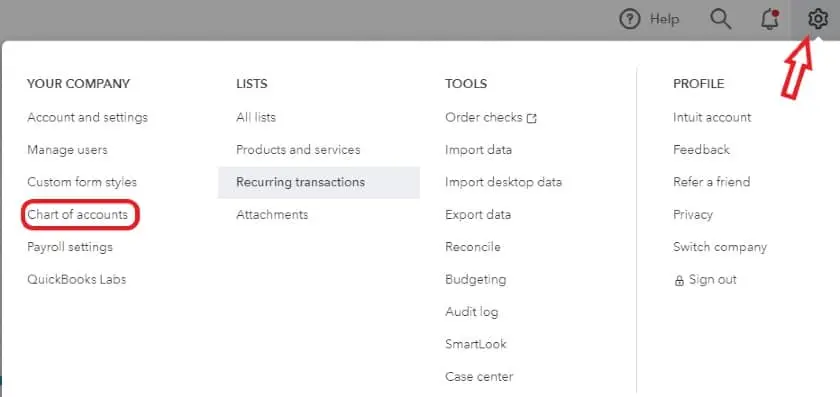
This would resolve the issue you were dealing with.
Change the Employee’s Direct Deposit Info
If the direct deposit information of your employee is incorrect, the direct deposit won’t work. You can edit the employee information with the steps given below:
- Select your employee
- Go to Payment method
- Press Edit
- Enter the new bank account information
- Select Save
This should fix the QuickBooks direct deposit issues.
Handle the Problem of Direct Deposit Not Being Received by an Employee
If you processed the direct deposit but your employee wasn’t able to receive it, it may be due to one of two reasons: the account or routing number is incorrect, or the account is for another employee. So let’s discuss the solutions for each scenario:
Case 1: If the Account or Routing Number is Incorrect
You should contact the bank to first check whether the incorrect bank account exists or not, then:
- If the bank account is live:
- Request a direct deposit reversal within five business days from the pay date (the paycheck date counts as the first day), but this doesn’t guarantee the reversal of funds
- Wait until the reversal is complete
- You can pay your employee with a regular check while you wait for the reversal
- Once you have the result, update your employee’s banking info
- Request a direct deposit reversal within five business days from the pay date (the paycheck date counts as the first day), but this doesn’t guarantee the reversal of funds
- If the account does not exist or is closed:
- Confirm the payment was rejected
- Void the paycheck
- Update the employee’s bank account
- Recreate the paycheck and send a new direct deposit
This should resolve your issue.
Case 2: If the Account is For Another Employee
If the bank account is owned by another employee, you have two options to recover the funds. The options you have are:
- Option 1: Make an arrangement with the employee who owns the bank account to return the funds by cash, check, etc
- Option 2: Request a direct deposit reversal within 5 business days from the date of the paycheck; however, this doesn’t guarantee the reversal of funds
Now, the problem you were dealing with should be resolved.
QuickBooks Payroll Direct Deposit Not Working – A Quick View Table
In the table below is given a concise summary of this blog on the topic of the QuickBooks Direct Deposit error:
| Description | The QuickBooks Direct Deposit not working problem can render you unable to send paychecks directly into your employees’ bank accounts via QB Payroll. This can hamper your workflow and important business processes. |
| Its causes | An outdated QB Desktop app, incorrect direct deposit bank account, incorrect employee payroll information, outdated payroll and tax tables, an expired payroll subscription, and issues with the direct deposit lead time. |
| Methods to fix it in QBDT | Update the QBDT app, update the payroll and tax tables, check your direct deposit lead time and funding time, activate direct deposit, change the employee’s banking info, check your payroll subscription, and utilize Quick Fix My Program. |
| Methods to fix it in QBO | Change the payroll bank account, and change the employee’s direct deposit info. |
| If a paycheck wasn’t received by an employee | If the account or routing number is incorrect: 1. If the account is live, then request a direct deposit reversal 2. If the account is closed or doesn’t exist, void the paycheck and change your employee’s banking info If the account belongs to another employee: 1. Make arrangements to get the money back via cash or check 2. Request a direct deposit reversal |
Conclusion
The QuickBooks Direct Deposit not working issue is one that many users face, and are unable to send paychecks directly into their employees’ bank accounts, hampering their workflow and important business processes. We have covered the factors that can cause this problem, along with the methods you need to troubleshoot this issue, in this blog. If you are still facing the same error, feel free to contact our experts at 1-855-888-3080 today to resolve your problem at a moment’s notice!
FAQs
Why is my QB Direct Deposit not working?
Your QB Direct Deposit might not be working due to these reasons:
1. An outdated QB Desktop app
2. Incorrect direct deposit banking information
3. Incorrect employee’s direct deposit information
4. Outdated payroll and tax tables
5. An expired payroll subscription
6. Issues with the direct deposit lead time and funding time
How do I fix the problem of QB Direct Deposit not working?
You can fix the QB Direct Deposit not working issue with these methods:
1. For QuickBooks Desktop:
– Update the QB Desktop app
– Update the payroll and tax table
– Check your direct deposit lead time and funding time
– Activate direct deposit in QBDT
– Change the employee’s banking info
– Check your payroll service key
– Utilize Quick Fix My Program
2. For QuickBooks Online
– Change your payroll bank account
– Change the employee’s banking info
What’s the direct deposit lead time for QB Desktop Payroll Assisted?
The direct deposit lead time for QB Desktop Payroll Assisted is the next day or 1 day. However, you need to submit your funds prior to the funding time deadline provided by QuickBooks. If you want your employees to receive their paychecks on time while using QB Payroll Assisted, submit your funds by 5:00 PM PT prior to the payday to avoid any problems.
Read more Direct Deposit Articles:
How to Fix QuickBooks Direct Deposit Error 40001
How to Fix QuickBooks Direct Deposit bank account verification error 30114
How to Fix QuickBooks Error Code 2501
How to turn on instant deposit in QuickBooks Online?
How to fix error 2107 in QuickBooks Desktop?

Peter is a Certified Public Accountant (CPA) with a strong background in public accounting and accounting technology. After starting his career as an audit senior, he worked with organizations across various industries and gained hands-on experience with complex accounting standards. At ProAdvisor Solutions, Peter helps clients navigate new accounting requirements. His goal is to simplify processes, improve accuracy, and boost confidence in finance reporting.