


Software updates are a crucial part of maintenance, and thus developers regularly roll them out to cover security vulnerabilities and bug fixes. When you update QuickBooks Desktop to the latest release, you also embrace enhanced speed and new features. It is not merely recommended but in fact essentially mandatory to keep your QBDT updated.
If you’re not sure whether you have the latest release of the software installed on your computer, you can check. We will see how to do that and how to update QuickBooks to the latest release in this blog.
If you run into a problem when updating your QB Desktop application or if the update gets stuck, you can seek professional assistance.
Table of Contents
Why Do I Need to Update My QuickBooks Desktop Application?
Installing the latest release of QBDT is essential to closing security gaps, reducing vulnerabilities, and protecting your data from threats. However, that is not all.
- Software updates install security patches that make sure your data is not vulnerable to cybersecurity threats and ransomware.
- New releases are optimized for better performance and a smooth experience which often means higher productivity.
- QuickBooks updates introduce new features once in a while
Additionally, you should also update your QuickBooks payroll to get the latest tax table and ensure compliance.
However, updating your older QuickBooks version to the latest release can only work for a limited time. If you are on an older version of QuickBooks, say QuickBooks Desktop 2023, you should consider upgrading to a newer QB version. Over time, older versions lose support and offer limited accounting experience.
You may also see: QuickBooks search not working
How Do I Check the Release Information for My QuickBooks Desktop Application?
It is quite easy to check and find out if you are on the latest release for your QuickBooks Desktop version.
For QuickBooks Desktop for Windows
Follow the steps below to check the release information for your QB Desktop for Windows.
- Access QuickBooks Desktop.
- Either press F2 or Ctrl + 1 to launch the Product Information window.
- You will be able to see the current version and release number.
These are the latest release versions for QuickBooks Desktop 2023 and 2024:
- QuickBooks 2023: R17_35
- QuickBooks 2024: R18_60
For QuickBooks Desktop for Mac
Follow the steps below to check the release information for your QB Desktop for Mac.
- Access QuickBooks Desktop
- On your keyboard, press Command + 1 to launch the Product Information window.
- You will now find the current version and release number.
These are the latest release versions for QuickBooks Desktop 2023 and 2024:
- QuickBooks Mac Plus 2023: R7.6
- QuickBooks Mac Plus 2024: R10.2
If you find that you do not have the latest version installed, you need to update your QBDT application.
We will see how to update QuickBooks Desktop for Windows and Mac, one by one. Feel free to scroll to the section for the QB product you run.
Things to Keep in Mind Before Updating QuickBooks Desktop
There are various things that can interfere with the update, such as download accelerators, connection speed, and parental control settings. Before running your QuickBooks updates, there are a few things you need to keep in mind.
- In case of QuickBooks updates, download accelerators can prove to be the opposite of helpful. Therefore, before you download the updates, turn off any download accelerator.
- In case you are on a dial-up connection, make sure that the minimum speed is 28.8 kilobits per second (Kb/s).
- In case you are on America Online (AOL), log in with your primary login name and check that the Parental Control settings are not turned on.
You can reach out to your internet service provider for assistance.
Section A: How Do I Update My QuickBooks Desktop for Windows or QuickBooks Enterprise
There are ways to set QuickBooks to update automatically, run an immediate update, and download the update from the Intuit website.
We will go through all the ways and steps you need to follow to get the QuickBooks Desktop and QuickBooks Enterprise update, respectively.
Set QuickBooks for Automatic Updates
You can schedule your QuickBooks to automatically get updates.
- Fetch Help menu and go to Update QuickBooks Desktop.

- Tap on the Options tab and choose Yes.
- Finally, click on the Close button.
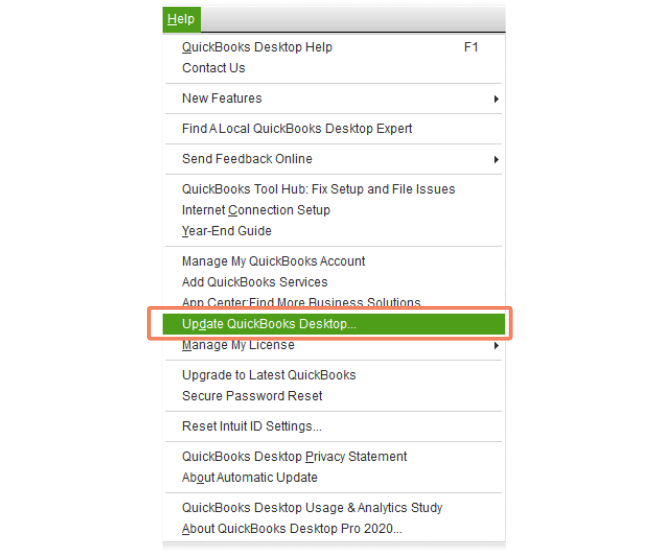
This will ensure that QuickBooks downloads updates to the application as soon as they are available.
Run an Immediate Update and Install It
You can download the update and install it on your computer right away as well.
- Open the Help menu and go to Update QuickBooks Desktop
- Tap on the Update Now tab and then choose Get Updates

- When QuickBooks is done downloading and updating, restart the application
- You will be prompted to install the update. Tap on the Install Now option.
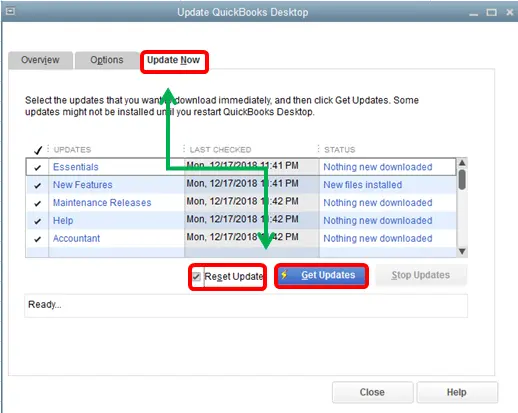
This will ensure you update QuickBooks Desktop to the latest release.
Download Update from Intuit’s Website
Alternatively, you can also get updates directly from Intuit’s website, in this manner:
- Close QuickBooks windows if open
- Open your browser and go to the Download and updates page
- When asked to choose the setup, choose the standard setup
- Now, choose your Country, Product, and Version (Year)
- Tap Search, followed by Get the latest updates
- Double-tap the downloaded file to run the installation wizard and follow the on-screen instructions
If you work in multi-user mode, you will also need to update QuickBooks Database Server Manager.
Section B: How Do I Update My QuickBooks Desktop Application for Mac
You can either install your QuickBooks update within the application or download it from the website and install it.
Update QuickBooks within the Application
To install the update for your QuickBooks Desktop for Mac within the application, follow the steps below:
- Launch the application and fetch the QuickBooks menu.
- Now, go to Check for QuickBooks updates.
- Finally, tap on Install and Relaunch.
Moreover, if you want your QuickBooks to automatically download and install updates, select the option to Automatically download and install updates in the future.
Download Update from the Website
If you notice that even when updating your QB from the application, there is no change in the release number or the update fails for some reason, you can download and install the update from the site.
- Open your browser and go to Intuit’s Downloads and update page.
- Choose the standard setup when prompted to choose the setup type.
- Now, from the respective drop-down menus, select Country, Product, and Version (Year).
- Tap Search, then tap Get the latest updates.
- Finally, double-click the downloaded file to run the installation wizard.
- Follow the on-screen instructions to update your QuickBooks Desktop to the latest release.
Restart your computer and resume working.
Recommended to read : How to fix QuickBooks Keeps Crashing Issue
How Do I Check the Release Information for My QuickBooks Desktop Application?
It is quite easy to check and find out if you are on the latest release for your QuickBooks Desktop version.
For QuickBooks Desktop for Windows
Follow the steps below to check the release information for your QB Desktop for Windows.
- Access QuickBooks Desktop.
- Either press F2 or Ctrl + 1 to launch the Product Information window.
- You will be able to see the current version and release number.
These are the latest release versions for QuickBooks Desktop 2023 and 2024:
- QuickBooks 2023: R17_35
- QuickBooks 2024: R18_60
For QuickBooks Desktop for Mac
Follow the steps below to check the release information for your QB Desktop for Mac.
- Access QuickBooks Desktop
- On your keyboard, press Command + 1 to launch the Product Information window.
- You will now find the current version and release number.
These are the latest release versions for QuickBooks Desktop 2023 and 2024:
- QuickBooks Mac Plus 2023: R7.6
- QuickBooks Mac Plus 2024: R10.2
If you find that you do not have the latest version installed, you need to update your QBDT application.
We will see how to update QuickBooks Desktop for Windows and Mac, one by one. Feel free to scroll to the section for the QB product you run.
Things to Keep in Mind Before Updating QuickBooks Desktop
There are various things that can interfere with the update, such as download accelerators, connection speed, and parental control settings. Before running your QuickBooks updates, there are a few things you need to keep in mind.
- In case of QuickBooks updates, download accelerators can prove to be the opposite of helpful. Therefore, before you download the updates, turn off any download accelerator.
- In case you are on a dial-up connection, make sure that the minimum speed is 28.8 kilobits per second (Kb/s).
- In case you are on America Online (AOL), log in with your primary login name and check that the Parental Control settings are not turned on.
You can reach out to your internet service provider for assistance.
Section A: How Do I Update My QuickBooks Desktop for Windows or QuickBooks Enterprise
There are ways to set QuickBooks to update automatically, run an immediate update, and download the update from the Intuit website.
We will go through all the ways and steps you need to follow to get the QuickBooks Desktop and QuickBooks Enterprise update, respectively.
Set QuickBooks for Automatic Updates
You can schedule your QuickBooks to automatically get updates.
- Fetch Help menu and go to Update QuickBooks Desktop.
- Tap on the Options tab and choose Yes.
- Finally, click on the Close button.
This will ensure that QuickBooks downloads updates to the application as soon as they are available.
Run an Immediate Update and Install It
You can download the update and install it on your computer right away as well.
- Open the Help menu and go to Update QuickBooks Desktop
- Tap on the Update Now tab and then choose Get Updates
- When QuickBooks is done downloading and updating, restart the application
- You will be prompted to install the update. Tap on the Install Now option.
This will ensure you update QuickBooks Desktop to the latest release.
Download Update from Intuit’s Website
Alternatively, you can also get updates directly from Intuit’s website, in this manner:
- Close QuickBooks windows if open
- Open your browser and go to the Download and updates page
- When asked to choose the setup, choose the standard setup
- Now, choose your Country, Product, and Version (Year)
- Tap Search, followed by Get the latest updates
- Double-tap the downloaded file to run the installation wizard and follow the on-screen instructions
If you work in multi-user mode, you will also need to update QuickBooks Database Server Manager.
Section B: How Do I Update My QuickBooks Desktop Application for Mac
You can either install your QuickBooks update within the application or download it from the website and install it.
Update QuickBooks within the Application
To install the update for your QuickBooks Desktop for Mac within the application, follow the steps below:
- Launch the application and fetch the QuickBooks menu.
- Now, go to Check for QuickBooks updates.
- Finally, tap on Install and Relaunch.
Moreover, if you want your QuickBooks to automatically download and install updates, select the option to Automatically download and install updates in the future.
Download Update from the Website
If you notice that even when updating your QB from the application, there is no change in the release number or the update fails for some reason, you can download and install the update from the site.
- Open your browser and go to Intuit’s Downloads and update page.
- Choose the standard setup when prompted to choose the setup type.
- Now, from the respective drop-down menus, select Country, Product, and Version (Year).
- Tap Search, then tap Get the latest updates.
- Finally, double-click the downloaded file to run the installation wizard.
- Follow the on-screen instructions to update your QuickBooks Desktop to the latest release.
Restart your computer and resume working.
Read Also : Why QBDBMgrN Not Running After Update
Why Can’t I Update My QuickBooks Desktop? Troubleshooting Common Update Issues
It is not uncommon for a user to run into an error when updating QuickBooks Desktop. Often, the update fails or gets stuck. You may see error codes like 12XXX and 15XXX on your screen, accompanied by a message. If it is a specific error code, you can find the dedicated guide to troubleshoot it in our knowledge base.
If your QuickBooks update is stuck at a specific stage, we have compiled a dedicated guide to help you resolve that.
Let us walk you through some general troubleshooting steps to follow whenever the QuickBooks update fails.
Check the Time and Date on Your System
Before updating your QuickBooks Desktop, check the time and date of your system. Here is how you can check and correct the time and date settings:
- There will be a clock icon in the Taskbar, usually in the bottom right side of your computer screen; right-click on it
- Choose Adjust date and time, followed by Change date and time
- Now, select the applicable time zone based on your location.
- Exit all QuickBooks windows and restart the application.
Run QB updates. If you come across a problem again, move to the next step.
Verify the Internet Connection Settings
The update problems might stem from issues with the internet connection or settings. Test your network connection by opening a banking page in your browser. If you can’t open the banking page or find that the connection is poor or unstable, restart your WiFi router or speak to your network provider.
If your internet connection is alright, move to the next step.
Restore Advanced Connection Settings
Follow the steps below to restore advanced settings in QuickBooks Desktop:
- Open QuickBooks Desktop and fetch the Help menu
- Go to Internet Connection Setup and choose the Use my computer’s Internet connection settings to establish a connection when this application accesses the Internet option.
- Choose Next, followed by Advanced Connection Settings.
- Go to the Advanced tab and choose Restore Advanced Settings
- Choose OK followed by Done
Restart your QB application and try updating it again.
Troubleshoot the Security and Firewall Settings
Your security software or Windows Firewall might block the connection to the Intuit servers or interrupt it during an update. Therefore, check your Windows Firewall and create exceptions for QuickBooks programs.
Check If There are Multiple Instances of QB Installed
Multiple instances of QuickBooks installation can often lead to update issues. Therefore, check and make sure that for a specific version (year), you do not have more than one instance of its installation.
In such cases, manually downloading the update file from the Intuit website and installing it will help.
Updating QuickBooks to the Latest Release Vs Updating QuickBooks to the Latest Version (Upgrade)
If you are on a QuickBooks Desktop version, such as QuickBooks Desktop 2023, you can install software updates that include bug fixes, features, and security patches. However, over time, QuickBooks Desktop 2023 will become obsolete, limited in features and functionality, stop receiving support, and so on.
You will then need to upgrade to the newer version of QuickBooks Desktop. Intuit is no longer selling new subscriptions to new American customers for QuickBooks Desktop Pro, Premier, and Mac (including 2024 versions). Thus, you can either upgrade to QuickBooks Desktop Enterprise or switch to QuickBooks Online.
You may also read: Update Intuit Data Protect
Pro Tips: Some Healthy Practices for a Smoother QuickBooks Experience
QB is riddled with errors, so it’s mandatory to maintain certain practices to avoid errors and program failures. Here are some healthy practices to incorporate into your accounting routine:
- Regularly update your QuickBooks Desktop application and payroll
- Verify and rebuild your company file once in a while to maintain data integrity
- If your company file gets larger over the years, keep the data in an old company file (use that as an archive) and make a new company file for present-day accounting.
- Condense your company file when the file starts to get longer than 1 GB, as a lengthy file might slow QB down.
- Resort your main lists, such as the Chart of Accounts, Customer/Vendor Lists, and Item List.
- Turn off unnecessary features that you do not use, for instance, Search Indexing.
- Restart your QuickBooks workstations to free up RAM and optimize performance.
Moreover, avoid leaving blank or zero-dollar lines in transactions, which can cause calculation errors and increase file size.
A Quick View on QuickBooks Desktop Update
In this section, we will take a quick look at all that we have discussed in this blog.
| Why update QuickBooks Desktop | Updating the desktop application will install security patches, product enhancements, and new features, and make your data secure against cybersecurity threats |
| How to update QuickBooks | Open the Help menu and navigate to Update QuickBooks Desktop, followed by Update Now. Finally, select Get Updates. |
| How to troubleshoot common update issues | Make sure that your time and date are correct, check the internet connection and ensure it is strong, restore default internet settings in QuickBooks, and create firewall exceptions for QB programs. |
Final Words
This was all about how to update QuickBooks Desktop to the latest release. We saw why you must update your application and how you can do that for both Windows and macOS operating systems. In case the update fails or encounters an error, we also went through general troubleshooting steps you can run on your system.
However, if nothing helps or you’re low on time, it is recommended to connect with an expert. Dial TFN to speak with a QB expert and avail professional assistance.
Frequently Asked Questions
Do I need to install updates if I am on QuickBooks Online?
QuickBooks Online is a web-based application that is automatically updated by Intuit throughout the year. This means you are getting enhancements and security patches in real time when they are rolled out for all users.
How can I manually update QuickBooks Desktop?
If you want to manually update QuickBooks Desktop, you can do so from the Help menu. Open QuickBooks, pull up the help menu, go to Update QuickBooks Desktop, and then Update Now. Mark the checkbox for Reset Update, and finally tap on the Get Updates button.
How do I get the latest payroll update for QuickBooks?
To get the latest payroll updates for QuickBooks rolled out by developers, log in to your company file. Go to the Employees menu, followed by Get Payroll Updates, and choose Download Entire Update. Finally, select Update.
How can it affect me if I do not update QuickBooks Desktop?
If you do not update QuickBooks Desktop, you risk losing your crucial data to cybersecurity threats. Updates cover vulnerabilities and install security patches. You also miss out on the latest features, product enhancements, and optimized performance.
When will QuickBooks Desktop 2023 and 2024 be discontinued?
QuickBooks Desktop 2023 is expected to be discontinued after May 31, 2026, which also includes Premier Plus, Pro Plus, Mac Plus, and Enterprise Solutions 23.0. QuickBooks Desktop 2024 discontinuation will follow in May 2027.

Peter is a Certified Public Accountant (CPA) with a strong background in public accounting and accounting technology. After starting his career as an audit senior, he worked with organizations across various industries and gained hands-on experience with complex accounting standards. At ProAdvisor Solutions, Peter helps clients navigate new accounting requirements. His goal is to simplify processes, improve accuracy, and boost confidence in finance reporting.