


The QuickBooks Desktop application is being used by many businesses to handle their financial operations. The QB application comes with a POS tool, which is made for stores and supply chain businesses to manage their inventory. While working with the customer/vendor name or list, you might encounter QuickBooks status code 3170 in your system if you wish to edit them. You can notice the following message on the screen when the issue arises:
“Error Message: [QODBC] Error: 3170 – There was an error when modifying a data extension named ‘Sent to FS’. QuickBooks error message: This action needs a valid closing date password.”
The issue can be caused by duplicate names of the vendors/customers. We will understand what we can do to overcome this situation in this blog.
If you need any help with your company file, you can get in touch with our experts.
You may also see: QuickBooks warning Windows updates not installed
Table of Contents
Methods to Help You Overcome QuickBooks Status Code 3170
There are multiple effective methods through which you can fix the error 3170 in your system.
Solution 1: Use the Verify and Rebuild Tool
The built-in tool for damaged company files can help you resolve the issue by following the steps as mentioned:
- Go to the Window menu.
- Click on the Close All option.
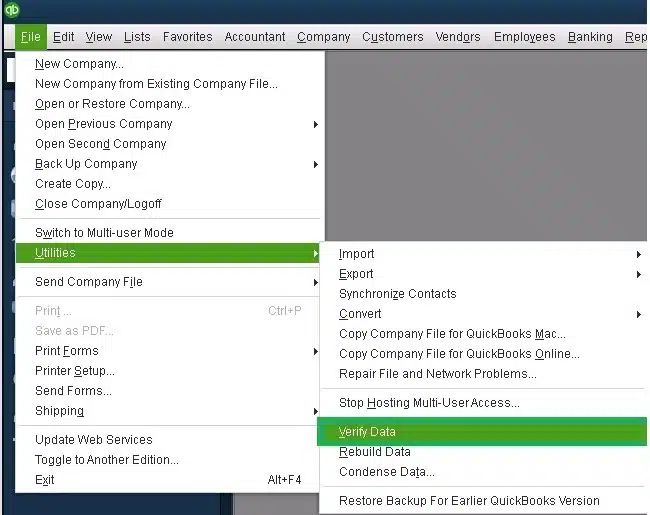
- Then, head to the File menu.
- Tap on the Utilities.

- Now, click on the Verify Data option. The following results may pop up:
- “QuickBooks detected no problems with your data.”: Your data is clean, and you do not need to do anything else.
- An error message: Search for the specific error message on our QuickBooks Desktop support site for instructions on how to fix it.
- “Your data has lost integrity.”: Data damage was found in the file. Proceed to rebuild your company file to resolve the issue.
Rebuild the Company Data
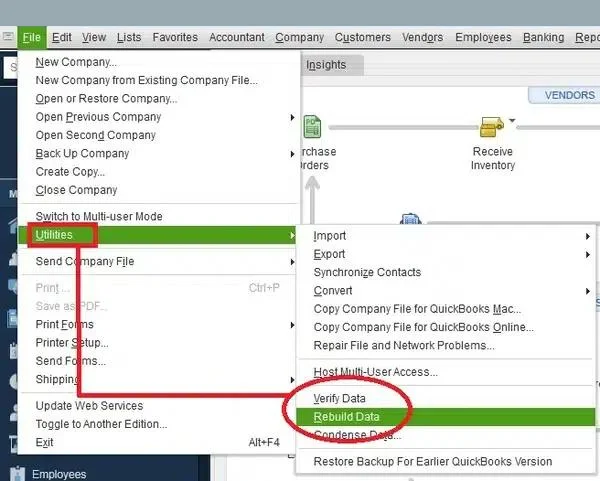
- Head to the File menu.
- Tap on the Utilities option.
- Then choose the Rebuild Data option.

- If the QB asks to create a backup for the company file, then press OK.
- Choose where you wish to save the backup.
- Then, press OK.
- Input the new name in the file name field.
- Hit Save.
- Now, tap on OK when the Rebuild has completed message appears.
By following the methods, you can seamlessly overcome the error and edit the customer or vendor list again.
Solution 2: Use the QuickBooks Tool Hub
You can use a dedicated application from Intuit and begin to download and install the QuickBooks Tool Hub. Then follow the steps as mentioned.
Use Quick Fix my Program
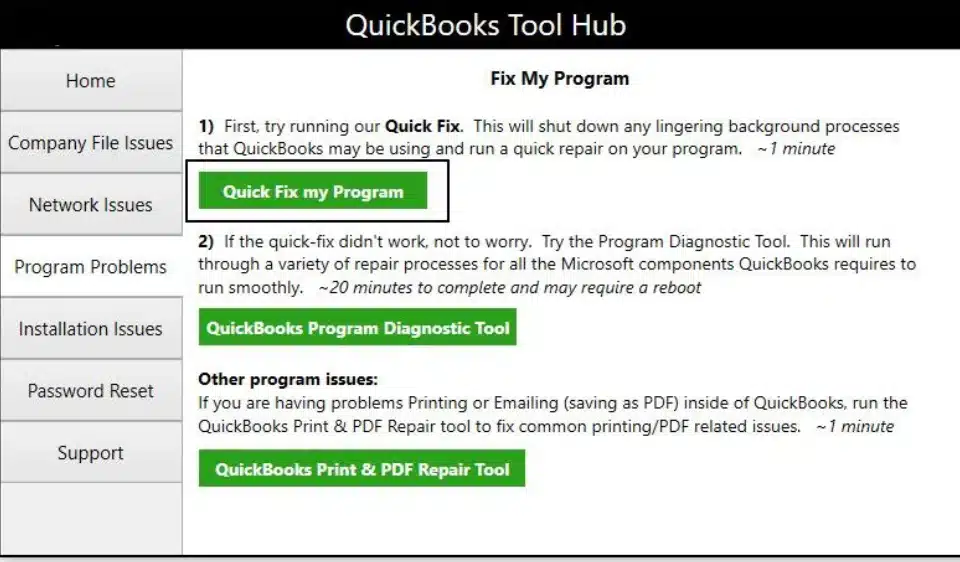
- Launch the QB Tool Hub,
- Move to the Program Problems section.
- Then click on the Quick Fix my Program option.

- Let the scan run and fix the issues with your application.
Use the QuickBooks File Doctor
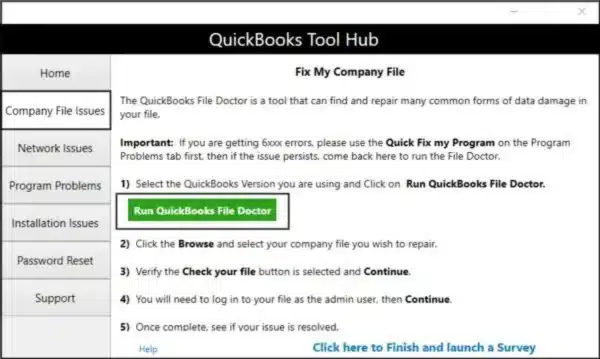
- Run the QB Tool Hub.
- Go to the Company File Issues tab.
- Next, tap on the QuickBooks File Doctor option.

- Select the company file with the issue from the menu.
- Click on Check your file.
- Enter the QB admin password, then let the tool run and fix the issue.
The above-mentioned steps will help you overcome the issues and fix the problem in your system and the company file as well.
Solution 3: Remove the Duplicate Names
If you are facing error 3170 when you try to change the customer or vendor list, try the following steps to fix the issue and edit the duplicate name from the lists.
Verify the Activity Log
The error can arise if there are already existing file names in both QBDT and the Point of Sale software.
- Go to the Customers menu.
- Click on the Customer List option.
- Then right-click on the column header.
- Tap on the Customize Column menu.
- Now, click on QB Status.
- Verify the status of any names with the label Not Posting or Error Status.
- Repeat the steps for the Vendor list and then move on to the next step.
Edit the Name
Once you checked if there are no errors in the customer or vendor, go through the steps below:
- Head to the Customers menu.
- Then, tap on the Customer Center or Vendors.
- Tap on the Vendor Center option.
- Now, right-click on the name, which is outlined.
- Tap on Edit.
- Add any digit to the name of the file.
- Tap on OK to save the details.
Merge the Name
After you have edited the same names, you can follow the steps to merge them with each other.
- Right-click on the edited name.
- Then, click on the Edit option.
- Remove the digit that you added to the name.
- Click on OK to save the details.
- Now you will get a pop-up message to merge the edited customer or vendor with the one created by the financial exchange.
- Click on Yes to confirm the changes.
Now, you can continue to work with your customers and vendors and check if the QuickBooks status code 3170 still shows up.
You may also read: QuickBooks POS Connectivity Tool
Solution 4: Fix the Windows Firewall
The issue can be seen if the antivirus application is blocking your tasks and operations. Here are the steps to fix it.
- Tap on the Start menu.
- Enter Windows Firewall in the search bar to open it.
- Go to the Advanced Settings.
- Now, right-click on the Inbound Rules.
- Then, tap on the New Rule option.
- Choose the Port and choose Next.
- Ensure that TCP is selected.
- Under the specific local port areas, enter the ports as per the QuickBooks version:
- QuickBooks Desktop 2020 and later: 8019, XXXXX.
- QuickBooks Desktop 2019: 8019, XXXXX.
- QuickBooks Desktop 2018: 8019, 56728, 55378-55382.
- QuickBooks Desktop 2017: 8019, 56727, 55373-55377.
- Once you have entered the port number.
- Tap on Next.
- Click on the Allow the Connection option.
- Again, hover on Next.
- If prompted, select all profiles and click Next.
- Now, create a new rule and allot a name such as QBPorts (year).
- Click on Finish to save the changes.
These steps will help you to avoid firewall issues in your system with the application.
Possible Reasons Behind the QuickBooks Status Code 3170
You should be aware of the causes behind the issue in your QBDT application. Listed below are the reasons why it can cause problems in your case.
- If a program crashes when running in the background, you may face error 3170 in your system.
- When the antivirus or firewall application is blocking your QuickBooks operations.
- If the company file is damaged or corrupted, then you might face the QuickBooks error 3170.
- When the Point of Sale is not updated, it can also bring many errors in the QuickBooks application.
- If the POS software crashes, you might encounter issues in your system with the vendor and customer lists.
Once you have understood the cases that can cause the issue in your system, you can easily overcome it.
QuickBooks Status Code 3170: A Quick View Table
Let us take a quick glance at error 3170 and what we have talked about it so far.
| Description | When you have duplicate entries in your vendor or customer list in your QBDT application, you might encounter QuickBooks status code 3170. |
| Causes | There can be multiple reasons why you face the error, such as if a program crashes when running in the background, when the antivirus or firewall application is blocking, if the company file is damaged or corrupted, when the Point of Sale is not updated, if the POS software crashes, you might encounter issues in your system with the vendor and customer lists. |
| Ways to Fix it | The issue can be fixed by using the verify and rebuild utility tool, using the QuickBooks tool hub, removing the duplicate names from the list, or by fixing the Windows Firewall for the application. |
Conclusion
In this blog, we have talked about why and when you might encounter the QuickBooks status code 3170 in your system. We further included the steps that will help you to overcome the error and fix the problem. If you need any help with your POS service, feel free to get in touch with Proadvisor Solutions’ experts.
Frequently Asked Questions (FAQs)
What are the indications that you are facing the QuickBooks status code 3170?
The following pointers are the common indications due to which the error can be seen in your system.
1. The windows often crash and close.
2. The error code 3170 appears on the screen.
3. The mouse and keyboard are unresponsive.
4. There can be interruptions in QuickBooks operations.
How to fix the corrupted or damaged company files in QuickBooks Desktop?
In order to fix the issues with the company file, you can use the verify and rebuild data utility tool, which is available in the QBDT application to fix it. You can also use the QuickBooks Tool Hub to fix the error 3170.
How to sync the QuickBooks POS and the QBDT application?
The steps to sync the data of POS to the QBDT are as follows:
1. Tap on the Financial option.
2. Then click on the Financial Center option in QuickBooks POS.
3. Choose the Show Options for Experts.
4. Click on Restore Data Now.
5. When you observe the warning pop-up, tap on Continue.
6. Input the dates when the financial exchange was completed.
7. Tap on Yes and hit Continue

Peter is a Certified Public Accountant (CPA) with a strong background in public accounting and accounting technology. After starting his career as an audit senior, he worked with organizations across various industries and gained hands-on experience with complex accounting standards. At ProAdvisor Solutions, Peter helps clients navigate new accounting requirements. His goal is to simplify processes, improve accuracy, and boost confidence in finance reporting.