


QuickBooks allows multiple users to work on the company simultaneously in a collaborative manner. This is usually referred to as multi-user mode, where the company file is hosted on the server. However, users sometimes encounter QuickBooks error H303 when accessing the company file.
The primary reason for this is usually misconfigured hosting, but there are other factors that often lead to the error. In this blog, we will explore all such factors and guide you through troubleshooting H303 step by step.
Table of Contents
What is QuickBooks Company File Error H303?
H-series errors in QuickBooks are associated with the multi-user mode. If you have your files stored on a server computer, you may come across the QuickBooks company file error H303 while trying to access it through a workstation. It may show up as soon as you opt to switch to multi-user mode.
It means your PC might require additional setup and installations to access your files. The QuickBooks H303 error message states that the company file is on another computer and QB is having trouble connecting.
The two instances of this issue are as follows:
- A computer other than the server might be hosting the company file.
- The missing configuration is causing difficulties in accessing QuickBooks.
What You Might Experience When You Encounter Error H303
Needless to say, QuickBooks error H303 will keep you from accessing the company file on the workstations. Moreover, the error might manifest in these ways for you:
- You may see an error message accompanied by code H303 on the screen.
- The computer might freeze, or the QB software and/or other running applications might get stuck.
Let us now understand what causes this multi user mode error in QuickBooks Desktop.
All the Potential Reasons for QuickBooks Desktop Error H303
The QuickBooks multi-user mode requires multiple components to function efficiently. An issue with any of these components would lead to QuickBooks Desktop error H303.
These are some potential reasons you encounter the error H303:
- The Windows firewall might be blocking the communication between the server and the workstation. QuickBooks needs to access certain ports to share the company file over the network. The firewall might block QuickBooks access to these ports in some cases.
- There is corruption or damage to the network database file (.ND), a configuration file involved in opening the company file over the network.
- An issue with the network connection interrupts the communication.
- Hosting is not configured correctly. For instance, either the hosting access is not enabled on the server, or a workstation is also hosting the company file in addition to the server. Hosting access shouldn’t be enabled on more than one computer on the same network.
- The QB application cannot acquire files from the server.
- Components such as QBCF Monitor or QuickBooks Database Server Manager Services fail to initiate.
- Third-party programs or other factors interrupt the communication between the server and workstation.
- Antivirus or security software might block QB programs from running, quarantine them, or prevent QuickBooks from accessing the required ports.
- Improper DNS settings might also lead to this error.
Now that we understand the reasons behind QuickBooks error H303, let us analyze the methods to resolve it.
Tried and Tested Methods to Fix QuickBooks Error Code H303
As we saw, various factors can lead to QuickBooks error code H303; thus, we need to troubleshoot each one to resolve the issue.
Run the QuickBooks File Doctor Tool
QuickBooks File Doctor plays a crucial role in resolving issues related to the company file and network. You can run it from the Tool Hub to repair network issues. Follow the steps as provided below:
- Close your QuickBooks application.
- Download the latest version of QuickBooks Tools Hub on the server computer.
- Run the downloaded file to install the application.
- Follow the on-screen instructions to complete the installation process.
- Open the QuickBooks Tool Hub application and then select the ‘Company File Issues’ tab.
- Click on the Run QuickBooks File Doctor tool.

- Click on Browse and select your file.
- Select the option to resolve company file and network issues, and then press the Continue button.
- You’ll be asked to enter your QuickBooks password and then click on the Next button.
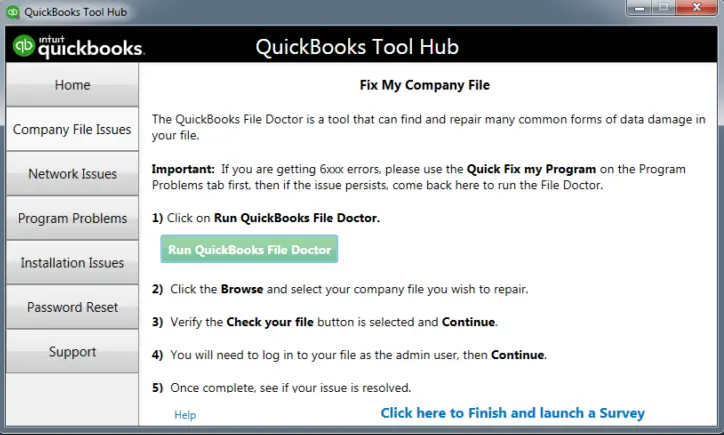
After the tool has finished troubleshooting, retry accessing your company file in a multi-user environment.
Launch QuickBooks Database Server Manager
QuickBooks Database Server Manager should be running on the host computer to facilitate network communication.
You can manually initiate QuickBooks Database Server Manager from the Tool Hub in the following manner:
- When you launch the QuickBooks Tool Hub, find and click the Network Issues section.
- Here, you’ll find the QuickBooks Database Server Manager option.
- Choose the Start Scan option.
- QB Database Server Manager will automatically repair issues with firewall permissions.
- After the scan finishes, tap on Close.
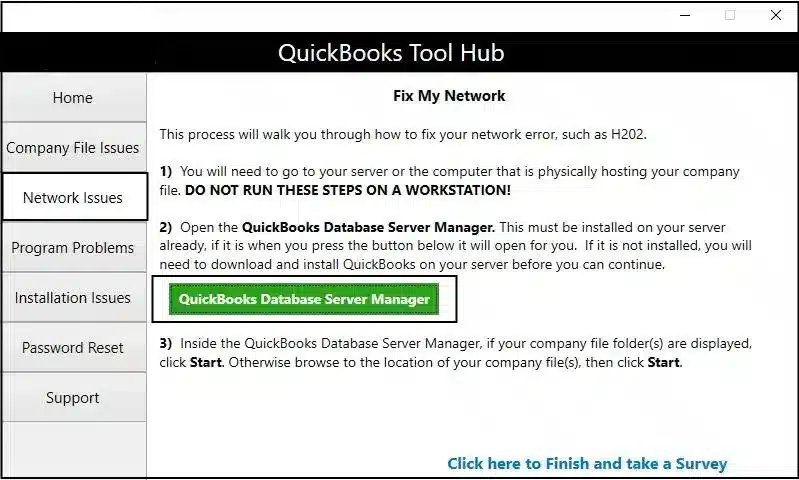
The tool will scan the application for damaged files and components and will repair them itself. Try accessing the file again after the process completes to check if the error has been resolved.
If the multi-user mode error H303 appears again, keep reading the article for other resolution methods.
Verifying the Hosting Settings in QuickBooks
Incorrect hosting settings will prevent you from accessing the company file in multi-user mode. You need to check and make sure that hosting is enabled on the server computer and disabled on the workstation.
Here is how you can check the hosting status on each computer:
- Launch the QuickBooks application.
- Go to the File menu and then choose the Utilities option.
- Now, check if you see Host Multi-User Access or Stop Hosting Multi-User Access.
- If you are on the server and see the option to Host Multi-User Access, select it. This means that the server is not hosting the company file yet. However, if it is already hosting the company file, you will see the option to Stop Hosting Multi-User Access, which you shouldn’t click on. In that situation, the server computer is already hosting the company file, and selecting it will stop the hosting.
- If you are on a workstation and you see the option to Stop Hosting Multi-User Access, select it. This means the workstation hosts the company file. However, if you see the Host Multi-User Access option, do not select it. That will cause the workstation to host the company file, which you do not want.

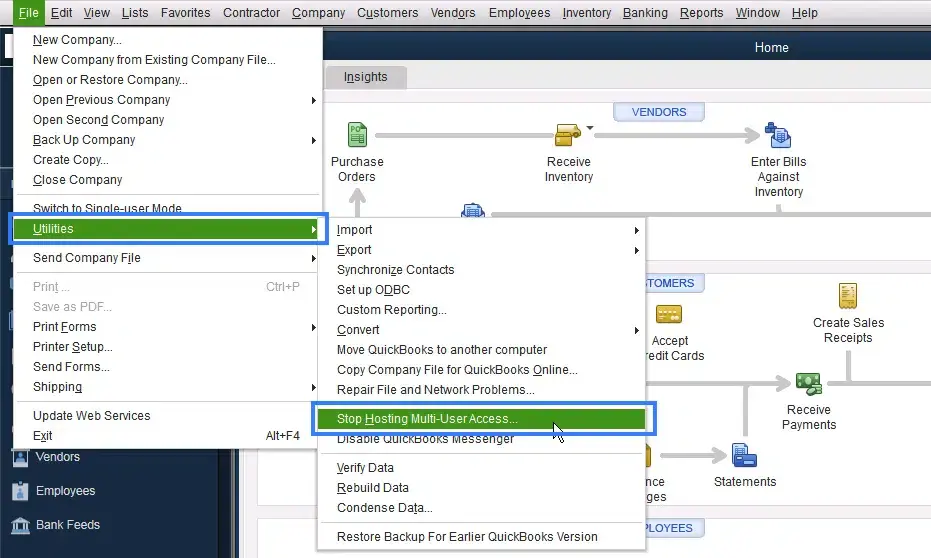
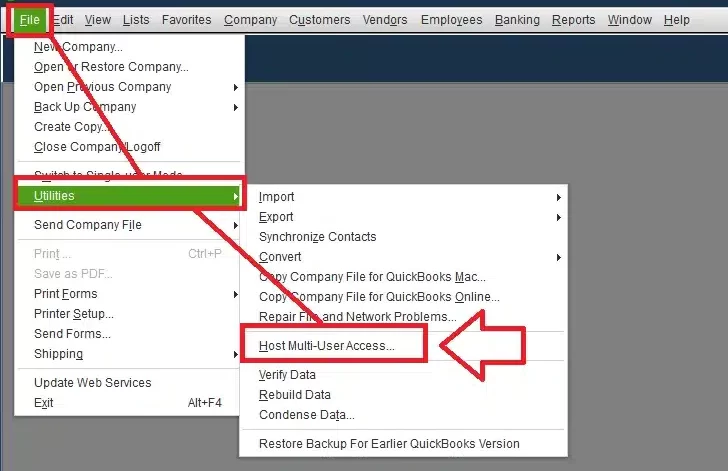
After verifying the hosting settings, close QuickBooks on all computers in a proper manner by going to the File menu and choosing Exit QuickBooks. Now, host your company file on the server. Finally, access it on a workstation. The correct order will help you avoid running into HXOX series errors like QuickBooks error H303.
Reconfigure Windows Firewall
The Firewall may obstruct QuickBooks from accessing the firewall ports and sharing files, considering it a threat, thus producing the error. You need to create firewall exceptions for QuickBooks programs.
This ensures that QB can access the required ports and share the company file over the network. If you have security software or antivirus installed on your computer, you need to create the required exceptions. QuickBooks exceptions to the antivirus will make sure that the antivirus doesn’t block QB programs.
Change the File Location
The QuickBooks application may have trouble locating your files on the server if the file address is changed, and yet QB has outdated and old information about the file path. You can try moving the file to a simpler and temporary location, like the desktop on the server computer, and then open it from the new location on the workstation.
This will help you figure out where the problem is coming from.
Follow the steps as provided below:
- Create a new folder on the server system.
- Set the window access permission to enable the sharing of the file in the folder.
- Copy the Company file (.QBW) and paste it into the newly created folder.
- Change the location address in the workstation.
- Open the Company file in the workstation.
One thing that you need to make sure of is that the folder permissions for QuickBooks are set correctly.
Verify Crucial Services are Running on the Server Computer
Check if the QuickBooksDBXX and QBCFMonitorservices are running on your server computer. Carry out the following steps to make sure these services initiate properly:
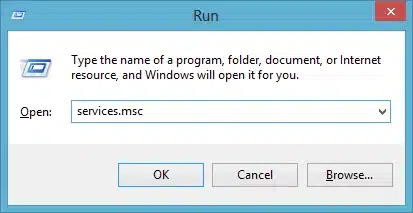
- Type run in the Windows Start menu and press Enter to launch the Run window. Alternatively, press the Windows key and R key simultaneously to open this window.
- Once it appears, write services.msc.

- Now, you need to find QuickBooksDBXX here and click it.
- Choose Automatic as the Startup type.
- Check the status; it should be Running or Started. If that’s not the case, make sure to click the Start option.
- Now, go to the Recovery tab.
- Select the Restart the service option from the drop-down menu with the three options: First failure, second failure, and Subsequent failure.
- Finally, choose Apply, then confirm with OK.
Repeat the same steps for QBCFMonitorService. Once you’re done, launch QuickBooks on every workstation.
From the File menu, choose the option to Switch to the multi-user mode. If you find an error, move to the next section.
Add Specific Services to the Group of Windows Admin Users
Error H303 is likely to occur if the multi-user settings do not have permission to run through the services. Resolving this error requires setting up the necessary permissions, which you can do in the following manner:
- Right-click the folder that has the company file.
- Choose the option that says Properties.
- Go to the Security section.
- Click the Edit icon.
- Allow Full Control to QBDataServiceUserXX by opting for the Allow option.
- Apply and confirm these changes.
Set Windows access permissions to share company files as follows:
- Launch the File Explorer through the Windows + E shortcut.
- Right-click the folder with the company file.
- Go to Properties, then click Sharing, and then Add.
- Set permissions to Full Control to the corresponding QBDataServiceUserXX version.
- In the end, click the Share option.
Now, try accessing the company file over the network.
Run an anti-malware scan
If you suspect a virus or malware has infected your system, run an anti-malware scan to detect and remove these threats promptly. Moreover, you can run the System File Checker to scan and repair the system files.
However, you also need to ensure that QB itself isn’t flagged as a threat by these security programs. Otherwise, it will interrupt QB processes.
Pro Tips to Avoid Multi-User Mode Errors in QuickBooks Desktop
There are some key things you can keep in mind when configuring hosting in a multi-user environment and accessing the company file over the network.
- Always set up the hosting correctly before switching to multi-user mode or accessing the company file on a workstation.
- If you switch to single-user mode for payroll operations, verify the hosting settings once again before switching back to multi-user mode.
- You can consider using a dedicated server to host the company file
- Create QB program exceptions in your antivirus software to ensure there is no interruption in communication.
QuickBooks Desktop Error H303 – A Quick View
In this section, we will provide a condensed overview of the information this blog covers.
| Error description | QuickBooks error H303 shows up when switching to multi-user mode or accessing the company file over the network |
| What causes it? | Hosting might be incorrectly configured, the firewall might be blocking QB programs, or QB might lack adequate permissions to share the company file, or there is an issue with the file location |
| How to fix it? | Run QuickBooks File Doctor, check the hosting configuration, set up Windows Firewall to allow QB through, create antivirus exceptions, launch QuickBooks Database Server Manager, and make sure the crucial QB services are running on the server computer. |
Final Words
In this article, we discussed the various causes of QuickBooks error H303 and proven methods to resolve it. You should now be able to switch to multi-user mode and resume working on the company file.
Frequently Asked Questions
How do I fix QuickBooks error H303?
To resolve the QuickBooks error H303, verify the hosting configuration, configure Windows Firewall to allow QB through, create antivirus exceptions, launch QB Database Server Manager, and ensure the crucial QB services are running on the server computer.
Why does QuickBooks say this company file is on another computer?
QuickBooks might not be able to access the company file if the hosting isn’t correctly configured, if the crucial services aren’t running on the server computer, or if the firewall is blocking the communication.
How can I access my company file from various computers simultaneously?
To access the company file from many computers in multi-user mode, you will need to first set up hosting. Host the company file on the server and set up the folder permissions to allow QuickBooks to share the file over the network. Next, open the company file from the workstations.
How To Resolve QuickBooks Error 3140
How to fix QuickBooks 502 Bad Gateway Error
How Do I Fix QuickBooks Error 193:0xc1
Resolve QuickBooks Error 15241
How to Fix QuickBooks Error Code H303

Erica Watson is writing about accounting and bookkeeping for over 7+ years, making even the difficult technical topics easy to understand. She is skilled at creating content about popular accounting and tax softwares such as QuickBooks, Sage, Xero, Quicken, etc. Erica’s knowledge of such softwares allows her to create articles and guides that are both informative and easy to follow. Her writing builds trust with readers, thanks to her ability to explain things clearly while showing a real understanding of the industry.