


QuickBooks Desktop is an application that helps businesses manage their financial operations and customer invoices. But there are times when you might encounter the issue while trying to access the company file; QuickBooks error C43 is one such example. This error can be caused if your company file is damaged or corrupted. The error can be fixed by using the verify and rebuild utility tool, or you can also refer to this blog to learn more about how you can fix this issue.
If you need any help with your company file, then feel free to get in touch with ProAdvisor Solutions’ experts to get a free consultation.
Table of Contents
Methods to Help You Fix the QuickBooks Error C43
If you are experiencing issues with your company file, this section will help you resolve error code C43 and fix data corruption in your system.
Solution 1: Use the Verify and Rebuild Utility Tool
It is recommended to run the rebuild tool to scan the company file and fix errors or damaged data.
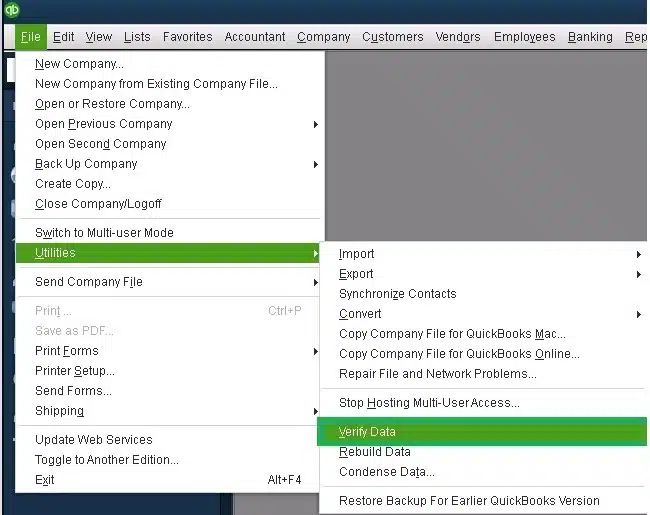
Verify the Company Data
- Head to the Window menu.
- Choose the Close All option.
- Then, head to the File menu.
- Tap on the Utilities.

- Now, click on the Verify Data option. The following results may pop up:
- “QuickBooks detected no problems with your data.”: Your data is clean, and you do not need to do anything else.
- An error message: Search for the specific error message on our QuickBooks Desktop support site for instructions on how to fix it.
- “Your data has lost integrity.”: Data damage was found in the file. Proceed to rebuild your company file to resolve the issue.
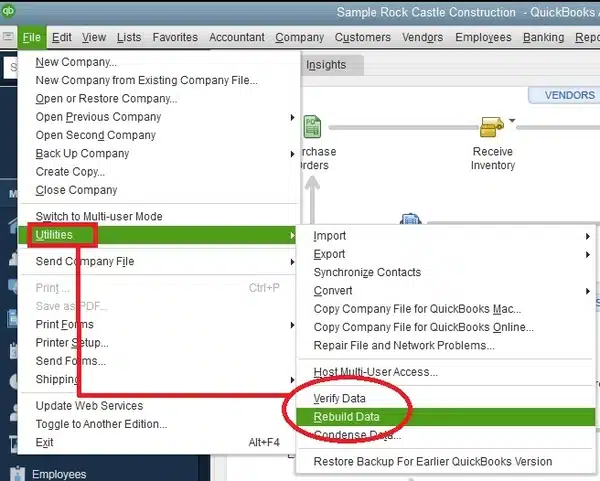
Rebuild the Company Data
- Head to the File menu.
- Tap on the Utilities option.
- Then choose the Rebuild Data option.

- If the QB asks to create a backup for the company file, then press OK.
- Choose where you wish to save the backup.
- Then, press OK.
- Input the new name in the file name field.
- Hit Save.
- Now, tap on OK when the Rebuild has completed message appears.
If you do not have the digital signature in your system, then follow the next method to fix it.
Solution 2: Install a Digital Signature Certificate
The QBDT security certificate is crucial for protecting data and establishing a secure network connection. Here are the steps to add it.
- In the file location window, select the .exe file.
- Then, right-click on it and choose Properties.
- Choose the Digital Signature option.
- Tap on the entries in the Signature list field.
- Choose the Details option.
- Now, select the View Certificate.
- In the General tab, choose the Install Certificate option.
- In the Certificate Import Wizard window, ensure the store location is for the current user.
- Then, tap on Next.
- Now you can tap on OK to finish and install the certificate on the screen.
After installation is complete, you can launch the application and check whether the QuickBooks error c43 occurs.
Solution 3: Remove the OCR- A Font
You can delete the entire font using the detailed instructions below.
- Go to the Windows Start menu.
- Then look for and access the Control Panel.
- Go to the Fonts option.
- Access the list of fonts.
- Choose all the OCR-A fonts one by one.
- Now, delete all the selected items.
- You can press the F5 key on the keyboard to refresh and apply the changes.
You can follow the next troubleshooting steps if the issue is still causing issues in your system.
Solution 4: Use QuickBooks Tool Hub
The QBDT application provides an application to help you fix errors like this, but first, download and install QuickBooks Tool Hub on your system.
Fix the Company File Issue
- Launch the QuickBooks Tool Hub.
- Go to the Company File Issues tab.
- Tap on the QuickBooks File Doctor option.
- Browse the company file due to which you are facing the error.
- Let the tool run and fix the issue.
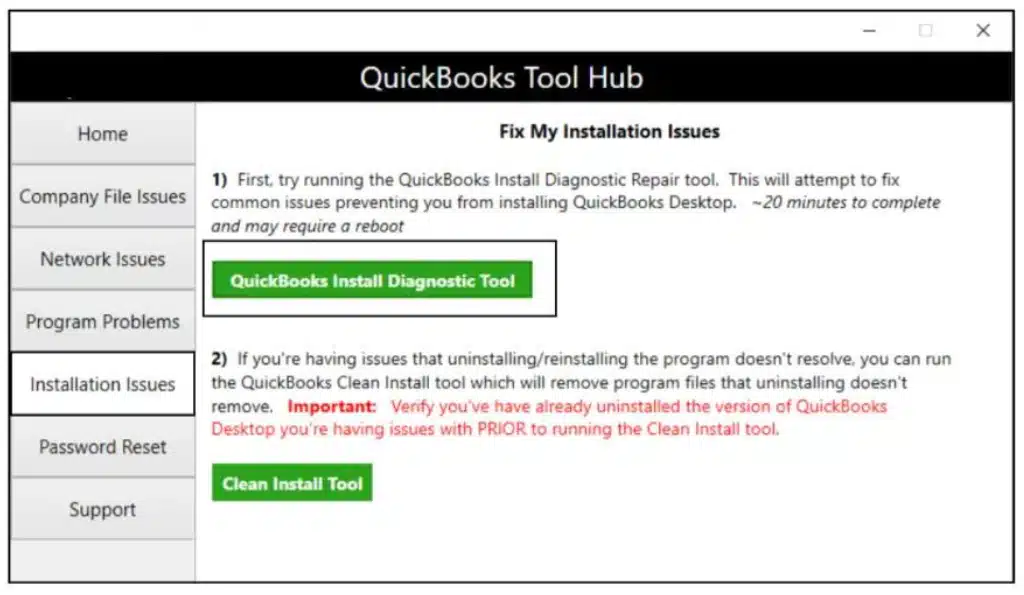
Fix the Program Issues
- Access the Tool Hub.
- Now, go to the Program Problems tab.
- Tap on the QuickBooks Install Diagnostic Tool option.

These built-in features will help you to overcome errors in your system.
Solution 5: Clean Install QuickBooks Desktop
If you are unable to access the company in your application and encounter error C43 in your system, you can clean install QuickBooks Desktop, which will reinstall the application from scratch and help you overcome the issue in your system.
Solution 6: Configure Firewall Settings
Antivirus and firewall applications can also block your operations, such as accessing company files. To address this issue, follow the steps below.
- Tap on the Start menu.
- Type “Windows Firewall” in the search bar to access it.
- Go to the Advanced Settings.
- Now, right-click on the Inbound Rules.
- Then, tap on the New Rule option.
- Choose the Port and choose Next.
- Now, ensure that TCP is selected.
- In the specific local port areas, enter the ports as per the QuickBooks version:
- QuickBooks Desktop 2020 and later: 8019, XXXXX.
- QuickBooks Desktop 2019: 8019, XXXXX.
- QuickBooks Desktop 2018: 8019, 56728, 55378-55382.
- QuickBooks Desktop 2017: 8019, 56727, 55373-55377.
- Once you have entered the port number, tap on Next.
- Click on the Allow the Connection option.
- Again, press Next.
- Once prompted, ensure to choose all the profiles and click Next.
- Now, create a new rule and allot a name such as QBPorts (year).
- Tap on Finish to save the changes.
Now, you need to repeat the same steps for outbound rules and save the changes to fix the error.
Solution 7: Configure the Windows Registry
You can fix the issues with the Windows system to overcome the QuickBooks error C43. Here’s how.
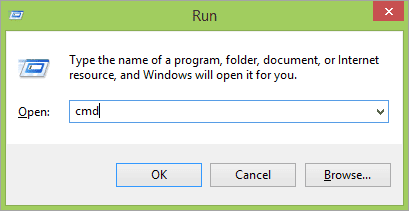
- Press the Windows + R key on the keyboard.
- Now, on the Run dialog box, search for CMD.

- Hit Enter.
- Now, right-click Command Prompt and select Run as administrator.
- When the dialog box pops up, type sfc /scannow.

- Press Enter to run the scan and resolve Windows registry issues on your system.
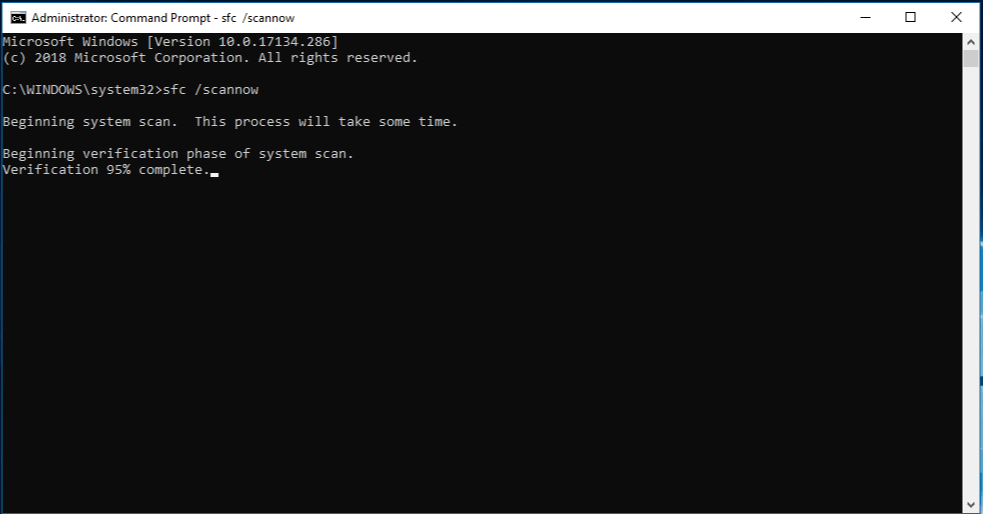
These steps will ensure that you have successfully overcome the QuickBooks error C43 in your system effectively.
Factors Due to Which QuickBooks Error C43 Occurs
There may be multiple reasons the error appears in your application. In this section, we have mentioned the leading causes below.
- The company file in QuickBooks Desktop is damaged or corrupted.
- Internet issues like internet failure or unstable connectivity, can be the reason behind the error.
- The Windows registry files can be damaged or corrupted, which is causing the QuickBooks error C43 in your system.
- The firewall or the antivirus application is blocking the QB operations.
- If your digital signature certificate is outdated, unverified, or incorrect.
- If there are problems with the OCR-A font when printing the W2 forms.
- When the installation of the QuickBooks Desktop is corrupted or damaged.
These were the factors due to which you might encounter the QuickBooks error C43 in your system.
Quick View Table for QuickBooks Error C43
Let’s have a quick glance at what we have talked about so far about the error in this blog.
| Description | If you are unable to access the company file on your system, you may be encountering QuickBooks error C43. |
| Causes | The reasons why you are facing the error can be because the company file in QuickBooks Desktop is damaged or corrupted, issues with the internet and connectivity, Windows registry files are damaged or corrupted, the firewall or the antivirus application is blocking the QB operations, the digital signature certificate is outdated, problems with the OCR-A font when printing the W2 forms, or if the installation of the QuickBooks Desktop is corrupted or damaged. |
| Ways to Fix | You can easily fix this issue by using the verify and rebuild tool, installing the digital signature certificate, removing the OCR-A font, using the QuickBooks tool hub, cleaning and installing the QBDT application, fixing the Windows registry, or fixing the firewall settings. |
Conclusion
In this blog, we have covered the reasons why you are not able to access the company file and are facing the QuickBooks error C43. Further, we have also added the methods to help you fix the issue. If you still face issues with your company file, contact Proadvisor Solutions experts.
Frequently Asked Questions (FAQs)
What is the reason behind the error C43 in QuickBooks?
The QuickBooks error C43 can be seen in the system if there is an internet connectivity issue, if the antivirus or firewall is blocking the operations. The error can prevent you when you are trying to print the W2 form.
How to fix the error if it is related to the installation of QuickBooks Desktop?
To resolve the issue on your system, open the QuickBooks Tool Hub, go to the Program Problems tab, click the QuickBooks Install Diagnostic Tool, and scan your system to resolve the application issue.
Why is the OCR-A causing me the error C43?
The OCR-A feature doesn’t work on receipts, no matter how you choose to import them, be it email or receipt, and can ultimately cause you trouble accessing the file.

Erica Watson is writing about accounting and bookkeeping for over 7+ years, making even the difficult technical topics easy to understand. She is skilled at creating content about popular accounting and tax softwares such as QuickBooks, Sage, Xero, Quicken, etc. Erica’s knowledge of such softwares allows her to create articles and guides that are both informative and easy to follow. Her writing builds trust with readers, thanks to her ability to explain things clearly while showing a real understanding of the industry.