


The QuickBooks error 6144 and 301 can show up when you try to open your company file or restore a backup of your company file. It is generally caused by an outdated QB Desktop application or a damaged QB company file. This can have a negative impact on your workflow and hamper your business progress. It can be fixed using the QB File Doctor Tool from the Tool Hub. We’ll cover all the troubleshooting methods you need to know to fix this problem in this blog. First, let us take a look at the causes of the QuickBooks error code (-6144,-301).
Are you having trouble opening your company file or restoring a backup copy in QB Desktop? Contact our experts today at 1-855-888-3080 to resolve this issue.
Table of Contents
Factors that Can Cause the QuickBooks Error Code 6144 and 301
Given below is a list of factors that can cause the QuickBooks error 6144 and 301 to appear on your screen:
- Your QB company file might be damaged or corrupted
- The QBDT app you’re using is outdated
- Your QB Desktop software has certain program problems
- There are inherent installation problems with the QBDT app
- An unstable network connection can also cause this problem.
These were the causes of the QuickBooks error 6144 301.
Troubleshoot Error -6144, -301 when opening a company file in QuickBooks
The troubleshooting methods to resolve the QuickBooks error -6144 -301 are given to you below:
Update the QB Desktop App
An outdated QB Desktop app can be the reason why you’re facing the QuickBooks error 6144 and 301. You can fix it by updating your QuickBooks Desktop app to the latest released version. This would also fix any other issues you might be dealing with.
Use the QuickBooks File Doctor Tool
You can use the QuickBooks File Doctor tool from the QB Tool Hub to resolve error code 6144 and 301 with the following steps:
- Download and install the QuickBooks Tool Hub
- Open the Tool Hub app

- Navigate to the Company File Issues tab

- Select Run QuickBooks File Doctor
- If the File Doctor is unable to open, search for QuickBooks Desktop File Doc and open it manually
- Choose your company file from the dropdown menu
- If your company file is not visible, click on Browse and search to find your file
- Select the Check your file option
- Press Continue
- Enter the QB admin password
- Hit Next

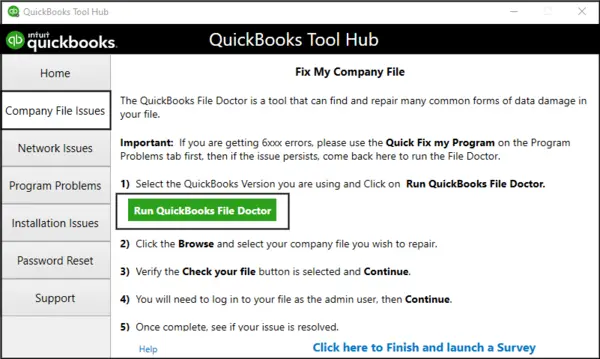
This would fix QuickBooks Error Code -6144, -301.
Utilize Quick Fix My Program
You can use the Quick Fix My Program tool from the QB Tool Hub to fix program issues with the QB Desktop app with these steps:
- Open the QuickBooks Tool Hub
- Navigate to the Program Problems tab
- Select Quick Fix My Program

- Let the tool run
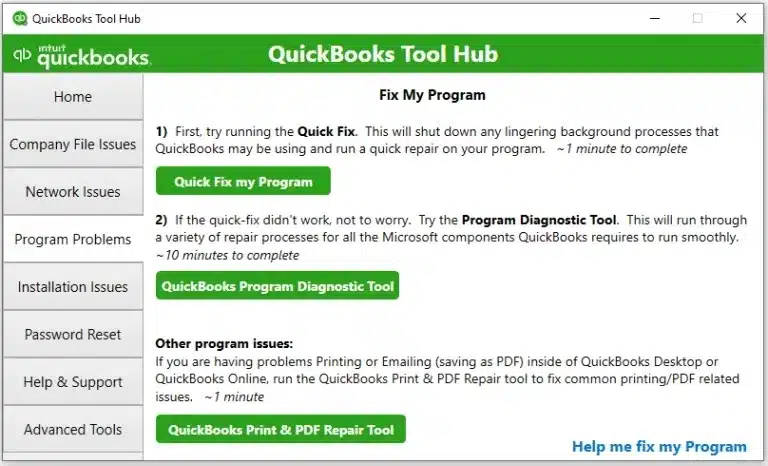
Now the QuickBooks error -6144 -301 would be fixed.
Restore a Backup Copy of Your Company File
You can restore a backup copy of your QuickBooks company file to mend the QB error code 6144 and 301 with the steps given below:
- Open your QBDT application
- Then, go to the File menu
- Select Open or Restore Company

- Click on the Restore a backup copy option
- Press Next
- Click on Local Backup
- Select Next
- Now, find the backup file on your system:
- The backup file looks like this – [Your company name].qbb
- Select a folder to save your restored company file
- Press Open
- Save the restored file in a different location than your backup file to avoid overwriting your data
- Then, press Save
- If you see a warning message about overwriting your data, choose the option that suits you
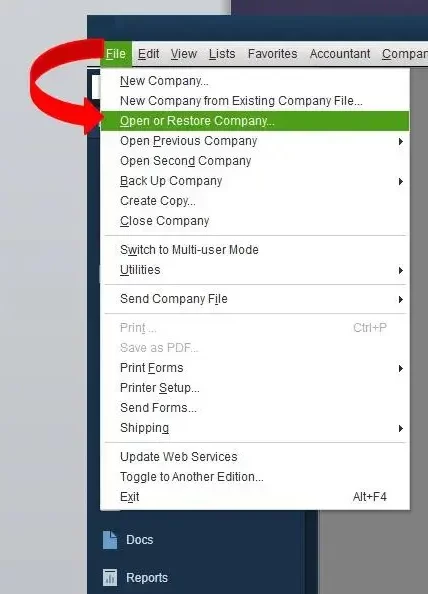
Note: Do not overwrite any data until you want to
This would patch the QuickBooks error 6144 and 301.
Use QuickBooks Auto Data Recovery
You can use the QuickBooks Auto Data Recovery utility to restore recent transactions and data with the help of the Transaction Log file and the ADR company file using these steps:
- Create a new folder on your PC
- Change the name of it to QBTest
- Then, open the folder where your company file is located
- Now, search for the .tlg file in the company file’s folder
- The .tlg file also has the same name as your company file
- If you can’t find your file, it can be due to hidden file extensions
- You should unhide file extensions to locate the file:
- Click on the View tab in the company file folder
- Mark the File name extensions checkbox
- Then, copy the .tlg file, which is named the same as your company file
- Paste it in the QBTest folder
- Now, open the QuickBooksAutoDataRecovery folder
- The folder can be found in the same location as your company file
- Copy the .QBW.adr file
- Then, proceed to paste it in the QBTest folder
- Open the QBTest folder
- Right-click on the .QBW.adr file
- Select Rename
- Delete .adr from the end of the file
- Then, open your QB Desktop app
- Now, open the company file you saved in the QBTest folder
- Make use of your account register to verify if all recent transactions are present
- Go to the File menu

- Click on Utilities
- Then, select Verify Data to check the integrity of your company file

- If all is good, move the company file from the QBTest folder to its original location
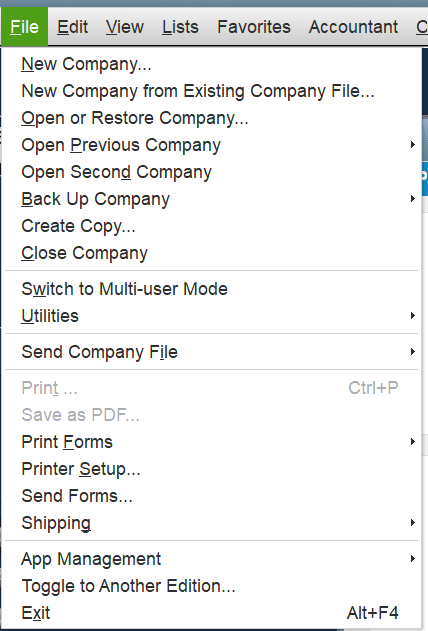
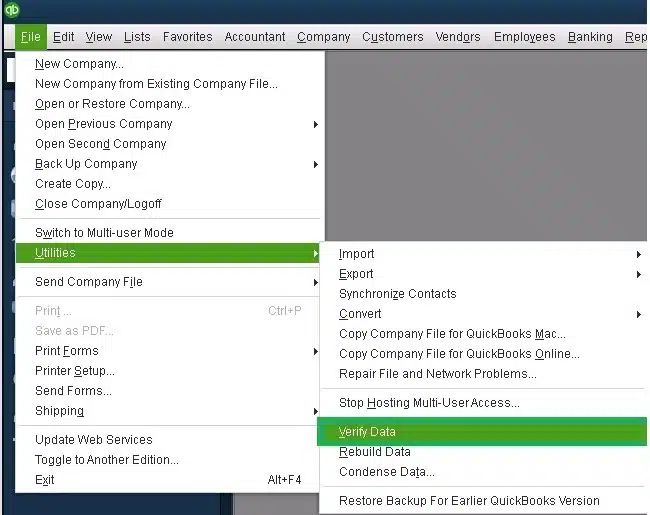
Performing these steps would resolve the error code 6144 and 301 in QuickBooks.
Rename the ND and TLG Files
You can rename the ND and TLG files located in your company file folder to resolve QuickBooks error 6144 and 301 with the following steps:
- Search for and open the folder in which your company file is stored
- Find the files that have the same name as your company file but have ND and TLG extensions:
- company_file.qbw.nd
- company_file.qbw.tlg
- Right-click on each file to rename it
- Press Rename
- Add .OLD at the end of each file
- For reference: company_file.qbw.nd.OLD
Now, you will be able to open your company file without any issues.
Verify and Rebuild the QB File Data
You can fix the QuickBooks error 6144 and 301 with the verify and rebuild data utility using these steps;
- Open the QB Desktop application
- Navigate to the File menu
- Select Utilities
- Then, click on the Verify Data option
- Now, open the File menu again
- Click on Utilities
- Select Rebuild Data
- You will be asked by QB to create a backup file before it rebuilds the data
- Press OK
- Creating a backup file is necessary to rebuild your data
- Now, select where the backup will be saved
- Make sure not to replace any existing backup files
- In the File name field, enter a unique/new name
- Hit Save
- When you get the message stating Rebuild has completed, click on OK
The error code 6144 and 301 in QB would now be fixed.
QuickBooks Error 6144 and 301 – A Quick View Table
Tabulated below is a concise summary of this blog on the topic of the QB company file error 6144 and 301:
| Description | The QuickBooks error 6144 and 301 is a company file error that might appear on your screen as you try to open your company file or restore a backup copy of it. This can hamper your workflow and critical business processes. |
| Its causes | A damaged or corrupted QB company file, an outdated QBDT app, program problems with QuickBooks, installation issues with QB, and an unstable internet connection. |
| Methods to patch it | Update the QBDT app, use QuickBooks File Doctor, use Quick Fix My Program, restore a backup copy of your QB company file, use QB Auto Data Recovery, rename the ND and TLG files, and verify and rebuild your QB company data. |
Conclusion
As we discussed, the QuickBooks error 6144 and 301 is a company file error that you may encounter when you try to open your company file or restore a backup copy of it. In this blog, we have provided you with the factors that can lead to this error appearing on your screen, along with the methods needed to resolve it. If you are dealing with the same issue and are unable to open your company file, feel free to contact our ProAdvisor Solutions experts at 1-855-888-3080 today to resolve this error in no time!
FAQs
Why am I seeing the QBDT error 6144 301?
You might be seeing the QBDT error 6144 301 due to these reasons:
– An outdated QBDT app
– A damaged company file
– Program problems with QBDT
– Installation issues with QB Desktop
– An unstable internet connection
How do I fix QuickBooks error 6144 and 301?
You can fix QB error 6144 and 301 with these methods:
– Update the QBDT app
– Utilize QuickBooks File Doctor
– Use Quick Fix My Program
– Restore a backup of your QB company file
– Utilize QuickBooks Auto Data Recovery
– Change the name of the TLG and ND files
– Verify and rebuild your QB company data
How to fix program problems with QB Desktop?
To fix program problems with QB Desktop, follow these steps:
1. Open the QB Tool Hub
2. Navigate to the Program Problems tab
3. Click on Quick Fix My Program
4. Let the tool run
This would resolve any program problems with the QB Desktop app.
Also Read these Company File Related Articles:
How to Fix Error 6123 0 in QuickBooks Desktop
Resolve QuickBooks Error Code Company File Not Found
What is QuickBooks Error Code 6190 & 816?
How to fix payroll update error ps038 QuickBooks Desktop?
How do I fix the QuickBooks 6000 -83 error?

Erica Watson is writing about accounting and bookkeeping for over 7+ years, making even the difficult technical topics easy to understand. She is skilled at creating content about popular accounting and tax softwares such as QuickBooks, Sage, Xero, Quicken, etc. Erica’s knowledge of such softwares allows her to create articles and guides that are both informative and easy to follow. Her writing builds trust with readers, thanks to her ability to explain things clearly while showing a real understanding of the industry.