


In QuickBooks, it is easy to set up autopay for your employees and manage their payroll. However, there can be times you might encounter the QuickBooks error 248, when you are trying to backup the company file or when you are trying to initialise payroll for the employees. A damaged company file in QBDT may cause the issue. In this blog, we have covered all the potential reasons and the methods through which you can overcome the error.
If you need any help with the company file in your QuickBooks application, feel free to get in touch with our experts.
Table of Contents
Why QuickBooks Error 248 Occurs: Principal Causes Explained
The reasons behind the error in your QBDT application are as follows:
- If the company file is damaged or corrupted.
- When the upper limit for the employee wage or tax withholding has been exceeded.
- If the paychecks or employee profiles are being damaged.
- There can be times when the error is seen due to damage in the QuickBooks data file.
Now, let’s move on to the next section to learn the methods to fix the issue.
Proven Solutions to Help You Fix the QuickBooks Error 248
When fixing this error, ensure that you have already created a backup for the company file in your system, and then follow the troubleshooting methods below.
Method 1: Use the Verify and Rebuild Tool
The utility tool in your system will help you fix error 248 effectively by following the steps below:
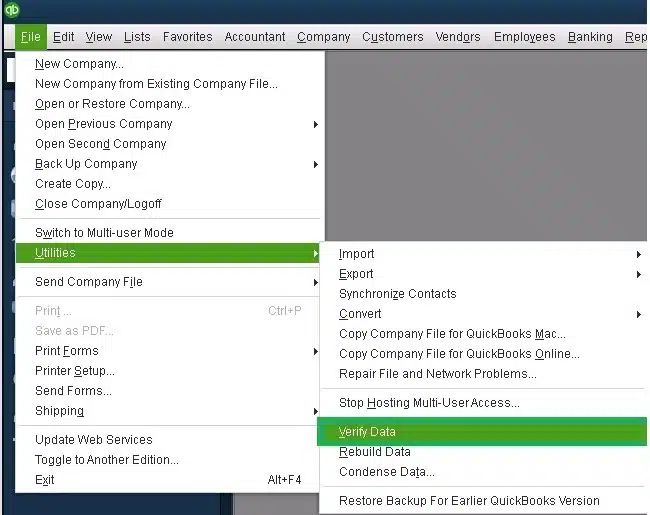
Verify the Data
- Move to the File menu.
- Click on Utilities.

- Choose the Verify Data.
- QuickBooks detected no issues with your data. Your data is clean, and you do not need to take any further action.
- If the message “Your data has lost integrity” appears, then repair the file’s data integrity.
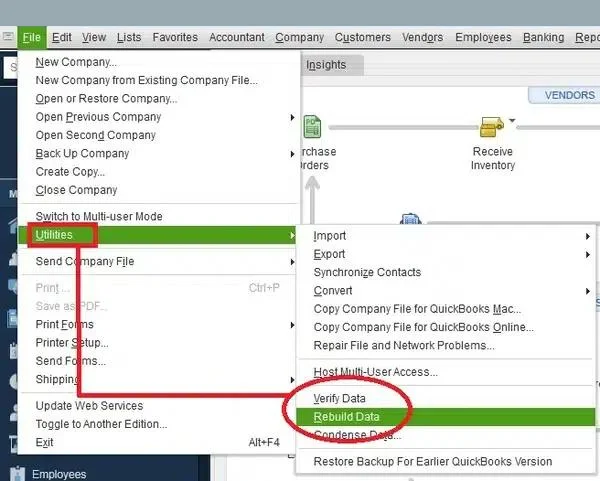
Rebuild Company Data
- Tap the File menu.
- Go to the Utilities section.

- If asked, QuickBooks asks for a backup, then creates a backup.
- Click on OK.
If this method couldn’t solve your problem, move on to the next one.
Method 2: Create & Add an Item in QuickBooks
When running the payroll, once the overpayment is made, the error can be seen. To resolve the issue, go through the steps below.
- Access the QuickBooks application.
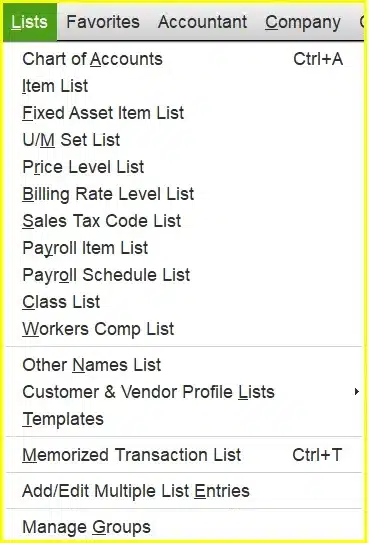
- Head to the List menu.

- Tap on the Payroll List.
- Choose the New Item option.
- Now, click on the Customer Setup section.
- Tap on Next.
- Give a name to the item that you wish to add to the QuickBooks Desktop.
- Select the account to link the item.
- Select None from the Tax Tracking Type option.
- Again, click on Next twice.
- Now, tap on Neither and then Next.
- Once the overpaid amount is entered, hit Enter.
If the amount is incorrect for the payroll, that can lead to the error code 248.
Method 3: Correct the Withholding
If an employee’s tax amount is incorrect, you need to correct it. Here’s how you can do it.
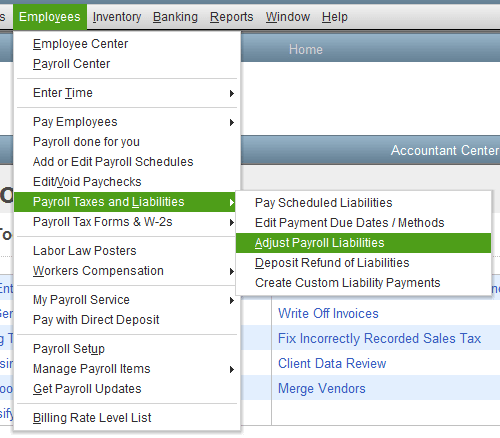
- Head to the Employee menu.
- Tap on the Payroll Taxes and Liabilities option.

- Tap on the Adjust Payroll Liabilities option and input the Date and Effective Date.
- Now, head to the Adjustment tab.
- Tap on the Employee and click on the employee’s name.
- Under the Taxes and Liabilities section, select the payroll item that is to be edited. Input a negative number to reduce it.
- Tap on OK to save it.
When you are amending the tax withholdings, you need to make changes in W-2, 941, and 940. But if the tax form to the Social Security Administration (SSA) has already been submitted, you need to file Form W-2c and Form W-3c manually.
Method 4: Delete and Recreate Paychecks
When it is a regular paycheck, you need to remove and recreate it to resolve QuickBooks error 248.
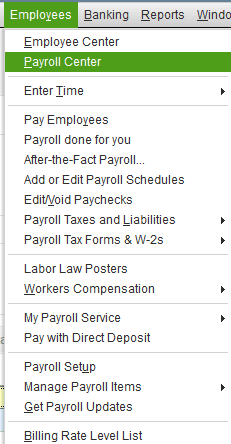
- Go to the Employees menu.
- Then select the Payroll Center.

- Head to the Recent Payrolls section and tap on the Net Pay amount.
- Now, double-tap on each paycheck to access it.
- Tap on the Delete icon or press Ctrl+D.
- Once the Delete Transaction window pops up, tap on OK.
Now, check the system and create the paychecks to fix the error.
Method 5: Use the QuickBooks File Doctor
When the company file is damaged or corrupted, the issue becomes apparent. To use this tool, the first step for you is to download and install the QuickBooks Tool Hub. Then, follow the steps as mentioned.
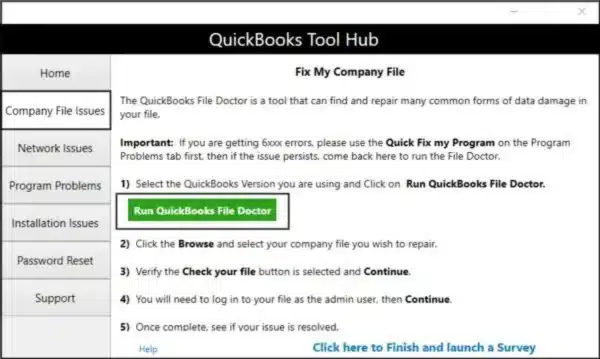
- Launch the Tool Hub.
- Head to the Company File Issues tab.
- Then, click on the QuickBooks File Doctor.

- Choose the company file facing the issue.
Let the tool run and fix the issue that you are facing.
Method 6: Set up YTD Amount
The payroll date you provide must occur after the date corresponding to the final YTD period. Here is how you can set it up.
- Go to the Help section.
- Then choose the About QuickBooks option.
- Once you observe the green circle, hit Ctrl+Shift+Y or Ctrl+Alt+Y on the keyboard to access the Setup YTD Amount window.
- Choose Next before the “When should YTD summaries affect accounts?” page.
- Enter the year of the adjustment dates in the first payroll dates.
- Tap on Next.
- Select the employee’s name and hit Enter.
- After you reach the next page, update the dates from here.
- Under the Other Employee and Company Payroll Items tab, choose the Show Wage Bases option.
- Now, add a column that shows the total amount of the taxable income next to each payroll item.
- Choose the desired option by tapping the Accounts Affected option.
- Follow the same steps for all the employees.
- After the steps are completed, press OK to save the progress.
- Tap on Next and then Finish to complete the process.
Now, resume the payroll operations and check if the QuickBooks error 248 persists.
Quick View Table for Quick Error 248
In this segment of the blog, we will take a glance at what we have talked about so far.
| Description | In situations when you are trying to set up payroll for employees or back up your company file, you might encounter the QuickBooks error 248 in your system. |
| Causes | There can be different reasons why you are facing the error, such as the company file being damaged or corrupted, if the upper limit for the employee wage or tax withholding has been exceeded, if the paychecks or employee profiles are being damaged, or due to damage in the QuickBooks data file. |
| Ways to Fix | To resolve the issue, you can verify and rebuild the company file, create and add an item, correct the withholding for the employees, delete and recreate the paychecks, use the QuickBooks file doctor, or set up a YTD amount for the employees. |
Conclusion
In this blog, we have covered why you are encountering QuickBooks error 248 on your system. Also, we have covered the methods through which you can easily overcome the error. If you face any more problems with the company files in your system, feel free to get in touch with our experts.
Frequently Asked Questions (FAQs)
How to delete a paycheck in QuickBooks Desktop?
Here’s how you can delete the paycheck from the QBDT.
– Go to the Employees menu.
– Choose the Payroll Center.
– Under the Recent Payroll section.
– Tap on the Net Pay amount to get the list of paychecks.
– Now, double-tap on the paycheck to open the details.
– Tap on the Delete icon or press Ctrl+D.
– Now, click on OK to delete the transaction.
What are the primary reasons for the QuickBooks error 248 in your system?
The reasons why you might encounter an error can be a corrupted company file, if the paychecks for the employees have exceeded, or due to damage in the data of the QuickBooks application.
How to fix the error 248 in the QuickBooks application?
The first method through which you can fix the error is by deleting and recreating the paychecks in the system, ensuring that you haven’t overpaid the employees or the payroll taxes, or using the verify and rebuild tool in QuickBooks.

Erica Watson is writing about accounting and bookkeeping for over 7+ years, making even the difficult technical topics easy to understand. She is skilled at creating content about popular accounting and tax softwares such as QuickBooks, Sage, Xero, Quicken, etc. Erica’s knowledge of such softwares allows her to create articles and guides that are both informative and easy to follow. Her writing builds trust with readers, thanks to her ability to explain things clearly while showing a real understanding of the industry.