


QuickBooks is well-known for providing advanced accounting solutions for small and medium-sized enterprises. It lets you easily connect your bank and download your financial transactions directly to QuickBooks. It comes as a great help for users as they don’t need to manually enter all the data into QuickBooks.
However, many users have experienced the Chase QuickBooks download problem after a recent connection change from Intuit. The new connection eliminates the need to sign in to your bank account to download your bank feed. It has provided an open standard for authentication, allowing users to connect QuickBooks to the bank with a one-time setup. However, you might find yourself running into problems rather than seeing the benefits.
In this article, we will tell you how you can address the Chase QuickBooks download problem so that you can resume working in no time.
If you need real-time assistance to get the problem resolved in no time and continue with your day-to-day bookkeeping, speak to a ProAdvisor Solutions Desktop Experts.
You may also see: Reset QuickBooks Password
Table of Contents
What is the Chase Download Problem in QuickBooks?
You can download your transactions directly into QuickBooks once you connect your Chase bank account. Although this process runs most of the time smoothly, you may encounter errors.
For instance, you may find QuickBooks Online not syncing with Chase, with various error messages.
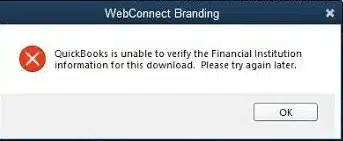
One of the most frequent error messages is “QuickBooks is unable to verify the Financial Institution information for this download. Please try again later.”
Let us understand what leads to this problem in QuickBooks.
Possible Reasons for QuickBooks Online Not Syncing with Chase
Here are some of the reasons that can lead to the Chase QuickBooks download problem:
- An unstable Internet connection can trigger bank connection errors.
- You may not be able to download your transactions if the bank’s server is down.
- Incompatibility due to the connection changes can also cause the error.
- An issue with the account setup process.
Now that we understand the reasons behind the QuickBooks download problem, let us review the procedure for performing the transfer and the applicable troubleshooting methods.
QuickBooks Direct Connect Chase: Download Transactions Directly to Application
Here is a detailed approach on how to download transactions directly to QuickBooks through QuickBooks Direct Connect Chase. Follow the steps as provided below:
- Log in to Chase Online with your credentials.
- Click on the ‘Customer Center’ tab and reach the ‘Reference Center.’
- Press the link for ‘Activate Money, Quicken, etc.’
- You need to select the ‘Activate Direct Access through PFM service’ and then press the ‘Continue’ button.
- Open the QuickBooks application on your computer and then go to the ‘Banking’ menu.
- Select the ‘Online Banking’ option and then click on ‘Set Up Account from Online Services.’
- Choose your company account from the drop-down list and then click ‘Next.’
- Select ‘Chase’ from the financial institution drop-down menu and then press ‘Next.’
- Choose the ‘Direct Connect” option and then mark the box saying “Yes, my account has been activated for QuickBooks Online Services” after pressing the ‘Next’ button.
- Enter your login credentials when prompted.
- Select the ‘Download Online Accounts’ and ‘Receive Transactions’ options and then press the ‘Finish’ button.
QuickBooks Bank Feeds Not Working with Chase? Here’s How to Resolve It
There are various methods available for the resolution of the QuickBooks Bank feeds not working with Chase. These have been explained in detail for you:
Method 1: Updating the Chase Account Manually
- Open your Microsoft Edge.
- Sign in to your QuickBooks Online account.
- Go to the ‘Banking’ section and then select the bank account you want to update under the ‘Banking’ tab.
- Click on the ‘Update’ button when you see a message saying, “Your Chase Bank connection getting an update as a result of the previous action.”
- If prompted, complete the verification.
- Click on the ‘Continue’ button to finish the update.
Method 2: Verifying account in QuickBooks to Resolve Chase QuickBooks Download Problem
Your bank account needs to be verified for smooth transactions. Follow the steps provided below to verify the selected account:
- Open your browser and log in to your account.
- Click on the ‘Profile &
Settings’ option from the top-right corner. - Click on the ‘Account Safe option.’
- Go to the ‘Linked Apps and
Websites’ option and scroll down to find the QuickBooks
application. - Click on the arrow beside it to open the list of selected accounts.
- You should confirm that the correct account is selected.
- If it is not selected, you need to add it from the given options.
Method 3: Importing Transactions to QuickBooks Manually
If you continue to face the Chase QuickBooks download problem after performing the steps mentioned above, you should try importing transactions to QuickBooks manually. The steps are as follows:
- Open the Internet Explorer window and open your bank website.
- Sign in with your login credentials.
- Go to the Download Transaction page and select the account and the
Date Range. - Select the file format as CSV or QBO, and then download the
transaction file.
Note: If the file size is larger than 350 KB, download multiple files with smaller date ranges - Download the file and save it, preferably on your Desktop.
Manually Importing after Downloading the Transaction File
Now that you have successfully downloaded the transaction file and saved it on your Desktop, follow these steps to import the file to QuickBooks.
- Open QuickBooks Online in your browser window and log in with your
credentials. - Go to the ‘Banking’ section.
- Click on the ‘Update’ drop-down menu under the ‘Banking’ tab.
- Select the ‘File Upload’ option.
- If any account is not connected, you can use the ‘Upload Transactions Manually’ option.
- Click on the ‘Browse’ button and find the transaction file saved on your Desktop.
- Press the ‘Next’ button, and then click on the ‘Accounts’ drop-down list.
- Choose the account where you have to add the transaction.
- If the file is to be added for the first time or to a new account, click on the ‘Add New Account’ button.
- Follow the procedures to align the CSV with the Columns in the
QuickBooks file. - Go to the ‘Import Data’ page and click on the ‘Gear’ icon.
- Reach the ‘Tools’ tab and select the ‘Import Data’ option.
- Select the Chase Bank, and press the ‘Next’ button.
- Click on the ‘Let’s Go’ button to complete the import process.
You may also read: QuickBooks Status Code 3260
Conclusion
In this article, we discussed the reasons behind the Chase QuickBooks download problem and its troubleshooting methods. You should now be able to resolve your issue and download your transaction to QuickBooks by following the methods provided above. If you are still struggling with the same issue, you should seek professional assistance.
Frequently Asked Questions
Why is Chase not connecting to QuickBooks?
Chase might not be able to connect to QuickBooks due to the bank server being down, maintenance going on the bank’s side, an issue with security settings, or the need to reauthorize the connection.
How can I resolve the issues I am facing when downloading Chase Bank transactions?
To download Chase transactions into QuickBooks without a problem, you can try clearing your browser cache and updating your browser. Moreover, log in to your Chase Bank account and check if there is a problem on the bank’s side.

Erica Watson is writing about accounting and bookkeeping for over 7+ years, making even the difficult technical topics easy to understand. She is skilled at creating content about popular accounting and tax softwares such as QuickBooks, Sage, Xero, Quicken, etc. Erica’s knowledge of such softwares allows her to create articles and guides that are both informative and easy to follow. Her writing builds trust with readers, thanks to her ability to explain things clearly while showing a real understanding of the industry.