


QuickBooks Payroll is an add-on feature provided by Intuit that helps to make your payroll processes easier, such as sending paychecks, calculating taxes, and much more. This can prove to be helpful in accelerating your workflow and boosting your business progress over time. If you’ve recently set up this feature and are wondering how to add employee to QuickBooks Payroll, you’ve come to the right place. In this blog, we’ll cover how to add an employee to payroll in QuickBooks Online and Desktop. But let’s first cover the information you need to add an employee in QB.
Are you having issues setting up your payroll in QuickBooks? Contact our experts at 1-855-888-3080 today to resolve your problem in no time!
Table of Contents
All the Information You Need to Add an Employee in QB Payroll
Before you add employee to QuickBooks Payroll using the steps given in the next section, here are all the things you need to have in hand:
- W-4: Employee’s Withholding Certificate that includes all the personal data, such as name, address, social security number, dependents, and adjustments. Your employees can enter this information with an invite. However, you are required to keep a copy for your records.
- I-9: This form is used to verify employment eligibility in the United States. Your employee(s) need to have a valid Social Security Number. Ensure you do not accept an ITIN in place of an SSN for employee identification. An ITIN is available only to the residents and non-resident aliens who aren’t legally eligible to work in the U.S. An ITIN number starts with “9” and is formatted like the Social Security Number (NNN-NN-NNN).
- Email Address: Send your employees an invite via email to add their personal info and have access to their pay stubs and W-2s online.
- Work Location: The address where your employee works.
- Pay Info: Employee’s salary or pay rate, other pay types, as well as pay schedules.
- Direct Deposit Info: Employee’s bank account and routing numbers. Employees can add up to 2 bank accounts.
- Pay History: This only applies if you’re setting up the QB Online Payroll service for the first time. If you have paid your employees already this year, you will need their year-to-date pay stubs so that you can have accurate year-end totals of taxes.
Now that you have the info, let’s proceed with the steps to add an employee to QuickBooks Payroll.
How to Add an Employee to Payroll in QuickBooks Online & Desktop
Listed below are the guided steps you can use to add your employees to QuickBooks Desktop and Online Payroll:
Add an Employee to QBO Payroll
- Click on Add an employee
- Add your employee’s name and email address
- If you want your employee to enter their own personal, tax, and banking information, click on Yes, allow employee to enter their tax and banking info in Workforce
- QB will send them an invitation email for QuickBooks Workforce
- There, they can enter their address, social security number, W-4, and banking information
- Press the Add employee option
- Select Start or Edit in any section to add the remaining employee information
- If the employee is self-set up, you won’t be able to change certain fields in the Personal Info, Tax withholding, or Payment Method sections.
- You can turn off employee self-set up at any time to edit the info you need to
- Select Save
This would add an employee to QuickBooks Online Payroll.
Add an Employee to QuickBooks Desktop Payroll
You have the option to set up employee defaults in QuickBooks Desktop for things that might apply to the majority of your employees. When you add a new employee, these defaults will automatically appear to save you time. This can include things like:
- Pay schedule or frequency
- Sick or vacation policies
- State worked / state taxes
- Earnings or deductions
To add the employee defaults, follow the steps given below:
- Open the QB Desktop app
- Navigate to the Edit menu
- Click on Preferences

- Then, select Payroll and Employees
- Tap on Company Preferences
- Press the Employee Defaults option
- Enter the changes you want
- Press OK twice
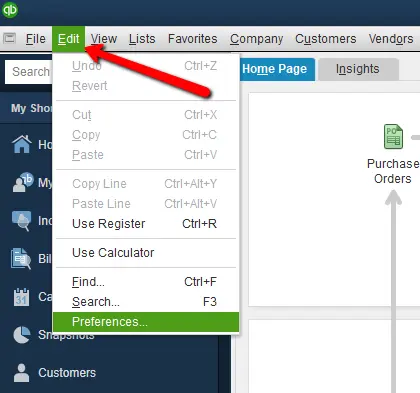
Now, follow the steps given below to add your employee:
- Open the QuickBooks Desktop app
- Navigate to the Employees menu
- Click on Employee Center

- Press the New Employee option
- Enter the employee’s info
- Hit OK
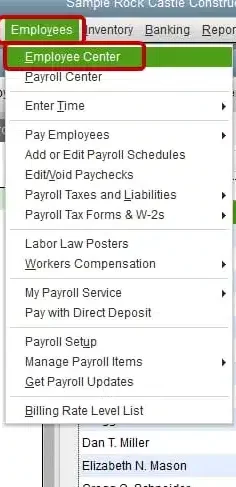
The fields and tabs might vary depending upon your payroll service. Given below is a list of required fields in each tab:
- Required Info – First and last name, Social Security Number, Date of Birth, Home address, Main phone, and Main email
- Personal Info – No required fields
- Additional Info – No required fields
- Payroll Info – For paying your employees, add a pay schedule or pay frequency, pay type and pay rate, W-4 info, Federal, and state taxes. Add deductions, sick or vacation policies, and direct deposit if necessary.
- Employment Info – Hire Date
- Workers’ Compensation – For QuickBooks Desktop Payroll Assisted and QuickBooks Desktop Payroll Enhanced only
If you want your employees to see and print their own pay stubs and W-2s online, follow the steps in the next section.
Invite Your Employees to QuickBooks Workforce in QB Desktop
- Open the QB Desktop app
- Navigate to the Employees menu
- Click on Employee Center
- Double-click the first employee you wish to invite
- Go to the Address and Contact tab
- Add their email address
- Hit OK
- Repeat these steps for each employee you wish to invite
- Go to the Employees menu

- Select Manage Payroll Cloud Services
- If you can’t see Manage Payroll Cloud Services, update the QB Desktop app
- Turn the status On in QuickBooks Workforce
- Select Invite Employees
- Sign in with your Intuit account
- This should be the person who owns the QB Payroll account
- Select the employees to add to QB Workforce
- Add their email address
- Click on Send Invite
- Once it is sent, you should see Invited in the Status column

This would invite your employees to QuickBooks Workforce to see and print their own pay stubs and W-2s online.
How to Add Employee to QuickBooks Payroll from a Different State
The state where your employee lives is crucial in determining the state payroll taxes you and your employee are subject to. Your state taxes can include State Withholding, State Unemployment Insurance, local taxes, State Disability Insurance, or Paid Family Leave. So let us see how to add employee to payroll in QuickBooks from a different state:
Step 1: Find Out Which State Taxes Apply
It is quite tricky to figure out the local taxes of a state. Each situation and state is vastly different. You can contact the state withholding, unemployment insurance, and local tax agencies where your employees live and work to figure out which taxes apply to you and help you register for the account numbers you need to pay taxes and file forms. Depending upon state to state, here’s an outline of what you’ll need:
- Account number(s)
- What’s the deposit frequency of tax payments
- Tax rates
Once you have this information, proceed to the next step.
Step 2: Set Up Employees from a Different State
Follow the steps given below to set up employees from a different state in QuickBooks Payroll:
QuickBooks Online Payroll
- Click on Add an employee if your employee is new
- Otherwise, select an employee from the list if they have moved to a different state
- Go to Employment Details
- Click on Start (for a new employee) or Edit (for an existing employee)
- Select or add the work location where you’re required to pay State Unemployment Insurance
- If you have remote employees, the work location may be different from where your employee physically works
- Select Save
- Go to Tax withholding
- Click on Edit
- Then, go to the State withholding section
- If you see two states:
- Click on the Filing Status dropdown menu and select Do not withhold (exempt) if you don’t need to collect state withholding in one state
- If there is a reciprocity agreement between the two states, choose if your employee provided you with a Certificate of Nonresidence form. This form would determine which State Withholding is collected
- If you see an Other Taxes or Local Taxes section, choose the applicable taxes and enter the tax rates
- Go to Tax Exemptions and select the applicable taxes if you or your employee is exempt from any taxes
- Hit Save
This would add employee to QuickBooks Payroll from a different state.
QuickBooks Desktop Payroll
- Open the QB Desktop app
- Navigate to the Employees menu
- Click on Employee Center
- Press New Employee if you’re adding a new employee
- If an existing employee moved to a new state, double-click the employee
- Navigate to the Payroll Info tab
- Click on Taxes
- Select the state tab
- Go to the State Worked dropdown menu
- Select the state where you’re required to pay State Unemployment Insurance
- If your employee works remotely, the state worked can be different than where your employee physically works
- Go to the State Subject to Withholding dropdown menu
- Choose the state where you have to collect and pay State Income Tax for your employee
- If you’re required to pay or file State Withholding tax in more than one state, you might have to use the QuickBooks Online Payroll
- Follow the instructions in Set up your new taxes if you see a prompt to set up the new taxes
- If you see a prompt asking if your employee is subject to a list of additional taxes:
- Click on Yes from the Other tab if your employee is subject to one or more taxes.
- You can remove any taxes that don’t apply by selecting the item and clicking on Delete
- Select No if the employee isn’t subject to any of the additional taxes
- Click on Yes from the Other tab if your employee is subject to one or more taxes.
You can also set up the local tax items to calculate if your employee is subject to local taxes. You can add local taxes with the steps given below:
- Go to the Other tab
- Click anywhere inside the blank area in the Item Name section
- Click on the dropdown menu and press Add New
- Follow the instructions you see in the wizard to choose the type of local tax, enter your account number, and rates
This would set up an employee in QuickBooks Desktop Payroll from a different state.
Step 3: Set Up the New State Tax Rates
It is essential to complete the state tax setup if you want QB to make tax payments and file your forms electronically. To set up new State tax rates, follow the steps given below:
For QuickBooks Online
- Open the QB Online website
- Click on Settings
- Select Payroll Settings

- Then, go to the [State] tax section
- Click on Edit
- Enter the applicable information and the taxes you need to pay

For QuickBooks Desktop
- On the state tax prompt, click on Setup
- Leave the state tax name as is
- Hit Next
- Enter the name of the state agency and your account number
- Click on the dropdown menu if you wish to use a different liability or expense account than the one shown
- Or select Add New to set up a new one
- Enter your SUI tax rate for each quarter if you want to set up State Unemployment
- Click on Next
- Press Finish
Then, you just need to sign the new state authorization form. This should add an employee to QuickBooks Payroll from a different state.
Add Employee to QuickBooks Payroll – A Quick View Table
In the table below is given a concise summary of this blog on the topic of how you can add an employee to QuickBooks Payroll:
| Description | You can add employee to QuickBooks Payroll in order to perform payroll processes, such as sending paychecks and calculating taxes, much more easily. This can boost your workflow and help you cut down on wasted time. |
| Add an employee in QBO Payroll | Click on Add an employee, add your employee’s name and email address, add your employee’s personal, tax, and banking information, and press Save. |
| Add an employee in QBDT Payroll | Open the QB Desktop app, navigate to the Employees menu, click on the Employee Center, press the New Employee option, enter the employee info, and hit OK. |
| Add an employee from another state in QBO | Find out which state taxes apply, set up the employee from a different state, set up the new state tax rates, and sign the new state authorization forms. |
| Add an employee from another state in QBDT | Find out which state taxes apply, set up the employee from a different state, set up the new state tax rates, and sign the new state authorization forms. |
Conclusion
You can add employee to QuickBooks Payroll to make payroll processes, such as calculating taxes and sending paychecks via direct deposit, much easier and less time-consuming. We have covered the steps you can use to add an employee to your QuickBooks Payroll in both Online and Desktop, along with the additional guided steps you can use to add an employee to QB Payroll from a different state. If you are having any issues setting up your payroll in QuickBooks, contact our experts at 1-855-888-3080 today!
How to add an employee to payroll in QuickBooks Online?
To add an employee to payroll in QuickBooks Online, follow the steps given below:
– Select Add an employee
– Add your employee’s name and email address
– Add your employee’s personal, tax, and banking information
– Press Save
These are the steps you can use to add an employee to QuickBooks Online Payroll.
How to add an employee to payroll in QuickBooks Desktop?
Follow the steps given below to add an employee to payroll in QuickBooks Desktop:
– Open the QB Desktop app
– Navigate to the Employees menu
– Select the Employee Center
– Click on the New Employee option
– Feed in the employee information
– Press OK
These are the steps you can use to add an employee to QuickBooks Desktop Payroll.
Read more useful articles:-
Fix the We Weren’t Able to Show Your Payroll Info Error
How to fix QuickBooks Payroll Direct Deposit Not Working
How to Resolve QuickBooks Online Payroll Not Working
How to Fix Error 30154 in QuickBooks Desktop
QuickBooks Something You’re Trying to Use has been made inactive

Erica Watson is writing about accounting and bookkeeping for over 7+ years, making even the difficult technical topics easy to understand. She is skilled at creating content about popular accounting and tax softwares such as QuickBooks, Sage, Xero, Quicken, etc. Erica’s knowledge of such softwares allows her to create articles and guides that are both informative and easy to follow. Her writing builds trust with readers, thanks to her ability to explain things clearly while showing a real understanding of the industry.