


QuickBooks offers different variants of its desktop-based applications to meet users’ business requirements. QuickBooks Enterprise Solution is the most advanced desktop variant, which offers accounting solutions for medium-sized businesses. It provides a wide range of useful tools for various processes other than basic accounting, such as Inventory management, pricing rules, etc. When a user tries to install or update their QuickBooks Enterprise solution or other QBDT editions, they may come across the Sorry, we need to verify your subscription QuickBooks error message. In this article, we will discuss the reasons behind the error and methods to resolve it.
Table of Contents
Sorry We Need to Verify your Subscription Before Installing QuickBooks – An Overview
Users run into an error when installing QuickBooks or while updating the existing program. You may see different error messages indicating that QuickBooks needs to verify your subscription status before installing or updating the application.
Some of the error messages that you may receive are as follows:
“Error: Sorry, we need to verify your subscription before installing QuickBooks Desktop.”
“Error: Sorry, it looks like you need a subscription to install QuickBooks Desktop.”
“Error: We are sorry, it looks like you need a subscription to start using QuickBooks Desktop.”
Various Windows components help QuickBooks with installation and are crucial for the application to function; if any of these components malfunction, you can face an error. Numerous users can install the Enterprise solution in a team, and thus the issue can appear on some or all the workstations.
Reasons for QuickBooks Sorry We Need to Verify Your Subscription Error
Suppose the error is limited to some workstations only. In that case, the most probable reason is a local system issue or a third-party application installed on these computers, interfering with the installation.
If you are running into the QuickBooks Sorry we need to verify your subscription error message when installing or updating the Enterprise solution, there can be various possible reasons behind it.
Let us go through all the potential reasons, one by one:
- A third-party application is installed on the system, interfering with the install or update process.
- The Windows Defender or third-party software may block the process, considering the program a threat.
- A damaged or corrupt .NET Framework can lead to a critical bottleneck, as QuickBooks will need to be able to interact with Windows functionalities. This can lead to installation freeze, failure or rollback.
- If the error is restricted to some workstation, it could be because of local system issues, such as missing components, a corrupt disk, etc.
- The Windows user you are logged in with might not have permission to write to the disk.
- You will get the error if your QuickBooks subscription has expired.
- You might be trying to install the application without connecting your system to the Internet, which can often result in an error. This is because your computer needs an internet connection to verify the subscription.
Now that we understand the reasons for the issue, let us go through the methods that can be applied to resolve it.
Troubleshooting Error: Sorry, It Looks Like You Need a Subscription to Install QuickBooks Desktop
There are various aspects to troubleshoot to resolve the error, Sorry, it looks like you need a subscription to install QuickBooks Desktop. Go through these methods and carry out the steps as given.
Update Windows Operating System
First thing, however, we recommend you do is update your operating system and ensure that you have a stable network connection. When you update the operating system, it may update various components crucial for QuickBooks and thus address the error.
An up-to-date operating system will also make it less likely to encounter compatibility issues. And you need a working internet connection when you install the QuickBooks Enterprise Solutions.
Restore Advanced Internet Settings
QuickBooks uses the default Internet settings on your computer. You need to restore the default settings in the Internet Options in the following manner:
- Launch the Start menu or type in the Search bar beside it: Internet Options.
- Select the Internet Options.
- In the window that appears, go to the Advanced tab and then click on the Restore advanced settings option.

- Choose Apply or OK as required to save the settings.
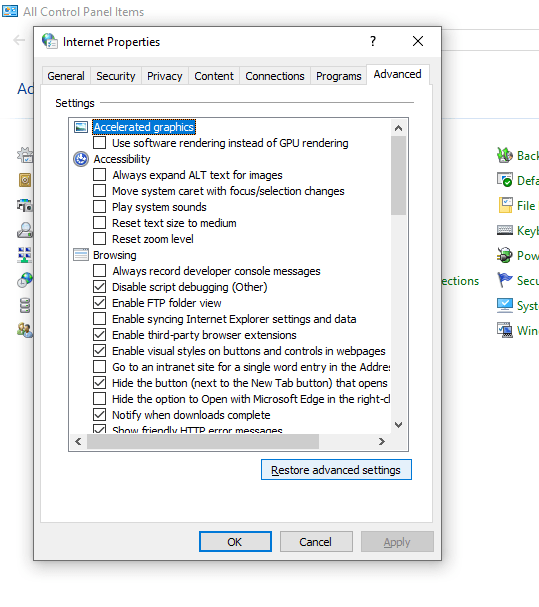
Now, restart your computer and install QuickBooks Desktop or its updates.
If the error persists, let us utilize the QuickBooks Tool Hub.
Run QuickBooks Install Diagnostic Tool from the Tool Hub
QuickBooks Install Diagnostic Tool is designed to resolve installation-related issues of the QuickBooks Desktop application. The tool will automatically diagnose the issues in the download files or related components and fix them.
Thus, to address the Sorry we need to verify subscription QuickBooks error message, follow these steps:
- Close your QuickBooks installation window or any QuickBooks windows that are open.
- Launch the QuickBooks Tool Hub.
Note: If you do not have the most recent version of QuickBooks Tool Hub already installed on your computer, here is how you can do so. - Download the installation file for QuickBooks Tool Hub.
- Double-click on the downloaded file (QuickBooksToolHub.exe) to install it.
- Follow all the on-screen instructions and agree to the terms and license agreement.
- Click on the Finish button to complete the installation.
- Finally, double-click on the Tool Hub icon on your desktop to open the application after installation.
Now, here is how you can run the QuickBooks Install Diagnostic Tool:
- Navigate to the Installation Issues using the left pane in the Tool Hub.

- Click on the QuickBooks Install Diagnostic Tool button to run it.
(Let the tool appear, which might take 2 to 3 minutes, and to diagnose and resolve the issues, which might further take 10 to 15 minutes) - When the tool is done repairing, restart your computer.
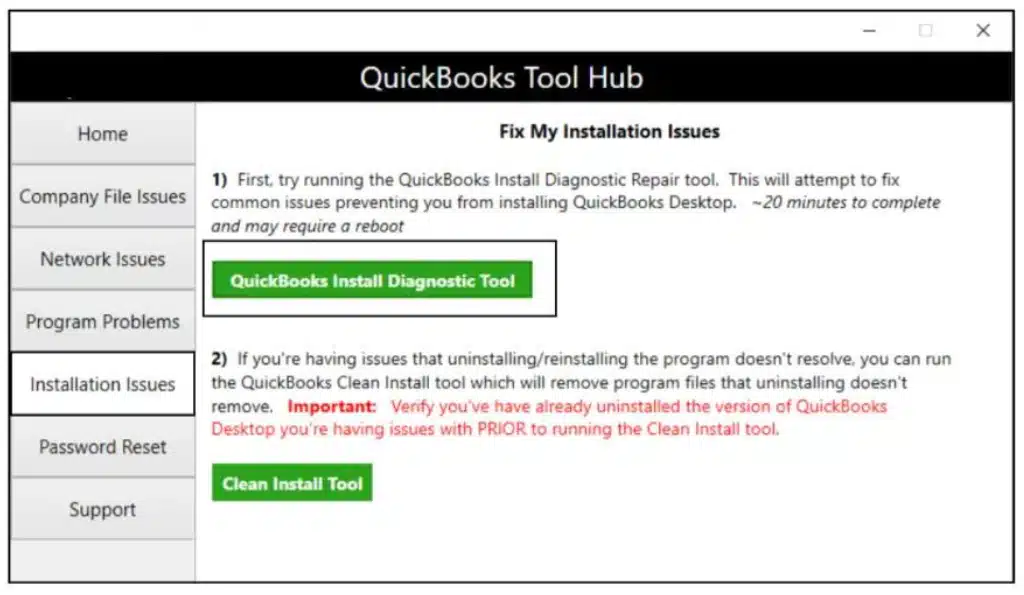
If the error persists after running the install tool, you will need to take some manual steps to ensure that your firewall or antivirus software does not interfere with the installation.
Reconfiguring the Windows Defender and Anti-Virus
It is suggested to keep the Windows Defender firewall ‘On’ to limit access to authorized users only, but at times, it may restrict some other applications from working properly or getting installed. You should disable the firewall to check if that is the issue, and install the application. Follow the steps as mentioned below:
- Click on the Start button and search for and open the Control Panel.
- Go to the Privacy & Security section.
- Click on the Windows Security option and then choose Virus & threat protection.
- Choose Virus and threat protection settings.
- You will see an option stating Real-time protection with an on off switch. Toggle it off

- When asked to confirm changes to the computer, choose Yes. Enter the administrator if asked for it.
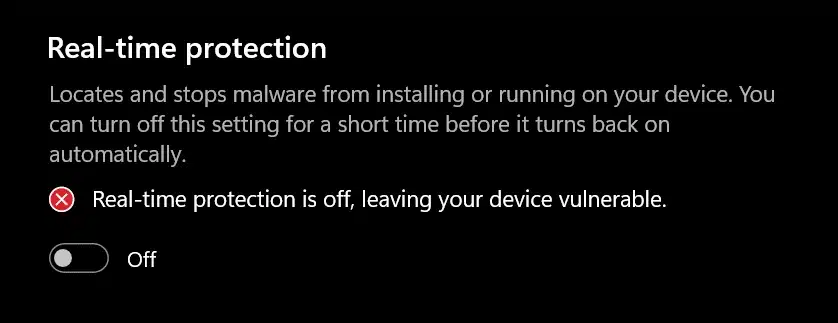
If you have antivirus or security software installed on the computer, disable it for now. Try reinstalling the application. Once done, enable the real-time virus and threat protection again.
If the Sorry we need to verify subscription QuickBooks error persists, then you should install the application in selective startup mode.
Install QuickBooks in Selective Startup mode
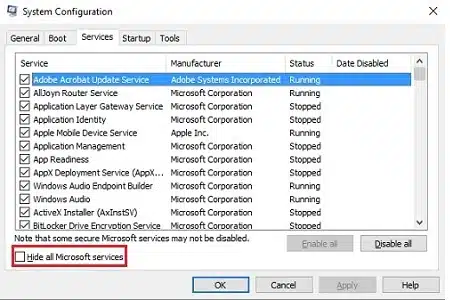
When you boot your computer in Selective Startup mode, you control which programs can interfere with QuickBooks installation.
Perform the following steps to install QuickBooks in selective startup mode:
- Press the Windows + R keys simultaneously on your keyboard to open the Run command.
- Type msconfig in the blank space and then press the ‘OK’ button.

- Reach the General tab, click on Selective startup, and Load system services options.
- Go to the ‘Services’ tab now, and then select Hide all Microsoft Services.
- Press the ‘Disable all’ button.
- Click on the ‘Hide all Microsoft services button to unmark it.

- Ensure that the ‘Windows Installer’ checkbox is marked in services
- Click on the ‘OK’ button to save the changes.
- Click on the ‘Restart’ button now.
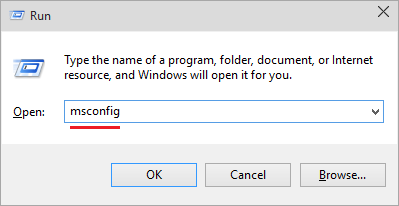
Now, you need to uninstall the QuickBooks application if it is already installed and then install it again through the following steps:
- Open the ‘Control Panel’ on your computer through the ‘Start’ menu.
- Under the ‘Program and Features’ section, click on the ‘Uninstall a Program’ option.
- Click on the QuickBooks version from the list of programs.
- Press the ‘Uninstall/Change’ button and then click on the ‘Remove’ option.
After uninstalling the application, use the installation CD or the downloaded file to reinstall it. Following these steps will resolve the Sorry we need to verify subscription QuickBooks error.
Try a Different Windows Administrator User
The installation problem with QuickBooks Desktop can stem from an issue with your current Windows administrator user.
Therefore, try using a different administrator user or create a new administrator user and log in to it, and then install QuickBooks Desktop or Enterprise.
Install Crucial Certificates
Follow the steps below to install the certificate using your web browser, preferably Google Chrome:
- Open the browser and enter this in the address bar: https://ratable.qbdt.intuit.com
- Tap on the padlock symbol you will see in the address bar
- Choose View Certificates and go to the Certification Path tab
- Mark the Symantec Class 3 Secure Server CA – G4 item
- Now, choose View Certificate followed by Install Certificate
- You will see the Certificate Import wizard on your screen.
- Go along with the default options that will already be marked, and complete the import process
- A window will greet you with the news of a successful import. Choose OK.
Close the certificate window and try installing the QBDT application again.
Sorry We Need to Verify Your Subscription – A Quick View
This section gives a quick overview of what we have discussed in this blog.
| Description | Users encounter Sorry we need to verify your subscription QuickBooks error when installing Enterprise Solutions or other editions. |
| What causes it | Corrupt or outdated .NET Framework, antivirus or Windows Defender interference, poor internet connection, damaged installation file, inadequate permissions, etc. |
| How to fix it | Update Windows or Mac operating system, run QuickBooks Install Diagnostic Tool, temporarily toggle off real-time virus and threat protection in Windows Defender and third-party antivirus or security software, install the certificate, create a new Windows administrator user, install the software or its update in Selective Startup mode |
Final Words
Through this article, we discussed the various reasons why you may come across the error message Sorry we need to verify your subscription QuickBooks while installing the QuickBooks Enterprise solution or a different edition. We also explained to you various things you should try to resolve the error.
You should now be able to install the application, activate it, and get started with your day-to-day bookkeeping tasks. The first thing you will, however, need to do is set up a company file if you are new to QuickBooks.
Frequently Asked Questions
What is Sorry we need to verify your subscription QuickBooks error message?
Sorry we need to verify your subscription QuickBooks error message when installing the software or its update implies that the software is unable to verify the subscription. It can be because of a poor internet connection, outdated software, or a firewall restriction.
How do I verify subscriptions in QuickBooks?
To verify the subscription in QuickBooks, navigate to the Employees menu, select My Payroll Service, and click Manage Service Key to confirm your service status is “Active”. You can also sign in to the Customer Account Management Portal (CAMPs).
Is QuickBooks Desktop going away in 2026?
QuickBooks Desktop has been discontinued, and the last edition of QuickBooks Desktop, which is QBDT 2024, will stop getting support in May 2027. QuickBooks Desktop Enterprise and QuickBooks Online will continue to work in the meantime.
How to fix the QuickBooks license error?
To resolve the QuickBooks license error, you can utilize the tools in Tool Hub. There is a specific tool for the error code 3371. Moreover, you can try updating the product details and license info in the Desktop application.
More Useful Articles:
How To Fix Intuit Download Manager Error
How To Crack QuickBooks Password
How to Resolve QuickBooks Error 40001
What is QuickBooks Error C 184
Why I am Getting QuickBooks Migration Error 1009

Peter is a Certified Public Accountant (CPA) with a strong background in public accounting and accounting technology. After starting his career as an audit senior, he worked with organizations across various industries and gained hands-on experience with complex accounting standards. At ProAdvisor Solutions, Peter helps clients navigate new accounting requirements. His goal is to simplify processes, improve accuracy, and boost confidence in finance reporting.