


QuickBooks printer not activated error 20, 30, 41 can be a temporary pause for your accounting operations. It can stop you from printing PDFs and forms or sending them to a client. Users reportedly run into such issues after updating their operating system or QuickBooks application.
Potential culprits can be a corrupt qbprint.qbp file, missing a crucial key in the Windows registry, or a third-party PDF program running in the background, causing a conflict. You can try ending such tasks from the Task Manager, and restart your computer to be rid of temporary issues. However, if this doesn’t help, continue reading for step-by-step instructions to resolve the error.
If you find self-troubleshooting time-consuming or hectic, you can reach out to an expert for assistance. They are seasoned in addressing QuickBooks errors and can help you resume your task in no time. Dial 1-855-888-3080 and connect with ProAdvisor Solutions!
Table of Contents
What is the QuickBooks Printer Not Activated Error?
QuickBooks printer not activated errors 20, 30, 41, etc. usually appear after you update your operating system (Windows, macOS) or the desktop application. This could be due to a sudden incompatibility; communication between Windows and QB Desktop has broken down.
You can see a message like this on your screen:
“Printer not activated, error code -20.”
Or
“Could not print to the printer. Check your printer selection. Printing may have been canceled from another program.”
Or
“Printer not activated error code 30 QuickBooks Enterprise.”
Let us now take a deep dive into the possible reasons that can lead to the ABS PDF driver printer not activated QuickBooks Enterprise or similar errors.
Why Are You Seeing the QuickBooks Printer Not Activated Error?
You might encounter QuickBooks printer not activated error codes 20, 30, or 41 when QuickBooks cannot read the printer configuration, activate its PDF driver, or fail to initialize printing services. Here are some things that might have gone wrong and led to these errors:
- The communication between your operating system and QuickBooks has broken down because of a recent update.
- The HKEY_CURRENT_CONFIG\Software key has been recently modified or deleted. This can be why QuickBooks now cannot read printer configuration, activate its PDF driver, or fail to initialize printing services.
- QB is incompatible with the PDF driver or the operating system, which is bound to throw you into an error.
- There is more than one version of QB installed on your computer, which can be causing a conflict.
- Services that manage printing jobs, such as Printer Spooler services, might be disabled or not working.
- The problem may stem from a corrupt qbprint.qbp file
- There is a conflict with a third-party PDF software, which might be interrupting the printing services
Now, let us go through some quick fixes to try.
Before You Troubleshoot Printing Issues in QuickBooks, Try These Instant Hacks
There are some crucial things you would like to make sure of before you proceed to conduct a comprehensive troubleshooting for the printer not activated errors in QuickBooks Desktop and Enterprise.
- Update your operating system and QuickBooks Desktop to the latest release from developers. Check for available updates in Windows/macOS and QBDT, install them, and restart your computer.
- Ensure the computer and printer are connected. Try printing from another program like MS Word to check the connection.
- There should be no warning lights and error messages on the printer. If there is something like that, speak to your IT professional and take care of that.
- Install or update to the most recent version of the printer driver.
These hacks might help you print or save PDFs without the need for comprehensive troubleshooting.
How to Fix QuickBooks Printer Not Activated Error: 8 Methods that Work
Let us now take you through methods with detailed instructions to resolve the QuickBooks printer not activated error 30, 20, and 41.
Carefully follow the steps to avoid running into technical complications.
Restart the Computer
Firstly, try restarting your computer and carrying out the same operation that led to the ABS PDF driver printer not activated QuickBooks error.
If you continue to encounter the error, try resetting the temp folder permissions.
Reset the Permissions for the TEMP Folder
The following steps will help you reset the permissions for the temp folder:
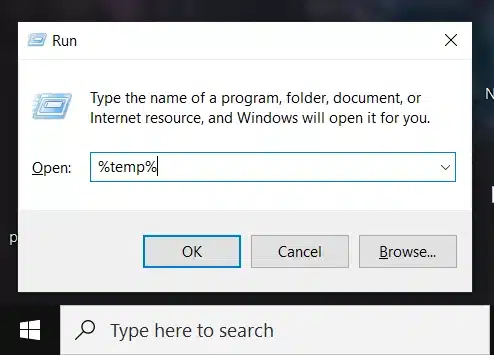
- Launch the Run window by pressing Windows + R keys.
- Enter %temp% and choose OK.

- Now, right-click anywhere empty once the temp folder opens and choose Properties.
- Go to Security and ensure that all the users’ names and groups are assigned Full Control.
Save and apply the changes, and try saving a PDF or printing it in QuickBooks.
Check If You Can Print Outside of QuickBooks
The first thing you should check, if you haven’t already, is whether you can print outside of QuickBooks. This will tell you if the problem lies within or outside of QuickBooks.
- Open Notepad.
- Type anything random in the space.
- Now, pull up the File menu in Notepad and choose Print.
- Choose the right printer and finally click on Print.
If you can print via Notepad and can’t in QuickBooks, the problem lies with QuickBooks.
If you cannot print in Notepad, the problem might lie with the printer setup. You can troubleshoot it yourself, or if you aren’t confident about that, ask your IT professional.
The next few methods will help you troubleshoot the printer setup.
Make Sure You’ve Allowed the Computer to Print to the XPS Printer
From the list of services, make sure that Microsoft XPS Document Writer is selected to enable your computer to print to the XPS printer.
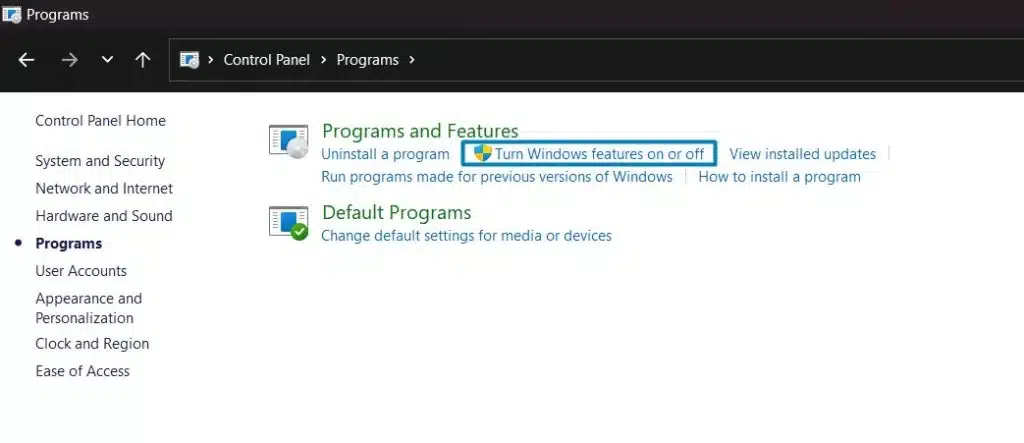
- Open the Control Panel and change the view to Category view.
- Choose Programs, followed by Programs and Features.
- Tap on Turn Windows features on or off.

- Mark the Microsoft XPS Document Writer and choose OK.
If this doesn’t resolve the printer not activated issue, disable UAC restrictions.
Turn Off the User Account Control Settings
User Account Control settings limit changes that can be made to your computer. You might have noticed that when you try to run a program or task that makes an administrator-level change to the system, a UAC window pops up, asking for approval and admin password.
For now, you can lower the UAC restrictions and put them back on later.
- Open the Control Panel.
- Navigate to System and Security > Change User Account Control settings. Enter the administrator password if prompted.
- Now, move the slider down to the bottom and set it to Never Notify.
- Save changes and restart your computer.
Resume operations and check whether the error you encountered earlier is resolved.
Note: Remember to turn the UAC restrictions back on (drag the slider to medium security) to prevent unauthorized access or changes to the computer.
Utilize the QuickBooks Print & PDF Repair Tool
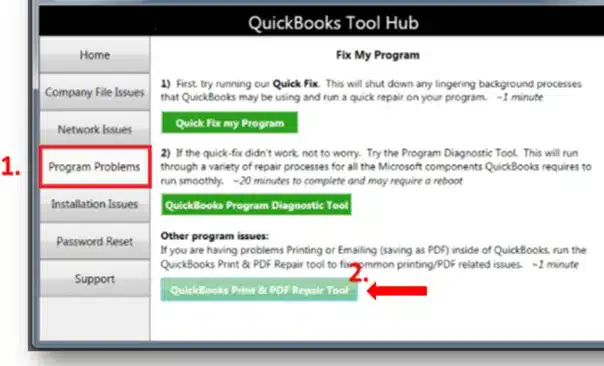
In QuickBooks Tool Hub, you will find the QuickBooks Print & PDF Repair Tool, a utility to instantly repair various printing issues.
Thus, download and install the Tool Hub, and then follow the steps below:
- Launch QB Tool Hub and navigate to Program Problems.
- Now, click on QuickBooks Print & PDF Repair Tool.

- The tool might take a minute to download in the background and show up.
Now, relaunch QuickBooks Desktop and retry printing or sending PDFs or forms.
Manually Rename the QBPrint.QBP File
QuickBooks printer not activated error code 20, 41, 30, can stem from a problem with the qbprint.qbp file.
You can edit the name of the qbprint.qbp file to address that.
- Look for the qbprint.qbp file, which might be in these locations:
- If you are on Windows 10 and newer: C:\Program Data\Intuit\QuickBooks 20xx
(20xx represents the version of your QuickBooks.)
- If you are on Windows 10 and newer: C:\Program Data\Intuit\QuickBooks 20xx
- If you are on Server 2012 and newer: C:\Program Data\Intuit\QuickBooks YEAR and C:\Users\**remote user**\AppData\Roaming\Intuit\ YEAR VERSION\TSPrinterSettings
Note: Users on Terminal Service have found duplicate instances of the Qbprint.qbp file with the stored client data files. Thus, we recommend that you double-check all folders for such instances. - If you cannot find these files on Windows, you will need to enable the option to Display hidden files and folders. Alternatively, you can search for files using Windows.
- Once you find the QBprint.qbp file, you need to right-click on it and choose Rename.
- At the end of the file name, after the extension, type .old so that the file name now becomes QBPrint.qbp.old
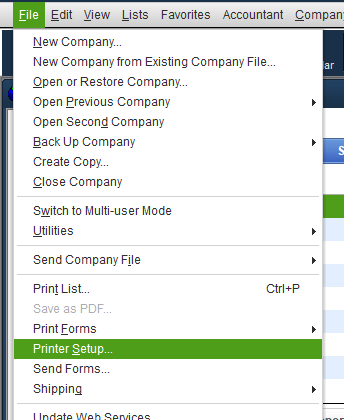
- Relaunch QB Desktop and open the File menu.
- Choose Printer Setup.

- Now, from the Form Name list, choose any transactions and then click on OK.
- This will create a fresh copy of the qbprint.qbp file. You do not have to do the same for all transactions.
Finally, retry opening and printing a form or transaction.
Update the Properties for Print Spooler Services
Follow the steps below to update Print Spooler service properties.
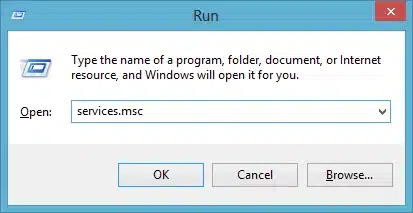
- Launch the Start menu, and open Run.
- Enter Services.msc, and select OK.

- Look for the Print Spooler service, and right-click on it.

- Choose Properties and navigate to Startup type.
- Choose Automatic and then tap on the Apply button.
- Now, right-click on the Print Spooler service and finally choose Start.
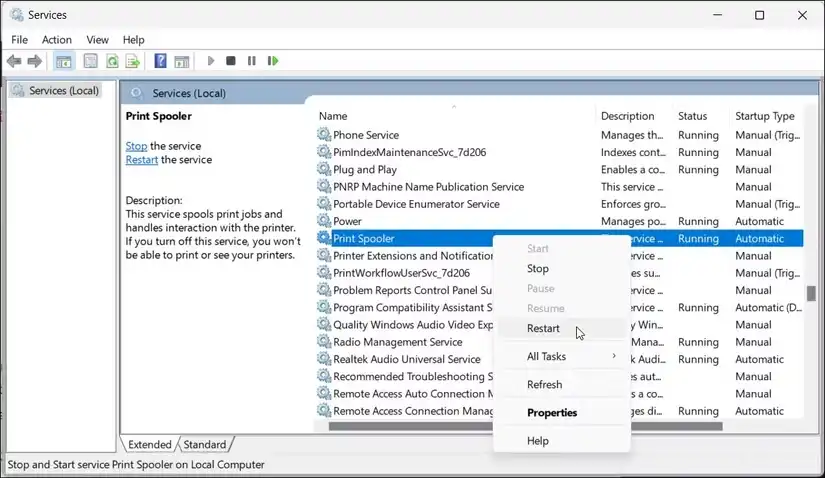
This will start the service. Now, try saving a PDF or emailing it. However, if this still does not resolve the printing issues in QuickBooks, you should check our dedicated article on the same.
If You Run into Printing Problems in QuickBooks Online, Remove Third-Party PDF Plug-ins
You might be working on QuickBooks Online in your browser and run into printing issues. This can happen for either of the operating systems, such as Windows or macOS.
If a third-party plug-in is active, you will need to remove it so the default PDF viewer can take over. This is especially true for Mac.
Let us see how you can remove third-party plug-ins for QuickBooks Desktop for Mac users. If you are on Windows, you can follow a similar approach, although the specific steps may vary.
- End any active instances of Safari and launch the Finder window.
- Navigate to Go > Go to Folder.
- Enter this in the field: /Library/Internet Plug-Ins/
- If you see plug-ins named AdobePDFViewerNPAPI.plugin, PDF Browser Plugin.plugin, or AdobePDFPDE.plugin, relocate them, or move them to trash.
Note: If asked for a password to authorize this action, enter your password. - Now, open Safari and log in to your QBO company.
Another thing you can try is opening QuickBooks Online in an incognito or private window and clearing your browser cache.
Expert Tips to Prevent Printer Activation Errors, such as -20 or -31
While QuickBooks errors seem to appear out of nowhere, there are often some optimal methods you can put into use to avoid them.
Here are some pro tips to prevent printer activation errors, such as 20, 30, 40, etc., in the future:
- Regularly update your operating system, printer driver, and QuickBooks Desktop
- Avoid third-party PDF tools to prevent conflicts or incompatibility issues
- Enable Microsoft XPS Document Writer if you are on a Windows operating system
- If possible, use a dedicated printer for QuickBooks to avoid miscellaneous problems.
A Quick View on Printer Activation Errors in QuickBooks
The table below gives a concise overview of what we have covered in this article.
| Error Description | QuickBooks printer not activated errors, like error code 20, 30, 41, often show up after Windows or QuickBooks updates. |
| What causes it | Removal of HKEY_CURRENT_CONFIG\Software key, recent update, incompatibility between QuickBooks and the system’s PDF reader, or a corrupt qbprint.qbp file |
| How to fix it | Restart your computer, update Print Spooler service properties, reset temp folder permissions, allow the computer to print to the XPS printer, and run the QuickBooks Print & PDF Repair Tool. |
Conclusion
We saw how QuickBooks printer not activated error codes 20, 30, 41, etc., can show up when you try to send forms or print them. We discussed various reasons that lead to the error and tested solutions to address it.
Frequently Asked Questions
Why does my QuickBooks say “Printer not activated”?
When QuickBooks says that the printer is not activated, it can be either because the application’s communication with the Windows PDF driver is broken or the PDF converter is corrupt. It can also be a result of an outdated application or Windows.
What is QuickBooks printer not activated on Windows 11?
QuickBooks printer not activated is an error that users often run into, regardless of operating system, be it Windows 11, 10, or macOS. This often shows up when either the operating system or QuickBooks is updated and prevents users from sending or printing forms.
Can QuickBooks Print and PDF Repair Tool resolve printing issues?
QuickBooks Print & PDF Repair Tool can successfully resolve the printing issues in many cases. If it doesn’t work, you can try updating the Print Spooler services properties and turning off the User Account Control settings.
Why can’t I print or send PDF forms in QuickBooks?
There might be a PDF component missing or damaged, or the Microsoft XPS Document Writer might be disabled, preventing you from printing PDF forms in QuickBooks. Incorrect temp folder permissions and outdated software can also be the culprits.

Peter is a Certified Public Accountant (CPA) with a strong background in public accounting and accounting technology. After starting his career as an audit senior, he worked with organizations across various industries and gained hands-on experience with complex accounting standards. At ProAdvisor Solutions, Peter helps clients navigate new accounting requirements. His goal is to simplify processes, improve accuracy, and boost confidence in finance reporting.