


QuickBooks is a widely used accounting and bookkeeping software developed by Intuit. It provides a wide range of tools and features to make accounting and related business processes easier for its users. One such tool is Intuit Data Protect (IDP), which is developed to secure crucial company data of QuickBooks users from various threats. It is important to update Intuit Data Protect from time to time to ensure smooth functioning. In this blog, we will discuss the detailed methods to keep your IDP software updated.
If you are facing any issues in updating Intuit Data Protect and need assistance from an expert, then contact ProAdvisor Solutions’ Data Protect Support at 1.855.888.3080
You may also see: Import Banking transactions in QuickBooks
Table of Contents
What is Intuit Data Protect? – A Short Explanation
Intuit Data Protect is a paid backup service for QuickBooks. You can back up your whole computer or just your QB data with this service. After setting it up, IDP backs up your data every day and stores it. Let us take a look at the system requirements for installing IDP.
Minimum System Requirements for Installing IDP
There are some minimum system requirements for installing IDP on your system. These are required so that the application runs smoothly on your system without lags, so let us list them in the table below:
| Intuit Data Protect System Requirements | |
| Operating System | Windows 10 or higher |
| Rights | Local admin rights of the pc and full access to all folders |
| Installation Location | Install the full version of QuickBooks Desktop on the server or on the PC where you will be setting up Intuit Data Protect |
| File Storage Location | Store the files on your local area network. (It doesn’t support Box, Google Sheets, or OneDrive) |
| File Path | A local file path on the same computer. It doesn’t support a network drive. |
| Norton Life Lock | You should update the Norton Life lock certificate every six months. |
| Web Browser | Make sure to add Intuit Data Protect as a trusted site in your browser. |
These were the system requirements for Intuit Data Protect.
How to Set up the IDP?
Now that we are aware of the minimum system specifications required for Intuit Data Protect, let us see how to set it up through QuickBooks. Follow the steps as provided below:
- Open QB Desktop on the PC or server that stores your company file
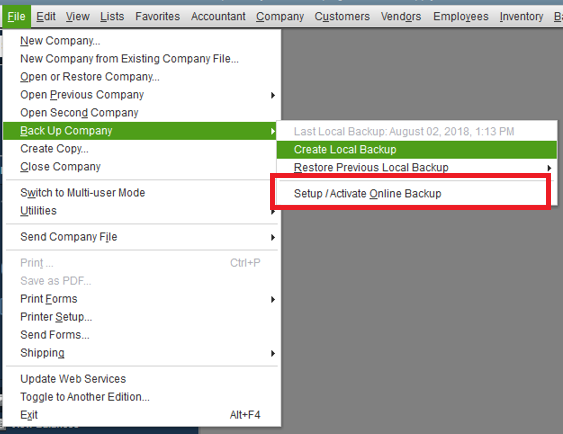
- Click on the File menu
- Select the Back Up Company option
- Press Set Up/Activate Online Backup

- Sign in with the email you signed up for Intuit Data Protect with
- Select Continue
- Then, choose your company file and hit Continue
- If you opted for the entire PC backup plan, choose the folders you wish to back up
- Hit Continue
- Now, mark the Back up local selected documents checkbox
- Press Continue
- Select the files and folders you want to back up
- Choose Continue
- Schedule your daily backup and hit Continue
- Select your notification settings
- Lastly, hit Continue again
- Now, let us take a look at some benefits of updating the Intuit Data Protect.
Advantages of Updating Intuit Data Protect
It is a good practice to keep your applications updated to the latest release, but it becomes even more important to update the applications associated with the security of your data. Outdated applications become obsolete and may create issues and errors when you work on them. While these issues can be avoided by updating them, there are several other benefits of updating the Intuit Data Protect software. These have been mentioned below for you:
- The performance of the application and the associated tools are improved as the updates make the application customized with the latest OS and other requirements.
- The security features are improved with the updates to keep your crucial data safe and secure.
- It provides enhanced stability even if you are using other operating systems or web browsers.
- It would ensure complete data safety and protection from data loss.
Recommended to read : Resolve QuickBooks Missing PDF Component Issue
How do I Update Intuit Data Protect?
QuickBooks comes with a built-in data protection software, and if you are looking to update it, then follow the steps given below:
- Open your QuickBooks desktop application and then reach the ‘Help’ section.
- Select the ‘Update QuickBooks’ option from the list that appears.
- A dialogue box would appear when you click on the ‘Update now’ tab.
- Make sure that the ‘Data protection’ box is marked as checked.
- Click on the ‘Get Updates’ option to initiate the process.
- Click on the up arrow ^ on your Desktop toolbar
- Right-click on the Intuit Data Protect icon
- Its icon looks like a green padlock
- Select About Intuit Data Protect
- Now, press Update
- Select OK after it is finished
Issues with Intuit Data Protect and Their Troubleshooting Methods
Sometimes, you might face issues while trying to back up your data files with Intuit Data Protect. Such issues can occur due to various reasons. The troubleshooting methods for different problems with Intuit Data Protect are given below:
- Windows firewall blocking Intuit Data Protect is one of the most common reasons causing it not to back up your data. You would need to add important file exceptions to the firewall to resolve the issues. You should also add the IDP program to your trusted programs to avoid further issues.
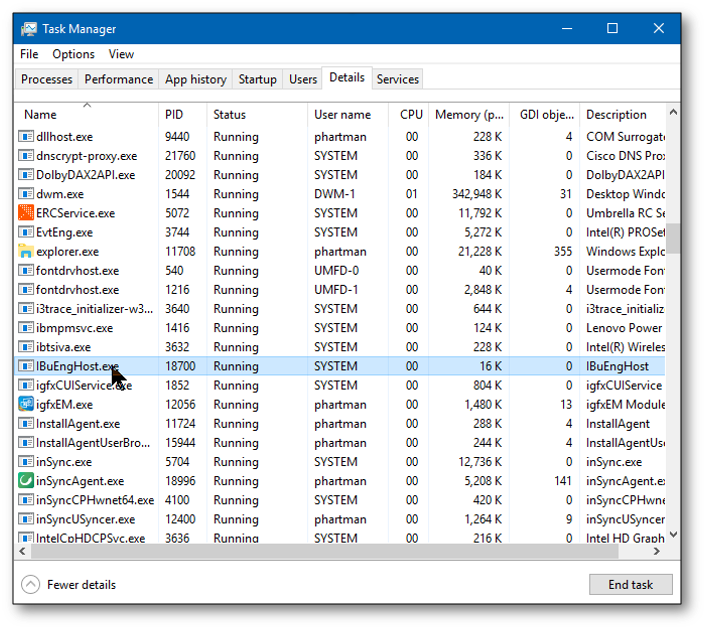
- You should also make sure that IBuEngHost.exe is not running as a Windows user. You can check it through the Task Manager of your computer.

- You can also use the Intuit Data Protect Diagnostic tool to resolve other issues that might occur. It would resolve issues with the .NET framework and also check if you can connect to the backup servers.
- One trivial but crucial issue that can hamper the data protect functioning is the lack of free space. Intuit Data Protect requires 5 GB of free disk space and might start to malfunction if the required space is not available. You can free up the space by deleting the data manually.
You may also read: QuickBooks Error 590
Conclusion
In this blog, we talked about the Intuit Data Protect, along with the steps you can perform to set it up. We also talked about the steps to update Intuit Data Protect software so you can back up your company file without any issues. If you are facing issues in backing up your company file with Intuit Data Protect, or are having trouble updating it, contact our professionals at 1-855-888-3080 today!
FAQs
What is the current version of Intuit Data Protect?
The latest version of the Intuit Data Protect is 1.70. 21.5009.
Where can I find Intuit Data Protect on my PC?
Intuit Data Protect can be found on your PC’s toolbar by clicking on the up arrow ^. It’s usually present as a green colored padlock.

Erica Watson is writing about accounting and bookkeeping for over 7+ years, making even the difficult technical topics easy to understand. She is skilled at creating content about popular accounting and tax softwares such as QuickBooks, Sage, Xero, Quicken, etc. Erica’s knowledge of such softwares allows her to create articles and guides that are both informative and easy to follow. Her writing builds trust with readers, thanks to her ability to explain things clearly while showing a real understanding of the industry.