


While using the QB Online website or the Desktop app, you may notice that certain buttons disappear from the toolbar. However, the save and close button missing in QuickBooks is a much more common error. This can occur due to QBO cache and cookies piling up in your web browser or due to incorrect display settings in the QB Desktop app. You can resolve it by clearing cache and cookies from your web browser and using the Quick Fix My Program tool. In this blog, we’ll cover the methods you need to know to bring back your missing save and close button in QuickBooks Online and Desktop.
Are you having trouble saving your data in QuickBooks? Contact our experts at 1-855-888-3080 today to fix your issue in time!
Table of Contents
Causes of the QuickBooks Save and Close Button Missing Problem
Listed below are the factors that may be the reason behind your save and close button missing in QuickBooks Online and Desktop:
- Stored cache and cookies in your web browser
- Your browser is unable to open QBO in full-screen mode
- Your display settings for QB Desktop are incompatible
- The view preferences are incorrect in the QB Desktop app
These can be the reasons why the QuickBooks can save and close button missing issue is appearing on your screen.
Save and Close Button Missing in QuickBooks Desktop? Methods to Mend It
The QuickBooks Desktop save and close button missing issue can be resolved with the methods given below:
Use Quick Fix My Program
The save and close button missing in QuickBooks can be due to program problems with the application. You can patch the QB save button with these steps:
- Download and install the QuickBooks Tool Hub
- Open the Tool Hub app

- Navigate to the Program Problems tab
- Select Quick Fix My Program

- Let the tool run

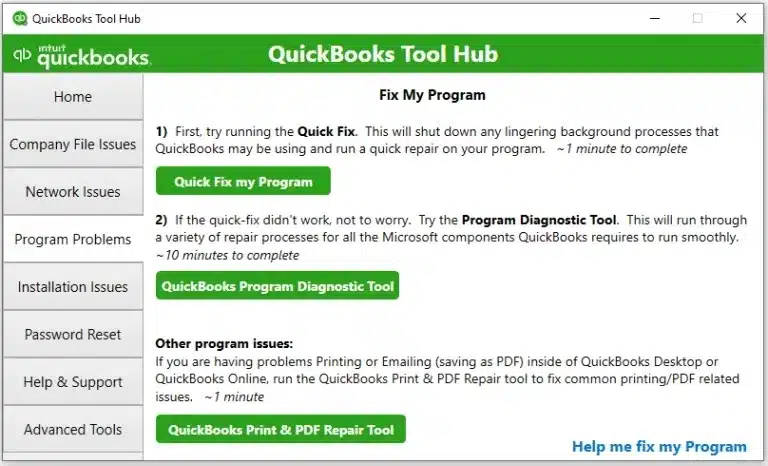
This would resolve the save and close button missing error.
Utilize the QB Install Diagnostic Tool
You can use the QuickBooks Install Diagnostic Tool from the QB Tool Hub to resolve the save and close button missing problem with these steps:
- Open the QuickBooks Tool Hub app
- Go to the Installation Issues tab
- Click on the QuickBooks Install Diagnostic Tool

- Let the tool run
- It can take up to 20 minutes for the tool to finish working
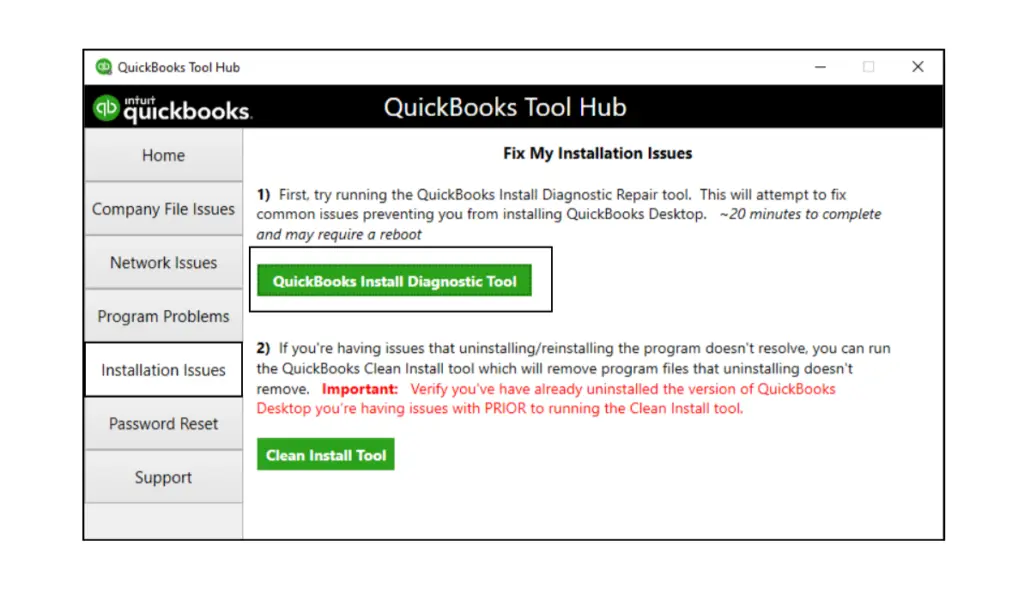
This would resolve the problem you were facing.
Change the Display Settings of the QB App
Incorrect display settings in QuickBooks Desktop might lead to the save and close button being missing. You can change the display settings of the QB app with these steps:
- Close the QBDT app
- Open the Start menu
- Type in QuickBooks in the search bar
- Right-click on the QuickBooks icon
- Select Open file location
- In the folder that opens, right-click on QuickBooks.exe
- Select Properties
- Navigate to the Compatibility tab
- Then mark the Disable display scaling on high DPI settings checkbox
- You can also select Change high DPI settings
- And then select Override high DPI scaling behavior
- Press Apply
- Finally hit OK
This would resolve the save and close button missing in QuickBooks issue.
Verify and Rebuild the Company File Data
A damaged company file can be the reason why your save and close button is missing in QBDT. You can fix it using the verify and rebuild data utility with these steps:
- Open the QuickBooks Desktop app
- Go to the File menu
- Click on Utilities
- Press Verify Data

- Then, navigate to the File menu again
- Select Utilities
- Click on the Rebuild Data option

- QB will ask to make a company file backup before it rebuilds your data
- A backup is required before you rebuild your data
- Hit OK
- Choose where the backup would be saved
- Make sure not to replace any existing backup files
- Type in a new name in the File name field
- Hit Save
- When you get the Rebuild has completed message, click on OK
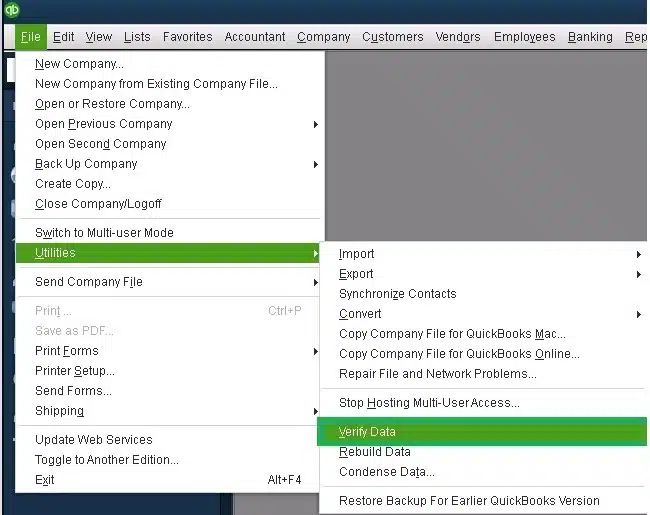
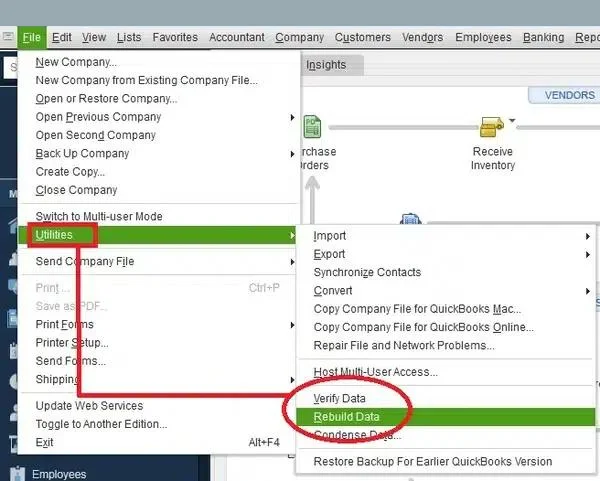
Performing these steps would fix the save and close button missing problem.
Resolve the Save and Close Button Missing in QB Online Issue
In the QuickBooks Online website, the save and close button can be missing due to stored cache and cookies in your web browser. To resolve it you can use the QBO website in a private browsing window. Here’s how to open a private browsing window so you can use QB Online without any issues:
- Google Chrome – Ctrl + Shift + N
- Mozilla Firefox – Ctrl + Shift + P
- Safari – Command + Shift + N
- Microsoft Edge – Ctrl + Shift + N
If you can see the save and close button in QuickBooks, proceed to clear the QB cache and cookies from your web browser.
Save and Close Button Missing in QuickBooks – A Quick View Table
In the table below is given a concise summary of this blog on the topic of the save and close button being missing in QuickBooks:
| Description | The save and close button missing in QuickBooks issue can make you unable to save your work in the QBO website and the QBDT app. This can hamper your workflow and important business processes. |
| Its causes | Stored cache and cookies in the web browser, your web browser can’t open QBO in full-screen mode, incorrect display settings of the QBDT app, problems with the QB Desktop application, and issues with your QuickBooks company file. |
| Ways to fix it | For QuickBooks Desktop – Use Quick Fix My Program – Utilize the QuickBooks Install Diagnostic Tool -Verify and rebuild the QB company file – Configure the QB display settings For QuickBooks Online: – Use the QB Online website in a private window – Clear QuickBooks cache and cookies from your web browser |
Conclusion
The save and close button missing in QuickBooks problem can render you unable to save your precious work progress in both the desktop application and the online version. We have discussed the potential causes of this issue along with the methods needed to fix it in this blog. If you are still unable to save your work in QuickBooks, our experts can help you resolve it with guided assistance. Give us a ring at 1-855-888-3080!
FAQs
Why is my save and close button missing in QuickBooks Online?
Your save and close button might be missing in the QB Online website due to piled-up cache and cookies in your web browser. To resolve it, clear the QB cache and cookies from your browser.
How can I fix the save and close button missing issue in QB Desktop?
You can fix the issue with the following methods:
1. Use the Quick Fix My Program tool
2. Use the QB Install Diagnostic Tool
3. Make changes to the display settings of the QB app
4. Verify and rebuild your company file data

Erica Watson is writing about accounting and bookkeeping for over 7+ years, making even the difficult technical topics easy to understand. She is skilled at creating content about popular accounting and tax softwares such as QuickBooks, Sage, Xero, Quicken, etc. Erica’s knowledge of such softwares allows her to create articles and guides that are both informative and easy to follow. Her writing builds trust with readers, thanks to her ability to explain things clearly while showing a real understanding of the industry.