


In QuickBooks, you have ways to automate the calculation of sales tax. QB automatically rounds off by the second digit of the decimal. That means it rounds off by ± $00.01. To give you an example, assume your sales tax is $63.289, QuickBooks would round it up to $63.29. Furthermore, if your sales tax is $63.283, QuickBooks would round it up to $63.28. This process is executed in a line-by-line fashion.
Sometimes QuickBooks sales tax rounding error may occur, i.e., the rounding might be incorrect, resulting in discrepancies in the total. You might face a tax discrepancy, on the amount being charged, less or more than what your book records show. That is due to QB keeping track of every penny, debited and credited, due to rounding off, and then adjusting the amount accordingly.
To correct sales tax rounding errors in QuickBooks, let’s first understand what causes them.
If you need assistance with correcting the sales tax, speak to an expert. Dial 1-855-888-3080 and connect with an expert now!
Table of Contents
What Exactly is a Sales Tax Rounding Error in QuickBooks?
The rounding process that QuickBooks uses is not a correct accounting process. What QB does is adjust the credited and debited transactions, which is the reason why you might see a difference of $00.01 for the product of the same quantity and price. If you put the amounts together of the same product, you’d notice that QuickBooks is not exactly rounding off, but rather equalizing the amount. During this process, a QuickBooks sales tax rounding error might arise.
Now, let’s explore some easy methods to patch this issue.
Easy Ways to Fix QuickBooks Sales Tax Rounding Error
Intuit’s technical team has officially recognized QuickBooks sales tax rounding error as a bug. There is no one-time fix available for this issue yet; however, you can manually adjust the difference, which is different for both QuickBooks Desktop and QuickBooks Online.
First, let’s see the fixes for QuickBooks Desktop.
Learn to Rectify Sales Tax Rounding Error in QuickBooks Desktop
You have two different ways to adjust your sales tax rounding in QBDT, one being creating a sales tax adjustment and the other being creating a credit memo. Now, let’s learn how to do both step-by-step.
Method 1: Creating a Sales Tax Adjustment
Follow the steps provided below to create a sales tax adjustment to eliminate the QuickBooks tax rounding issue:
- Open the Customers menu

- Select Enter Sales Receipt
- Leave the customer field empty
- Open the Tax menu, and select 0% sales tax
(Note: If it doesn’t exist, tap Add New to create a new one) - Now, in the item column, select the empty line you see first
- Select the sales tax item that you want to adjust
- Navigate to the Amount column
- After entering the adjustment amount, press Enter
- Select OK, and then click Save & Close
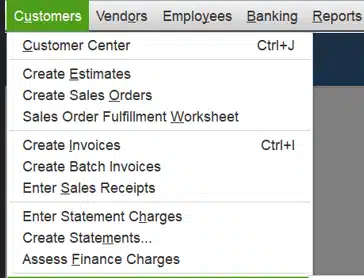
This method can only be used to increase the sales tax. Now, let’s proceed with the steps to create a credit memo.
Method 2: Credit Memo Creation
Follow the steps given below to create a credit memo to address the incorrect sales tax rounding:
- Navigate to the Customers menu
- Select Create Credit Memos/Refunds

- Select Add New, and give it a name such as – For Accounting Use
- Now, input $00.01 in the amount column and tap Enter
- A message would appear stating: “Changing the amount of a tax line item may cause your sales tax reports to be incorrect.”
- Press OK and continue
- Select the next empty line
- Press Discount item
- Navigate to the Amount section and enter $00.01
- Now, go to the Tax column
- Select Tax, and make sure that the total amount is $00.00
- Press Save & Close
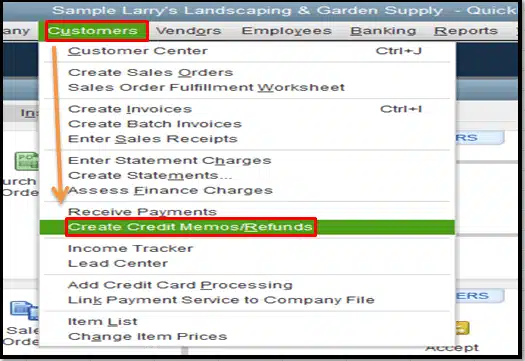
This would create a credit memo for you. Now, let’s proceed toward fixing the rounding error in sales tax for QB Online.
Remedy for Sales Tax Rounding Error in QuickBooks Online
There are two ways you can fix the sales tax rounding error in QBO. One is by creating a sales tax adjustment, and the other is by creating a credit memo. However, the latter can only be used to decrease the sales tax.
Method 1: Creating a Sales Tax Adjustment
The steps to create a sales tax adjustment for solving the QuickBooks sales tax rounding error are:
- Click on the Gear icon at the top
- Click on Chart of Accounts
- Press New from the top right corner
- Navigate to the Account Type menu
- Select Income or Expense
- You should select Income Account to decrease your sales tax, and select Expense Account to increase your sales tax
- Navigate to the Detail Type column
- Press Sales of Product Income for the Income Account and Taxes Paid for the Expense Account
- Name the adjustment account.
- Press Save & Close
- Now, from the left menu, navigate to Taxes
- Choose Sales Tax
- Enter the tax period you want to make adjustments to
- Then, press Prepare Return
- Choose Adjust for the entry you wish to adjust
- Enter the Adjustment Date
- Enter Tax Rate
- Choose your Adjustment Account
- Select the Income Account if you want to reduce the tax, or select the Expense Account if you want to increase the tax
- In the Adjustment Amount section, input $00.01
- After typing notes in Memo, press Save
This should address the sales tax rounding error in QuickBooks Online.
Method 2: Creating a Credit Memo
You can also do so by creating a credit memo. Follow the steps provided below to create a credit memo:
- Press the Plus (+) icon
- Select Credit Memo
- Choose the name of your Customer
- Type in the memo date
- Enter $00.01 in the amount section
- Press Save & Close
- Select the +New button, then select Invoice
- Generate your invoice
- Then, select Receive Payment
- Mark your credit and invoice
- Click on Save & Close
This method can only be used to decrease the sales tax amount.
Correcting Sales Tax Rounding Issues – A Quickview
In the table below is a concise summary of the rounding sales tax error in QuickBooks.
| What is the QuickBooks sales tax rounding error? | QB sales tax rounding error is an accounting error that may result in sales tax discrepancies for the amount being charged. |
| Reasons for incorrect sales tax | The error arises due to the rounding process that QB uses. Which doesn’t necessarily round off the amount, but rather equalizes the amount. |
| How to correct that | To fix this error in QuickBooks (both online and desktop versions), you can create a Sales Tax Adjustment or a Credit memo. |
Wrapping Up
With the help of this blog, we showed you how to rectify the QuickBooks sales tax rounding error. However, as we discussed, it’s not a one-time fix, and you’d have to do this whenever you need to make adjustments.
If you have trouble following any of the steps or you are failing to achieve the desired outcome, feel free to speak to our professionals at 1-855-888-3080.
Frequently Asked Questions
What is a sales tax rounding error in QuickBooks?
QuickBooks automatically rounds off your sales tax to two decimal places. However, sometimes this is incorrect and needs adjustments on your part to reflect the correct amount. This is a rounding error when doing QB sales tax.
How do I adjust rounding in QuickBooks Desktop?
To adjust the rounding sales tax error in QuickBooks Desktop, you have to create a sales tax adjustment to increase your sales tax or create a credit memo to decrease your sales tax. You can find the options to do both in the Customers menu.
How to unfile sales tax in QuickBooks Online?
To unfile sales tax in QuickBooks Online, you need to have a QBO Accountant version. Then, from the Sales Tax menu, select the Returns tab and locate the tax filing that you want to unfile. Finally, in the Action column, press Undo Filing to complete the process.
Why can’t I turn off sales tax in QuickBooks Online?
Once you turn on the Automated Sales Tax in QuickBooks Online and add it to the invoices, you can no longer disable it, as this feature is not yet available. However, you can manually edit the invoice and enter a 0% tax rate to remove the automated taxes.
Read more useful articles :
Your Ultimate Guide to Eliminating QuickBooks Error 3180
QuickBooks Payroll Not Responding! Do this to Fix it
QuickBooks Drop Down Menus Not Working: Desktop & Online
How to Troubleshoot QuickBooks 502 Bad Gateway Error?
Facing QuickBooks Migration Failed Unexpectedly Issue? Here’s How to Fix It

Erica Watson is writing about accounting and bookkeeping for over 7+ years, making even the difficult technical topics easy to understand. She is skilled at creating content about popular accounting and tax softwares such as QuickBooks, Sage, Xero, Quicken, etc. Erica’s knowledge of such softwares allows her to create articles and guides that are both informative and easy to follow. Her writing builds trust with readers, thanks to her ability to explain things clearly while showing a real understanding of the industry.