


Are your QuickBooks Payroll check transactions not matching? This can be due to incorrect bank account settings, data entry errors, duplicate payroll runs, or discrepancies in amounts, dates, or descriptions. This can hamper your workflow and important business processes. You can fix it by matching the transactions manually. We’ll cover the guided methods to resolve this problem in this blog. First, let us see why you’re dealing with the payroll not matching with bank transactions in QuickBooks issue.
Are you having trouble matching your payroll check transactions with your bank statement? Contact our experts today to resolve your problem in no time!
Table of Contents
Potential Causes for QuickBooks Paycheck Transactions Not Matching
Given in the list below are the potential factors that can be the reason for the paycheck transactions not matching in QuickBooks:
- The transactions might be older than 180 days
- The dollar amount your bank cleared and the amount present in QuickBooks are different
- The transaction types in your bank and in QuickBooks are different
- The transactions might be recorded in different bank accounts
- QB might have two or more open transactions
These were the causes for your payroll check transactions not matching in QuickBooks.
Methods to Implement if Your QuickBooks Checks are Not Matching
Given below are the methods you can use to troubleshoot the problem of the QB Paycheck transactions not matching:
1. Use the QB Online Website in a Private Window
Stored QuickBooks cache and cookies in your web browser can cause the QB Online website to function properly, hence contributing to the paycheck transactions not matching. You can fix it by using the QBO website in a private window. The shortcut keys to open a private browsing window in different web browsers are given below:
- Google Chrome – Ctrl + Shift + N
- Mozilla Firefox – Ctrl + Shift + P
- Microsoft Edge – Ctrl + Shift + N
- Safari – Command + Shift + N
If the paycheck transactions not matching issue is resolved by using the QBO website in a private window, proceed to clear the QuickBooks cache and cookies from the browser to get rid of this problem for good.
2. Change the Bank Account Info in the Chart of Accounts
You can change the bank account info if it’s incorrect in the chart of accounts to resolve the problem of paycheck transactions not matching with the steps given below:
- Open the QB Online website
- Click on Transactions under the Bank Transactions menu
- Click on the tile next to the bank name to edit the name
- Select the pencil icon
- Then, press the Edit Account Info option
- Check the Disconnect this Account on Save option
- Press Save and Close
- Then, select Chart of Accounts under the Accounting menu
- Find the bank account
- Click on the View register dropdown menu next to your bank account
- Select Connect Bank
- Follow the steps you see to connect your bank account again
This should resolve the issue you were dealing with.
3. Review the Paycheck Transactions and Edit
You can review and edit the paycheck transactions in QuickBooks Online to solve the issue of check transactions not matching with the following steps:
- Open the QB Online website
- Click on Settings
- Then, select the Chart of Accounts option

- Click on the account you wish to review
- Navigate to the Action column
- Select View Register
- Press the Filter icon
- Choose the filter you wish to apply
- To sort the transactions, you can move your cursor to the header column and use the Sort icon
- Select the transaction you wish to modify in the Account Register
- Feed in the correct info in the text fields
- If a field is greyed out, press Edit
- Make the necessary changes
- Click on Save and Close
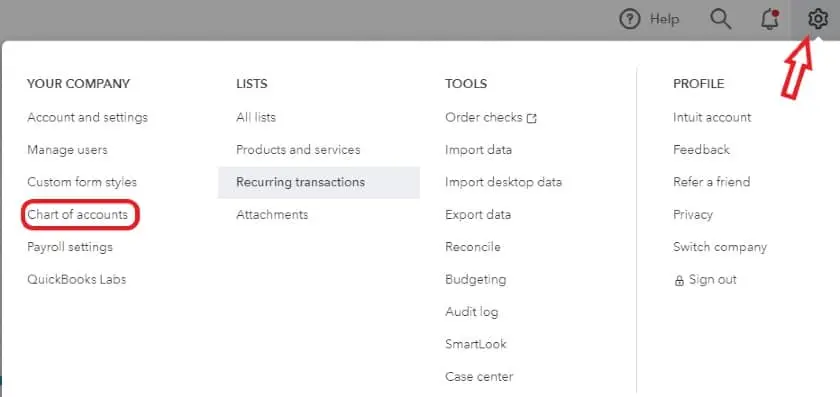
Now, the issue should be fixed.
4. Move the Transaction Into For Review
You might’ve mistakenly downloaded or matched a payroll transaction with the wrong one. This can be fixed by moving the transaction to the For Review section with the steps given to you below:
- Go to the Transaction menu
- Click on Bank Transactions
- Select the bank or credit card tile from which the transaction was downloaded
- Navigate to the Categorized tab
- Locate the transaction you wish to match
- Go to the Added or Matched column
- Click on the blue transaction link to see the matched transaction
- Press Undo under the Action column
Performing these steps would resolve the issue of payroll check transactions not matching.
5. Manually Match the Transactions
Before you match the transactions manually in QuickBooks Online, make the changes to the paycheck amount to ensure it matches the bank feed with the steps given below:
- Go to the bank feed in QB Online
- Click on the transaction that is not matching
- Select Find Match
- Mark the box next to the transaction
- Use the Filter section to narrow the list
- Turn on the Resolve feature
- Enter the needed information and the difference in the Amount field
- Press Save
Then, proceed to manually clear the check in the Account Register and exclude the transaction you downloaded with the steps given below:
- Click on the Gear icon in QB Online
- Select the Chart of Accounts option
- Locate and select the transaction and view it in the expanded window
- Go to the Check column
- Click on the checkbox until the letter C is shown
- Press Save
This should resolve the problem you were dealing with.
6. Exclude the Transactions that are Not Wanted
Follow the steps given below to exclude the unwanted transactions in QB Online to solve payroll check transactions not matching:
Exclude the Transactions that are From Another Company
- Navigate to the Banking or Transaction menu
- Go to the Banking tab
- Click on the For Review option
- Checkmark the transactions you wish to exclude
- Press Exclude
Exclude the Duplicate Transactions
If you see any duplicate transactions in QuickBooks Online, ensure to exclude them for accurate results. However, if you find duplicate transactions in the For Review tab, follow these steps:
- Navigate to the Transactions menu
- Click on Bank Transactions
- Choose the affected bank account
- Move to the For Review tab
- Select the duplicate transactions
- A black box would appear at the top, displaying the number of selected transactions
- Press Exclude
- To delete them permanently, navigate to the Exclude tab
- Mark all the duplicate transactions
- Hit Delete
Exclude the Transactions Which Have Been Categorized
- Navigate to the Transaction menu
- Click on Bank Transactions
- Mark all the duplicate transactions under the Categorized tab
- The number of transactions selected can now be seen in a black box on your screen
- Click on Undo
- Navigate to the For Review tab
- Mark all the transactions
- Select Exclude in the black box at the top
- To delete the transactions, navigate to the Exclude tab
- Mark all the transactions and press Delete
Now, the problem should be patched.
Payroll Check Transactions Not Matching – A Quick View Table
In the table below is given a concise summary of this blog on the topic of paycheck transactions not matching in QuickBooks Online:
| Description | You might notice that the QuickBooks Payroll check transactions not matching the ones in your bank statements. This can hamper your workflow and important business processes. |
| Its causes | The transactions might be older than 180 days, the dollar amount your bank cleared and the amount present in QuickBooks are different, the transaction types in your bank and in QuickBooks are different, the transactions might be recorded in different bank accounts, and QB might have two or more open transactions. |
| Ways to fix it | Use the QB Online website in a private browsing window, change the bank account info in the chart of accounts, review the paycheck transactions and edit them, move the transactions to For Review, manually match the transactions, and exclude the unwanted transactions. |
Conclusion
Payroll check transactions not matching in QuickBooks is an issue that many users face. This can hamper your workflow and important business processes. We have covered the potential factors that can trigger this problem to appear on your screen, along with the methods you need to troubleshoot it, in this blog. If you somehow are still facing the same error, feel free to contact our experts today to resolve your issue at a moment’s notice.
FAQs
Why are my paycheck transactions not matching in QuickBooks?
Your paycheck transactions might not be matching in QuickBooks due to these factors:
– The transactions might be older than 180 days
– The dollar amount your bank cleared and the dollar amount present in QuickBooks are different
– The transaction types in your bank and QuickBooks are different
– The transactions might be recorded in different bank accounts
– QB might have two or more open transactions
These are the factors that can cause the issue of paycheck transactions not matching.
How do I fix the issue of paycheck transactions not matching in QuickBooks?
You can fix the issue of paycheck transactions not matching in QuickBooks with these methods:
– Use the QB Online website in a private browsing window
– Change the bank account info in the chart of accounts
– Review the paycheck transactions and edit them
– Move the transactions to For Review
– Manually match the transactions
– Exclude the unwanted transactions
Using these methods can help you fix the problem of paycheck transactions not matching in QB.
How can I exclude duplicate transactions in QB Online?
You can exclude duplicate transactions in QB Online using these steps:
– Navigate to the Transactions menu
– Click on Bank Transactions
– Choose the affected bank account
– Move to the For Review tab
– Select the duplicate transactions
– A black box would appear at the top, displaying the number of selected transactions Press Exclude
– To delete them permanently, navigate to the Exclude tab
– Mark all the duplicate transactions
– Hit Delete
Performing these steps would exclude a duplicate transaction in QB Online.
More Useful Articles:-
How to Print a Paystub in QuickBooks
What is QuickBooks Assisted Payroll?
How to Fix QuickBooks Payroll Not Updating In QB Desktop
How to Adjust Payroll Liabilities in QuickBooks
How to Solve QuickBooks Payroll Error Code PS038

Erica Watson is writing about accounting and bookkeeping for over 7+ years, making even the difficult technical topics easy to understand. She is skilled at creating content about popular accounting and tax softwares such as QuickBooks, Sage, Xero, Quicken, etc. Erica’s knowledge of such softwares allows her to create articles and guides that are both informative and easy to follow. Her writing builds trust with readers, thanks to her ability to explain things clearly while showing a real understanding of the industry.