


Have you recently encountered the QuickBooks Online Sales Tax Center not working problem? This is an issue faced by many of the QB users and can be extremely frustrating to tackle. Sometimes the Sales Tax Center may fail to load, display wrong numbers, or might just display empty fields. This can hamper your important business processes and pose troubles with tax calculations. In this blog, we’ll guide you on how to fix this error with the provided step-by-step guided solutions. This would help you get rid of this issue yourself. So let’s first understand what QuickBooks Sales Tax Center not working really means.
Facing problems with the QuickBooks Online Sales Tax Center not working? Give a call to our ProAdvisor Solutions experts at 1-855-888-3080 to solve it at a moment’s notice.
Table of Contents
What is the QuickBooks Sales Tax Center? – A Simple Explanation
The QuickBooks Sales Tax Center is a hub for managing all the tax-related expenses. It makes it much easier for you to collect the sales taxes, report them, and pay them. You can use the Sales Tax Center to add multiple and combined sales tax rates, check the sales tax liability report by date, record the sales tax payments, and much more. This can save you time in managing all the sales taxes and paying them.
However, the user sometimes faces complications with the tax center.
Why is My QuickBooks Online Sales Tax Center Not Working?
You might realize that your QuickBooks Sales Tax Center is not working while trying to open it for calculating or tracking your taxes. This can lead to discrepancies in the sales tax calculation, along with wastage of precious business time. This can occur due to improperly set up sales tax in QuickBooks Online. So let’s learn how to set it up correctly in the following section.
How to Correctly Set Up Sales Tax in QuickBooks Online: Comprehensive Steps
It’s essential to set up sales tax correctly on the QBO website in order to avoid the QuickBooks Online Sales Tax Center not working problem. To do so, you can follow the steps given below:
- Add the sales tax rates and agencies by choosing between the two:
- Add a tax rate and agency
- Go to the Sales Tax option
- If you’re setting it up for the first time, click on Get Started, and follow the instructions
- Then, click on Sales Tax Settings
- Select New and select a single or combined tax rate
- Enter a name for the tax and the agency you pay
- Enter a percentage for the rate
- Use single rate if you just pay one agency
- Click Save
- Add a combined rate
- Go to Sales Tax
- Press Sales Tax Settings
- Open the Add Agency dropdown menu
- Select Custom Rate
- Enter a name for the combined rate
- Enter the different sales tax requirements
- If you want to add more than two rates, click on Add Another Rate
- Press Save
- Add a tax rate and agency
This would set up your sales tax the correct way in QuickBooks Online. However, if you still find the Sales Tax Center not working in QB after setting it up correctly, let us take a detailed look at potential causes for it and understand what leads to it.
Key Factors Leading to the Sales Tax Center Not Working in QuickBooks Online
Listed below are some of the key factors due to which you might be dealing with the QuickBooks Online Sales Tax not working:
- Issues with your company file can cause this problem
- Wrongly configured tax rates can result in your tax calculation being incorrect
- An unstable internet connection can also cause this issue
- Stored cache and cookies in your web browser can cause this error
- Not using automated sales tax can trigger this issue
Now that we know about the causes of this error, let’s look at methods to resolve this issue.
Methods to Resolve the QuickBooks Online Sales Tax Center Not Working Issue
Listed below are some of the step-by-step solutions you can implement to fix the problem of the Sales Tax Center not working on your own.
Clear the Intuit Cookies and Cache
You might be facing this issue due to piled-up cookies and cache in your web browser. First, verify if your Sales Tax Center is working in private browsing mode in your browser:
- Ctrl+Shift+N for Chrome
- Ctrl+Shift+P for Firefox
- Ctrl+Shift+N for MS Edge
- Shift+Command+N for Safari
If you’re able to access the Sales Tax Center in a private window, proceed to clear the cache and cookies with the following steps:
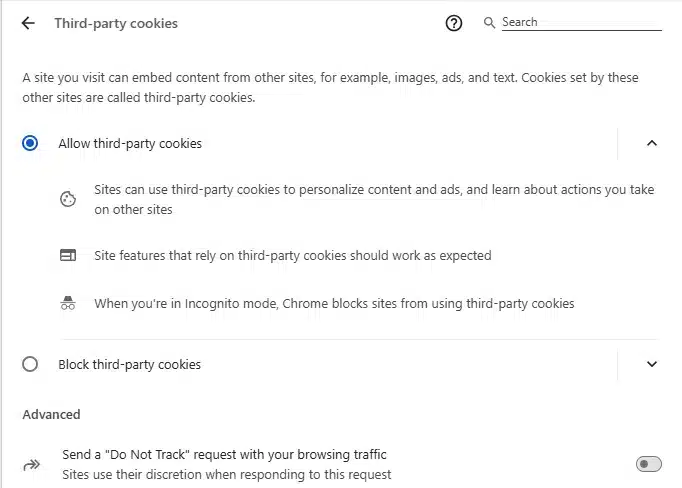
Google Chrome
- Open Google Chrome
- Click on Customize and control Google Chrome
- Scroll down in the pop-up menu
- Click on Settings
- Navigate to the Privacy and security tab
- Select Third-party cookies

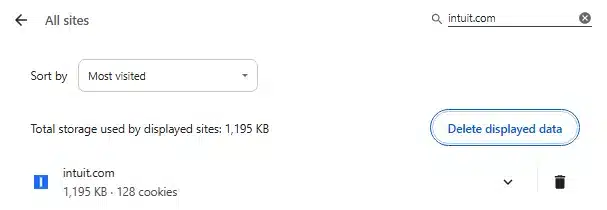
- Press See all site data and permissions
- Go to the search bar on the right of Third-party cookies
- Type Intuit
- Press Enter

- Click on Remove All
Mozilla Firefox
- Open the Mozilla Firefox application
- Click on the three lines below the Close (X) option
- Then, press Settings
- Now, hit Privacy & Security
- Navigate to Cookies and Site Data
- Access the Manage Data window
- Type Intuit in the Search Websites bar
- Press Enter
- Select the Remove All Shown option
- Lastly, choose Save Changes
Safari
- Open your Safari browser
- Navigate to Preferences
- Now, go to the Privacy section
- Press Manage Website Data
- Type Intuit in the search box
- Hit Enter
- Click on Remove All
Microsoft Edge
- Double-click on the Microsoft Edge icon
- This would open the browser
- Open the Settings and more menu
- You can do so by clicking on the three dots at the top right corner
- Or by pressing Alt + F
- Now, tap on Settings
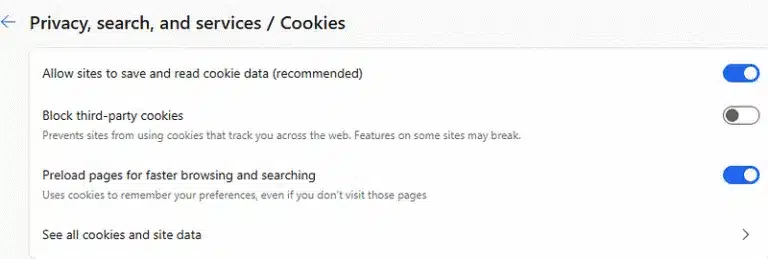
- Go to the Privacy, search, and services tab

- Then, press Cookies
- Press the See all cookies and site data option
- Then, type Intuit in the search bar
- Press Enter on your keyboard
- Click on Remove all shown
- Finally, hit Clear
This would solve the QuickBooks Online Sales Tax Center not working error. If you encounter it again, move on to the next solution.
Automated Sales Tax Option in QuickBooks Online Should be Turned On
If you’re dealing with sales tax not working in QuickBooks Online, you can switch to the automated sales tax option. This will help prevent any errors that can arise with manual feeding in of the data. Follow these steps for the same:
If You’re Setting Up Sales Tax for the First Time
This is for the users who are setting up their sales tax in QuickBooks Online for the first time and haven’t done it before.
- Click on Use automatic sales tax
- Now, you’ll see the business address here if you updated it in Settings
- If not, enter the business address in the address field
- Press Next
- You’ll be asked if you need to collect sales tax outside of your residence state
- Choose Yes or No
- If selected Yes, go to the Select an agency field
- Enter another state where you’ll be collecting sales tax from
- You can use the dropdown menu to see the names of all the states and cities
- Click on Next
- Now, navigate to Create invoice
- Go to the Filing frequency dropdown menu when asked
- Select the frequency of your sales tax filing
- If collecting tax from more than one state, click on Next agency
- Select the frequency of your tax filing, and repeat the steps for every state you collect sales tax from
- Finally, press Save
For those Switching to Automated Sales Tax
This is for the users who have already set up sales tax in QuickBooks and are looking to switch to automated sales tax.
- Select Use automatic sales tax or Get Started
- If the option for switching isn’t available, it will be soon
- Verify if the business address is correct
- If the business address isn’t correct, click on the pencil icon
- Update the address
- Press Next
- Match the tax rates with these two options:
- Match one rate at a time
- Click on the OFFICIAL AGENCY NAME dropdown menu
- Select the correct agency for every rate
- Ensure it matches with the tax agency in the YOUR AGENCY NAME field
- Match multiple rates at a time
- Select the checkbox for each tax rate in the Bulk Matching window
- Click on the Official agency dropdown menu
- Select the correct tax agency
- Press Apply ([#] selected)
- Match one rate at a time
- Click on Next
- Review the sales tax rates
- Click on Save
This would set up the automatic sales tax option in QBO, eliminating the QuickBooks Online Sales Tax Center not working issue.
Edit the Sales Tax Rates and Agencies in QuickBooks Online
If you’re facing discrepancies with your tax rates in the Sales Tax Center, you can edit the tax rates in QBO. But before performing the steps, there are some things you need to know about editing the tax rates.
Edit the Sales Tax Rate
There are some key factors you should know before you edit the sales tax rate in QBO:
- The sales tax rate can be edited if changes are needed
- Only the component rates can be edited
- If a combined rate needs to be edited
- You change the component rates
Now, let’s take a look at the steps to edit a sales tax rate:
- Navigate to Sales Tax
- Click on Sales Tax Settings
- Then, press the Custom Rates list
- Select the rate you want to change
- Click on Edit
- Feed in the new rate
- You can also modify the agency’s name
- Click on Save
After you perform these steps, there are a few things that will happen:
- The new rate will only be available for the transactions you make from now on
- If you create a transaction using a past date, the new rates would still apply
- You won’t be able to use the earlier rate after editing it
- Existing transactions won’t be changed
- The existing transactions can only be changed if you edit a specific transaction and select a different sales tax rate
- The reports would show the data of the before and after rates
- Existing transactions created with the template and the earlier rate would not change
Now, let’s proceed to edit the agency names.
Edit the Name of Tax Agencies
There are some things you should know before editing the tax agency names:
- The Tax Rate field won’t be able to change
- If you need to change the tax rate
- First, delete the existing tax name and rate
- Then, create a new tax rate
Let’s now proceed with the steps you need to follow to change the tax rate in QBO:
- Browse to Sales Tax Settings
- Then, click on Sales tax
- Choose the agency name you wish to edit
- Click the rename option
- Type in the new name
- Finally, press Save
This would fix the QuickBooks Online Sales Tax Center not working properly error.
Adjust Sales Tax Payments
If you wish to adjust the sales tax payments to get rid of the issue of QuickBooks Online Sales Tax Center not working, you need to choose the Make Adjustment option while recording a payment for sales tax. This can be used to increase or decrease the sales tax payments for items like:
- Credits
- Discounts
- Fines
- Interest
- Penalties
- Corrections for rounding adjustments
You would need to enter the reason for the adjustment and its amount. The amount can be both negative and positive. Then you would need to select an account for tracking the adjustment. You shouldn’t select the sales tax Payable account; instead, you should use this:
- For Credit or a discount
- Choose an income account like Other Income
- For Fine, penalty, or interest due
- Choose the expense account
- For Rounding adjustment
- Choose an income account if the differences are negative, or choose the expense account if the differences are positive
Look at the solutions below if you need to delete a sales tax payment.
Delete a Sales Tax Payment
If you face the QuickBooks sales tax not calculating correctly error, you can delete a sales tax payment with the following steps:
- Go to the Recent Sales Tax Payments list
- Select the payment you wish to remove
- Click on Delete Payment
- Hit Yes to proceed
Note: The page won’t refresh automatically when you delete the payment. In order to see the changes made, leave the Taxes menu and open it again. You won’t encounter the trouble of QuickBooks Sales Tax Center not working correctly again.
Check Your Network Speed
One of the reasons for your QuickBooks Sales Tax Center not working is a slow speed internet connection. You can verify your internet speed with the steps given below:
- Open the Google website
- Type speedtest in the search bar and hit Enter
- In the Internet speed test window, click on RUN SPEED TEST

- Check the results
- If you have high latency (Ping) and slow download and upload speeds, change your ISP

This would resolve the QuickBooks Online Sales Tax Center not working error.
QuickBooks Online Sales Tax Center Not Working – A Quick View
A concise summary of this blog on the topic of QuickBooks Sales Tax Center not working is given below in a tabulated format:
| Description | The QuickBooks Online Sales Tax Center not working can represent a variety of issues, such as the page not loading, inaccurate tax calculations or discrepancies, and much more. This can hinder your workflow and important business processes. |
| Causes | It’s caused by the cookies and cache stored in your browser, inaccurate tax rates, not having sales tax set up, issues with your internet connection, and not using automated sales tax. |
| Ways to fix it | Clear Intuit cookies from your web browser, change to automatic sales tax in QBO, change the tax rates and agencies, adjust the tax payments, delete the tax payments, and verify your network speed. |
Conclusion
In this blog, we discussed about the QuickBooks Online Sales Tax Center not working issue in great detail, along with its causes. Additionally, we gave you some step-by-step solutions you can use to eradicate this issue yourself. However, if you’re still at bay with the same error, you can contact our ProAdvisor Solutions experts today at 1-855-888-3080, who can help you rectify this error with guided assistance.
FAQs
How to enable the new Sales Tax Center in QuickBooks?
To enable a new sales tax center, you need to first go to the Sales Tax option, then click on Get Started, and follow the instructions. Next, you would need to set up a single or combined tax rate according to your needs, and then enter a name for the tax agency you pay to. For more information, read the blog above.
Where is the Sales Tax Center in QuickBooks?
To navigate to the Sales Tax Center, first, click on the Taxes tab, and then click on Sales Tax. This would open up the Sales Tax Center in QuickBooks Online for you.
Why is QuickBooks Online not calculating sales tax correctly?
Your QB Online might not be calculating sales tax correctly due to incorrectly set tax rates or not having configured the sales tax option correctly. To fix it, first edit the tax rates to fix any discrepancies, and then turn on the automatic sales tax option in QuickBooks Online.
More Useful Articles:
How to Download QuickBooks Conversion Tool
QuickBooks Update Stuck in Reboot Loop
How to fix the QuickBooks Payroll Liabilities Not Showing issue
How to Download QuickBooks Payroll Tax Table Update?
QuickBooks Desktop Drop Down Menus Not Working

Erica Watson is writing about accounting and bookkeeping for over 7+ years, making even the difficult technical topics easy to understand. She is skilled at creating content about popular accounting and tax softwares such as QuickBooks, Sage, Xero, Quicken, etc. Erica’s knowledge of such softwares allows her to create articles and guides that are both informative and easy to follow. Her writing builds trust with readers, thanks to her ability to explain things clearly while showing a real understanding of the industry.