


If you try to update the application and encounter QuickBooks error 9999, it might occur because the browser interrupts a script error in the system. Some users may also encounter this error when creating a bank connection after completing the update process.
Thus, you might find yourself unable to update the bank feeds or download any transactions from the online bank website, which may also hang your system and delay the response. These are the messages you might see on your screen:
“Sorry, we can’t update your account. Please try updating again later (9999).”
OR
“Error Code 9999 – Can’t Update”
In this blog, we will go through all the significant information you need to know about the error, such as the potential reasons and methods that can help you overcome it.
If you need any help with your update process, feel free to get in touch with Proadvisor Solutions experts.
Table of Contents
What Things Might You Experience When Facing QuickBooks Error 9999?
When you are facing banking-related errors in your QBDT application, it can disrupt the transactions and prevent you from sending emails to your customers. Here are the pointers that you might face when this error occurs.
- You will be unable to establish a connection with your bank server.
- The update process will take much longer than usual.
- The error message saying ”Sorry, we can’t update your bank. Please try again later” or “Error 9999 ” will appear on the screen.
- Your system might run into problems or crash frequently.
- The browser cookies and cache can also stop your progress in the online version.
- You will be unable to update or refresh the banking information.
Now, let’s move ahead and understand what methods can be used to troubleshoot when you face the issue.
How to Effectively Fix the QuickBooks Error 9999: Detailed Steps
To resolve the issue in your system, follow the detailed guide below. Before you begin, let’s follow the steps to submit the request to the bank. So, if the bank is facing any problems with the server, you get the information about it.
- Access the QuickBooks application.
- Select the Bank Transaction window.
- Tap on the Report Issue button for the error message.
- Check if the QB application is installed properly or not.
- Enter the name and email address.
- Then, tap on the Submit button to finish and send the request to the bank.
Let’s move on to the troubleshooting methods.
Solution 1: Update the Bank
There are cases when you are required to update the bank account at least 3 to 4 times to tackle the issues with online banking. Here is how to update it in QBO.
- Access the QuickBooks Online.
- Go to the Banking tab.
- Then, press the Update option.
- Perform the same steps 3-4 times for your system.
If the update couldn’t resolve your issue, all you need to do is follow the next troubleshooting method.
Solution 2: Clear Browser Cache
The cache files help the browsers to load the website faster than usual. Below are the steps to help you delete the files for different web browsers.
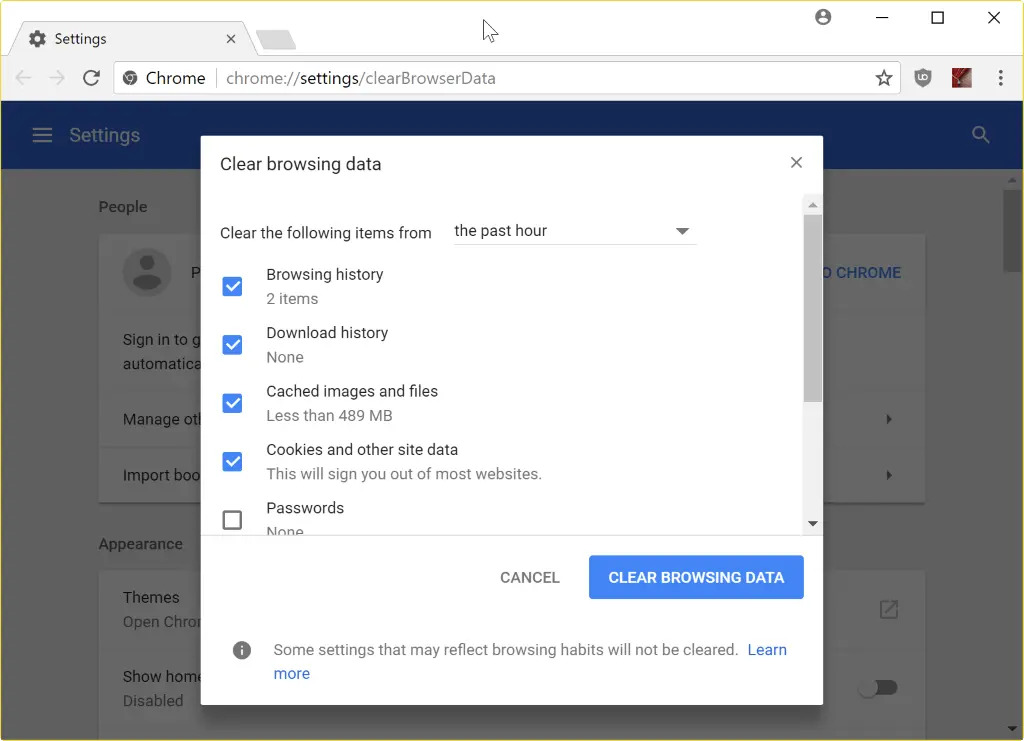
Google Chrome
- Tap on the three dots in the top right corner.
- Then, move to the History tab.
- Click on the Clear browsing data option.

- When the pop-up appears on the screen, choose the time-range.
- Choose the Cookies and other site data, Cached images and files option.
- Tap on the Clear data button.
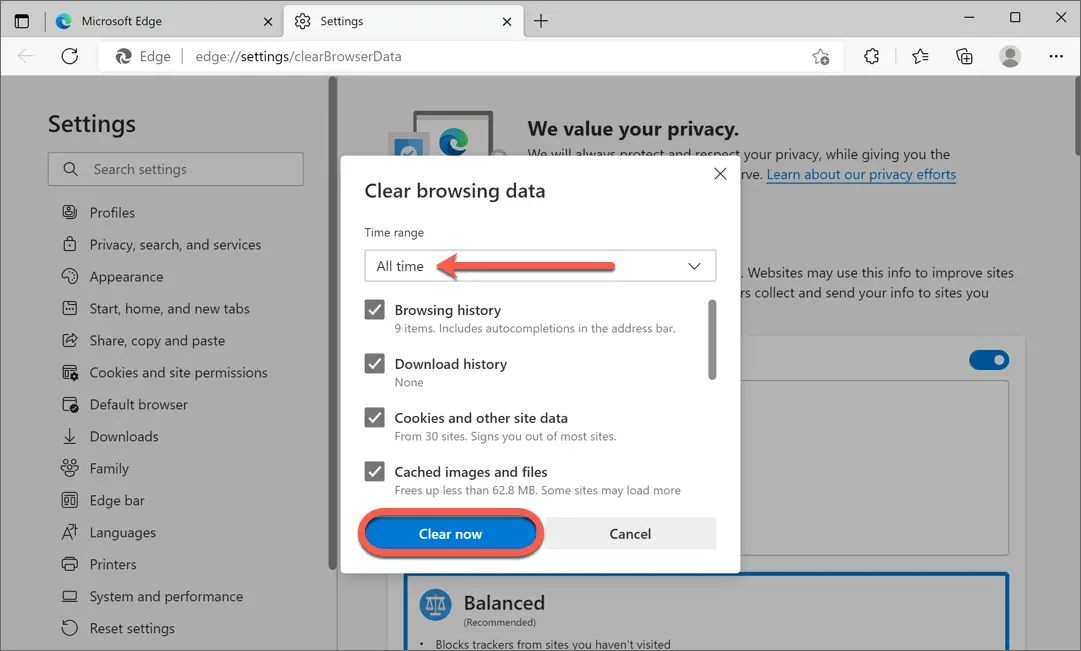
Microsoft Edge
- Tap on the three dots in the right corner.
- Click on the Settings menu.
- Go to the Clear browsing data section.

- Tap on the Choose what to clear option.
- Choose the checkbox with the label Cookies and saved website data, Cached data, and files.
- Tap on the Clear button.
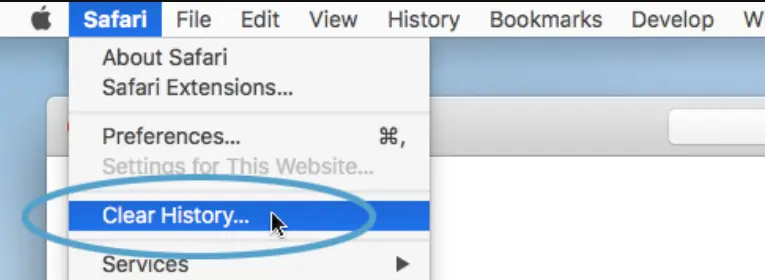
Safari
- Press the Command+Y button on the keyboard.
- Tap on the Clear browser history option.

- From the pop-up menu, choose the time range and tap on the Clear History option.
Mozilla Firefox
- Tap on the three dots in the top right-corner.
- Click on the History option.
- Then, head on to Clear recent history.
- From the pop-up menu, choose the time range.
- Now, choose the Cookies, Cache, etc option.
- Click the Clear Now option.
These steps will ensure that you have successfully deleted the cache in your different browsers.
Solution 3: Reconnect the Bank Account
When you are facing the QuickBooks error 9999 in your system, you should try to disconnect the bank account in your system.
Disconnect the Bank Account
- Tap on the Banking option on the left side.
- Choose the Banking menu.
- Tap on the Edit option for the account that you wish to disconnect.
- Now, check the Disconnect this account on the save box in the Account window.
- Tap on the Save and Close option.
Reconnect the Bank Account
- Go to the Banking tab.
- Now, click on the Add Account option.
- Enter the login information of the bank.
- Tap on Continue.
- Go through the security verification instructions.
- Tap on Securely connect.
- Now, click on the bank icon beside the bank that you wish to add.
- Choose the account from the Account type drop-down list.
- Select the Credit Card account or Bank account option.
- Tap on +Add new option when you don’t have an account.
- Tap on the Connect option.
This way, you can reconnect the bank account in your QuickBooks application or the online version.
Solution 4: Download the Bank Transactions
The steps as mentioned below will help you to download the bank transactions in QB online manually and tackle the QuickBooks error 9999.
- Access your browser and log in to the bank’s website.
- Now, follow the steps for your bank to download the CSV files of the transactions to your computer. Every bank, including Bank of America, Chase, and Wells Fargo, has different steps to pursue the same actions.
- Choose the date range for downloading the transactions. It should be a minimum of one day before the date of the oldest transaction.
- Now, download the transactions and save the file where you wish.
Now, check if the error persists. If yes, move on to the next method.
Solution 5: Access the Browser in a Private Window
Follow the steps mentioned below to open the incognito mode in different web browsers.
- Internet Explorer: Ctrl+Shift+P
- Google Chrome: Ctrl+Shift+N
- Mozilla Firefox: Ctrl+Shift+P
- Safari: Command+Shift+N
This will help you to access the private window for your browser and tackle the QuickBooks error 9999.
Solution 6: Clean Install QuickBooks Desktop
When a banking error appears in your system, and you are unable to perform the update process for the application, you can perform a clean install of QuickBooks Desktop to resolve the issue and get back to work without any issues.
Solution 7: Fix the Windows Firewall
There are times when the antivirus application can block your operations, so in this section, we will understand the steps to fix it.
- Go to the Start menu.
- Locate the Windows Firewall in the search bar and access it.
- Head to the Advanced Settings.
- Now, right-click on the Inbound Rules.
- Click on the New Rule option.
- Select the Port and choose Next.
- Ensure that TCP is selected.
- Under the specific local port areas, enter the ports as per the QuickBooks version:
- QuickBooks Desktop 2020 and later: 8019, XXXXX.
- QuickBooks Desktop 2019: 8019, XXXXX.
- QuickBooks Desktop 2018: 8019, 56728, 55378-55382.
- QuickBooks Desktop 2017: 8019, 56727, 55373-55377.
- Once you have entered the port number.
- Click on Next.
- Then, tap on the Allow the Connection option.
- Again, hover on Next.
- If prompted, select all profiles and click Next.
- Now, create a new rule and name it QBPorts (year).
- Click on Finish to save the changes.
These solutions will help you overcome the issue and resolve QuickBooks error 9999 in your system, enabling you to work effectively.
What are the Potential Reasons Due to Which QuickBooks Error 9999 Occurs?
There can be multiple causes due to which you may encounter the error in your system, as follows:
- When the network connection is slow or insecure.
- If the bank server and Intuit are unable to establish a network connection.
- If the connection between the bank’s website and QB server is blocked by the Windows firewall or antivirus application.
- When the browser has the cache files, and triggering the error.
- If the bank server is facing any issues.
- If the internet connection is insecure and unstable.
- When the installation of the QB application is incomplete or corrupted.
- The files, programs, or directories related to the QuickBooks application can also trigger it.
These were the reasons why you may encounter the error in the system.
Quick View Table for QuickBooks Error 9999
Let’s have a glance at the error in the system and understand what we have so far talked about.
| Description | QuickBooks Error 9999 occurs when a browser script interrupts the system during an update or while connecting a bank account. This error prevents bank feeds from updating or downloading transactions and may cause QB to freeze or respond slowly. |
| Causes | The QuickBooks error 9999 can occur due to slow, insecure, or unstable internet connectivity, or when the bank server and Intuit are unable to establish a network connection. Issues may also arise if the connection between the bank’s website and the QB server is blocked by the Windows Firewall or antivirus software. The issue can also arise due to the browser cache files if the QuickBooks installation is incomplete or corrupted. |
| Ways to Fix | The issue can be fixed by updating the bank in the QBO, clearing the cache for the internet browser you are using, reconnecting the bank account, downloading the bank transactions, launching the browser in a private window, clean install the QBDT application, or fixing the Windows Firewall. |
Conclusion
To conclude, we have discussed QuickBooks error 9999, which disrupts workflow by preventing bank feeds from updating or downloading transactions. We have added all the essential information, including the reason and troubleshooting methods, to help you resolve the error. If you need any more help with your transactions in QuickBooks Online, feel free to get in touch with ProAdvisor Solutions experts.
Frequently Asked Questions (FAQs)
How to fix the QuickBooks error 9999 in your system?
There are three methods to fix the error in the QuickBooks application.
– The QuickBooks error can occur if the antivirus or firewall settings are blocking the operation. Then try updating the port settings and adding QB to the exceptions list to remove the blockage.
– If corrupted system files are causing the error, you can use the SFC scan from the command prompt to detect and repair the issue.
– You can fix the issues with the QuickBooks application by using the QuickBooks Tool Hub from your system.
– Access the bank website from the web browser and try logging in with your credentials.
How to disconnect the bank account for QuickBooks Online?
To disconnect the bank account from QB Online, follow the steps as follows:
– Tap on the Banking tab.
– Choose the Edit menu.
– Head to the Account window.
– Tap on the Disconnect this account option.
– Click on the Save and Close section.
How to update the bank balance in QuickBooks?
When you wish to manually update the bank balance, here are the steps to guide you thoroughly.
– Head to the Bookkeeping area.
– Tap on the Transactions menu.
– Choose the Bank transactions option.
– Click on Update.
– If prompted, enter the multi-factor authentication.
– Choose the Continue update option.
More Useful Articles :
How to Resolve QuickBooks Error 6000 77
How to Fix QuickBooks Error OLSU 1013
How Do I Fix QuickBooks Bank MFA Error 185

Peter is a Certified Public Accountant (CPA) with a strong background in public accounting and accounting technology. After starting his career as an audit senior, he worked with organizations across various industries and gained hands-on experience with complex accounting standards. At ProAdvisor Solutions, Peter helps clients navigate new accounting requirements. His goal is to simplify processes, improve accuracy, and boost confidence in finance reporting.