


QuickBooks error 61686 is an installation or update issue that occurs during QuickBooks installation, due to a damaged framework.xml file or a missing operating system component. However, several other technical factors can obstruct the QuickBooks installation process, which we will discuss and troubleshoot in this post.
When installing or upgrading QuickBooks, the QB installer first installs all necessary components, which include the MSXML and Microsoft .NET Framework. A damaged Framework.xml file will cause obstructions in the .NET Framework installation. This will cause the EXEAdapter error in QuickBooks Desktop. When QuickBooks EXEAdapter error 61686 occurs, you will get an error message on your screen that reads:
The installer encountered an error when running “C:\Users\Owner\AppData\Local\Temp\Premier\QBooks” /quiet /norestart INSTALLDIR=”C:\Program Files\Intuit\QuickBooks 2011″ QB LICENSENUM=####-####-####-###
Component: QuickBooks
Location: “C:\Users\Owner\AppData\Local\Temp\Premier\QBooks\windowsinstaller-kb93803.exe ”EXEAdapter Error: InstallExe method received the system error from CreateProCess , command – “C:\Users\Owner\AppData\Local\Temp\Premier\QBooks\windowsinstaller-kb93803.exe” /quiet /norestart INSTALLDIR=”C:\Program Files\Intuit\QuickBooks 2018″ QB LICENSENUM=####-####-####-###.
Note: The User path, LICENSENUM, and INSTALLDIR path will vary. The QB error code 61686 may also be shown.
Are you experiencing QuickBooks EXEAdapter error 61686? Reach out to a ProAdvisor at 1.855.888.3080 for real-time guidance to resolve the issue.
Table of Contents
What You Might Experience When the QuickBooks EXE Adapter Error Occurs?
Every error has its warning signs, and finding them can help you rectify the issue early. Now we will mention what you might encounter when the QuickBooks Error 61686 occurs:
- The Windows operating system stops responding, affecting its performance.
- The QuickBooks error message with the code 61686 keeps flashing on the screen.
- Keyboard and mouse peripherals provide commands that appear sluggishly on the screen. Simply put, the blue loading circle keeps spinning, but the inputs don’t bear results faster.
- The PC freezes at regular intervals while a program is running.
These indications significantly affect software performance. It is critical to resolve these issues beforehand to avoid affecting productivity.
Possible Reasons Behind Intuit QB EXEAdapter Error 61686
QuickBooks installer error 61686 usually happens when the Microsoft .NET Framework is damaged or missing on your Windows operating system. QB uses Microsoft .NET Framework to integrate with web applications. Now we will discuss more reasons why EXEAdapter error 61686 occurs:
- The QB error code 61686 may appear if the QB setup file is damaged.
- A damaged or corrupted QuickBooks installation disk can also trigger the error 61686.
- When your QuickBooks version has configuration issues.
- The missing MSXML Windows component file is one of the main reasons for QuickBooks error 61686.
- Installer error 61686 can also occur due to a damaged Framework.xml file.
- A Windows installer-related file was accidentally deleted, resulting in error 61686.
- An outdated version of QuickBooks can trigger error 61686.
- Virus or malware infections are also leading causes of QuickBooks errors.
- If Windows registry entries are damaged due to recent software changes, QB error 61686 may appear.
- When the Windows Installer Programming download or installation process fails or is obscure, it causes QuickBooks error 61686.
Knowing the reasons behind the error can help you resolve it quickly. Let’s look into troubleshooting methods to resolve the exe adapter error.
How to Resolve EXEAdapter Error 61686 In QuickBooks?
As discussed above, error 61686 usually occurs when the Microsoft .NET Framework is damaged or missing on Windows. Now we will discuss how to fix QuickBooks error 61686:
Solution 1: Repair the Damaged .NET Framework on Windows
In the first place, you need to repair the damaged .NET Framework to resolve the QuickBooks EXE Adapter error. The Microsoft .NET Framework is essential for a smooth QuickBooks installation. Perform the steps mentioned below to repair the .NET Framework on Windows:
- Firstly, close all the open programs.
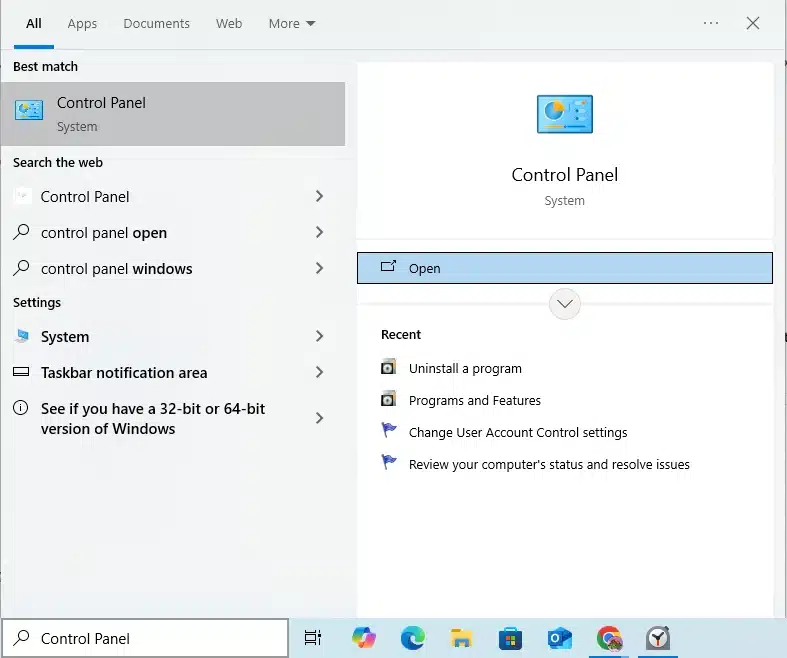
- Then, open the Windows Start menu.
- Type “Control Panel” into the search to open it.

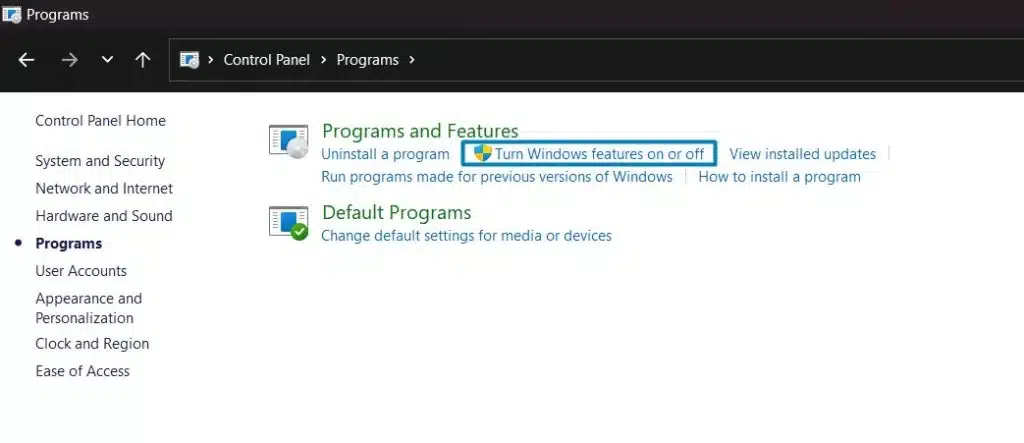
- Navigate to the Programs and Features option and then select Uninstall a Program. (don’t worry, you are not uninstalling any application)
- Next, choose the Turn Windows features on or off option.

- Finally, identify the .NET Framework on the list.
You need to review the settings for both .NET Framework 4.5 (or later) and .NET Framework 3.5 SP1.
Note: The steps to resolve the .NET Framework 4.5, 4.6, 4.7, and 4.8 are the same.
Verify NET Framework 4.5 (or later)
If you haven’t checked the .NET Framework 4.5 (or later) checkbox:
- Choose the checkbox to turn on .NET Framework 4.5 (or later).
- Save your changes by clicking OK.
- Lastly, restart the computer.
If you have already checked the .NET Framework (or later) checkbox:
- Turn off .NET Framework (or later) by choosing the checkbox, but don’t turn it back on.
- Tap OK to save your changes.
- Next, restart the computer.
- Once you sign back in to Windows, follow the steps to turn on .NET Framework 4.5 again.
Verify NET Framework 3.5 SP1
If you haven’t checked the .NET Framework 3.5 SP1 checkbox:
- Turn on .NET Framework 3.5 SP1 by choosing the checkbox.
- Tap OK to save your changes.
- Restart the computer.
If you have already checked the .NET Framework 3.5 SP1 checkbox:
- Turn off the .NET Framework 3.5 SP1 by choosing the checkbox, but don’t turn it back on.
- Choose the OK option to save your changes.
- Follow the steps to turn on .NET Framework 3.5 SP1 again when you’re signed back in to Windows.
If QuickBooks error 61686 Windows 11 persists, jump to the next troubleshooting solution.
Solution 2: Launch the QuickBooks Install Diagnostic Tool
The QuickBooks Install Diagnostic Tool is an important utility within the application that helps you identify and resolve common installation issues. To utilize the tool, follow the steps below:
Step 1: Install the QuickBooks Tool Hub
- First, close QuickBooks.
- Then, download the latest version of the QuickBooks Tool Hub and save the file in a place you can easily find it.
Note: If you have already installed Tool Hub, you can find its version by selecting the Home tab; the version will appear in the bottom right. Another way to view the version is to choose the About option. - Next, open the downloaded file, i.e., QuickBooksToolHub.exe.
- After that, follow the on-screen steps to install and agree to the terms & conditions.
- After installation is complete, double-click the icon on your Windows desktop to open the tool hub.
Note: If you can’t find the icon, search for QB Tool Hub in Windows and select the program.
Step 2: Utilize the QB Install Diagnostic Tool
- Open the QB Tool Hub.
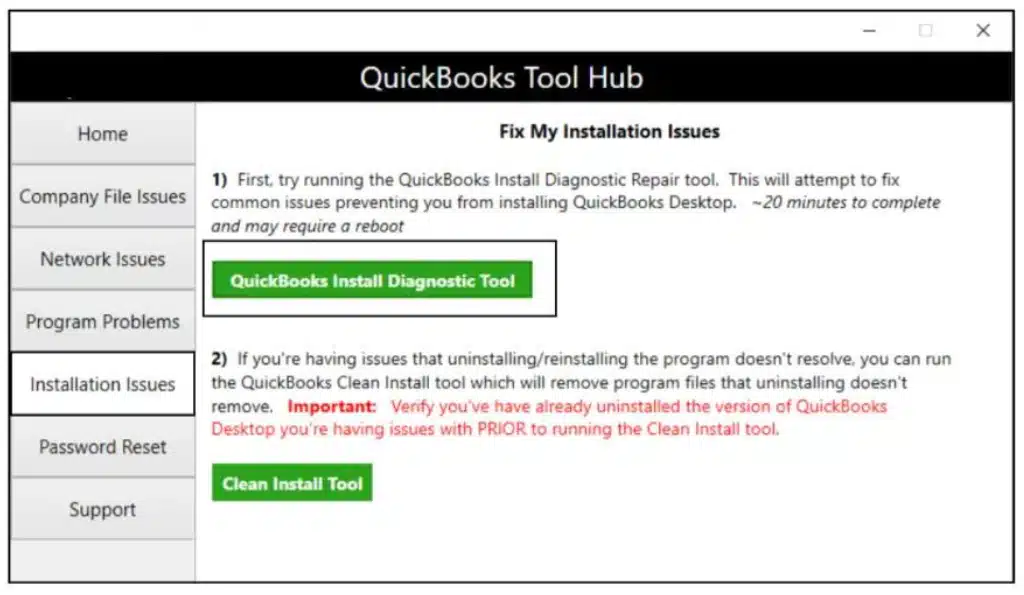
- Choose the Installation Issues option in the tool hub.
- Now, choose the QuickBooks Install Diagnostic Tool. Let it run, and it will take approximately 20 minutes.

- After the tool finishes, restart the computer.
This is one of the most effective solutions for fixing error 61686. If the issue still occurs, proceed to the next method.
Solution 3: Rename Framework.xml File
You must rename the Framework.xml, as it resets corrupted configuration settings that force QB to remake a clean file and restore proper access to the company file. Perform the steps mentioned below to rename Framework.xml File:
- First, close QBDT and press Windows + R to open the Run window.
- In the search field, type %appdata% and press the Enter key.
- Then, navigate to the Intuit folder and open your specific QuickBooks version folder.
- Next, right-click the Framework.xml file and select Rename.
- After that, change the file name to Framework.old and press the Enter key.
- Finally, reopen QBDT to automatically create a new Framework.xml file.
This solution is highly effective as it resolves framework-related issues. If you are still encountering the QB error code 61686, proceed to the next step.
Solution 4: Rectify Registry Entries Related to the Error
When you make changes to their software, registry entries can sometimes become invalid or damaged. Since the damaged registry entries may cause QuickBooks error 61686, it’s crucial to fix them:
- Begin by going to the Start menu, where you will see a description Notification in the request box. When you see it, do not press Enter.
- Instead, you need to hold the Ctrl and Shift keys on the keyboard together, and then hit the Enter key.
- A dialogue box will appear on the screen; read it and click Yes to acknowledge.
- All these steps will lead you to the blank window with a blinking cursor.
- Here, type regedit, then press Enter.
- Now, in the registry editor, select the key related to QuickBooks error 61686.
- Go to the File menu and navigate to the Export Here option.
- Ensure you save it to the mentioned list, then choose the Organizer to mark the Windows installer file key.
- Further, pick the file name in the name box. The most commonly used option is Windows Installer Backup.
- Next, users must ensure that the Choose Branch box in the Export Range tab is selected.
- Hit the Save icon to save and apply these changes.
- The record becomes unoccupied as the .reg document is enlarged.
- Users now have a new Windows Installer-related registry section.
You can resolve the installation error by following the steps above. Ensure to follow the method correctly.
Solution 5: Reinstall Windows Installer Programs
The next step is to uninstall and reinstall the Windows Installer programs. Follow the steps correctly to resolve QuickBooks Error 61686:
- From the Start menu on your system, go to All Programs.
- Now, tap the Control Panel option.
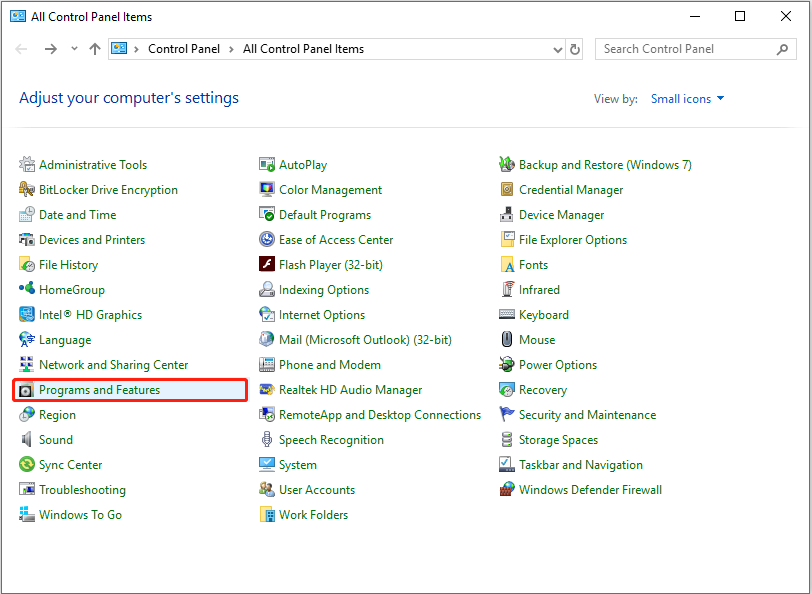
- When the Control Panel window appears, click the Programs and Features button.

- Move to the name segment to find the Windows Installer error 61686-related program.
- Choose this section and tap the uninstall/ change option for this program. Finish uninstalling it, then delete the related junk files after backing up.
- Lastly, reinstall it, then review the error.
Reinstalling Windows Installer Programs can effectively fix the QuickBooks error 61686. If you are still facing this issue, move to the next method.
Solution 6: Keep Windows Device Drivers Up To Date
Decayed or outdated device drivers can prompt QuickBooks exe adapter error 61686. It may appear due to different reasons. However, refreshing or updating it can resolve the issue and eliminate the error. Follow the steps discussed below to update the Windows Device Driver:
- Initially, right-click the Start menu and select Device Manager.
- Then tap the arrow next to the device type to view the list of devices.
- Find the device that needs to be updated.
- Right-click the device and choose the Update server option.
- Select the option “Search automatically for updated driver software”. (Windows will find and install any available updates)
- If no updates are found, choose the Search for updated drivers option in Windows Update and follow the on-screen instructions.
- After completing it, tap the Close option.
By updating the Windows Device Drivers, you can get rid of the QuickBooks Error 61686.
Solution 7: Malware or virus scans
If you think your system is hanging, crashing, and showing the QuickBooks exe adapter error 61686 due to a virus or malware, it’s critical to run comprehensive scans to eliminate these malicious activities that are hampering the system.
Solution 8: Install the Windows Updates
An outdated Windows OS can also cause error 61686. Therefore, installing the updates is critical. Perform the steps mentioned below correctly to install Windows updates:
- Simply go to the Start menu, refresh the existing box.
- Then, hit Enter.
- You may see a Windows Update dialogue box.

- Users must choose the option that says Windows Install Updates.
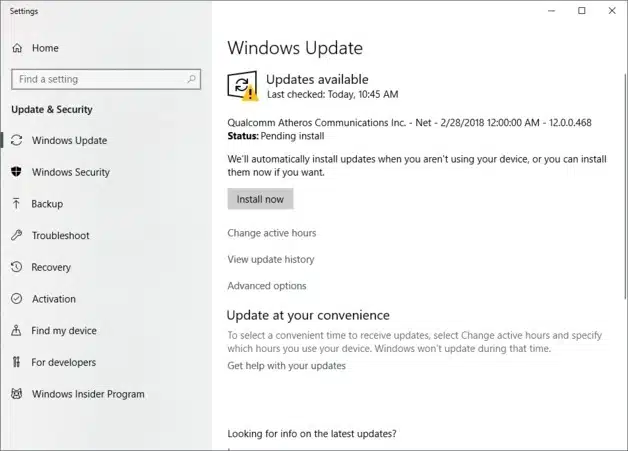
It is recommended to install these updates to resolve compatibility issues and fix QuickBooks Error 61686.
Solution 9: Fix Microsoft MSXML
Damaged or corrupted Windows components interact incorrectly with running software, impacting ongoing operations such as software installation. Follow the steps given below to fix the QuickBooks MSXML error:
Register MSXML if you are using a 64-bit operating system
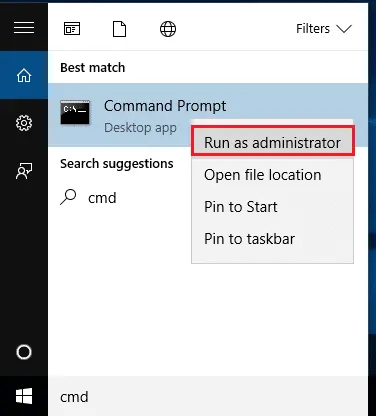
- First, go to the Windows Start menu and type cmd.
- Then, right-click the cmd and choose the Run as Administrator option.

- Next, enter cd\windows\syswow64 at the C: prompt.
- Type regsvr32 MSXML6.dll and then press Enter.
- After that, install QuickBooks Desktop.
Register MSXML if you are using a 32-bit operating system
- Initially, press Windows+R to open the Run command.
- Next, type in cmd and press Enter on your keyboard.
- After that, type regsvr32 MSXML6.dll, then press Enter.
- Lastly, install QuickBooks Desktop.
A damaged MSXML can cause QBDT to run incorrectly, resulting in error 61686. Follow the steps above to resolve it
Discussing the Tips to Avoid the QuickBooks Error 61686
When it comes to fixing QuickBooks error 61686, you need to ensure that your Windows operating system is up to date, repair or reinstall the Microsoft .NET Framework, etc. Here, we will discuss the healthy practices that you should follow to avoid error code 61686:
- You should verify that the Microsoft .NET Framework component is not corrupted or damaged, and use the Windows “Turn Windows features on or off” tool to repair it.
- When upgrading QB, it is recommended to perform a clean install rather than an over-the-top installation to avoid file corruption.
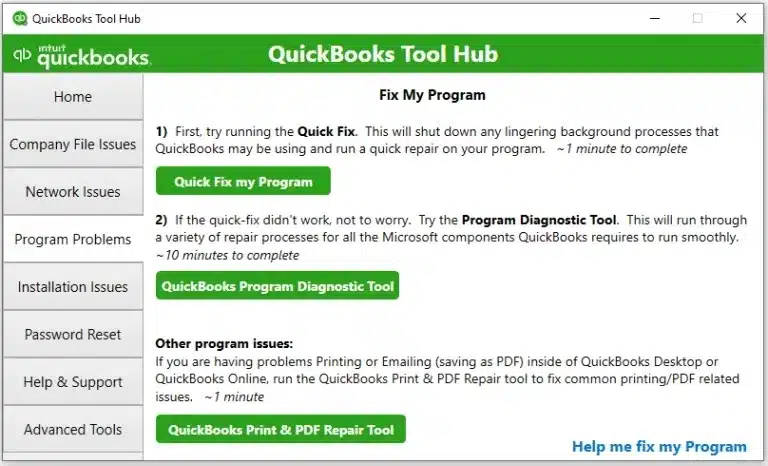
- You must launch the QuickBooks Install Diagnostic Tool and Quick Fix My Program to avoid potential installation issues.

- It is advisable to temporarily disable antivirus or firewall software during installation to prevent them from blocking important QuickBooks files.
- You should keep Windows device drivers up to date to ensure proper hardware communication during installation.
By following these tips, you can get rid of error 61686 and keep the software running efficiently.
QuickBooks Error 61686 — A Quick View Table
Let’s quickly view the important points of this blog:
| Description | QuickBooks Error 61686 is an update or installation issue that usually occurs during QuickBooks installation, due to a damaged framework.xml file or a missing operating system component. |
| Its Causes | The QuickBooks error code 61686 is generally caused by a damaged or corrupted Framework.xml file during the update or installation process. It is also triggered by a missing, damaged, or improperly configured Microsoft .NET Framework component in the Windows operating system. |
| Ways to Fix it | The error 61686 can be resolved by running the QB Install Diagnostic Tool from the Tool Hub or by renaming the Framework.xml file to Framework.xml.old in the temp folder and restarting the installation. You can also fix the issue by updating Windows and repairing or reinstalling the Microsoft .NET Framework through the Control Panel. |
Final Words
In this blog, we have discussed the causes of QuickBooks error 61686. We have also covered comprehensive, step-by-step methods for resolving this issue. Follow the healthy practices you mentioned above to minimize the risk of errors. If you are encountering the QB error code 61686, don’t hesitate to reach out to ProAdvisor Solutions Experts.
FAQs
What should I do when the QuickBooks installation fails?
When the QB installation fails, you should immediately restart the computer and launch tools such as the QuickBooks Install Diagnostic tool or Quick Fix My Program from the Tool Hub. It is crucial to ensure that Windows is compatible and up to date. Now, try reinstalling QBDT.
Is a clean installation a solution to fix the exe adapter error 61686?
Yes, you can rectify the QuickBooks exe adapter error 61686 by performing a clean installation. The clean installation removes junk and temporary folders and files from the system.
What does the QB Install Diagnostic Tool do to fix Error 61686?
QuickBooks Tool Hub includes QuickBooks Install Diagnostic Tool – a toxicity removal feature that fixes various QB errors. It diagnoses and troubleshoots installation errors and damage to Microsoft components like MSXML, Microsoft .NET, C++ files, etc. You can ease your burden by downloading QB Tool Hub from authentic sources.
What should I do if the setup.exe file declines to launch QuickBooks?
When it comes to setting up QuickBooks from a CD, you must verify to see whether the setup.ex fails to start the QB installation. To handle this situation, try launching the QuickBooks.msi file from the QB subdirectory.

Erica Watson is writing about accounting and bookkeeping for over 7+ years, making even the difficult technical topics easy to understand. She is skilled at creating content about popular accounting and tax softwares such as QuickBooks, Sage, Xero, Quicken, etc. Erica’s knowledge of such softwares allows her to create articles and guides that are both informative and easy to follow. Her writing builds trust with readers, thanks to her ability to explain things clearly while showing a real understanding of the industry.