


The QuickBooks error 1618 is a common installation or update-related issue that can occur in your system and halt your operations. This error can prevent you from installing, updating, or even repairing the application. When this issue occurs, the following message can be seen on your screen:
“Error: 1618 Another installation is already in progress. Complete that installation before proceeding with this install.”
“There was a problem installing Microsoft Runtime Library (Error 1618).”
“Error 1618. Error_install_already_running.”
The error in your system can be seen due to an outdated Windows version or to MSI installer processes. If left unresolved, this can lead to obvious delays in workflow, interrupted software updates, performance issues, and corrupted company files in rare cases.
To troubleshoot this error, you can download and install QuickBooks Tool Hub. In this blog, we will go in-depth and discuss methods with detailed instructions to help you overcome the issue.
Installation errors can often be tricky and rooted in the Windows registry. In such cases, it is recommended to seek out professional assistance. You can get in touch with ProAdvisor Solutions!
You may also see: QuickBooks Black and White Screen
Table of Contents
How to Troubleshoot QuickBooks Installation Error 1618?
The first thing you should do to troubleshoot the QuickBooks installation error 1618 is end any processes running in the background.
Then, follow the methods given below in order and carry out the steps as instructed.
Method 1: Get to the Latest Version of Windows
If you are using an outdated version of Windows, you can run into issues while installing software like QuickBooks. To overcome it, follow the steps below:
- Tap on the Start menu.
- Head to the Settings option.
- Then, click on the Windows Update button.
- Choose Check for updates. Allow Windows a while to check for updates.

- If any update is available, tap on Download and Install.
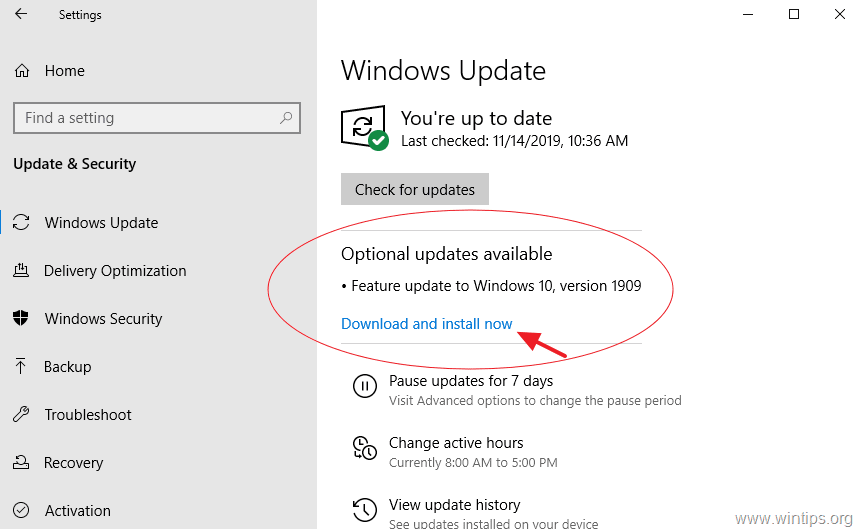
If asked to, restart your system and try installing the software. If QuickBooks error 1618 persists, move to the next day.
Method 2: Utilize the QuickBooks Tool Hub
QuickBooks Tool Hub contains resources to help you troubleshoot various kinds of errors.
However, you first need to download and install the QuickBooks Tool Hub on your computer.
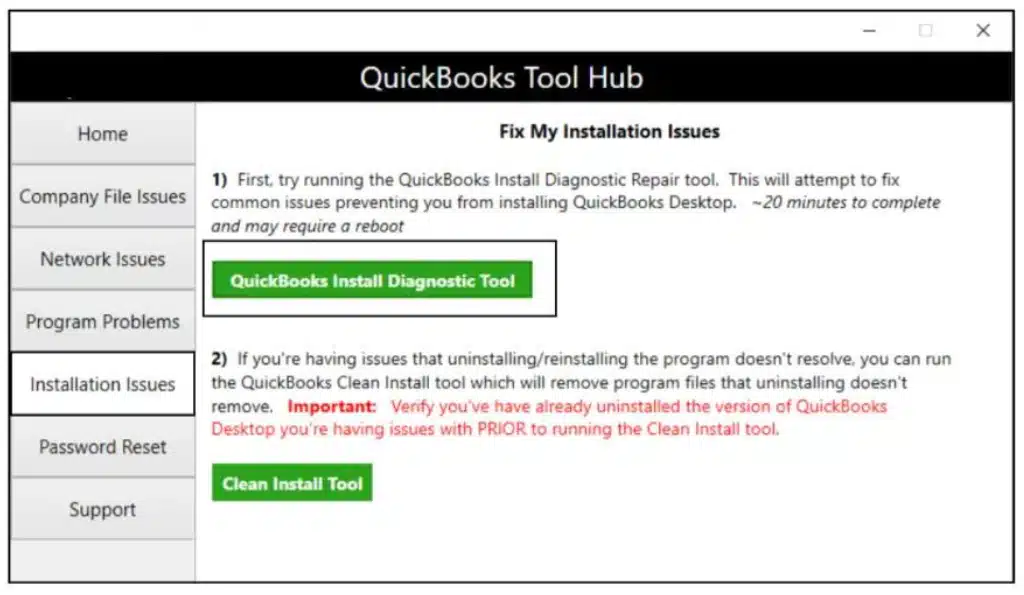
- Once installed, open the Tool Hub application.
- Hover on the Installation Issues tab.
- Then, click on the QuickBooks Install Diagnostic Tool.

- Let the tool run and scan the system to fix the issue.
If you suspect the error 1618 when installing QB updates is because of an issue with the program, you can follow the steps below to troubleshoot it:
- Go to the QuickBooks Tool Hub.
- Move to the Program Problems option.
- Tap on the Quick Fix my Program to scan and fix the issue.

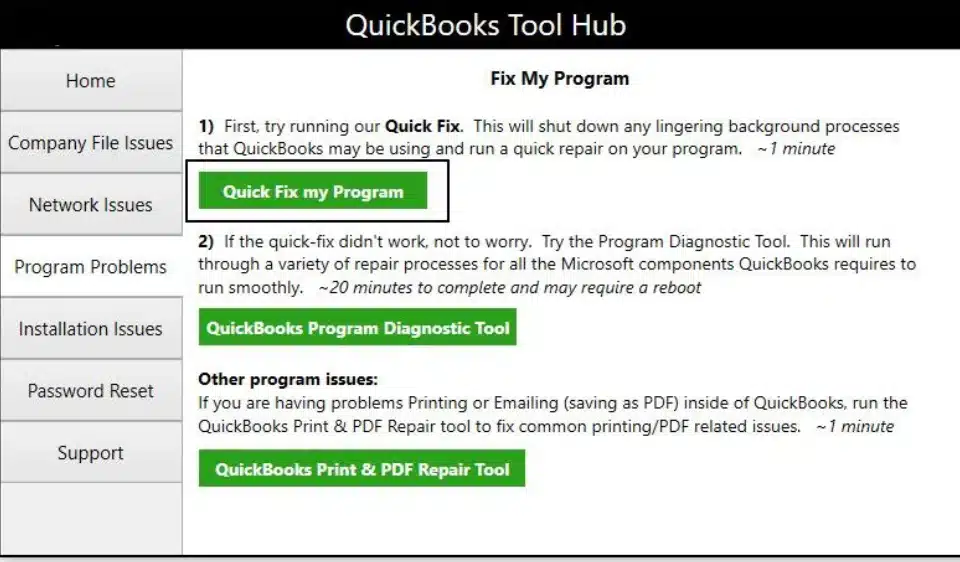
Use the tool to locate the issues and fix them within the Tool Hub.
You may also read: QuickBooks Desktop POS Connection Wizard Error
Method 3: Reinstall QuickBooks in Selective Startup Mode
If the programs running in the background interfere with QuickBooks installation, the Selective startup mode will address that. Switch to Selective startup mode and try installing the QB application or its updates.
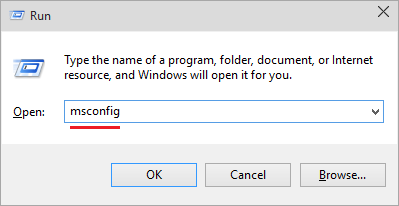
- Press Windows+R to open the Run command.
- Enter msconfig.

- Then select OK.
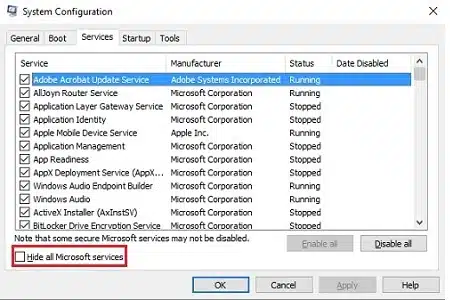
- In the General tab, select Selective startup and Load system services.
- Go to the Services tab.
- Then select Hide all Microsoft Services.
- Select Disable all.
- Uncheck Hide all Microsoft services.

- Select Windows Installer from the list of services.
- Select OK.
- Go to the System Configuration window.
- Select Restart.
Now, install QuickBooks Desktop and then switch back to normal mode.
- On your keyboard, press Windows+R to open the Run command.
- Type msconfig.
- Then select OK.
- In the General tab, select Normal startup.

- Select OK.
- Finally, from the System Configuration window, choose Restart.

This will help you to reinstall the application in startup mode and help you resolve the QuickBooks error 1618.
Method 4: Run the System File Checker
In case the crucial system files are missing or corrupt, Windows might start to malfunction. To fix that, run the system file checker. However, it is critical that you first run DISM, which provides the files that you need to repair the corrupt system files.
For your ease, the steps are mentioned below:
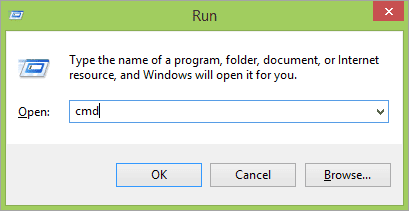
- Tap on the Windows+R keys on the keyboard.
- Type CMD in the dialog box.
- Hit Enter or choose Run as administrator.
- If asked to enter the administrator password, type the password. If asked if you want to allow the program to make changes to the computer, choose Allow.
- In the command prompt, type DISM.exe /Online /Cleanup-image /Restorehealth and hit Enter.
- Once done, type sfc /scannow.
- Press Enter.
After running the system file checker, restart your application and check if the problem you faced with QB installation is resolved.
Method 5: End the msiexec.exe Process If Running in the Background
We need to check and stop the MSIEXEC.EXE process if it is running in the background, which may lead to QuickBooks error 1618.
The steps below will help you do that:
- Press the Ctrl+Shift+Esc keys on the keyboard to access the Task Manager.
- Go to the Processes tab and then tap on the Image Name column to get the list of processes to appear in alphabetical order.
- Scroll and locate the msiexec.exe file.
- Select the file and then select the End process option.
- Exit the Task Manager.
Now, install the QuickBooks Desktop application or the updates.
Method 6: Edit Windows Registry
QuickBooks error 1618 can arise due to a corrupt Windows registry. You can edit the registry if you are confident, or you can ask your IT expert. It is recommended to seek professional assistance because incorrectly modifying the registry can lead to serious issues.
Before making any changes, it is essential to create a backup of the registry files to protect the system from errors.
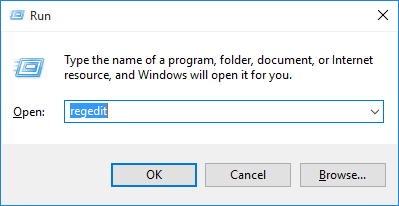
- Tap on the Windows+R keys on the keyboard.
- In the dialog box, write the regedit.
- Press Enter.
- Export the registry to save a backup.
- Choose the Export Range.
- Then, select the choose All option.
- Once the backup is created, delete the keys after the backup.
With the safety files backed up, you can proceed to edit the Windows registry and then try installing QB.
Method 7: Update the Windows Installer
Ensuring that the Windows installer is up to date can resolve the QuickBooks error 1618 and improve the system compatibility and stability.
- Log in to your system as an administrator.
- Access the My Computer.
- Head to the C drive or copy the location C:\WINDOWS\system32.
- Locate the System32 folder and access it.
- Now, find the exe file and right-click on it.
- Tap on the Properties option to verify the version.
- Look for the available update version and download it.
Once the steps are done, restart your computer and launch the QuickBooks application again to check if the error persists.
Method 8: Reinstall the Microsoft Runtime Libraries
Using the Microsoft Visual C++ Redistributable Package, reinstall the Runtime Libraries. This will help you troubleshoot Windows and install QB software.
- If you run a 32-bit computer or 64 bit computer, find your corresponding latest Microsoft Visual C++ Redistributable Package and select Download.
- Save the download file anywhere that is easy to find.
- Once the download completes, look for the file “vcredist_X86.exe” or “vcredist_X64.exe” and double-click to launch it.
- Finally, open QuickBooks Tool Hub again and run Quick Fix my Program as discussed in Method 2.
Restart your computer and reattempt QuickBooks installation.
Method 9: Clean Install QuickBooks Desktop
If nothing works, a fresh start can. Perform a clean installation of the QuickBooks Desktop application to avoid error 1618 and get back to work hassle-free.
Understanding What Leads to the QuickBooks Error 1618
Understanding the possible causes of the error will help you identify the root of the issue, rectify it, and avoid it in the future.
- Windows registry files are corrupted or damaged, which may result in the QuickBooks error 1618.
- There might be an issue with the installation file (it might be corrupt)
- The firewall or anti-virus application might be blocking the QuickBooks programs.
- Microsoft Installer (msiexec) might not be working properly, or there might be another instance of installation running in the background.
- You might be running an outdated version of the Windows application.
By recognizing these common causes, you can decide on the most suitable methods for troubleshooting.
Expert Tips to Prevent Error Code 1618 in QuickBooks Desktop
Here are some expert tips to help you avoid running into QuickBooks update error 1618 in the future.
- Restart your system to get rid of the running background MSIEXEC processes.
- Keep your operating system up to date; install the latest product enhancements and security patches.
- Ensure that the Microsoft Visual C++ Redistributable Package (both x86 and x64 versions) is not damaged so that the Windows installer can function properly.
- Launch the installer file as Run as administrator by right-clicking on the file and selecting the respective option.
Moreover, end any conflicting tasks running in the background, which can interrupt the installation.
Quick View Table for QuickBooks Error 1618
In this section, we will take a look at what we have discussed about the error code 1618.
| Description | The QuickBooks error 1618 is an installation issue that can halt you from installing, updating, or repairing the application. |
| Causes | The error can be caused by an active msiexec.exe process, an outdated Windows application, damaged registry entries, Windows installer issues, or by the firewall or antivirus blocking the application processes. |
| Ways to Fix | To overcome this issue, you are required to update your operating system to the latest version, use the QuickBooks Tool Hub, end the msiexec.exe process, launch the system file checker, clean install the QuickBooks application, or reinstall the application in selective startup mode. |
Conclusion
In this blog, we have understood the reasons why the QuickBooks error 1618 occurs in the system. Moreover, we have outlined troubleshooting methods that can help you fix it effectively. If you need any help updating the application or the Windows OS, feel free to get in touch with ProAdvisor Solutions experts.
FAQs
What are the things that I might experience when facing the QuickBooks error 1618?
There are multiple different things that you might face when you encounter the error 1618 in your system:
– The QuickBooks application keeps freezing or hanging.
– The QuickBooks error code with the message can be seen on the screen while you attempt to install or update.
– Your PC might end up with issues and freeze or hang during processes.
What are the ways to fix the QuickBooks error 1618?
There are multiple ways through which you can rectify the error, such as using the QuickBooks Tool Hub, updating the Windows OS, running the system file checker, or you can also clean install QuickBooks Desktop.
What are the causes behind the error 1618?
The error can be caused by several reasons, such as:
– If another program is installing or updating in the background.
– When there is a Windows Installer in use.
– If the previous installation is not completed successfully.
– The Windows version is outdated.
Can a corrupted Windows file cause an installation error in the system?
Yes, if the system files are damaged or corrupted, then the issue can be seen. It is recommended that you use the system file checker to help you resolve the issue in your system.
Can installing the QuickBooks application in safe mode resolve the error 1618?
Using the safe mode with networking can help you prevent the background programs from interfering with the installation process. This can often lead to the error code 1618.
More Useful Articles:-
How to Fix QuickBooks Error Code 392
How to Resolve QuickBooks Desktop Error 6087 0
Why is QuickBooks Online Bank Account Not Updating
How to Fix QuickBooks Online Error 193
How Do I Fix QuickBooks Desktop Error 185

Peter is a Certified Public Accountant (CPA) with a strong background in public accounting and accounting technology. After starting his career as an audit senior, he worked with organizations across various industries and gained hands-on experience with complex accounting standards. At ProAdvisor Solutions, Peter helps clients navigate new accounting requirements. His goal is to simplify processes, improve accuracy, and boost confidence in finance reporting.