


QuickBooks, without a second thought, is one of the most efficient software programs on the market that allows one to handle the accounting needs of businesses and self-employment ventures. With its various features, it eases tasks such as handling books, paying employees, and more. What threatens normal functioning is unwanted glitches, such as QuickBooks error 1406.
The error prevents you from installing a fresh version of the application or its recent updates. This is usually linked to the system not being able to write a value to the key, but there could be different reasons for the error for different users.
In this article, we will take a closer look at some of the most common reasons for the same and quick techniques to troubleshoot them instantly. Continue reading to learn how to be a pro at troubleshooting error 1406 in QuickBooks.
In circumstances where you feel the need for an expert to guide you with the complete troubleshooting procedure, the help is not so far away. All you need to do is dial +1.855.888.3080 and get in touch with a ProAdvisor Solutions.
Table of Contents
What is Error 1406 in QB Desktop?
QuickBooks error 1406 is an issue with the Windows installer that you can encounter when you are installing QuickBooks Desktop on your computer or its updates. It is closely linked with the system not being able to write specific registry keys.
You can see a message like this on your screen:
“Error 1406. Could not write a value to the key. Verify that you have sufficient access to that key, or contact your support personnel.”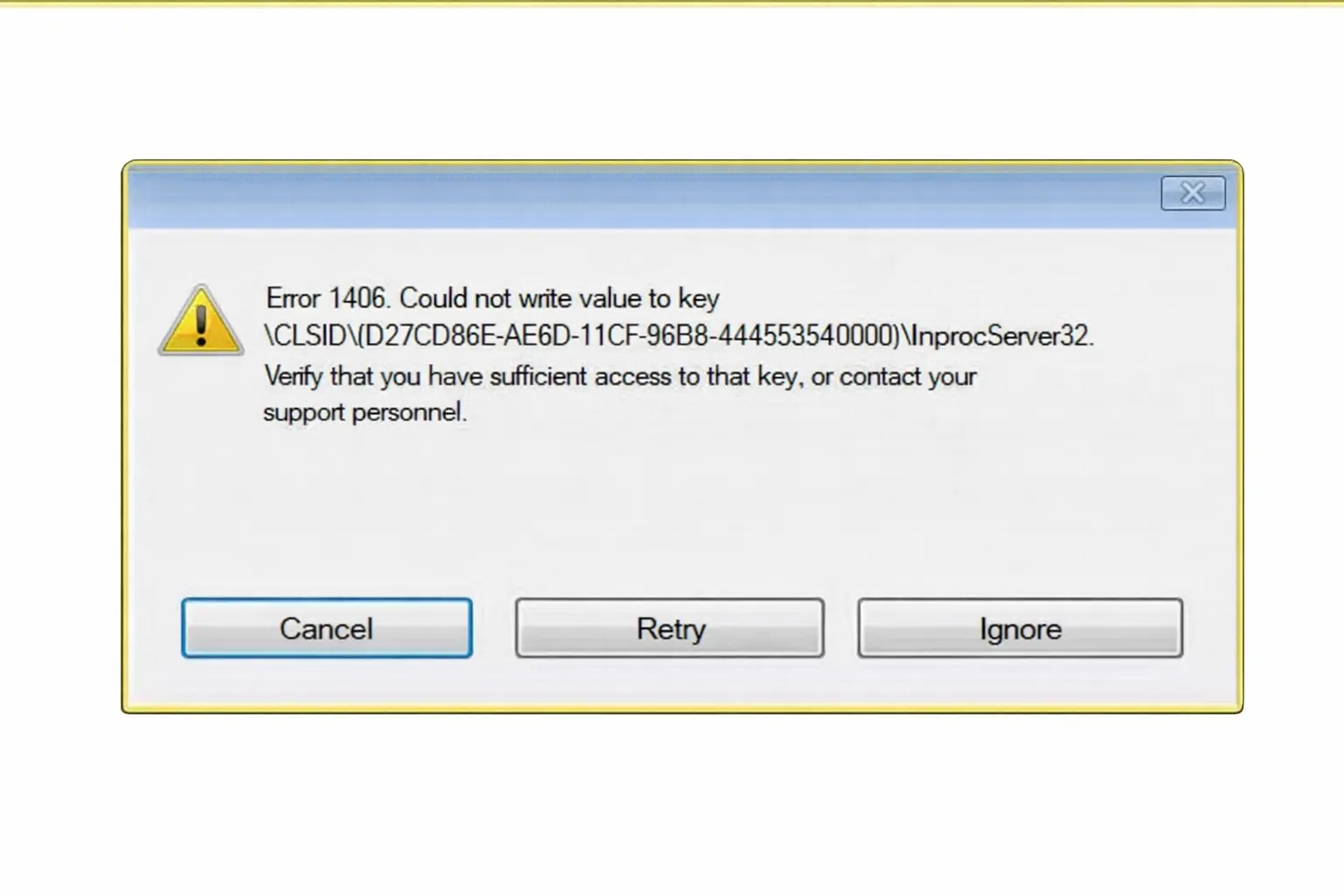
To resolve this error, we must first take a detailed look at what can cause it.
Possible Reasons You Run into Error 1406 in QuickBooks
There are a handful of things that can go wrong and lead to QuickBooks error 1406. We will list all the potential reasons in this section.
- There can be an issue with crucial components such as MSXML, Microsoft .NET Framework, and C++. QuickBooks requires these components to work smoothly.
- An improper uninstallation of QuickBooks on your computer results in the error.
- A corrupted or damaged registry key cannot be used to access the QuickBooks program. Hence, when running QB with a corrupted key, error 1406 in QuickBooks may appear.
- In case you have typed the wrong credentials to run Windows as an administrator, or lack admin access to make changes to the computer
- The issue may also arise if the download location lacks the required permissions and is inaccessible. While at the same time, the shared download of the data file is on.
- The transfer of the QuickBooks application is performed by multiple users, and users are on the system simultaneously.
Once you can narrow down to what could be causing the problem, you get closer to fixing it.
Tested Solutions to Resolve QuickBooks Error Code 1406 During Installation or Update
Troubleshooting QuickBooks error code 1406 is a multi-step process and will need you to troubleshoot multiple components and factors individually. We will walk you through it and guide you through the nuances of the whole process.
Check for Windows Updates
Ensure that Windows is updated to the latest release to avoid incompatibility and performance issues.
If you have already updated your PC, you must restart the system for the changes to be effective.
Turn off the Antivirus or Security Software
Any recent update in the security software or anti-virus application may interrupt QuickBooks installation and lead to an error. If the error is taking place, turn off the security software. You can alternatively create antivirus exemptions for QB programs.
This will help resolve your error code 1406.
Put the QuickBooks Install Diagnostic Tool to Use
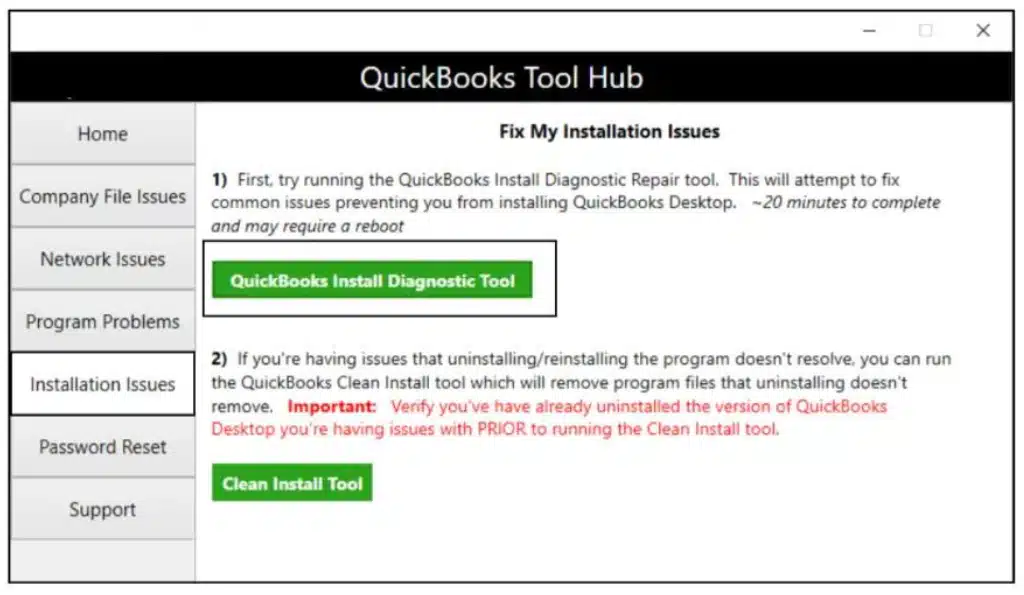
Install Diagnostic Tool in the Tool Hub can automatically repair issues with Microsoft components and the Windows registry, and more. Thus, if you find yourself unable to install the QB Desktop or its updates, before manually troubleshooting the components and corrupt registry keys, you should give the tool a shot.
- Firstly, get the QuickBooks Tool Hub on your computer.
- Launch it and head to the Installation Issues tab.

- Tap on the QuickBooks Installation Diagnostic Tool button.
- It will take a while for the tool to be installed in the background and show up.
- Wait for a few minutes. When the tool initializes and starts repairing, sit back and relax. Usually QuickBooks Install Diagnostic Tool takes 10 to 15 minutes to finish.
Once done, reboot your PC and resume QB installation or update. If QuickBooks error 1406 shows up again, move to the next step.
Repair the Registry Damage
Remember, to repair the registry, the Administration and System groups should be controlled by QuickBooks users. Moreover, you need admin access. Check who the registry owner is, and if the entire repository of authorizations is granted.
Note: We recommend that you only edit the registry if you are confident and have the technical expertise required; otherwise, ask your IT professional or get assistance from an expert. An incorrect modification to the Windows registry can lead to serious complications.
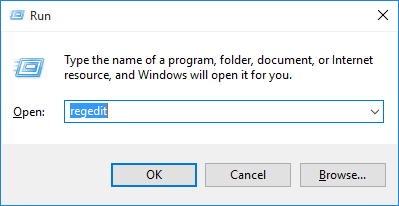
- Open the Run box (by pressing Windows + R) and enter regedit in the textbox.

- Hit Enter. This will open the registry editor.
- Go to the following:
HKEY_LOCAL_MACHINE\SYSTEM\CurrentControlSet\services\iaSTOR registry key - Ensure all the keys are assigned to all administrator groups.
Restart your computer and resume the operations.
Wrapping It Up
The above-mentioned solutions have helped multiple users get rid of QuickBooks error 1406, and we hope you can fix it too. Though the steps are simple to follow, an unknown factor may be causing the issue. If the error proves stubborn to resolve, this is where a ProAdvisor’s role comes in. Dial 1-855-888-3080 and get in touch with an expert.
Frequently Asked Questions
What is error code 1406 in QuickBooks?
Error code 1406 in QuickBooks Desktop is an installation issue that stems from a faulty installer. You may see this error in QB when Windows cannot write to a specific key.
How to fix error 1406 during installation?
To resolve error 1406 when installing QuickBooks or its update, run QuickBooks Install Diagnostic Tool. Moreover, update Windows operating system and repair damaged Microsoft components.
What is error code 1406 data too long for column?
The system shows MySQL error code 1406: Data too long for column when the user inserts the data that is longer than the maximum possible length for the database.
How can it affect me if I leave QuickBooks error 1406 unresolved?
QuickBooks error 1406 can keep you from installing the desktop application or its updates. Thus, if you leave it unresolved, you will not be able to resume your day to day bookkeeping operations which can affect your financial operations in the long run.
You may also check these helpful articles:
How Do I Fix QuickBooks Abort Error?
How to Resolve QuickBooks Error Code 1402?
How to Activate Direct Deposit In QuickBooks?
How Can I Change Primary Admin in QuickBooks Desktop?

Erica Watson is writing about accounting and bookkeeping for over 7+ years, making even the difficult technical topics easy to understand. She is skilled at creating content about popular accounting and tax softwares such as QuickBooks, Sage, Xero, Quicken, etc. Erica’s knowledge of such softwares allows her to create articles and guides that are both informative and easy to follow. Her writing builds trust with readers, thanks to her ability to explain things clearly while showing a real understanding of the industry.