


When using QB to carry out your accounting and financial operations, you can encounter the QuickBooks error 1336. This error is usually seen when you are trying to install, uninstall, or update the application in your system. When this issue occurs, the following message can be seen on the screen:
“INSTALLMESSAGE_ERROR Message: Error 1336. There was an error creating a temporary file that is needed to complete this installation.”
In this blog, we will understand what the principal reasons for the error are and how you can overcome them with the troubleshooting methods.
If you need any help with the installation or the update process, feel free to contact our experts.
Table of Contents
Prerequisites to Maintain for QuickBooks Error 1336
In this segment, we will look into the things you should ensure before you begin troubleshooting the issue in your system.
- Check and verify that you have a strong, stable internet connection to download the latest QuickBooks release and install it without interruptions.
- An outdated Windows OS can also cause QuickBooks error 1336, so ensure you update your operating system to the latest version available.
- Access the application as an admin to have additional privileges to install, modify, or repair the QBDT application.
- Check if your system has enough free disk space for the files that you need for installation and updates.
- Verify whether your antivirus or firewall is blocking the application from performing its operations, as this can be the root cause of the error.
- Check if the Microsoft components are appropriately installed in your system.
Once you have checked all the above-mentioned pointers, proceed to fix the issue if you still encounter any conflicts.
Powerful and Effective Methods to Overcome the QuickBooks Error 1336
To resolve the issue at its source, remove system disruptions, and enable you to resume seamless access to QuickBooks, this section provides practical solutions. To fix the problem and continue your work without further interruptions, carefully follow the steps below.
Solution 1: Launch the QuickBooks Install Diagnostic Tool
You must complete all of the following steps in your QBDT in order to access the feature.
- Download and install the QuickBooks Tool Hub
- Access the Tool Hub.
- Then, head to the Installation Issues tab.
- Tap on the QuickBooks Install Diagnostic Tool.

- Let the tool run and fix the installation issues in your system.
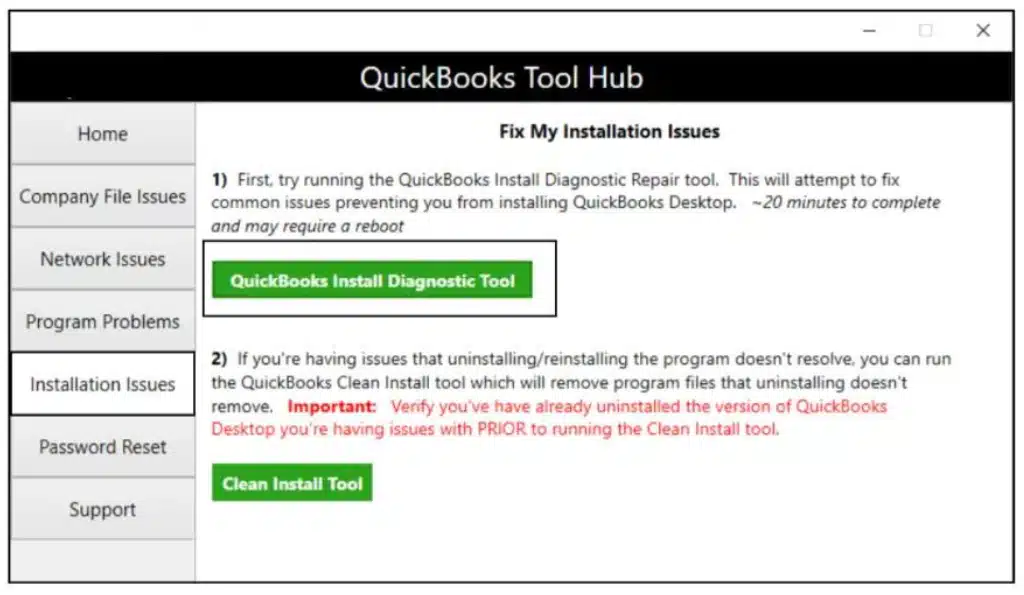
Once the steps are completed successfully, you are required to restart the application.
Solution 2: Install the Latest Windows OS
If you are using an older version of Windows, you may trigger the issue and halt your progress. Here’s how you can solve this problem and tackle all the compatibility issues.
- Tap on the Start menu.
- Locate and access the Settings.
- Next, select the Windows Update option.

- Select the Check for updates option.
- Allow the search to finish, then download the most recent version if prompted.
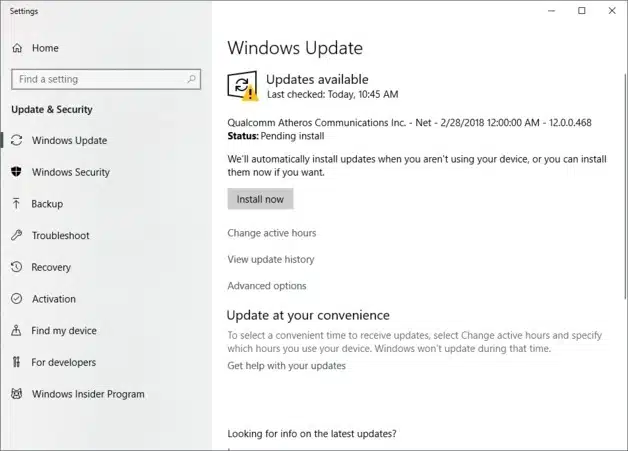
Get the update once the process is done and avail new features and tools with the newer and updated version.
Solution 3: Fix the .NET Framework
The QBDT needs the Framework component to access your system and work with the files. If the component is damaged, you won’t be able to install the QB and encounter the QuickBooks error 1336.
- Exit all running applications in the background.
- Tap on the Start menu.
- Write and access the Control Panel in the search bar.

- Choose the Programs and Features section.
- Select the Uninstall a Program section.
- Choose whether to enable or disable Windows features.
- Find .NET Framework on the list.
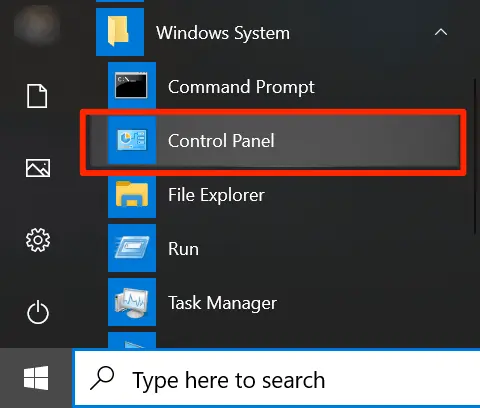
Check the NET Framework
- Choose the checkbox to turn on .NET Framework 4.5 (or later).
- Tap on OK to save your changes.
- Restart your system.
If you still face the error after following the steps, move on to the next solution to fix the issue.
Solution 4: Fix the Windows Firewall
Sometimes the antivirus program can prevent you from doing anything, so in this section, we will learn how you can perform operations without any issues.
- Go to the Start menu.
- Locate the Windows Firewall in the search bar and access it.
- Head to the Advanced Settings.
- Now, right-click on the Inbound Rules.
- Click on the New Rule option.
- Select the Port and choose Next.
- Ensure that TCP is selected.
- Under the specific local port areas, enter the ports as per the QuickBooks version:
- QuickBooks Desktop 2020 and later: 8019, XXXXX.
- QuickBooks Desktop 2019: 8019, XXXXX.
- QuickBooks Desktop 2018: 8019, 56728, 55378-55382.
- QuickBooks Desktop 2017: 8019, 56727, 55373-55377.
- Once you have entered the port number.
- Click on Next.
- Then, tap on the Allow the Connection option.
- Again, hover on Next.
- If prompted, select all profiles and click Next.
- Now, create a new rule and name it QBPorts (year).
- Click on Finish to save the changes.
You will be able to start working with the Windows Firewall again without any trouble.
Solution 5: Fix the MSXML DLL Files
The Microsoft MSXML component enables QB Desktop to store data in XML. This component may also not function properly; as a result, users might be unable to install QuickBooks due to various installation errors. Here’s what you have to do:
For a 64-bit Operating System
- Select the Windows Start menu.
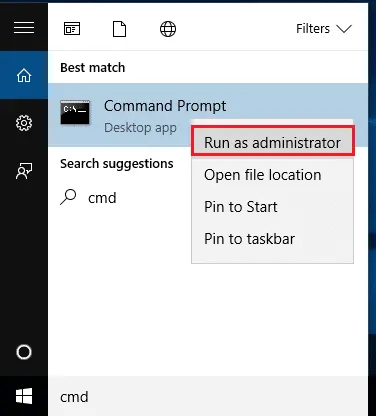
- Type cmd.
- Right-click on cmd.

- Select the Run as Administrator option.
- On the C: prompt, enter cd\windows\syswow64.
- Type regsvr32 MSXML6.dll.
- Press Enter.
- Install QuickBooks Desktop.
For a 32-bit operating system
- Press Windows+R on your keyboard to access the Run command.
- Type in cmd.
- Then press Enter.
- Type regsvr32 MSXML6.dll, then press Enter.
- Install QuickBooks Desktop.
Check if the issue persists. If yes, move on to the next method to overcome it.
Solution 6: Reinstall QuickBooks in Selective Startup Mode
When performing the steps below, make sure no other application is running in the background. You should close all the applications that you are not using. This way, the application steps will work without any problems.
Step 1: Switch to Selective Startup
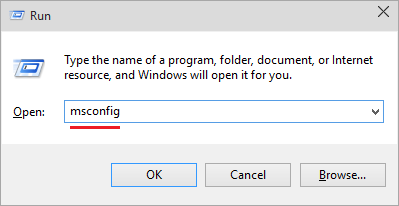
- Press Windows+R to open the Run command.
- Enter msconfig.

- Then select OK.
- Go to the General tab
- Select Selective startup and Load system services.
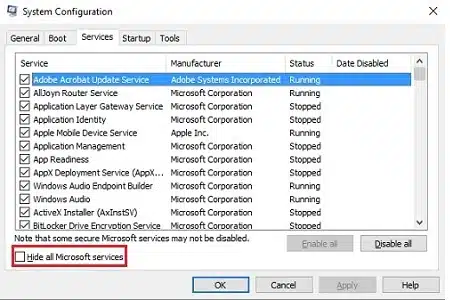
- Go to the Services tab

- Then select Hide all Microsoft Services.
- Select Disable all.
- Now, uncheck Hide all Microsoft services.
- Select Windows Installer from the list of services.
- Select OK.
- On the System Configuration window.
- Select Restart.
Step 2: Uninstall or Install QBDT
- Reinstall QuickBooks Desktop
- Press Windows+R to open the Run command.
- Type msconfig.
- Then select OK.
- In the General tab, select Normal startup.
- Select OK.
- On the System Configuration window.
- Select Restart.
Lastly, launch the QuickBooks Desktop application and check if the QuickBooks error 1336 is resolved.
Solution 7: Launch the System File Checker
Windows has built-in file checker tools that will help you to scan the system and locate the corrupted files. Here are the steps you need to do so.
- Press the Windows + R keys on the keyboard to launch the Run command.
- Now, type CMD.
- Hit Ctrl+Shift+Enter to launch it as an admin.
- Under the command prompt, locate and access sfc /scannow.

- Let the tool run and complete the process.
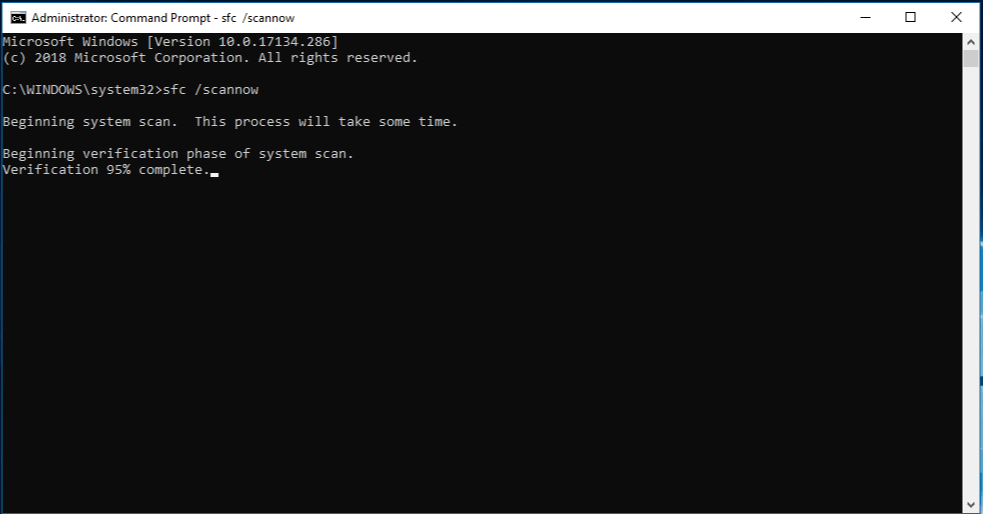
The tool will scan and repair the system and fix the corrupted files.
Solution 8: Exit the Background Applications
Any third-party application running in the background can also affect your system, and you can encounter QuickBooks error 1336.
- Press Ctrl+Alt+Esc on the keyboard to access the Task Manager.
- Go to the Processes menu.
- Now, from the list of applications, right-click on it.
- Choose the End Task option.
These steps will eliminate all the processes running and tackle the issue.
Reasons Why You Can Encounter the QuickBooks Error 1336
In this section, we will go through the potential causes that will help you to identify what can be the case for you.
- Damaged Microsoft components, such as MSXML and the .NET Framework, would prevent you from installing QB on your computer.
- Conflicts that may arise from third-party applications running in the background may cause resource shortages, leading to various errors.
- In addition, if the system files have become corrupted, this can also make it impossible to complete thorough verification checks every time you install new software on the system, including the QuickBooks application.
- The configuration of certain antivirus software may be used to restrict the installation of other applications, such as QB.
- QB programs may not function properly due to interference with Windows Firewall, which could lead to updating errors.
- The user will encounter difficulties if they do not have the required rights or permissions to install software, including QuickBooks.
- If the user lacks permission, then the QB application may not work properly if your computer is running an older version of Windows.
- Access to all tools and features will be blocked if you use the application as a non-admin user. Error 1336 in QuickBooks could be caused by this.
Now that we have a list of causes for the error, you can identify what may be the case for you.
Quick View Table for QuickBooks Error 1336
In this segment of the blog, we will take a glance at what we have so far talked about the issue.
| Description | When you are unable to install or update the QBDT application, you can encounter the QuickBooks error 1336 in your system. |
| Causes | QuickBooks Error 1336 can occur due to damaged or corrupted Microsoft components such as MSXML or .NET Framework, corrupted system files, or compatibility issues caused by an outdated version of Windows. Issues from third-party background applications, antivirus or Windows Firewall settings blocking the operations, and insufficient system resources can also interrupt the installation or update process. Additionally, limited user permissions or running QuickBooks without admin rights may block access to required tools and features, causing the error. |
| Ways to Fix | The issue can be fixed by using the QuickBooks install diagnostic tool, installing the latest Windows OS version, fixing the .NET Framework, reinstalling the QBDT in selective startup mode, using the system file checker, or eliminating the background processes. |
Conclusion
In this blog, we have included the reasons why you might encounter the QuickBooks error 1336 in your system. Further, we have included the different methods that will help you to resolve the problem in your system. In case you require assistance with the update process of your application, you are free to contact our ProAdvisor Solutions experts.
Frequently Asked Questions (FAQs)
What are the different methods to eliminate the QuickBooks error 1336?
The different ways through which you can overcome the error in your system are as follows:
– Get to the latest version of the Windows OS.
– Use the QuickBooks Install Diagnostic Tool.
– Exit all the third-party applications running in the background.
– Use the System File Checker.
– Fix the Microsoft components.
– Create exceptions for QuickBooks in the antivirus and firewall applications.
Why am I getting prompted with different errors while downloading or updating QuickBooks Desktop?
There may be several QB installation and QB updates issues, such as QuickBooks error 1336 and QuickBooks error code 1625, and this may be caused due to multiple reasons, such as outdated Windows versions, corrupted Windows components, software incompatibility issues, as well as infected Microsoft components that may be damaged in the process, such as the windows firewall that may block QB updates.
More Useful Articles:
QuickBooks database server manager has stopped working
How to fix QuickBooks script error code 0
An Ultimate Guide to Help You Address QuickBooks Error 1638

Erica Watson is writing about accounting and bookkeeping for over 7+ years, making even the difficult technical topics easy to understand. She is skilled at creating content about popular accounting and tax softwares such as QuickBooks, Sage, Xero, Quicken, etc. Erica’s knowledge of such softwares allows her to create articles and guides that are both informative and easy to follow. Her writing builds trust with readers, thanks to her ability to explain things clearly while showing a real understanding of the industry.