


QuickBooks Desktop is an application that users in the USA and Canada, and even across the world, popularly utilize to manage accounting and financial tasks. It comes with regular software updates that enable new features, bring security patches, and product enhancements. However, when you try to update the QB application, you might end up running into QuickBooks error 1317 in your system.
The following message can be seen with the error code:
“Error: 1317: An error occurred while creating directory [directory]”
The error can have multiple causes, which we will discuss in this blog. We will also go through the troubleshooting steps to carry out when you come across error 1317.
If you encounter any issues during the QuickBooks update, feel free to contact our expert team.
Table of Contents
All the Potential Reasons that Lead to the QuickBooks Error 1317
Before we move on to the steps to fix this issue, let’s first identify the causes of the error in your system.
- Lack of user permission to access the QuickBooks installation folder
- Any third-party application can also cause interruptions in the QB operations
- The driver where the files are stored doesn’t have the necessary permissions
- The Windows registry can also cause error 1317 in your system
- If the system files are corrupted or damaged
- Insufficient RAM and hard disk memory
- Windows Firewall or antivirus software can also block QuickBooks operations.
These were the most probable factors that can lead to the error code 1317 in your system.
7 Things to Try When You See the QuickBooks Error 1317
Now that you have understood the reasons why this error occurs, let’s know how you can overcome it in this part of the blog.
Solution 1. Change the User Permission
As mentioned earlier, a lack of permission may be the cause of the error. Follow the steps below to modify the permission.
- Restart your system and log in as an admin user.
- Now, go to the program path in the C drive.
- Right-click on the Program Folder.
- Head over to the Properties option.
- Tap on the Sharing tab.
- Then, choose the Advanced Sharing and then Permissions.
- Choose the Permission menu.
- Mark the name option to Everyone.
- Tap on the Allow button under the Full Control Line menu.
- Choose the Allow option.
- Then, go to the Change Permission option and select the box.
- Tap on OK.
- Then click Yes, and when prompted with the ‘Do you wish to continue?’ message, tap OK.
This step will help you modify user permissions to resolve QuickBooks error 1317 on your system.
Solution 2. Use the QuickBooks Install Diagnostic Tool
Before proceeding with the steps to resolve the issue, you must download and install the QuickBooks Tool Hub on your system.
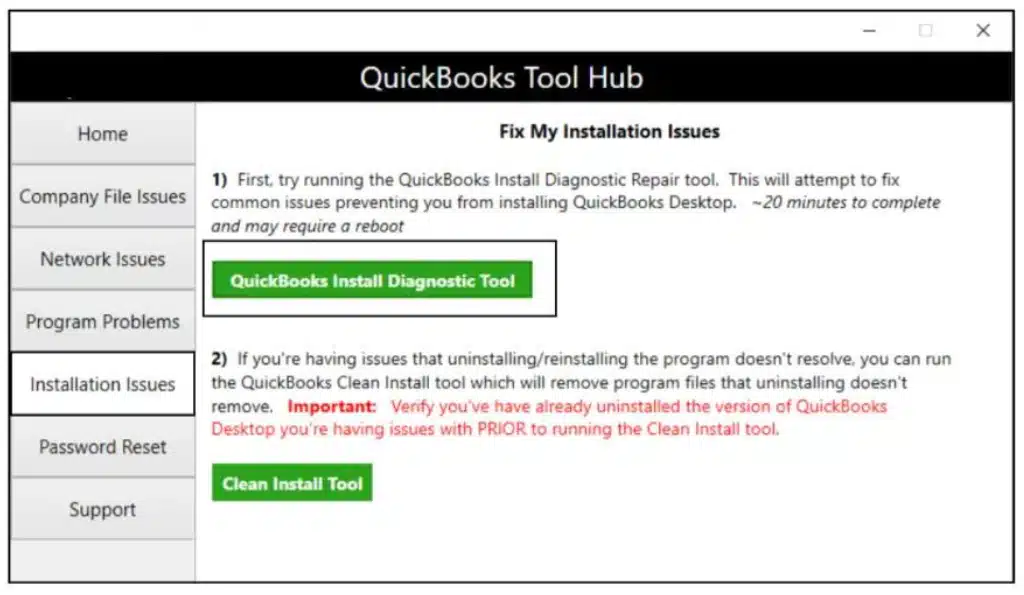
- Go to the Tool Hub.
- Then, click on the Installation Issues section.
- Tap on the QuickBooks Install Diagnostic Tool.

- Now, let the tool run and fix the issue that you are facing.
If the issue persists, move on to the next troubleshooting method.
Solution 3. Clean Install the QuickBooks Desktop
If you are unable to update the application and are facing error 1317 in your system, you can clean install QuickBooks Desktop, which will reinstall the application from scratch and help you overcome the issue in your system.
Solution 4. Update the Windows OS
If you are using an older version of your operating system that can also trigger the error in QuickBooks, here’s how to get to the latest version.
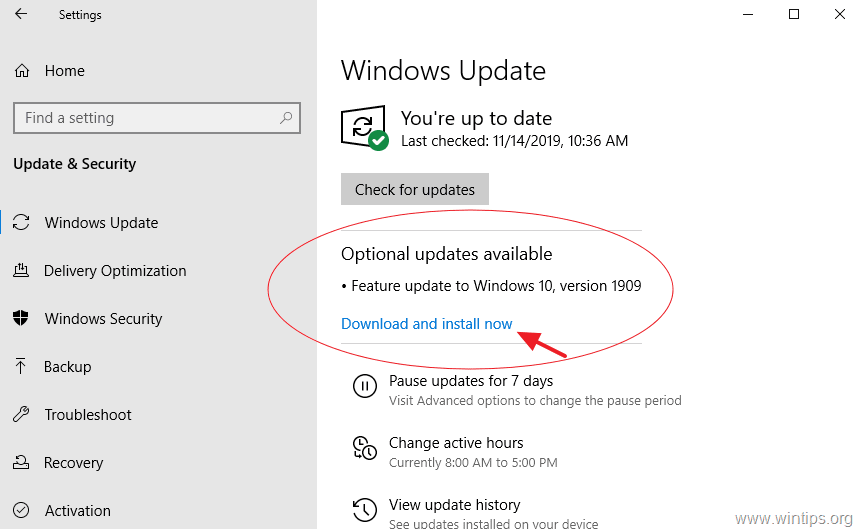
- Access the Windows Start menu.
- Now, tap Update & Security.
- Then click on Windows Update.

- Tap on the Check for Updates option.
- Now, click on the Download and Install option to get the latest version.
Check whether the error persists; if it does, proceed to the next troubleshooting step.
Solution 5. Repair the Microsoft .NET Framework
When the .NET Framework file is damaged, you may see an error in your QuickBooks application. In order to fix it, follow the following.
- Open the Windows Start menu.
- Search for the Control Panel in the search bar.
- Go to Programs and Features.
- Choose the Uninstall a Program option.
- Then select the Turn Windows features on or off option.

- Find .NET Framework on the list.
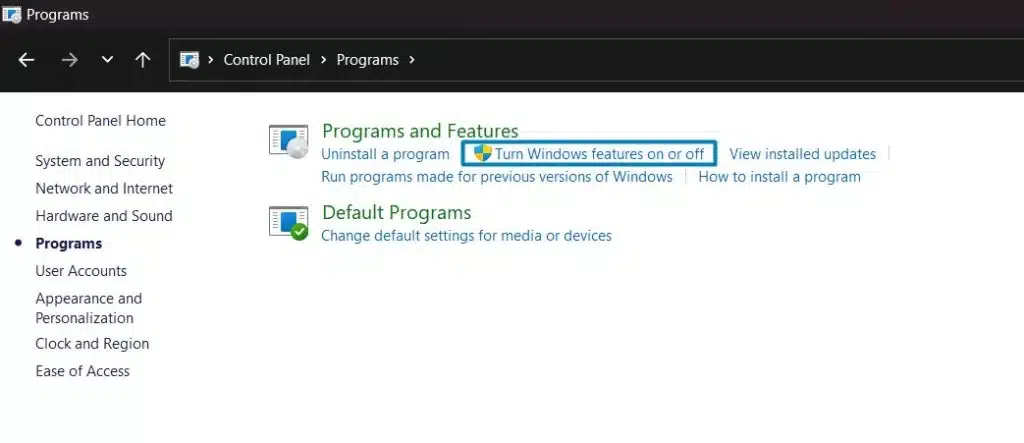
To Check the NET Framework
- Choose the checkbox to turn on .NET Framework 4.5 (or later).
- Tap on OK to save your changes.
- Restart your computer.
This will help you to fix the framework in your system to avoid any conflict.
Solution 6. Register the MSXML DLL Files
To troubleshoot the QuickBooks error 1317, follow the steps that will fix the damaged MSXML files.
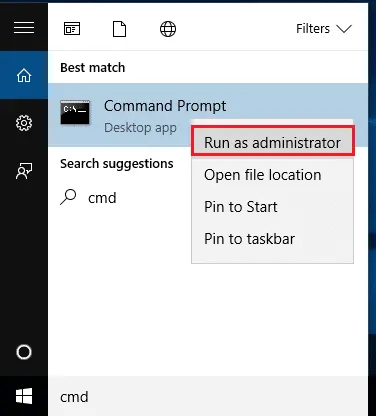
- Tap on the Windows Start menu.
- Look for the cmd.
- Now, right-click on the CMD and choose Run as Administrator.

- In the C: drive, head to the cd\windows\syswow64.
- Look for regsvr32 MSXML6.dll and hit Enter.
Now, run the QuickBooks Desktop and check if the error persists.
Solution 7. Install QuickBooks in Safe Mode
Ensure you have created a backup of your company file in your system so that you do not lose any part of your data.
Step 1. Turn on the Safe Mode
- Tap Windows + R to access the Run dialog box.
- Now, look for the msconfig and hit OK.

- The System Configuration Utility window will pop up.
- Under the General tab, click on Selective Startup.
- Then, go to the Load system services option.
- Now, head to the Services tab.
- Click on the Hide all Microsoft Services box.
- Tap on the Disable all option.
- Now, double-tap on the Windows Installer from the list of services.
- Tap on OK.
- After completing the steps, tap the Restart button.
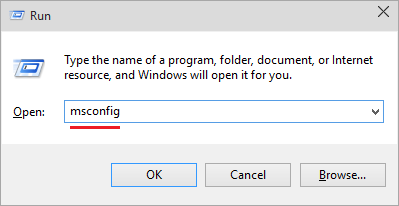
Step 2. Reinstall or Uninstall the QuickBooks Desktop
- First, reinstall the QuickBooks Desktop.
- Hit Windows + R to access the Run dialog box.
- Now, look for and access msconfig.
- Go to the General tab in the System Configuration Utility window.
- Choose the Normal Startup option.
- Tap on OK.
- Hit Restart from the System Configuration window.
Reinstalling the QuickBooks application will help you fix the update error and start working again.
A Quick View of QuickBooks Error 1317
In this section of the blog, we provide an overview of the error discussed.
| Description | The QuickBooks error 1317 is an update-related issue. |
| Causes | The causes of the error include interrupted or incomplete installation, damage to the Windows registry, deletion of QB files, insufficient system storage, or the Windows firewall blocking QB operations. |
| Ways to Fix | To resolve the issue on your system, you may need to change user permissions, run the QuickBooks Install Diagnostic Tool, perform a clean install of the QBDT application, update the Windows OS, repair the .NET Framework, register the MSXML DLL files, or install QuickBooks in safe mode. |
Conclusion
In this blog, we discussed QuickBooks error 1317, which occurs when a user attempts to update the QBDT application. Moreover, we have mentioned the reasons behind the issue and also the troubleshooting methods you can use to get rid of the error for once and all. However, if you need further help with your QuickBooks update, feel free to contact our experts.
Frequently Asked Questions
What is the error 1317 in QuickBooks Desktop?
Error 1317 in QB occurs when there are issues with the application’s installation or update process. Due to this issue, you won’t be able to update the application or access the associated files, and a pop-up message will appear on the screen.
How can I resolve the QuickBooks error 1317 in my system?
To resolve the issue, you can modify user permissions, run the QuickBooks Install Diagnostic Tool, perform a clean install of QuickBooks Desktop, and repair the .NET Framework and the MSXML DLL files if they are damaged.
Can restoring the PC resolve QB error code 1317?
Restoring your computer may fix QuickBooks error code 1317 by restoring the permissions and system settings that are causing the problem. It’s crucial to ensure you have administrator access, though, and to consider other options, such as modifying permissions or using the QuickBooks Install Diagnostic Tool.
What are the reasons behind the error 1317?
Potential reasons behind the error 1317 are as follows:
1. Issues with the .NET Framework file.
2. The drive for installation or update is corrupted or damaged.
3. Lack of access or permissions to the folder.
4. The Windows registry is facing some issues.
5. Microsoft components or files got damaged or corrupted.
6. Insufficient space in the RAM or hard disc memory.
Read more related articles:-
How to Fix QuickBooks Error 1327 (The drive is not valid)
Troubleshooting: QuickBooks Something’s Not Quite Right Error
Easy Methods to Resolve QuickBooks Error 1321
How to fix QuickBooks Abort Error Effectively?
What Is QuickBooks Error 1328 And How To Fix It?

Erica Watson is writing about accounting and bookkeeping for over 7+ years, making even the difficult technical topics easy to understand. She is skilled at creating content about popular accounting and tax softwares such as QuickBooks, Sage, Xero, Quicken, etc. Erica’s knowledge of such softwares allows her to create articles and guides that are both informative and easy to follow. Her writing builds trust with readers, thanks to her ability to explain things clearly while showing a real understanding of the industry.