


The QuickBooks check register will not open is an error that occurs when users are unable to access the check register of their bank accounts. The check register is the digital version of the cash journal where users store their cash, cheques, deposits, withdrawals, vendor payments, and payroll. This is common if you want to view the check register from the chart of accounts or the banking menu when the QuickBooks Desktop software is being used. This makes the software unresponsive and crashes frequently.
This problem might occur due to a corrupted company file, an older version of QuickBooks Desktop, or insufficient user permissions. This article will help you understand the problem above and solve it using a step-by-step procedure.
If you need additional help with your chart of accounts in QuickBooks, you can contact our experts.
Table of Contents
QuickBooks Check Register Will not Open Issue? Try These Solutions
The troubleshooting procedures listed below are intended to help you resolve the issue preventing the QB Check Register from opening, so you can continue working uninterrupted. To ensure the issue is resolved, carefully follow each step.
Method 1: Update the QuickBooks Desktop
Use the latest version of your QBDT application to overcome the issue by following the steps below.
- Close all the running processes in your application.
- Tap on the Start menu.
- Locate the QBDT from the list.
- Right-click on the application.
- Choose the Run as administrator option.
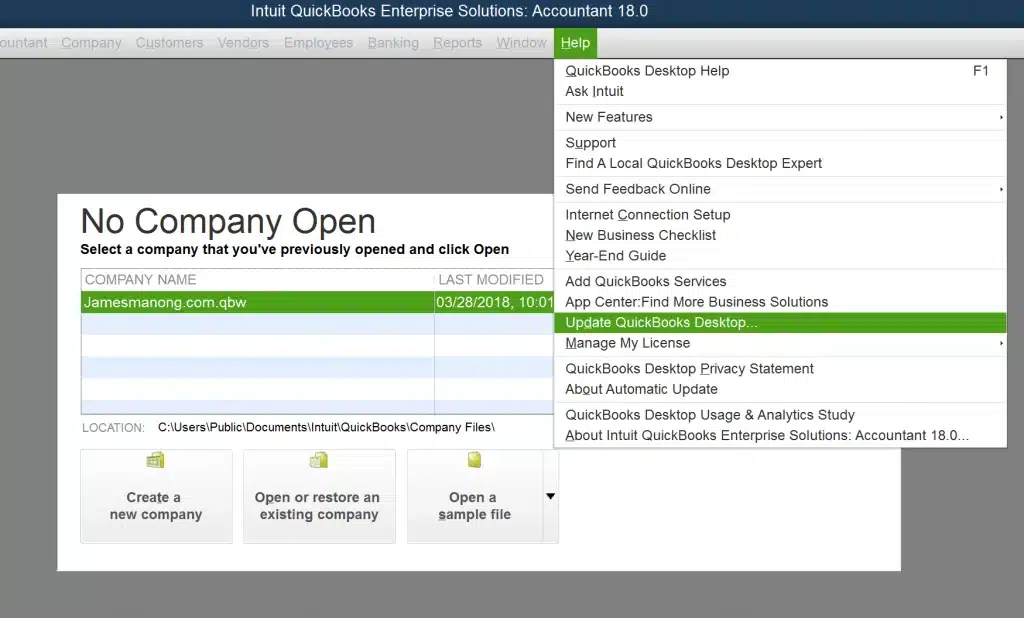
- When the No Company window appears, head to the Help menu.
- Tap on the Update QuickBooks Desktop option.

- Head to the Options tab.
- Choose the Mark All and hit Save.
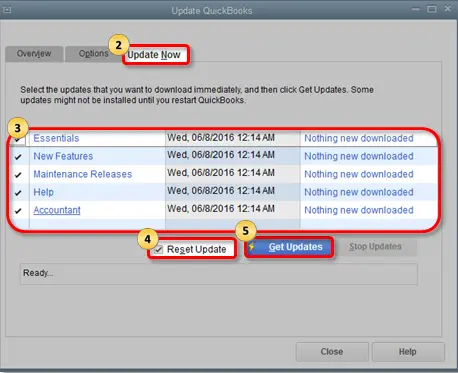
- Head to the Update Now option.
- Tap on the Reset Update checkbox.

- Click on the Get Updates option.
Restart your system once the update is completed and check if the issue is still seen.
Method 2: Use QuickBooks as an Admin
You can try using the application as an administrator to avoid the QuickBooks check register will not open issue by following the steps below.
- Go to the Start menu.
- Locate the QuickBooks Desktop application.
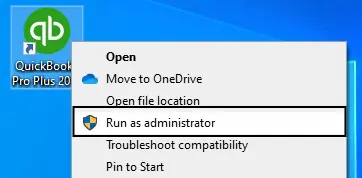
- Right-click the logo.

- Select Run as administrator.
- Now, input the admin ID and Password.
- If prompted on the home screen, tap on Yes to allow the application to run.
If this step didn’t help you fix the issue, you can move on to the next method.
Method 3: Use the Verify and Rebuild Utility Tool
You can use the built-in tool and rectify the issue within the application. Here’s how.
- Tap on the Window menu.
- Move to the Close All option.
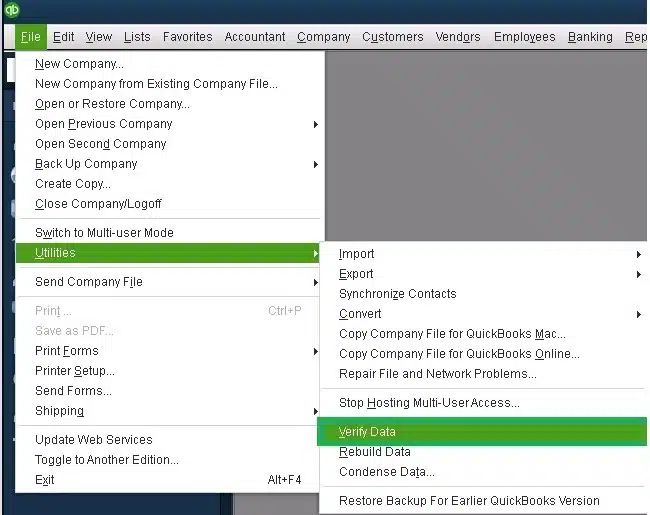
- Hover on the File menu.
- Click on the Utilities.

- Now, click on the Verify Data option. The following results may pop up:
- QuickBooks detected no problems with your data: Your data is clean, and you do not need to do anything else.
- An error message: Search for the specific error message on our QuickBooks Desktop support site for instructions on how to fix it.
- Your data has lost integrity: Data damage was found in the file. Proceed to rebuild your company file to resolve the issue.
Rebuild the Company Data
- Go to the File menu.
- Click on the Utilities option.
- Then, select the Rebuild Data option.

- If the QB asks to create a backup for the company file, then press OK.
- Select the location where you wish to save the backup.
- Press OK.
- Input the new name in the file name field.
- Hit Save.
- Now, tap on OK when the Rebuild has completed message appears.
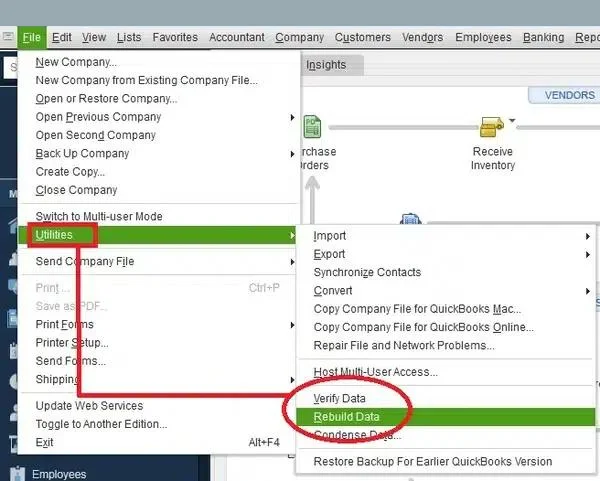
Undergo the steps without missing any and fix the issue.
Method 4: Fix the QuickBooks Application
You can use the process to repair the QB application when it is showing errors, like the QuickBooks check register won’t open.
- Exit the QuickBooks application.
- Tap on the Start menu.
- Locate and access the Control Panel.

- Head to the Uninstall or Change a Program option.
- Location QuickBooks from the list.
- Tap on the Change/Uninstall option.
- Now, on the installation screen, tap on Next.
- Select the Repair option.
- Choose the Repair option again.
- Tap on the Finish option.
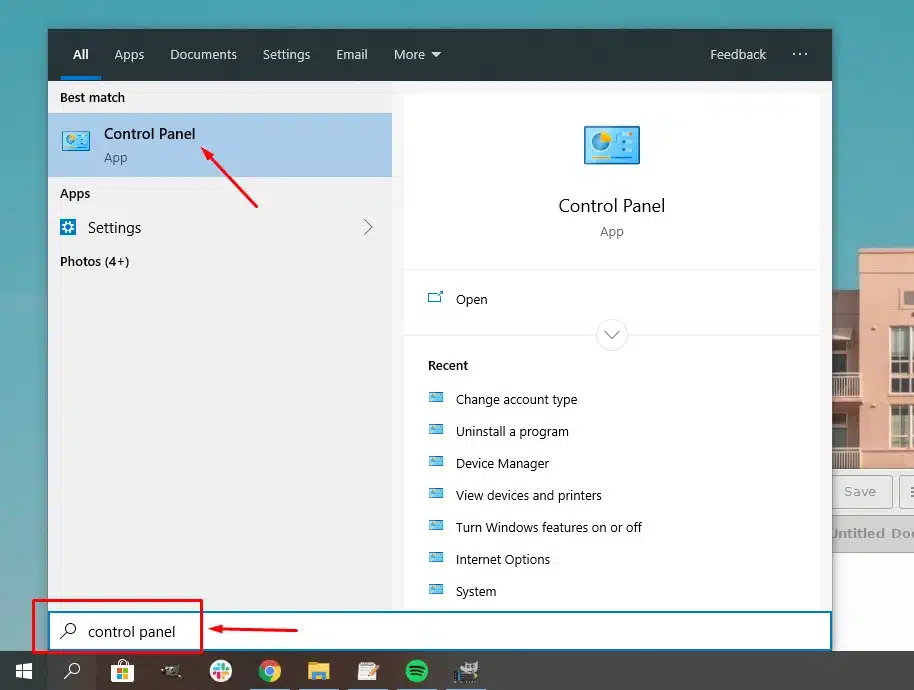
These steps will help you to repair the application if it is having issues.
Method 5: Restore the Company Backup
This method helps you to go back to the older version of your company data in QuickBooks.
- Head to the File menu.
- Tap on the Open or Restore Company option.

- Then, click on the Restore a Backup Copy.
- Tap on Next.
- Now, choose the Local Backup option.
- Click on Next.
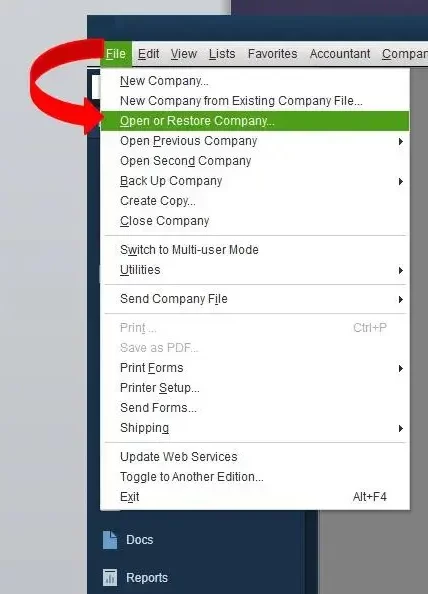
This will help you to revert to the older file version and overcome the error.
Method 6: Use the QuickBooks Tool Hub
You can also opt to use the application developed by Intuit for that; download and install the QuickBooks Tool Hub on your system.
- Access the Tool Hub application.

- Then, head to the Installation Issues tab.
- Tap on the QuickBooks Install Diagnostic Tool.

- Let the tool run and scan your system to fix your problem.

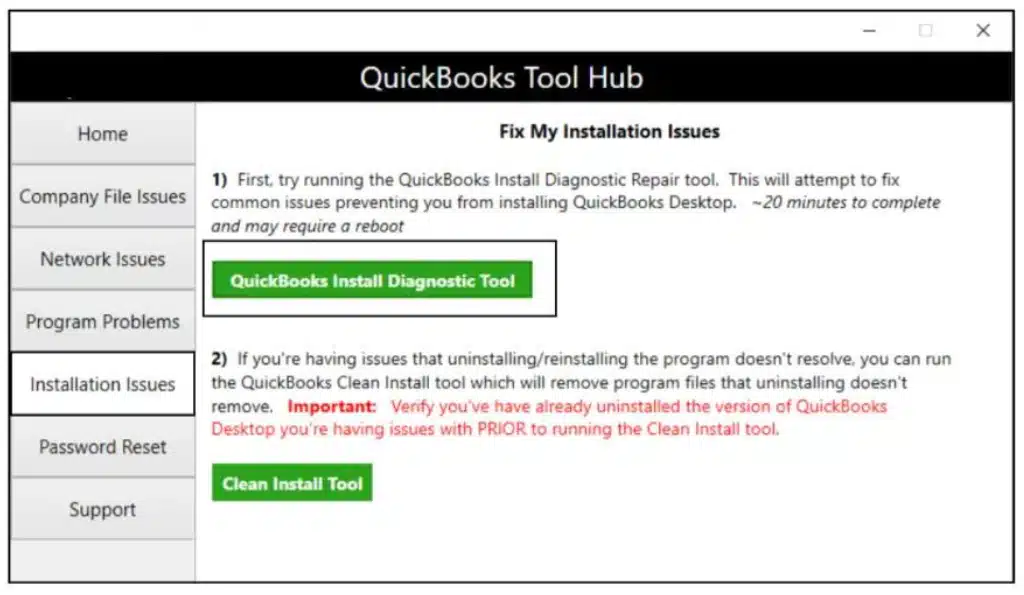
Restart the system once the process is complete, and check whether the QuickBooks check register will not open.
Possible Reasons Why QuickBooks Check Register Will Not Open
The first step in fixing this problem is to comprehend the potential causes. Software, system, or network issues may be the cause of QBDT’s inability to open the Check Register. Finding the cause enables you to use the appropriate troubleshooting technique and regain regular access to your financial records.
- When you are using an outdated version of the QuickBooks application.
- If the hard drive in your system is corrupted or damaged in your system.
- When the antivirus or firewall application blocks operations in your QBDT application.
- If the company file is corrupted or damaged.
- When the network connection is unstable and insecure.
These key points will help you understand what could cause trouble in your case.
Quick Glance on: QuickBooks Check Register Will Not Open
This section will provide you with a quick glance at the issue that we talked about in this blog.
| Description | The QuickBooks check register will not open. The issue is a problem when you are unable to access the check register and the inventory for your bank accounts. |
| Causes | There can be different reasons why you may face this issue, such as when you are using an outdated version of the QuickBooks application, if the hard drive is corrupted or damaged, when the antivirus or firewall application blocks operations, if the company file is corrupted or damaged, or when the network connection is unstable and insecure. |
| Ways to Fix | The ways to fix these issues include updating the QBDT application, using the QB Tool Hub, using the verify and rebuild tool, repairing the QuickBooks application, restoring a company file backup, or accessing QB as an administrator. |
Conclusion
In this blog, we have talked about how the QuickBooks check register will not open. We have discussed the reasons why this issue can be seen and also the ways through which you can troubleshoot the issue. If you are still dealing with any issues in your QuickBooks Desktop, feel free to contact Proavisor Solutions experts at for free guidance.
Frequently Asked Questions (FAQs)
How to prevent the QuickBooks check register from being open?
There are different aspects with which you can avoid the error in your system.
1. Use the verify and rebuild tool often to keep your data fixed and safe from issues.
2. Always keep your QuickBooks Desktop updated to the latest version.
3. Keep your company file backed up to avoid data loss.
4. Check for your data connection and use a stable and secure network.
5. Use admin access to use the QBDT application.
6. Utilize the QuickBooks Tool Hub to maintain and repair the errors in the system.
Can a lack of user permissions prevent from accessing the check register?
Yes, if you are currently logged in as a restricted-access user, viewing the register may be blocked in QuickBooks. Make sure you use a user with all access rights, or contact the admin to correct the access rights via Company>Set Up Users& Passwords.
Why does the inability to access the check register in QuickBooks Desktop Pro occur?
This occurs when a QuickBooks user tries to open the check register and the application hangs, displays an error message, or won’t open at all. This problem usually occurs due to corrupted company files, a damaged QuickBooks installation, or permission conflicts that prevent users from accessing the transaction review or reconciliation.

Erica Watson is writing about accounting and bookkeeping for over 7+ years, making even the difficult technical topics easy to understand. She is skilled at creating content about popular accounting and tax softwares such as QuickBooks, Sage, Xero, Quicken, etc. Erica’s knowledge of such softwares allows her to create articles and guides that are both informative and easy to follow. Her writing builds trust with readers, thanks to her ability to explain things clearly while showing a real understanding of the industry.