


If you find your QuickBooks bank account not updating, a problem occurs in your system, it can effectively delay your financial tracking and delay your accounting operations. The issue can be caused by poor internet connectivity, incorrect bank credentials, or an outdated Windows OS. In this blog, we will look into the possible reasons behind this error and how you can overcome it with the troubleshooting methods.
If you need any help to create a backup for your company files, feel free to get in touch with our experts.
Table of Contents
Troubleshooting Methods for QuickBooks Bank Account Not Updating
In this section, we will walk you through the effective solutions that will help you to restore the bank feeds, sync the transactions accurately, and start working smoothly in your QBDT application.
Solution 1: Update the Bank Details
Edit your bank login details in the QuickBooks application to download your transactions and connect your bank to the software. Follow the steps below to update and edit the details.
- Go to the Bookkeeping area.
- Choose the Transactions option.
- Tap on the Bank Transactions button.
- Now, select the bank or credit card account you wish to update.
- Tap on the Edit sign-in info option.
- Input the user ID and password for your account.
- Lastly, click on the Save and Connect button.
Ensure that you have cleared the web browser user ID and password auto-fill option to avoid wrong information.
Solution 2: Sync the Bank Server
Check and verify the bank connection to keep a record of all the transactions. Here’s how to do it.
- Sign in to your QuickBooks Online account.
- Go to the Bookkeeping section.
- Tap on Transactions.

- Then, click on Bank Transactions.
- Now, tap on the Update Now option from the Banking page.
- Go through the on-screen instructions to check your sync connection.
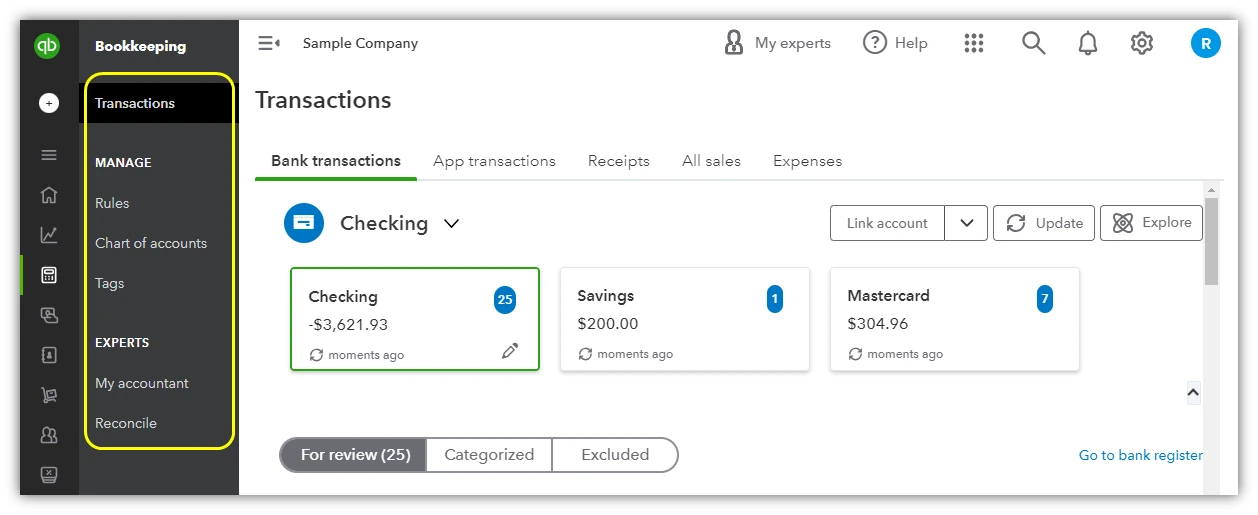
These steps will help you sync your bank server to the QBO account.
Solution 3: Reconnect the Bank Account
If your bank connection has expired and you are having issues with the QuickBooks bank account not updating, here’s how to fix it.
Disconnect the Bank Account
- Go to the Transactions option.
- Head to the Bank Transactions section.
- Ensure the last transaction’s date is kept. This will prevent you from downloading the same transactions multiple times.
- Choose the bank account you wish to disconnect.
- Tap on the pencil icon.
- Click on the Edit account info option.
- Head to the Account box and find the option to disconnect the account and save.
- Tap on the Save and Close option.
Reconnect the Bank Account
- Go to the Transactions section.
- Choose the Bank Transactions.
- Tap on the Connect account or Link account.
- Go through the on-screen instructions to connect the bank feeds.
You want to enter the transactions automatically, then connect your bank or credit card account. You can also connect multiple businesses and personal bank accounts.
- Go to the Transactions section.
- Tap on the Bank Transactions.
- If you are setting up the first bank account, then click on Connect account.
- Look for the bank that you can connect with the other banks.
- Enter the username and password to log in to the account.
- Tap on Continue.
- Go through the terms and conditions and agree to them.
- Choose the accounts you wish to connect and wish to save the credit card and savings.
These steps will reconnect the bank account and help you to overcome the issue.
Solution 4: Check if the Bank Account is Inactive
Check if the bank or credit card’s website is active or not. Therefore, it is advised to verify the details to connect the bank account.
- Go to the Bookkeeping option.
- Tap on the Transactions section.
- Then, click on Bank Transactions.
- Select the Link account option.
- Choose the bank account.
- Log in to your bank or credit card’s website and log in.
- Head to check the following:
- Review your account for any messages, notifications, or alerts.
- Watch for display or navigation issues on the website, as these errors can prevent QuickBooks from downloading new transactions.
- Check your bank’s website for announcements regarding new or updated security requirements.
Solution 5: Link the Bank Feed
If your bank is providing inaccurate information, you’ll need to set up your bank accounts for Bank Feeds. This helps eliminate manual entries, makes bank reconciliation easier, and keeps your transactions current.
For QuickBooks Desktop
- Go to the Banking menu.
- Hover over Bank Feeds, then select Set Up Bank Feed for an Account.
- Choose the QuickBooks account you want to connect to.
- Click Next.
- Select the appropriate Financial Institution for the account.
- Then, click Next.
- Follow the on-screen instructions to complete the connection.
- Tap on Connect and close it.
For QuickBooks Online
- Tap on the Banking menu.
- Go to the Bank Feeds from the menu.
- Select the Set up Bank Feeds for an account.
- From the Bank’s name field, type and choose the bank name.
If your bank needs to approve the application, access your login credentials.
- Once the enrollment is successfully completed.
- Click Continue.
- Enter your Online Banking User ID and Password.
- Select Connect to link QuickBooks with your bank’s server.
- Choose the bank account you want to connect to your QuickBooks account.
- Click Finish after the connection is complete.
This will help you to link your bank feed for both the QB Desktop and Online versions.
Reasons Behind the QuickBooks Bank Account Not Updating
If the bank transactions are missing, the issue can be seen in your system. Below is the list of reasons behind that, which can be the root cause in your case.
- If the bank login details haven’t been updated in the QuickBooks software, then you may fail to connect to your bank. This can lead to problems while tracking the transactions and syncing the bank feed.
- When the bank account authorization expires, the QB application will no longer be able to connect to the bank account.
- If your bank account is inactive or does not support online banking, then QuickBooks won’t be able to establish a connection.
- When the QBDT application or the Windows OS is outdated and doesn’t have the new tools and features.
- If the bank servers are down, it can lead to the problem of the QuickBooks online bank balance not updating.
By understanding the common reasons behind the error, you can identify which one of the above can be the culprit in your case.
Quick View Table for QuickBooks Bank Account Not Updating
In this section, we will have a quick glance at what we have so far discussed in this blog.
| Description | The QuickBooks bank account not uploading is an issue where the bank transactions stop syncing with the QBO and QBDT application. |
| Causes | If your QuickBooks bank account is not updating, the reason behind the issue can be if the incorrect or outdated bank login details, if the bank authorization expires, if the internet connection is poor, or if the QuickBooks account is not updated. |
| Ways to Fix | When you wish to fix the error, you can try doing these: update the bank login details, disconnect and reconnect the bank account, reset the bank feed, ensure your internet connection is stable, and keep your Windows and QB application updated. |
Conclusion
The QuickBooks bank account not updating issue can interrupt your accounting operations in your application or the online version. In this blog, we have outlined the causes of this issue and the troubleshooting methods that can help you overcome it. If you need any help with the update process of the application, feel free to get in touch with ProAdvisor Solutions experts.
Frequently Asked Questions (FAQs)
What are the shortcut keys to access QuickBooks in private mode?
If you wish to access the QB application in private mode to avoid internet conflicts, listed below are the shortcuts for different browsers:
– Chrome: Ctrl+Shift+N.
– Firefox: Ctrl+Shift+P.
– Edge: Ctrl+Shift+N.
– Safari: Command+Shift+N.
Can using the outdated version of QuickBooks cause the bank feed error in the system?
Yes, the bank feed issue can be seen in your system due to an outdated version and connection problems. It is recommended to download and install the latest version for your application to avoid the error and avail new features and benefits.
How to refresh the bank transactions for the QuickBooks application?
To refresh your bank transactions, first access your QB application, then go to the Bank Transactions area and tap on the Update Now option. This will manually refresh and sync the transactions for the data and bank account.
How to recognize the QuickBooks bank account not updating error?
The first step is signing in to the official bank website to ensure the account is accessible and working properly. Check and verify the alerts, security notifications, or updates that can trigger the error. If the bank website appears fair and shows no issues, the problem may lie with the QuickBooks application.
What to do when the bank transactions are not showing up in my QuickBooks?
If your recent transactions are not showing up in your account, worry not; it can happen more often and is not a big issue. Sometimes, the bank server takes 24-40 hours to reflect the transactions in your account. Also, the issue may be due to an expired connection or a sync error.
More Helpful Articles :-
How to get rid of QuickBooks Error Code 6087 0
How to Overcome QuickBooks Error Message 193
How to Deal With QuickBooks Desktop Error 1310
How Do I Fix QuickBooks Error Code 392

Peter is a Certified Public Accountant (CPA) with a strong background in public accounting and accounting technology. After starting his career as an audit senior, he worked with organizations across various industries and gained hands-on experience with complex accounting standards. At ProAdvisor Solutions, Peter helps clients navigate new accounting requirements. His goal is to simplify processes, improve accuracy, and boost confidence in finance reporting.