


QuickBooks is an accounting and bookkeeping software used by many small businesses and accountants. There has been a recent shift from people now using QuickBooks Online more than QB Desktop. However, sometimes you may notice that the QB Online website isn’t functioning properly, has missing pages, or isn’t loading at all. This can be due to stored cache and cookies in your web browser. The Intuit cache and cookies can accumulate in your web browser and cause trouble with important accounting processes, such as sending paychecks and calculating taxes. Therefore, it becomes important to clear QuickBooks cache cookies from time to time to avoid such problems. In this blog, we’ll take a look at the steps to clear the QB cache from different web browsers.
Are you dealing with problems opening or working on the QuickBooks Online website? Contact our QB experts at 1-855-888-3080 today to resolve your issue in no time!
Table of Contents
Cache and Cookies in Your Web Browser – A Concise Explanation
The web developers have designed cache and cookies to make your browsing experience seamless and smooth. Caches are used for storing different parts of a website in your web browser (images, thumbnails, and videos) so that the next time you open it, it can load faster and doesn’t consume as much data. On the other hand, cookies are the files websites use to store your browsing data and preferences. But when these caches and cookies pile up for a specific website, it may cause it to malfunction or not work. This is why clearing cookies may become vital to resume your business processes.
QuickBooks Cache and Cookies in Your Web Browser | A Short Description
Like we discussed earlier, the QuickBooks cache and cookies are developed to make your browsing experience smoother and trouble-free. These help the QBO website to load faster, consume less data, and remember your website preferences, such as login info, other passwords, themes, etc. But the same cache and cookies can pile up and make the QB Online website unable to load. Before you clear QuickBooks cache and cookies, make sure you have your ID and password with you, as it will log you out of your account.
Methods to Clear Cache in QuickBooks Using the Web Browser of Your Choice
Given below are the methods to clear cache QuickBooks Online in different web browsers. So follow the steps according to the web browser you might be using:
Google Chrome
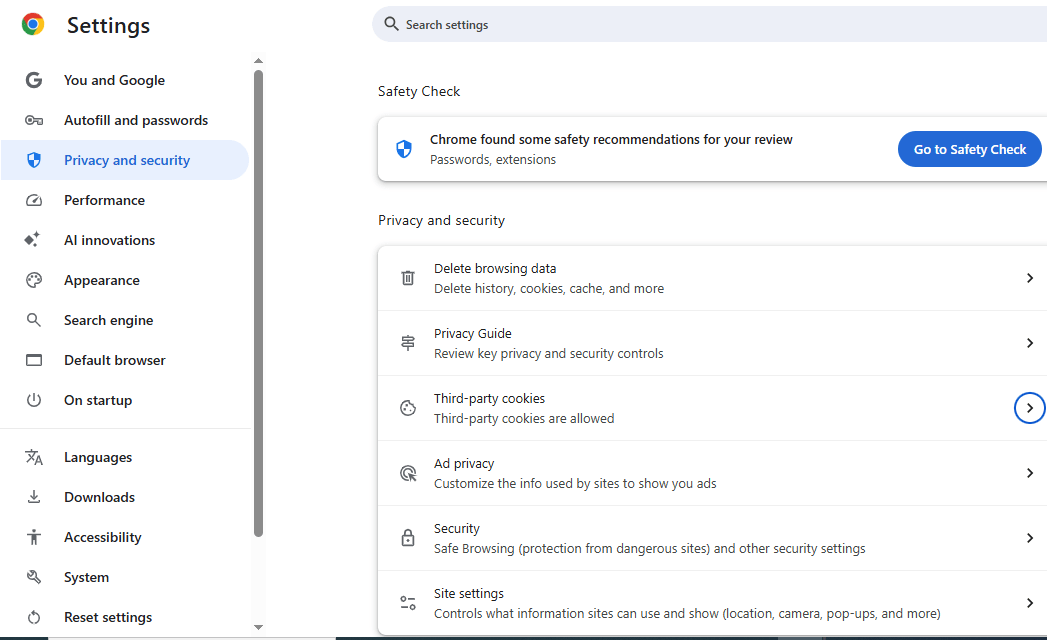
- Open the Google Chrome application
- Click on the Customize and control Google Chrome option
- Situated in the top-right corner (three vertical dots)
- Then, proceed to select Settings
- Now, navigate to the Privacy and Security tab

- Select the Third-party cookies option
- Click on See all site and data permissions
- Then, go to the Search bar
- The search bar is located to the right of third-party cookies
- Then, type and enter Intuit in the search bar
- Lastly, select Remove All
Mozilla Firefox
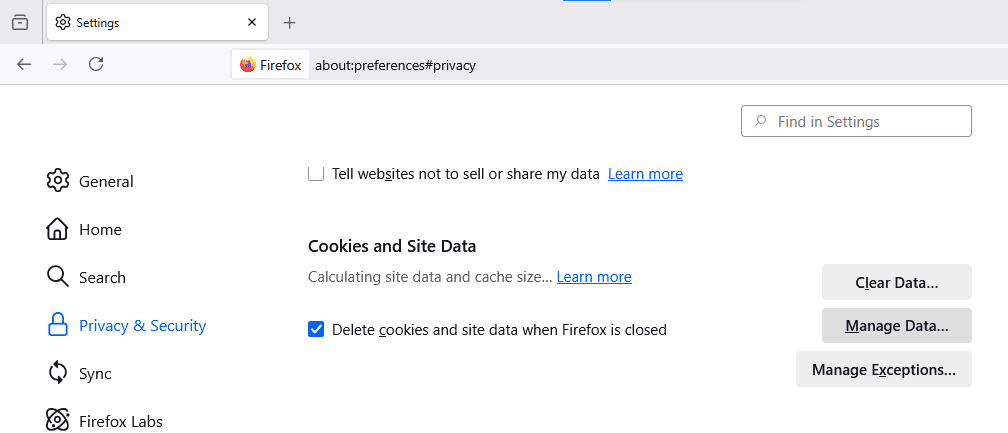
- Open the Mozilla Firefox browser
- Select the three lines located at the top right corner
- Situated below the Close (X) window option
- Now, click on Settings
- Then, press Privacy & Security
- Navigate to Cookies and Site Data

- Now, you will have to open the Manage Data window
- Go to the Search Websites bar in the window
- Type in Intuit and press Enter
- Click on the Remove All Shown option
- Lastly, select Save Changes
Microsoft Edge
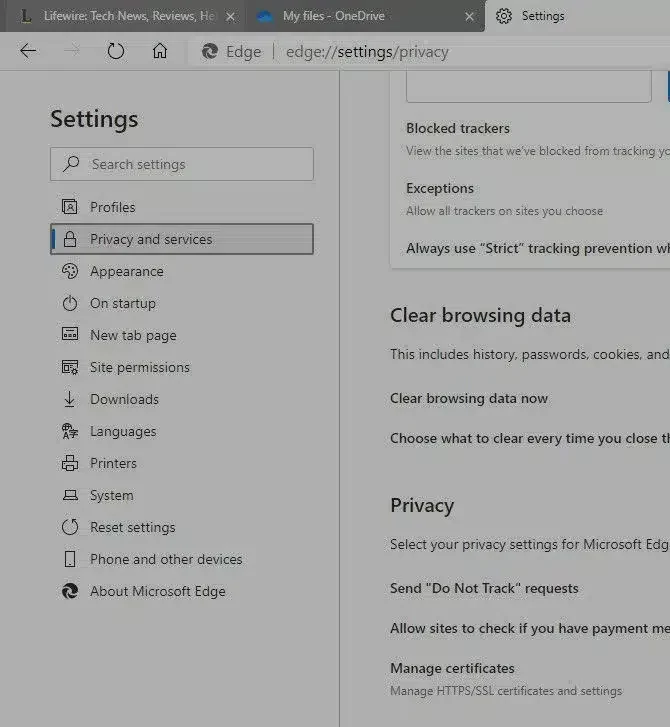
- Access your Microsoft Edge web browser
- Click on the Settings and more option
- Situated in the top-right corner
- Alternatively, you can also press Alt + F to open it
- Then, select Settings
- Now, navigate to the Privacy, search, and services tab

- Select Cookies
- Click on the See all cookies and site data option
- Go to the search bar
- Type in Intuit and hit Enter
- Press Remove all shown
- Lastly, click on the Clear option
Safari for Mac
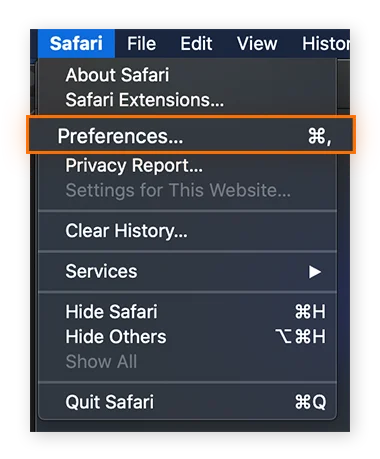
- Open the Safari browser on your Mac
- Click on Preferences

- Then, navigate to the Privacy section
- Click on Manage Website Data
- Now, type in Intuit in the search box and press Enter
- Select the Remove All option
Opera
- Double-click on the Opera browser’s icon to open it
- Select the three horizontal lines located below the minimize icon
- Then, click on Privacy and Security
- Press Third-party cookies
- Click on the See all site data and permissions option
- Navigate to the Search bar
- Type in Intuit and hit Enter
- Click on the bin icon beside the results you see
- Select the Delete option
Safari for iPhone/iPad
- Open the Settings app on your iPhone (or iPad)
- Now, tap on Apps
- Then, select Safari from the list of apps you see
- Press the Advanced option
- Tap on Website Data
- Then, type Intuit in the search bar
- Press Edit in the bottom right corner of your phone
- Lastly, just tap on the red button beside the results to clear them all
Brave
- Access the Brave browser
- Press the menu in the top-right corner
- Click on Settings
- Now, select the Additional Settings option
- Press Privacy and Security
- Then, click on Site and shields settings
- Select Cookies and site data
- Now, select the View permissions and data stored across sites option
- Navigate to the search bar
- Type Intuit
- Lastly, press Remove All Shown
Clear the QuickBooks Online Application Cache On Android
QuickBooks Online can also be used via an app on your smartphone. You can clear QuickBooks cache of this app on your Android smartphone (iPhone doesn’t have the option to clear app cache) using these steps:
- Unlock your phone and go to the Settings app
- Now, the steps would vary depending on your Android skin
- Tap on Apps
- Choose the QuickBooks Online app from the list of applications you see
- Select Storage & Cache
- Finally, tap on the Clear cache option
Performing these steps would clear the cache of your QBO mobile application.
Clear QuickBooks Cache & Cookies | A Quick View Table
In the table below is given a concise summary of this blog on the topic of how you can clear QuickBooks cache and cookies from your web browser:
| Description | The QuickBooks cache and cookies can pile up in your browser and can cause it to not work or load properly. Therefore, it is important to clear the QB cache and cookies from time to time to resume working on your critical business processes. |
| Steps to clear the QB cache on your browser | The steps to clear cookies and cache can vary depending on the browser you use. The major outline is to go to the third-party cookies section, search for Intuit, and clear all the results you see. |
| Steps to clear the cache of the QBO mobile app | Open the Settings app on your Android phone, tap on Apps, choose the QuickBooks Online app from the list of applications you see, select Storage and Cache, and press Clear Cache. |
Conclusion
In this blog, we talked about the importance to clear QuickBooks cache and cookies, along with how it can have a negative impact on your workflow if you fail to do so. Moreover, we also provided you with guided steps you can use to clear the QB cache for various different web browsers. If you can’t clear cache QuickBooks Online, contact our experts at 1-855-888-3080 today for guided assistance!
FAQs
How to clear cache in QuickBooks Online?
The steps to clear cache in QuickBooks Online vary depending on the web browser you use. However, the basic outline is to look for third-party cookies in your browser settings, search for Intuit, and delete the results you see. For detailed steps for different web browsers, read the blog above.
How to clear QuickBooks Desktop cache?
To clear the QuickBooks Desktop cache, you can rename the QBWUser.ini file located at C:\Users\[Your User Name]\AppData\Local\Intuit\QuickBooks [Year]. You just have to add the word old at the end of your file. For example, QBWUser.ini.old.
How to clear QuickBooks data?
To clear your QuickBooks Online data, you can use the purgecompany tool if your account is less than 60 or 90 days old. To do so, go to the purgecompany tool in QBO, type in YES to confirm, and follow the steps on your screen.
Read More Useful Articles:-
Quickbooks Tax Table Not Updating Windows 10
Why won’t QuickBooks payroll update?
What is error 12031 in QuickBooks?
Why do my QuickBooks keep closing?
How do I change a primary admin in QuickBooks Online?

Erica Watson is writing about accounting and bookkeeping for over 7+ years, making even the difficult technical topics easy to understand. She is skilled at creating content about popular accounting and tax softwares such as QuickBooks, Sage, Xero, Quicken, etc. Erica’s knowledge of such softwares allows her to create articles and guides that are both informative and easy to follow. Her writing builds trust with readers, thanks to her ability to explain things clearly while showing a real understanding of the industry.