


QuickBooks offers an add-on feature called Payroll on a subscription basis. This feature has multiple tools and elements that can help you cut time and make your accounting and bookkeeping processes smooth-sailing. One of the elements present in the QB Payroll is direct deposit. With the help of direct deposit, you can send paychecks directly to your employees’ bank accounts on payday. This eliminates the need for manually printing and handing out checks, which saves you a lot of time and money. If you, too, are looking to activate direct deposit in QuickBooks, you’ve come to the right place. We’ll cover the steps to activate and set up direct deposit in QuickBooks in this blog.
Are you having issues activating your direct deposit in QuickBooks? Contact our experts today to resolve your problem in no time!
Table of Contents
What is Direct Deposit in QuickBooks? A Concise Explanation
Direct Deposit in QuickBooks is a convenient feature through which you can pay your employees or contractors without needing to handwrite or print the paychecks. For setting up and using direct deposit, your business needs a US bank account that supports bank transfer (ACH) transactions. This helps you cut both costs and time. However, some fees may apply for using direct deposit according to your payroll subscription. So let us cover how you can activate and set up your direct deposit in both QB Online and Desktop.
A. How to Activate Direct Deposit in QuickBooks Desktop Payroll: Steps for Set Up & Activation
We’ll cover the guided steps to activate and set up direct deposit in the QB Desktop application. However, there are certain requirements of information you need to have, those are:
- Business name, address, and EIN
- Principal officer’s Social Security Number (SSN), birth date, and home address
- Online bank credentials
- Or your bank’s account and routing numbers
- Employees’ or contractors’ bank account info
Once you have this information on hand, follow the steps given below to activate and set up direct deposit in QuickBooks Desktop:
Step 1: Connect Your Bank Account With QB Desktop
- Open the QB Desktop app
- Sign in with the admin ID and password
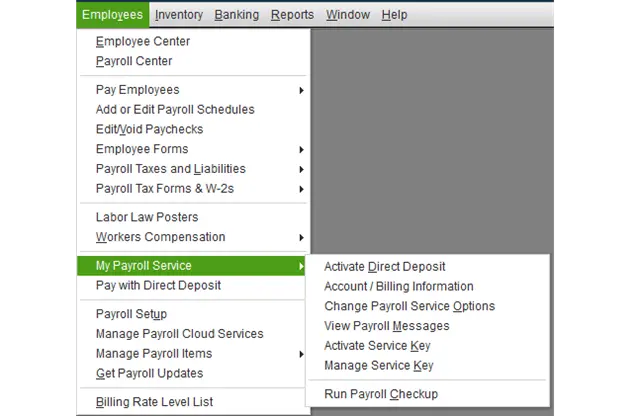
- Navigate to the Employees menu
- Click on My Payroll Service

- Then, select Activate Direct Deposit
- Press Get Started. If you don’t see this option, follow these steps:
- Select I’m the admin, and I’m the primary person who can… and enter your admin user ID
- Hit Continue
- Enter the user ID and password for your Intuit account
- Select Sign In
- Select Get Started
- Go to the Business tab
- Select Start
- Fill in the information and press Next
- Feed in the Principal Officer information
- Hit Next
- Click on Add new bank account
- Enter the name of your bank and your online banking credentials
- Or enter the bank account and routing numbers
- Create a PIN you’ll use for sending payroll each time
- Click on Next
- Hit Submit
- Click on Next again
- Select Accept and Submit
- If you are prompted, confirm the full social security number of your Principal Officer and hit Submit
You’ll receive a confirmation message after submitting. If you see that your bank is connected instantly, you can skip the next step; otherwise, follow along.
Step 2: Verify Your Bank Account in QB Desktop
If you weren’t able to connect your bank account instantly, Intuit would send a test debit of less than $1.00 to the account you connected. This might take up to 2 business days to show. When you see the test debit, you should enter the exact transaction amount in QB Desktop to authorize the account for payroll transactions with the steps given below:
- Open the QuickBooks Desktop app
- Sign in as the QB admin
- Navigate to the Employees menu
- Select My Payroll Service
- Click on Activate Direct Deposit

- Sign in to your Intuit account
- Enter the debit amount twice
- Select Verify
- Enter your payroll PIN
- Press Submit
- Hit OK
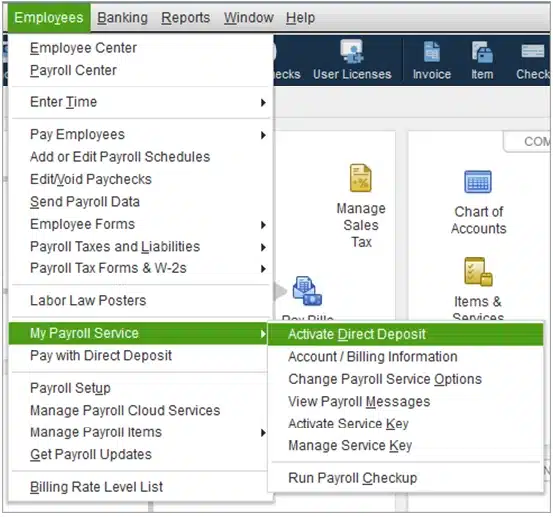
If you don’t see the Activate Direct Deposit option, follow these steps:
- Navigate to the Employees menu
- Select Manage Payroll Cloud Services

- Let it load completely
- Close it
- Follow the steps given above to verify your account

After the account is verified, you can pay your employees or contractors via direct deposit in QuickBooks Desktop. This would activate direct deposit in QuickBooks.
Step 3: Set Up Employees’ Direct Deposit
To set up direct deposit in QuickBooks for your employees, you should have the following information in hand:
- Business Information:
- Legal name
- Address
- Employer Identification Number (EIN)
- Principal Officer Information:
- Full name
- Home address
- Social Security Number
- Date of birth
- Bank Information:
- Your company’s bank account and routing numbers
You would also need a voided check from your employees or specific banking information, like bank account number and routing number. Once you have this information, follow the steps given below:
- Open the QBDT application
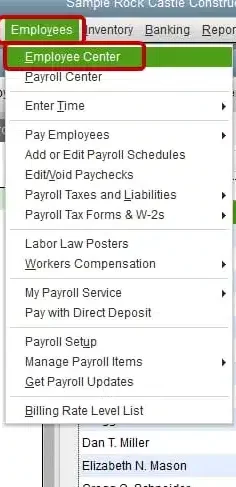
- Go to the Employees menu
- Click on Employee Center

- Choose the employee’s name
- Then, navigate to the Payroll Info tab
- Click on the Direct Deposit button
- The Direct Deposit window would open
- Then mark the Use Direct Deposit for [employee’s name] checkbox
- Choose whether the paycheck would be deposited into one or two accounts
- Enter the employee’s banking information:
- Bank Name
- Routing Number
- Account Number
- Account Type
- If you choose to deposit the money in two accounts, enter the amount or percentage for the first account
- The remainder will go to the second account
- Hit OK to save
- When prompted, enter your direct deposit PIN
- Repeat the steps for each employee
This would set up and activate direct deposit in QuickBooks for your employees. If you wish to set up direct deposit for your contractors, follow the steps in the next section.
Set Up Direct Deposit for Your Contractors in QuickBooks Desktop
The QuickBooks direct deposit setup for your contractors in the QB Desktop application can be done by following the steps given below:
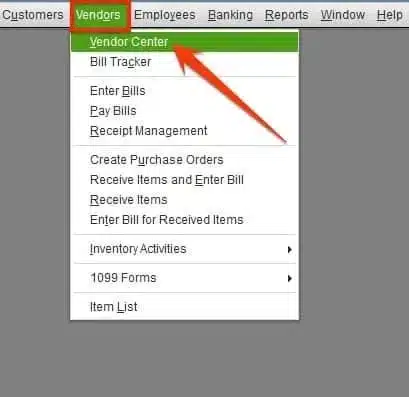
- Open the Vendor Center in QB Desktop

- Double-click your vendor
- Go to the Additional Info tab
- Click on Direct Deposit
- Mark the Use Direct Deposit for: [Vendor Name] box
- Enter the bank info
- Split direct deposit payment isn’t available for contractors
- Select Send confirmation direct deposits to [email address] if you’d like a payment confirmation
- QB will send you an email two days before the direct deposit posts to your contractor’s account
- The email would include:
- Your company’s name
- The payment amount
- The date the direct deposit will be posted to your contractor’s account
- The last four digits of the contractor’s bank account number
- Enter your Direct Deposit PIN
- Hit Continue
Performing these steps would complete the setup and activation of direct deposit in QuickBooks Desktop.
B. How to Set Up & Activate Direct Deposit in QuickBooks Online
In this section, we’ll cover the steps to set up and activate the direct deposit in QB Online. The information you’ll need to have in hand before setting up is:
- Business name, address, and EIN
- Principal officer’s Social Security Number (SSN), birth date, and home address
- Online bank credentials
- Or your bank’s account and routing numbers
- Employees’ or contractors’ bank account info
Once you have this information on hand, follow the steps given below to activate and set up direct deposit in QuickBooks Online:
Step 1: Connect Your Bank Account With QB Online
- Click on Get Started
- Navigate to the Business section
- Select Edit
- Add your federal tax ID number and any other missing information
- Click on Next
- Add the Principal Officer’s:
- Name
- Address
- Date of birth
- Social Security Number
- Press Next
- Click on Add new bank account
- Search for your bank’s name
- You will be asked to enter your online banking user ID and password
- If you are unable to connect automatically, click on Enter bank info manually and then:
- Enter your bank account and routing numbers
- Press Save
- Lastly, select Accept and Submit
If you see that your bank is connected instantly, you can skip the next step; otherwise, look at the steps given below.
Step 2: Verify the Bank Account
If you weren’t able to connect your bank account from the get-go, Intuit would send a test debit of less than $1.00 to the account you connected with QB Online. This might take up to 2 business days to show. After you see the debit, ensure you enter the exact amount in QB Online for authorizing your account for payroll transactions with the steps given to you below:
- Click on Let’s Go on the Check your bank account item from the To Do List
- Then, select Verify Amount
- Enter and confirm the transaction amount (no decimal point)
- Press Verify
If the New Payroll Tasks option doesn’t exist, use these steps to verify your account:
- Go to the Settings menu in QB Online
- Select Payroll Settings

- Go to the Bank Accounts section
- Select Edit
- Click on Verify Amount
- Enter and confirm the amount

This would verify your bank account in QB Online.
Step 3: Set Up Direct Deposit for Your Employees
Before you proceed with the steps to set up direct deposit for your employees, ensure you have the following information in hand:
- Business Information:
- Legal name
- Address
- Employer Identification Number (EIN)
- Principal Officer Information:
- Full name
- Home address
- Social Security Number
- Date of birth
- Bank Information:
- Your company’s bank account and routing numbers
Your employees would also need to fill out, sign, and date a direct deposit form. They’ll need to attach a voided check from their bank account. This is for your records only. The steps to open a direct deposit authorization form are as follows:
- Select Filings
- Then, click on Employee Setup
- Click on Bank Verification next to Authorization for Direct Deposit
- Press View
Now, proceed to add direct deposit information for your employees with the steps given below:
- Select your employee
- Go to the Payment Method section
- Select Start
- Then, open the Payment Method dropdown menu
- Click on Direct deposit
- Choose a method for direct deposit:
- Direct deposit to one account
- Direct deposit to two accounts (split by dollar amount or percentage)
- Direct deposit with balance as a check
- Enter the routing number and account number from the employee’s voided paycheck
- Press Save
If you wish to set up direct deposit for your contractors, follow the steps in the next section.
Set Up Direct Deposit For Your Contractors in QuickBooks Online
You can invite your contractors to add their own W-9 or bank details, or add them yourself with the steps given below:
- For a new contractor, click on Add Contractor
- Or select an existing contractor
- Click on Bank Account
- Enter the following as prompted:
- Account Number
- Account Type
- Routing Number
- Account holder Phone Number
- Account holder Full Name
- Press Save
This should set up and activate direct deposit in QuickBooks Online.
Resolve the QuickBooks Direct Deposit Activation Not Working Problem
Listed below are some troubleshooting methods that you can implement to resolve the direct deposit activation not working in QuickBooks problem:
1. Update the QB Desktop App
You can update the QB Desktop application in order to fix the direct deposit activation not working in QuickBooks with the steps given below:
- Open the QB Desktop application
- Navigate to the Help menu
- Select Update QuickBooks

- The Update QuickBooks window would open
- Select the Reset Updates checkbox
- Click on Get Updates
- Hit OK
- Restart the QB Desktop app to install the updates
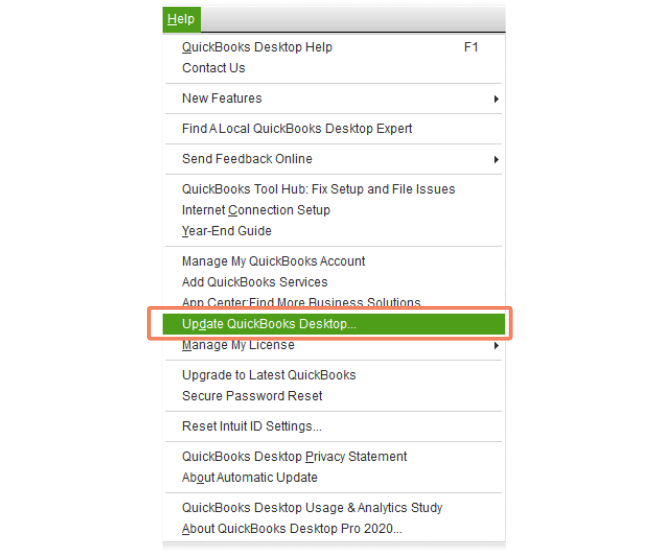
This would resolve the direct deposit activation error.
2. Verify and Rebuild the Company File Data
A damaged company file can potentially be the reason that you cannot activate direct deposit in QuickBooks Desktop. Verify and rebuild your company file data with the steps given below:
- Open the QB Desktop application
- Navigate to the File menu
- Click on Utilities
- Select Verify Data

- Then, open the File menu again
- Select Utilities
- Click on the Rebuild Data option

- QB will ask to create a backup before it rebuilds your company file
- Press OK
- Do not replace an existing backup file
- Type in a unique name in the File name field
- Press Save
- You would get a message that states Rebuild has completed
- Select OK
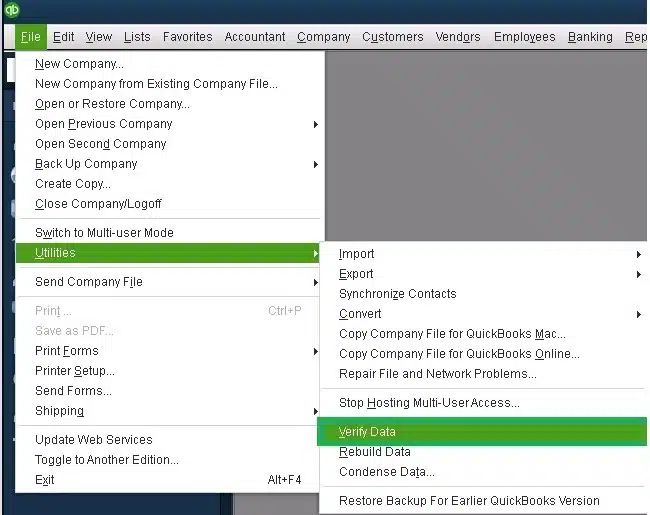
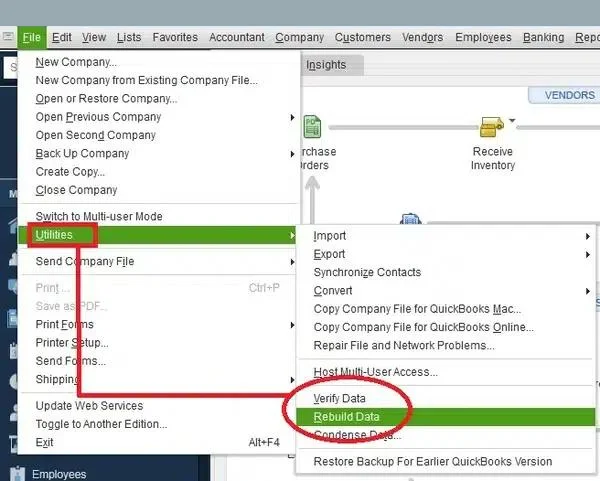
Now, the QuickBooks Direct Deposit activation not working problem should be fixed.
3. Use the Quick Fix My Program Tool
You can use the Quick Fix My Program Tool from the QB Tool Hub to resolve the QuickBooks Direct Deposit activation problem with the following steps:
- Download and install the QuickBooks Tool Hub
- Open the QB Tool Hub app
- Navigate to the Program Problems tab
- Click on Quick Fix My Program

- Let the tool run
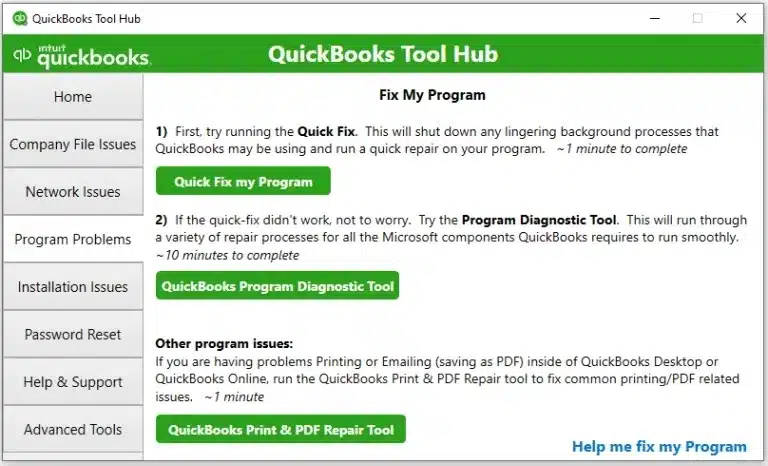
Performing these steps would fix the direct deposit activation issue.
Activate Direct Deposit in QuickBooks – A Quick View
Given in the table below is a concise summary of this blog on the topic of how to set up and activate the direct deposit feature in QuickBooks Payroll:
| Description | Direct deposit is a feature present in QuickBooks Payroll, which can enable you to send paychecks directly into your employees’ bank accounts. This cuts both time and costs. |
| Steps to set up in QB Desktop | Connect your bank account with QuickBooks Desktop, verify your bank account by entering the test transaction, and set up direct deposit for your employees. |
| Steps to set up in QB Online | Connect your bank account with QuickBooks Online, verify your bank account by entering the test transaction, and set up direct deposit for your employees. |
| Fix activation issues in QB Desktop | Update the QB Desktop application, verify and rebuild the company file data, and use the Quick Fix My Program tool. |
Conclusion
Direct deposit in QuickBooks is a feature present in the Payroll service, which eliminates the need for handwriting or printing checks manually, and enables you to deposit paychecks directly into your employees’ or contractors’ bank accounts. We have covered the steps you need to know to set up and activate direct deposit in QuickBooks Online and Desktop. If you are facing any issues while trying to activate your direct deposit, contact our experts at 1-855-888-3080 today to resolve your problem at a moment’s notice!
What is a QuickBooks direct deposit?
A QuickBooks direct deposit is a payment method that allows its users to pay their employees and contractors electronically, thus saving time and money. QuickBooks payroll offers same-day direct deposit for employee and contractor paychecks with a cutoff at 7 AM PT.
How to setup direct deposit in QuickBooks Desktop?
You can set up direct deposit in QuickBooks Desktop with these steps:
– First, you need to connect your bank account with QB Desktop
– Then, if needed, verify your bank account by entering the transaction amount
– Lastly, set up direct deposit for your employees
How to setup direct deposit in QuickBooks Online?
If you want to set up direct deposit in QuickBooks Online, here’s a breakdown of the procedure involved:
– Firstly, you should connect your bank account to QuickBooks Online
– Next, if your bank wasn’t set up instantly, enter the test transaction to verify your bank account
– Finally, set up direct deposit for your employees
What if my account isn’t active for QB direct deposit?
If you aren’t able to activate direct deposit, the following reasons might be responsible:
– You have entered an invalid or incorrect bank account.
– You weren’t able to initiate a test transaction due to zero bank balance.
– The test transaction amount entered might be incorrect.
How can I fix direct deposit activation issues in QuickBooks?
You can fix direct deposit activation issues in QB Desktop with these methods:
– Update the QB Desktop app
– Verify and rebuild your QB company file data
– Use the Quick Fix My Program tool
More Useful Articles :
Why Direct Deposit Did Not Process In QuickBooks?
How to get an Instant Deposit on QuickBooks
What is error 40003 in QuickBooks Payroll?
How to fix error 2107 in QuickBooks Desktop?
Fix QuickBooks Desktop Migrator Tool Not Working

Erica Watson is writing about accounting and bookkeeping for over 7+ years, making even the difficult technical topics easy to understand. She is skilled at creating content about popular accounting and tax softwares such as QuickBooks, Sage, Xero, Quicken, etc. Erica’s knowledge of such softwares allows her to create articles and guides that are both informative and easy to follow. Her writing builds trust with readers, thanks to her ability to explain things clearly while showing a real understanding of the industry.