


QuickBooks includes multiple features and tools that reduce manual labour and the risk of errors. Nevertheless, since humans operate the application, they are bound to make some errors while recording figures. Payroll mistakes in QuickBooks are one such error. We can resolve those mistakes to an extent; after that, you have to make adjustments. In this blog, we will focus on discussing some common payroll errors that users make. We’ll provide you with step-by-step, casewise guided solutions, along with general fixes, so that you can resolve your issue in no time!
If you could not find your error in the blog and need help with something similar, we recommend that you get in touch with our experts to discuss this further. Call Proadvisor Solutions’ Helpdesk at +1-855-888-3080 right now.
Table of Contents
Reduce the Paycheck Wage for an Employee Who has Been Overpaid
There may be an instance where you accidentally overpaid an employee. In this case, you can add a new deduction payroll item to a paycheck for the overpaid employee. This is how you can do so in QB Online and Desktop:
In QuickBooks Desktop
- Open the QB Desktop app
- Go to Lists

- Click on Payroll Item List
- Press the Payroll Item button
- Select New
- Then, proceed to click on Custom Setup
- Hit Next
- Select Deductions and press Next
- Feed in a name for the payroll item that will be easily identifiable
- Press Next
- Choose a tax tracking type for Compensation
- Hit Next twice
- Press Calculate this item based on Quantity if your employee was paid hourly
- Or press Neither if the employee was paid using a salary item
- Hit Next
- Select Finish
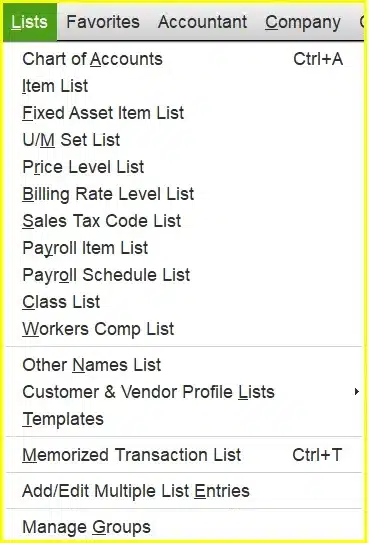
Then, add the new deduction item to a paycheck for the overpaid employee, and then feed in the amount of overpayment. The deduction item must be added to equal or more earnings than the amount that will be deducted. QB can’t create a check with negative net pay.
In QuickBooks Online
First, void the paycheck if it is still processing with the steps given below:
- Go to the Payroll menu in the left-hand pane
- Click on Overview
- Or go to the Employees tab
- Select Paycheck List
- Choose the affected paycheck
- Click on the dropdown menu in the Action column
- Press, Edit, Delete, or Void Paycheck
- Confirm the action you selected (Delete/Void Paycheck)
- Hit Save
Then, recreate the paycheck with the steps given below:
- Press Run Payroll
- Choose the pay schedule you wish to run
- Then hit Continue
- Select or review the following:
- Pay period
- Pay date
- Choose the employee you want to pay
- Click on the column
- Or select Actions and then Edit Paycheck to enter the pay details
- Press Preview payroll
- Choose or review the QB Bank account to track the payroll
- Click on Preview payroll details
- Submit payroll
- Hit Close
This would fix QuickBooks Payroll Mistakes.
Handle a Paycheck that Wasn’t Received by an Employee
Sometimes the direct deposit information in QB Payroll can be incorrect, leading to your employee not receiving the paycheck. This can come with two scenarios, so let us see how to resolve both with the steps given below:
Scenario 1: The Account or Routing Number is Not Correct
If your employee’s account or routing number is incorrect, you can further be dealing with two different scenarios:
- If it is a Live Account:
- Request a direct deposit reversal within 5 business days from the pay date (the paycheck date counts as the first day). However, this doesn’t guarantee the recovery of funds.
- Then, wait until the reversal gets completed
- You can pay your employee with a regular check in the meantime
- After you have the result, update your employee’s bank account
- If the account doesn’t exist or is closed, and the deposit was rejected:
- Void the paycheck
- Update the employee’s bank account
- Recreate the paycheck and send a new direct deposit
Scenario 2: The Account is for Another Employee
If the account the paycheck was deposited into is owned by another employee, you have two options:
- Option 1: Make an arrangement with the employee who received the extra payment to return the funds by cash, check, etc
- Option 2: Request a direct deposit reversal within 5 business days from the paycheck date. This doesn’t guarantee the recovery of funds:
- Wait until the reversal is completed
- Pay your employee with a regular check in the meantime
- Update the employee’s bank account
How to Fix a Mistake on a Payroll Check?
There can be various types of errors in payroll checks, including incorrect details entered by mistake.
If the paycheck is not yet cashed or issued, you can fix the mistake by making changes in the initial check-
- Open QuickBooks.
- Locate the employee’s paycheck and open it.
- You should now be on the Review Paycheck window.
- Click on the Unlock Net Pay button.
- You need to override the numbers to fix the deduction issues.
- Check the information again to avoid any further errors.
- Hit the OK button.
- You can now reprint the paycheck.
But, if the paycheck has been processed, the only option to rectify the error is to issue a reimbursement check and make an adjustment in the liability to balance your report. This is how you can adjust the liability-
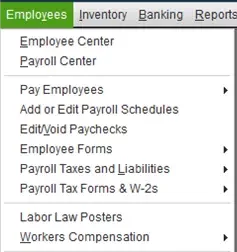
- Click on the Employees tab in QuickBooks.
- Select the Payroll Taxes and Liabilities option.
- Choose to Adjust the Payroll Liability.

- Input the exact dates in the given fields.
- Select the Employee button.
- Move to the Item Name section.
- Here, you must carefully select the current tax item.
- Go to the Amount section.
- Enter the negative excess amount here.
- Hit the OK button.
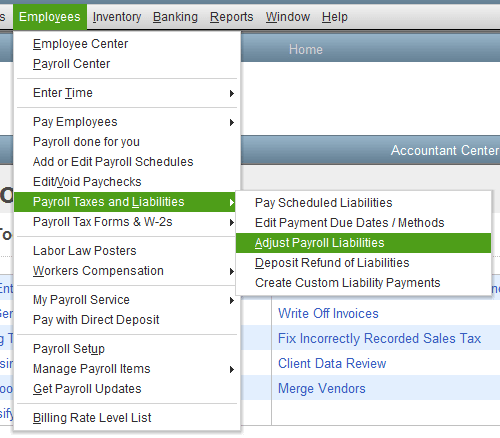
Direct Deposit Payroll Correction in QuickBooks
Users often make errors in their gross pay when using Direct Deposit. To rectify it, they can either cancel the payroll or edit the gross pay, depending on the situation. Follow the instructions below to make these amendments-
- We need to check the current payroll status.
- Press the Employees tab in QuickBooks.
- Select the My Payroll Service option.

- Choose Account / Billing Information.

- Use your Intuit login credentials to proceed.
- Go to the Direct Deposit screen.
- Click on View Payroll Activity.
- Enter your Direct Deposit PIN in the given field.
- Look for the check to stop/cancel.
- If it can be cancelled, click on Employees again.
- Tap on Edit/Void Paychecks.

- Move to the Show paychecks through/from the section. Here, you need to amend the dates to match the check date.
- Choose the check to be cancelled.
- Press the Void button.
- If the program prompts you to allow access, select Yes.
- Press Void again.
- Accept the Terms and Conditions.
- If you want to cancel multiple checks, follow the procedure again and close the window.
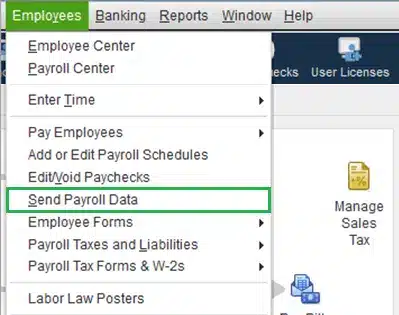
- Go back to the Employees tab.
- Click on Send Payroll Data.

- Hit the Send button.
- Direct Deposit will no longer include these checks.
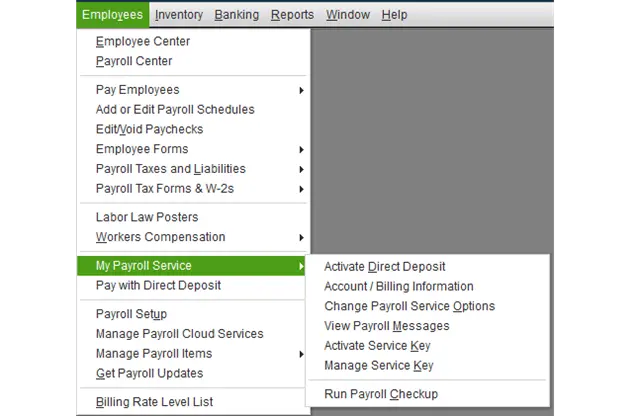
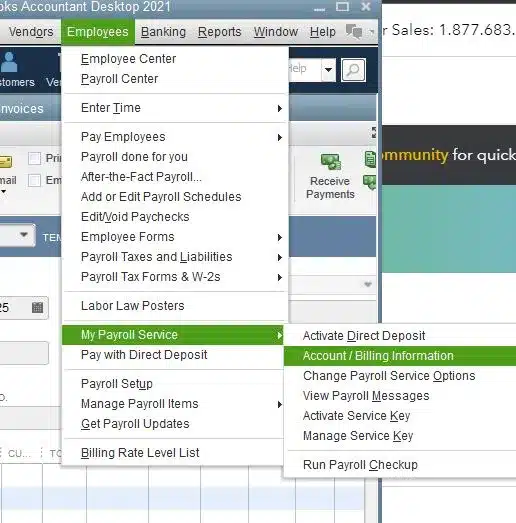
The payroll mistakes in QuickBooks should now be resolved.
Payroll Mistakes in QuickBooks – A Quick View Table
Given in the table below is a concise summary of this blog on the topic of common payroll mistakes in QB:
| Description | Due to human error, certain payroll mistakes in QB can occur, such as overpaying an employee, the paycheck not being received by an employee, or mistakes in a payroll check. This can hamper your workflow and important business processes. |
| Employee has been overpaid | For QuickBooks Desktop: – Create a payroll deduction item – Then add the new deduction item to the paycheck for the overpaid employee For QuickBooks Online: – Void the paycheck if it’s still processing -Then, recreate a paycheck with the corrected amount |
| Employee didn’t receive the paycheck | Case 1: The account or routing number is incorrect: – If it is a live account, then request a direct deposit reversal within 5 days from the paycheck date – If it’s a closed account or doesn’t exist, and the payment was rejected, then void the paycheck, update the employee’s bank account, and recreate the paycheck. Case 2: The account is for another employee: – Make an arrangement with the employee to get a refund -Request a direct deposit reversal within 5 days from the paycheck date |
| Fix a payroll check mistake | Override the deduction issues and adjust the liabilities. |
Conclusion
Payroll mistakes in QuickBooks can occur due to human error, such as wrong direct deposit info or overpaying an employee. This can hamper your workflow and important business. We have covered the steps you can take to resolve such mistakes in a step-by-step fashion. If you are still facing the same problem, it is best to dial Proadvisor Solutions’ Payroll Support Number +1-855-888-3080. You can speak directly with a consultant and correct the mistake within a few minutes.
FAQs
How do I fix payroll mistakes in QB?
Depending on the scenario, you can fix payroll mistakes in QB with these methods:
– Reduce the paycheck wage for an employee who has been overpaid
– Handle a paycheck that wasn’t received by an employee
– Make direct deposit payroll corrections
What are some common payroll mistakes in QB?
Some common payroll mistakes in QB are:
– An employee was overpaid
– The paycheck wasn’t received by the employee
– There’s a mistake with the payroll check
Most Useful Articles:-
Why My QuickBooks Payroll Disappeared
How to renew QuickBooks Desktop Payroll subscription?
Get the Latest Tax Table Update in QuickBooks Desktop Payroll
Fix Payroll Service Connection Error in QuickBooks Desktop
Fix QuickBooks Desktop Payroll Most Common Errors

Erica Watson is writing about accounting and bookkeeping for over 7+ years, making even the difficult technical topics easy to understand. She is skilled at creating content about popular accounting and tax softwares such as QuickBooks, Sage, Xero, Quicken, etc. Erica’s knowledge of such softwares allows her to create articles and guides that are both informative and easy to follow. Her writing builds trust with readers, thanks to her ability to explain things clearly while showing a real understanding of the industry.