


The QuickBooks error 80004 is a payroll error that can occur when you try to perform critical payroll processes, such as calculating taxes or sending paychecks in the QBDT app. It can appear on your screen due to a damaged QuickBooks company file or an invalid or expired payroll service subscription. You can fix it by verifying and rebuilding your QB company file and checking your payroll subscription. In this blog, we’ll cover the in-depth troubleshooting methods needed to resolve this problem. First, let us start with the causes of the QBDT error code 80004.
Are you having trouble using the payroll service in QuickBooks Desktop? Contact our experts at 1-855-888-3080 today to resolve your issue in no time!
Table of Contents
Potential Causes of the Error 80004 QuickBooks Desktop
Given below is a list of the factors that can cause the QuickBooks error 80004 to appear on your screen:
- Your company file is damaged or corrupted
- The QB Desktop app you’re using is outdated
- Your payroll subscription is invalid or has expired
- Your payroll service key is incorrect
- The payroll tax table is outdated
- An incorrect payroll service key
These were the causes of the error code 80004 QuickBooks.
Methods to Troubleshoot the QuickBooks Payroll Error 80004
The troubleshooting methods you can use to resolve the QuickBooks error code 80004 are given below:
Update the QB Desktop Application
You can update the QB Desktop application to resolve the QuickBooks Payroll error code 80004 with the steps given below:
- Open the QB Desktop app
- Navigate to the Help menu, followed by Update QuickBooks Desktop

- Click on Update Now
- Select Get Updates
- Close and reopen the QB Desktop app to install the updates
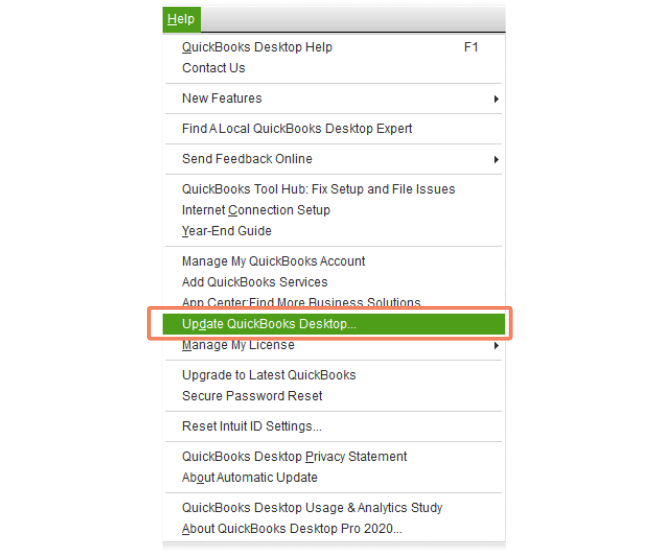
This would fix the QuickBooks Desktop error 80004.
Update the Payroll and Tax Table in QBDT
An outdated payroll can be the reason for the QBDT error 80004. Update your QB Desktop Payroll with the given steps:
- Open the QBDT app
- Navigate to the Employees menu
- Click on Get Payroll updates

- Press Download Entire Update
- Select Update
- An informational window would appear after the download is complete
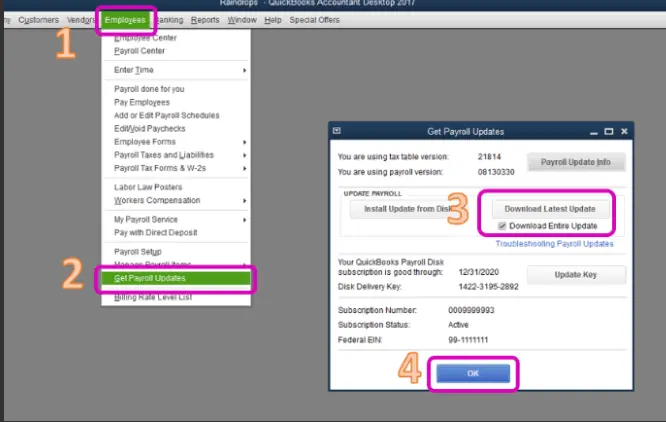
Now, the QuickBooks error 80004 will be fixed.
Reactivate Your Payroll Service Subscription in QB Desktop
You can resubscribe to your payroll subscription in the QB Desktop app to fix the QuickBooks error code 80004 with these steps:
- Open the QuickBooks Desktop app
- Navigate to the Employees menu
- Select My Payroll Service
- Click on Account/Billing Info

- Sign in using your Intuit account
- The QuickBooks Account page would open
- Go to the Status section
- Select Resubscribe
- Follow the steps on your screen to reactivate the payroll subscription
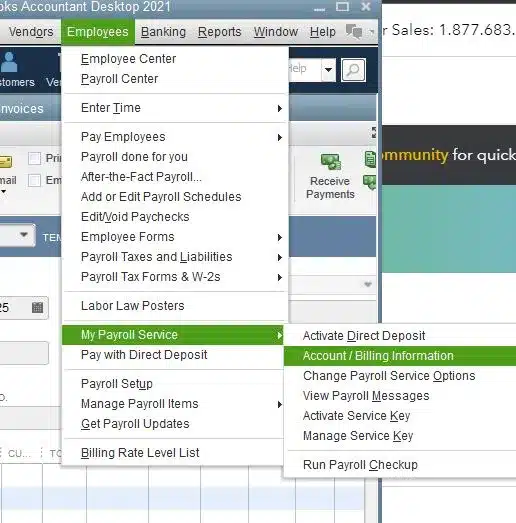
The QuickBooks error code 80004 would now be fixed.
Check Your Payroll Service Key
Verify your payroll service key to troubleshoot the QuickBooks error message 80004 with the following steps:
- Open the QB Desktop app
- Navigate to the Employees menu
- Click on My Payroll Service

- Press Manage Service Key
- Verify if these two fields are shown as Active:
- Service Name
- Status
- Select Edit
- Verify if your payroll service key number is correct
- If it is not correct, enter the correct service key number
- Click on Next
- Unmark the Open Payroll Setup checkbox
- Hit Finish
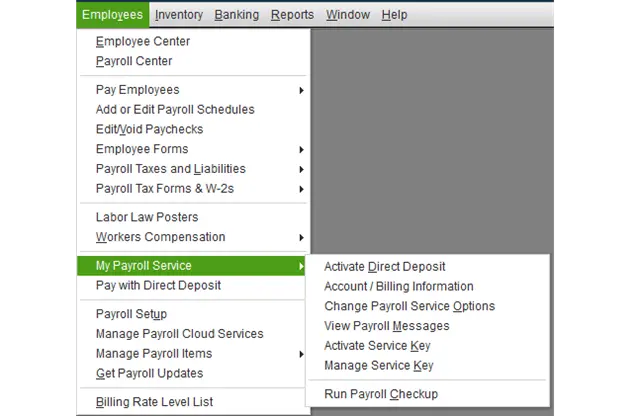
This would resolve the QB Desktop error 80004.
Verify and Rebuild the QB Desktop Company File
You can repair your damaged company file using the verify and rebuild data utility to patch the QuickBooks error 80004 with the following steps:
- Open the QB Desktop app
- Navigate to the File menu
- Click on Utilities
- Press the Verify Data option

- Then, go to the File menu again
- Press Utilities
- Click on the Rebuild Data option

- QB will ask to create a backup before rebuilding your company file
- A backup is required to rebuild your company data
- Press OK
- Choose where you wish to save the backup file
- Hit OK
- Make sure not to replace any existing backup copies of your company file
- Type in a unique name in the File name section
- Press Save
- Select OK when you see the Rebuild has completed message
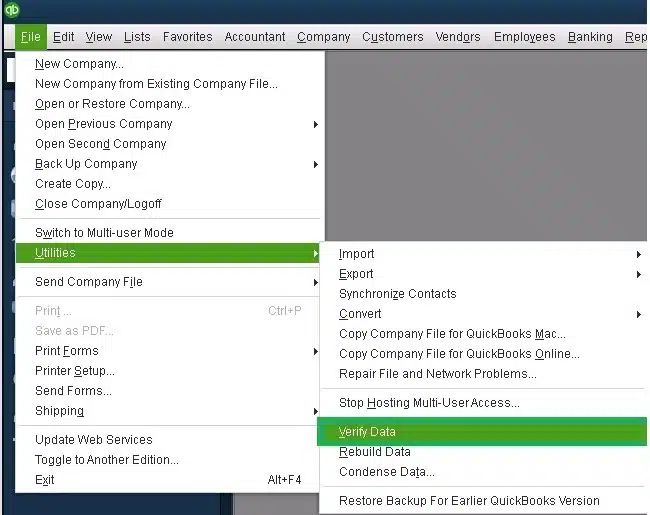
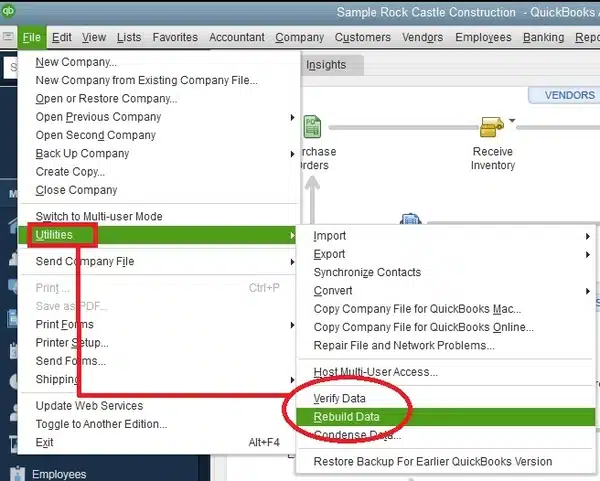
Performing these steps would fix the QuickBooks Payroll error 80004.
Make Firewall Exceptions for QB Desktop
Your Firewall might be blocking the QB Desktop application, leading to the QBDT error 80004. You can fix it by making Firewall exclusions for your QuickBooks software. This would also resolve any other issues you might be facing with the app.
Clean Install the QB Desktop App
You can clean install the QuickBooks Desktop application to mend the QB error 80004 with the following steps:
Step 1: Uninstall the QB Desktop App
- Open the Start menu on your PC
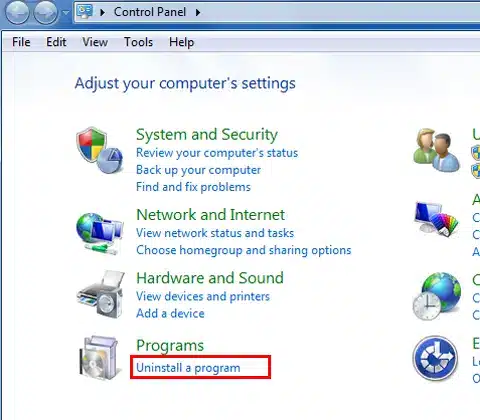
- Search for and open the Control Panel
- Click on Programs and Features or Uninstall a Program

- Choose QuickBooks Desktop from the list of programs you see
- Select Uninstall/Change
- Press Remove
- Hit Next
Step 2: Rename the QB Installation Folders
- Open the File Explorer on your pc
- Then, open the folder containing your QuickBooks company file
- The folder can be found in one of these locations:
- C:\ProgramData\Intuit\QuickBooks (year)
- C:\Users\(current user)\AppData\Local\Intuit\QuickBooks (year)
- C:\Program Files\Intuit\QuickBooks (year)
- 64-bit version C:\Program Files (x86)\Intuit\QuickBooks (year)
- Right-click on the folder
- Press Rename
- Add the word old at the end of the folder name
Step 3: Install the QuickBooks App
- Open the QB installation file
- QuickBooks.exe
- Choose between the two options:
- Express Install
- Custom and Network Options
- Press Next
- Click on Install
The QB error code 80004 should be fixed by performing these steps.
QuickBooks Error 80004 – A Quick View Table
In the table given below is a concise summary of this blog on the topic of the QuickBooks Pa yroll error 80004:
| Description | The QuickBooks error 80004 is a payroll error that can occur while performing vital payroll tasks such as sending paychecks and calculating taxes. This can hamper your workflow and important business processes. |
| Its causes | An outdated QB Desktop app, outdated payroll and tax tables, an invalid payroll service key, an expired payroll service subscription, a damaged company file, program problems with the QB Desktop app, and the Firewall blocking QBDT. |
| Ways to fix it | Update the QBDT application, update the payroll and tax table in QuickBooks Desktop, reactivate the QB Payroll subscription, verify your payroll service key, verify and rebuild your company data, make Firewall exclusions for the QBDT app, and clean install the QuickBooks software. |
Conclusion
The QuickBooks error 80004 is a payroll error that can occur while performing essential payroll tasks in the QB Desktop application. We have covered the potential factors along with the troubleshooting methods needed to resolve this problem in this blog. If you are still at bay with the same issue and are unable to use your payroll service, contact our experts at 1-855-888-3080 today to fix the error at a moment’s notice!
FAQs
Why am I seeing the QB error code 80004?
You might be seeing the QB error 80004 due to these reasons:
– An outdated QB Desktop app
– The Firewall is blocking QuickBooks
– An incorrect payroll service key
– Program problems with QBDT software
– A damaged QuickBooks company file
– An expired payroll service subscription
How can I fix the QB Desktop error 80004?
You can fix the QuickBooks error 80004 with these methods:
– Update the QBDT app
– Update the payroll and tax table
– Reactivate your QB Payroll subscription
– Verify your Payroll Service Key
– Verify and rebuild your QB company file
– Make Firewall exclusions for the QBDT app
– Clean install QuickBooks Desktop
Read More Useful Articles:
How to Resolve QuickBooks Update Error 1642
How to fix Save and Close Button Missing in QuickBooks Desktop
How to fix QuickBooks Error Code 6144 and 101
We Weren’t Able to Show Your Payroll Info Error
Clear QuickBooks Cache & Cookies in Your Web Browser
How to run a reconciliation discrepancy report in QuickBooks Online

Erica Watson is writing about accounting and bookkeeping for over 7+ years, making even the difficult technical topics easy to understand. She is skilled at creating content about popular accounting and tax softwares such as QuickBooks, Sage, Xero, Quicken, etc. Erica’s knowledge of such softwares allows her to create articles and guides that are both informative and easy to follow. Her writing builds trust with readers, thanks to her ability to explain things clearly while showing a real understanding of the industry.