


While trying to email invoices to your customers, you might find QuickBooks MAPI keeps asking for password. This forces you to manually enter the password each time you send an email via QB Desktop, which can become tiring and annoying over time. The problem can also lead to your invoice emails failing to send and not going through, ultimately hampering your workflow and important business processes. This can be due to the QB MAPI (Messaging Application Programming Interface) not being able to communicate with Outlook properly.
In this blog, we’ll cover the in-depth troubleshooting methods you need to know for resolving the issue of QuickBooks keeps asking for email password. First, let us take a look at the reasons why your QB MAPI keeps asking for a password.
Are you having trouble emailing invoices to your customers because MAPI prompts for a password every time? Contact our ProAdvisor Solutions experts at 1-855-888-3080 today to resolve your problem at a moment’s notice!
Table of Contents
QuickBooks MAPI Keeps Asking For Password – Potential Causes
Given below is a list of the factors that can potentially trigger the problem of your QuickBooks MAPI keeps asking for password:
- Your email account password is incorrect, resulting in your emails failing
- A damaged MAPI32.dll file can be another factor leading to this problem
- Your Microsoft Outlook profile being corrupted can also lead to this issue
- The email preferences in your QB Desktop app are incorrect
- An outdated QB Desktop app can lead to repeated requests by QuickBooks MAPI for your password
- Installation issues with your QBDT app can also be responsible for this problem
Let us now take a look at how you can set up Outlook for QB the right way to avoid facing this problem.
The Right Way to Set Up Outlook or Webmail for QuickBooks Desktop
Before we troubleshoot the problem of QuickBooks keeps asking for Outlook password, let us take a look at the correct way to set up Outlook or webmail:
Set Up Outlook for QuickBooks Desktop
Given below are the steps you can perform to set up Outlook for your QB Desktop application:
Step 1: Contact Your Email Provider & Get the Following Information
- Username
- Password
- Incoming email server address
- Incoming email server type
- Outgoing email server address
Step 2: Set Up Outlook
- Open the QuickBooks Desktop app
- Navigate to the Edit menu
- Click on Preferences

- Select Send Forms
- Click on Outlook
- Lastly, hit OK
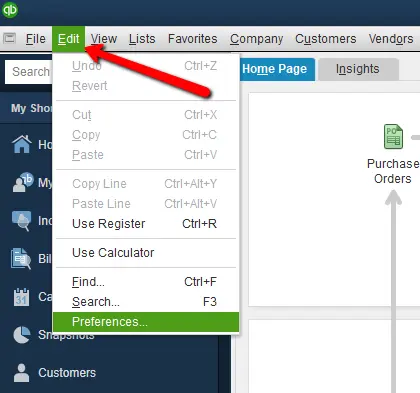
If you don’t see the Outlook option after selecting Send Forms, you can perform the troubleshooting steps given below.
Steps to Perform if Outlook is Missing
Given below are the steps you can perform if you don’t see Outlook in the Send Forms option:
- Close your QuickBooks Desktop app
- Open the Start menu on your PC
- Search for the Control Panel

- Open the Control Panel
- Now, type in Mail in the Control Panel’s search field
- Select Mail
- Click on Show Profiles
- Select the checkbox stating Always use this profile
- Hit OK
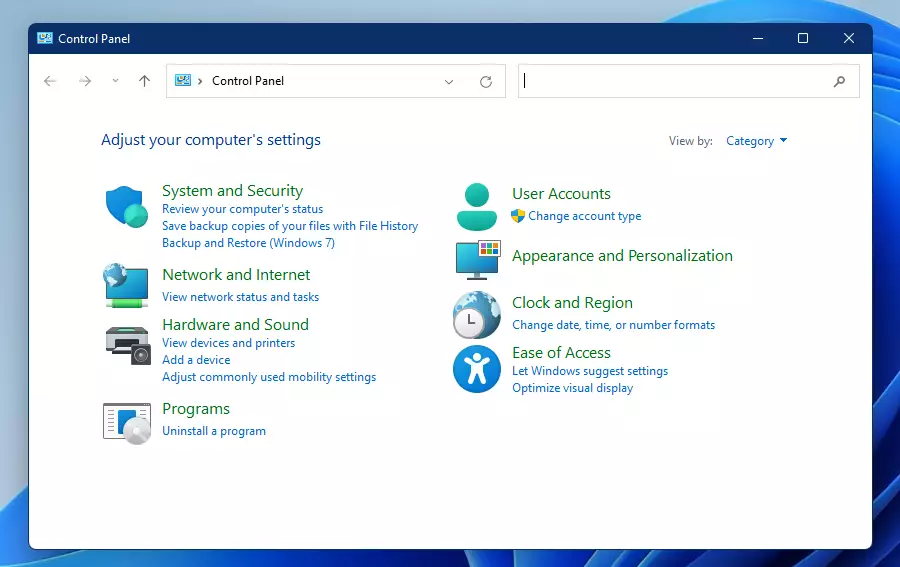
Now you would be able to select Outlook in the Send Forms section. If you use webmail instead of Outlook, you can look at the below-given section.
Set Up Your Webmail to Work With QBDT
There are some factors you should be aware of before setting up your webmail to work with the QBDT app:
- Webmail providers need users to enable two-step verification for their account settings for security reasons
- QB Desktop can auto-fill information for some of the common webmail providers
- You need to verify your webmail servers and port settings with your ISP
Now, let us take a look at the steps to set up your webmail.
Set Up Your Webmail
- Open the QB Desktop app
- Go to the Edit menu
- Click on Preferences
- Select Send Forms
- Click on Web Mail
- Press Add
- Fill out the Add Email info
- Press OK
- Hit OK to save the changes
This would set up webmail for QuickBooks Desktop.
ISP and Port Information
QuickBooks doesn’t support ISPs using STARTTLS encryption.
| ISPs | SMTP Server | SMTP Port |
| 1AND1.com | smtp.1and1.com | 587 (SSL enabled, with password) |
| AOL | smtp.aol.com | 465 or 587 (SSL enabled for incoming and outgoing mail servers) |
| COMCAST | smtp.comcast.net | 587 |
| COX Business | smarthost.coxmail.com | 465 or 587 |
| COX EAST | smtp.east.cox.net | 465 or 587 |
| EARTHLINK | smtpauth.earthlink.net | 25 (with password) |
| MICROSOFT OUTLOOK 365 | outlook.office365.com | 587 (SSL enabled) |
| PRODIGY | smtp.prodigy.net | 25 (SSL enabled) |
| SPRINT PCS | smtp.sprintpcs.com | 25 |
| VERIZON YAHOO | outgoing.yahoo.verizon.net | 465 |
| ADELPHIA | mail.adelphia.net | 110 |
| BELL SOUTH | mail.bellsouth.net | 110 |
| COMPUSERV | smtp.compuserve.comsmtp.aol.com | 110 or 587 |
| COX CENTRAL | smtp.central.cox.net | 465 or 587 |
| COX WEST | smtp.west.cox.net | 465 or 587 |
| LYCOS | smtp.mail.lycos.com | 25 |
| NETSCAPE | smtp.isp.netscape.com | 25 (SSL enabled) |
| ROADRUNNER | smtp-server.sc.rr.com | 587 |
| VERIZON | outgoing.verizon.net | 465 |
Now, let us take a look at the troubleshooting methods for the problem of QuickBooks MAPI keeps asking for password.
Troubleshooting Methods for the QB MAPI Keep Requesting for Email Password Problem
You can fix the problem QB MAPI keeps requesting a password issue with the troubleshooting methods given below:
Update the QB Desktop Application
An outdated QBDT app can give rise to numerous problems within the software. It can also be the reason why your QuickBooks MAPI keeps asking for password. To resolve it, update your QuickBooks Desktop app to the latest released version.
Change the Email Preferences for QB Desktop
If you have set up the wrong email preference in QBDT, it can lead to your QB MAPI making repeated requests for a password. You can change your email preference with the following steps:
- Open the QuickBooks Desktop app
- Then, go to the Edit menu
- Click on Preferences
- Select Send Forms
- Choose the Web Mail option
- Press Add
- Type in the Add Mail information
- Press OK
- Hit OK again
This would resolve your issue of the QB MAPI repeatedly asking for a password.
Verify Your Email ID Password
If you are getting requests for password by QB Desktop MAPI repeatedly, it can be because your email password is incorrect. Follow the below-given steps to check the password of your email ID:
- Click on Show Password when you type in your email ID’s password
- Check and verify if the password is correct
- If you aren’t able to send invoices even after verifying the password, reset your email ID’s password and create a new one
This would make the process of sending invoices to your clients via email hassle-free.
Update Your Microsoft Office to the Latest Version
If you are using an outdated version of Outlook, it can be the reason why QuickBooks keeps asking for Outlook password. To resolve it, download and install the latest Microsoft Office updates on your PC before trying to send invoices via email again.
Edit the Outlook Email Preference in QB Desktop
You can edit the Outlook email preference in QB Desktop to fix the problem of QuickBooks MAPI keeps asking for password with the following steps:
- Open the QB Desktop app
- Click on the Edit menu
- Select the Preferences option
- Press Send Forms
- Then, navigate to My Preferences
- Choose Outlook as the email option
- Hit OK
Now, send a test email to see if the problem is fixed. If you still see an error, follow the steps given below:
- Open the Edit menu in QuickBooks Desktop
- Click on Preferences
- Select Send Forms

- Navigate to the My Preferences tab
- Click on QuickBooks E-mail or Webmail
- Hit OK
- This toggles your preference off
- Repeat the steps
- Navigate to the My Preferences tab
- Press Outlook
- Hit OK
- Close QBDT
- Restart your system
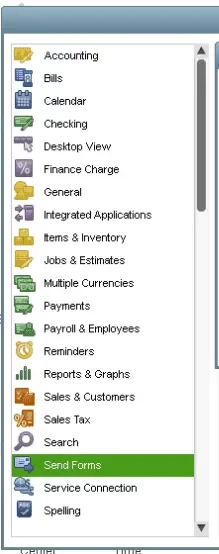
Performing these steps would fix the issue of QB Desktop MAPI repeatedly asking for the password.
Repair the MAPI32.dll File
This method can be difficult to perform on your own. Only follow through if you’re confident; otherwise, reach out to our experts for help. First, implement these steps to narrow down the problem:
- Restart your PC
- Open Microsoft Word on your system
- Create a new document
- Click on the File menu
- Press Send
- Then, select Email as PDF Attachment
If you can send an email from MS Word but not from the QB Desktop app, follow the steps given below:
- Close all the open programs and applications
- Then, open the Start menu on your PC
- Search for and open the File Explorer
- Type in C:\Windows\System32 in the File Explorer search bar
- Hit Enter
- Now, locate and open Fixmapi.exe
- Follow the instructions on your screen to repair the issue
- Restart your PC after you are finished
If your QuickBooks MAPI keeps asking for password even after repairing the MAPI32.dll file, you can repair your Microsoft Outlook profile using the next method.
Repair Your Microsoft Outlook Profile
You can repair your Microsoft Outlook profile to fix the repeated password problem with the following steps:
- Open the Microsoft Outlook
- Click on the File menu
- Select the Account Settings dropdown menu
- Click on the Account Settings option
- Navigate to the Email tab
- Choose your account (profile)
- Then, select Repair
- Follow the steps on your screen
- Restart Outlook when you’re done
This would fix the issue you were dealing with.
Edit Your QB Admin Privileges
Ensure that your QuickBooks app isn’t automatically set to run as an administrator with the following steps:
- Close the QB Desktop app
- Open the Start menu on your PC
- Type QuickBooks in the search bar
- Right-click on the QB icon
- Click on Open file location

- Now, right-click on the QuickBooks.exe file in the folder
- Select Properties
- Navigate to the Compatibility tab
- Uncheck the Run this program as an Administrator checkbox
- If this option is greyed out, select the Show Settings for All Users option, and then unmark the checkbox
- Press Apply
- Hit OK
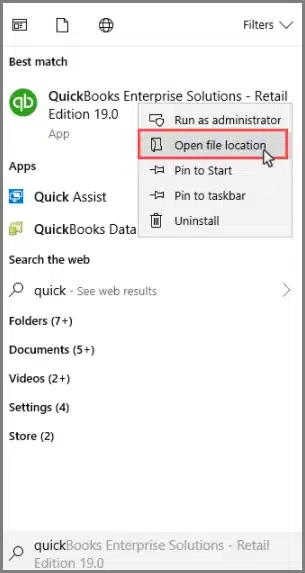
This would resolve the issue that your QB MAPI keeps asking for a password.
Clean Install the QuickBooks Desktop App
You can manually clean install the QuickBooks Desktop application to resolve the issue of QB MAPI keeps asking for a password with the following steps:
Step 1: Uninstall the QB Desktop App
- Open the Start menu
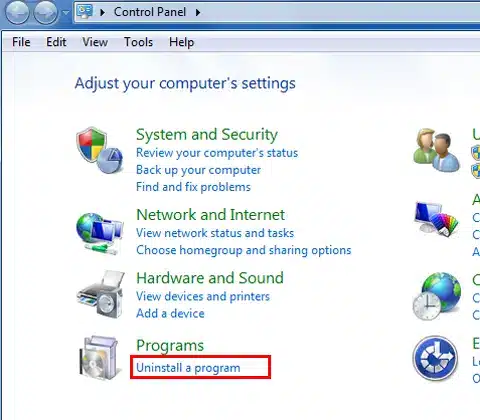
- Search for and open the Control Panel
- Click on Programs and Features or Uninstall a Program

- Select QuickBooks Desktop from the list of programs
- Press Uninstall/Change
- Select Remove and hit Next
Step 2: Rename the QB Installation Folders
- Open the File Explorer on your PC
- Find and open the folder containing your QB company files. It can be found in one of these locations:
- C:\ProgramData\Intuit\QuickBooks (year)
- C:\Users\(current user)\AppData\Local\Intuit\QuickBooks (year)
- C:\Program Files\Intuit\QuickBooks (year)
- 64-bit version C:\Program Files (x86)\Intuit\QuickBooks (year)
- Right-click on the folder
- Press Rename
- Add the word old at the end of the folder name
- Now, just reinstall the QB Desktop app
If you face an error while renaming the folders, follow the steps given below:
- Right-click on the Taskbar of your PC
- Select Task Manager
- Navigate to the Processes tab
- Press the Name column header
- Now, select End Process for each of the following:
- QBDBMgrN.exe
- QBDBMgr.exe
- QBCFMonitorService.exe
- Qbw32.exe
- If you see the warning message stating “WARNING: Terminating a process can cause undesired results…”, select Yes
Now the issue of QuickBooks MAPI keeps asking for password will be fixed.
QuickBooks MAPI Keeps Asking for Password – A Quick View Table
Given in the table below is a concise summary of this blog on the topic of resolving the issue of QB MAPI keeps asking for a password:
| Description | While emailing invoices to your customers, you might face the issue that QuickBooks MAPI keeps asking for password. This can cause your emails to fail. It can hamper your workflow and important business processes. |
| Its causes | The email account password is incorrect, the MAPI32.dll file is damaged, the Microsoft Outlook profile is damaged, email preferences in QBDT are incorrect, and installation issues with the QB Desktop app. |
| Methods to fix it | Update your QBDT app, change the email preferences for QuickBooks Desktop, check your email ID’s password, update your MS Office, edit the Outlook email preference in QBDT, repair the MAPI32.dll file, repair the MS Outlook profile, edit your QB admin rights, and clean install the QB Desktop app. |
Conclusion
In this blog, we talked about the QuickBooks MAPI keeps asking for password problem, along with the potential factors that can trigger this issue to appear on your screen. Additionally, we also provided you with the in-depth step-by-step troubleshooting methods you can use to resolve this error on your own. If you are stuck with the same problem, feel free to contact our ProAdvisor Solutions experts today at 1-855-888-3080 to resolve your issue in no time!
FAQs
Why does my QuickBooks keeps asking for email password?
The reasons your QB app keeps asking for your email password are given below:
– An outdated QBDT app
– The Microsoft Outlook profile is corrupted
– The MAPI32.dll file is damaged
– The Windows Firewall is blocking the QBDT app
– The email preferences in your QB Desktop app are incorrect
– Inherent installation issues with the QBDT app
How do I fix the QB MAPI keeps asking for a password problem?
Given below is a list of the troubleshooting methods you can use to fix the problem of QuickBooks MAPI keeps asking for password:
– Update the QBDT app
– Modify the email preferences in QBDT
– Verify the password of your email ID
– Update the Microsoft Office
– Modify the Outlook email preference in QB Desktop
– Repair the MAPI32.dll file
– Fix the Microsoft Outlook profile
– Edit the QBDT admin rights
– Clean install QuickBooks Desktop
More Useful Articles to Read :
How to fix Save and Close Button Missing in QuickBooks Desktop
How to fix QuickBooks Error Code 6144 and 101
We Weren’t Able to Show Your Payroll Info Error
Clear QuickBooks Cache & Cookies in Your Web Browser
How to run a reconciliation discrepancy report in QuickBooks Online

Erica Watson is writing about accounting and bookkeeping for over 7+ years, making even the difficult technical topics easy to understand. She is skilled at creating content about popular accounting and tax softwares such as QuickBooks, Sage, Xero, Quicken, etc. Erica’s knowledge of such softwares allows her to create articles and guides that are both informative and easy to follow. Her writing builds trust with readers, thanks to her ability to explain things clearly while showing a real understanding of the industry.